-
Book Overview & Buying
-
Table Of Contents
Oracle JDeveloper 11gR2 Cookbook
By :
In this recipe, we will go over the steps required to create a JSF page template that you can use to create JSF pages throughout your application. It is very likely that for a large enterprise-scale application you will need to construct and use a number of different templates, each serving a specific purpose. Using templates to construct the actual application JSF pages will ensure that pages throughout the application are consistent, and provide a familiar look and feel to the end user. You can follow the steps presented in this recipe to construct your page templates and adapt them as needed to fit your own requirements.
We will be adding the JSF template to the SharedComponents ViewController project that we developed in the Breaking up the application in multiple workspaces recipe in this chapter.
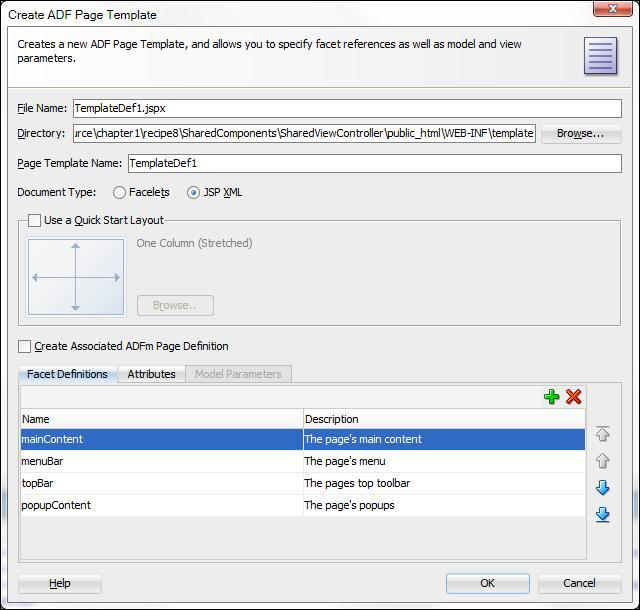
SharedComponents workspace and selecting New….TemplateDef1.public_html/WEB-INF directory and click on the Create new subdirectory icon to create a new directory called templates.|
Facet |
Description |
|---|---|
|
mainContent |
This facet will be used for the page's main content. |
|
menuBar |
This facet will be used to define a menu at the top of the page. |
|
topBar |
This facet will be used to define a toolbar under the page's menu. |
|
popupContent |
This facet will be used to define the page's pop-ups. |

<af:pageTemplateDef var="attrs"> <af:xmlContent> <component xmlns="http://xmlns.oracle.com/adf/faces/rich/component"> <display-name>TemplateDef1</display-name> <facet> <description>The page's main content</description> <facet-name>mainContent</facet-name> </facet> <facet> <description>The page's menu</description> <facet-name>menuBar</facet-name> </facet> <facet> <description>The page's top toolbar</description> <facet-name>topBar</facet-name> </facet> <facet> <description>The page's popups</description> <facet-name>popupContent</facet-name> </facet> </component> </af:xmlContent> </af:pageTemplateDef>
As you can see, at this point, the template contains only its definition in an af:xmlContent tag with no layout information whatsoever. We will proceed by adding the template's layout content.
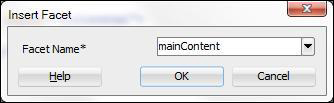
Form component and drop it into the template.Panel Stretch Layout and drop it into the Form component. Remove the top, bottom, start, and end facets.Panel Splitter component and drop it on the center facet of the Panel Stretch Layout. Using the Property Inspector change the Panel Splitter Orientation to vertical. Also adjust the SplitterPosition to around 100.Image component from the General Controls onto the first facet of the Panel Splitter. For this recipe, we have created a public_html\images directory and we copied a logo.jpg logo image there. We then specified /images/logo.jpg as image Source for the Image component.Decorative Box from the Layout components onto the second facet of the Panel Splitter. We will not be using the top facet of Decorative Box, so remove it.Panel Stretch Layout from the Layout components and drop it onto the center facet of the Decorative Box. Remove the start and end facets, since we will not be using them.Facet Ref component from the Layout components and drop it onto the center facet of the Panel Stretch Layout. On the Insert Facet dialog, select the mainContent facet that you added during the template creation.
Panel Stretch Layout topBar facet:<f:facet name="top">
<af:panelGroupLayout id="pt_pgl5" layout="vertical">
<af:facetRef facetName="popupContent"/>
<af:menuBar id="pt_mb1">
<af:facetRef facetName="menuBar"/>
</af:menuBar>
<af:panelGroupLayout id="pt_pgl2" layout="horizontal">
<af:toolbar id="pt_t2">
<af:facetRef facetName="topBar"/>
</af:toolbar>
</af:panelGroupLayout>
</f:facet>When the template is created, there is no layout information in it, so we have to add it ourselves. We do this by using a variety of layout components to arrange the contained UI. Also, notice the usage of the af:facetRef component. It is being used to reference a template facet in the specific place within the layout content. The facet is then available to you when you create a JSF page from the template. This will become obvious when we generate a JSF page from the template. Note that each Facet can only be added once to the template.
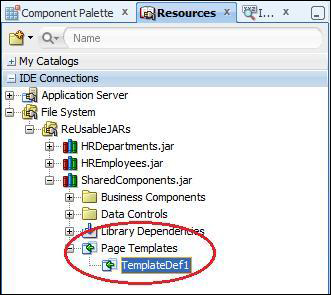
So, how do you use the JSF page template? Since we have created the template in a SharedComponents project, we will first need to deploy the project to an ADF Library JAR. Then we will be able to use it from other consuming projects. This was explained in the Breaking up the application in multiple workspaces recipe, earlier in this chapter. When you do so, the template will be visible to all consuming projects, as shown in the following screenshot:

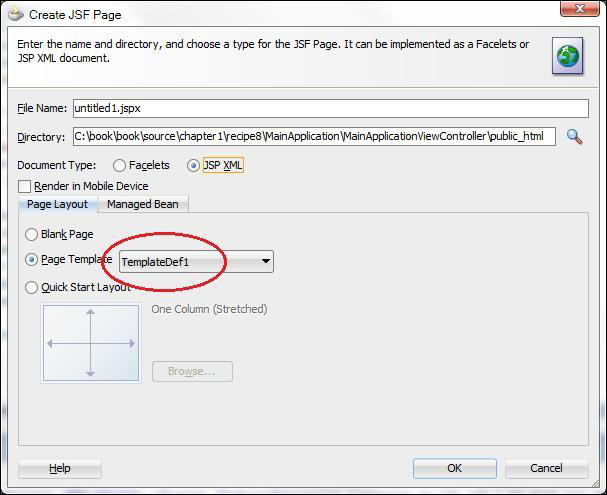
Once the ADF Library JAR containing the template is added to the consuming project, you can see and select the template when you create a new JSF page in the Create JSF Page dialog. The template introduced in this recipe is shown in the following screenshot:

The XML source code that is generated for a JSF page created from this template will look similar to the following code snippet:
<f:view>
<af:document id="d1" title="Test">
<af:pageTemplate viewId="/WEB-INF/templates/TemplateDef1.jspx" id="pt1">
<f:facet name="mainContent"/>
<f:facet name="menuBar"/>
<f:facet name="topBar"/>
<f:facet name="bottomBar"/>
<f:facet name="popupContent"/>
</af:pageTemplate>
</af:document>
</f:view>You can see in the listing that the page references the template via the af:pageTemplate tag. The template facets that you have defined are available so you can enter the page-specific UI content. After adding an af:menuBar to the menuBar facet and some af:commandToolbarButton components to the topBar facet, the JSF page could
look similar to the following code:
<f:view>
<af:document id="d1" title="Test">
<af:pageTemplate viewId="/WEB-INF/templates/TemplateDef1.jspx" id="pt1">
<f:facet name="mainContent"/>
<f:facet name="menuBar">
<af:menuBar id="mb1">
<af:menu text="File" id="m1">
<af:commandMenuItem text="Save" id="cmi1"icon="/images/filesave.png"/>
<af:commandMenuItem text="Action" id="cmi2"icon="/images/action.png"/>
<af:commandMenuItem text="Mail" id="cmi3"icon="/images/envelope.png"/>
<af:commandMenuItem text="Print" id="cmi4"icon="/images/print.png"/>
</af:menu>
</af:menuBar>
</f:facet>
<f:facet name="topBar">
<af:group id="g1">
<af:commandToolbarButton id="ctb1" shortDesc="Save"icon="/images/filesave.png"/>
<af:commandToolbarButton id="ctb2" shortDesc="Action"icon="/images/action.png"/>
<af:commandToolbarButton id="ctb3" shortDesc="Mail"icon="/images/envelope.png"/>
<af:commandToolbarButton id="ctb4" shortDesc="Print"icon="/images/print.png"/>
</af:group>
</f:facet>
<f:facet name="popupContent"/>
</af:pageTemplate>
</af:document>
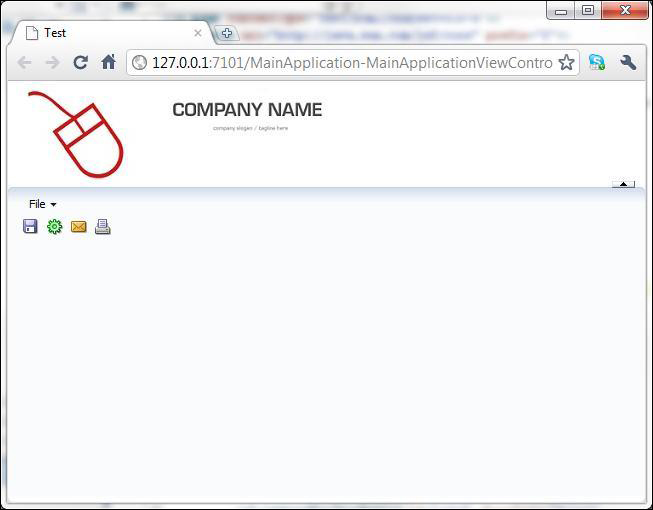
</f:view>Running the page in JDeveloper will produce the following:

Although adding a Form component to a template is not recommended practice, this is not a problem for the template created in this recipe, since we will not be using it for the creation of page fragments. Using a template that contains a Form component to create page fragments will result in a problem when a consuming page already contains a Form component itself. The template developed in this recipe will not be used for page fragments. It was developed specifically to be used along with the generic backing bean actions framework explained in the Using a generic backing bean actions framework recipe in this chapter.
Change the font size
Change margin width
Change background colour