Sign In Start Free Trial
Account

Add to playlist

Create a Playlist

Modal Close icon
You need to login to use this feature.
  • Book Overview & Buying Programming ArcGIS 10.1 with Python Cookbook
  • Table Of Contents Toc
Programming ArcGIS 10.1 with Python Cookbook

Programming ArcGIS 10.1 with Python Cookbook

By : Donald Eric Pimpler, Eric Pimpler
4.2 (13)
close
close
Programming ArcGIS 10.1 with Python Cookbook

Programming ArcGIS 10.1 with Python Cookbook

4.2 (13)
By: Donald Eric Pimpler, Eric Pimpler

Overview of this book

ArcGIS is an industry standard geographic information system from ESRI.This book will show you how to use the Python programming language to create geoprocessing scripts, tools, and shortcuts for the ArcGIS Desktop environment.This book will make you a more effective and efficient GIS professional by showing you how to use the Python programming language with ArcGIS Desktop to automate geoprocessing tasks, manage map documents and layers, find and fix broken data links, edit data in feature classes and tables, and much more."Programming ArcGIS 10.1 with Python Cookbook" starts by covering fundamental Python programming concepts in an ArcGIS Desktop context. Using a how-to instruction style you'll then learn how to use Python to automate common important ArcGIS geoprocessing tasks.In this book you will also cover specific ArcGIS scripting topics which will help save you time and effort when working with ArcGIS. Topics include managing map document files, automating map production and printing, finding and fixing broken data sources, creating custom geoprocessing tools, and working with feature classes and tables, among others.In "Python ArcGIS 10.1 Programming Cookbook" you'll learn how to write geoprocessing scripts using a pragmatic approach designed around an approach of accomplishing specific tasks in a Cookbook style format.
Table of Contents (21 chapters)
close
close
Programming ArcGIS 10.1 with Python Cookbook
Credits
About the Author
About the Reviewers
www.PacktPub.com
Preface
3
Index

Using sys.argv[ ] to capture command-line input


Instead of hardcoding your scripts with paths to specific datasets, you can make your scripts more flexible by allowing them to accept input in the form of parameters from the command prompt. These input parameters can be captured using Python's sys.argv[] object.

Getting ready

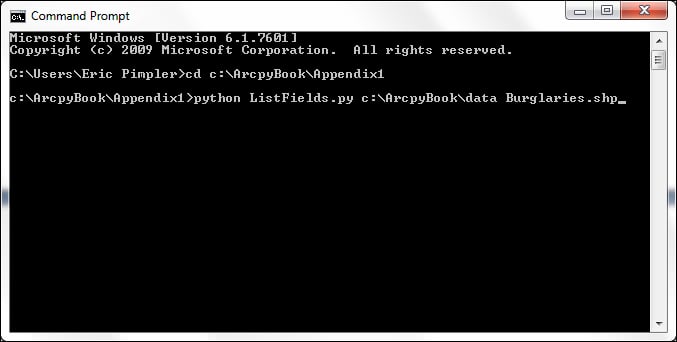
Python's sys.argv[] object allows you to capture input parameters from the command line when a script is executed. An example is useful for illustrating how this works. Take a look at the following screenshot:

Each word must be separated by a space. These words are stored in a zero-based list object called sys.argv[]. With sys.argv[], the first item in the list, referenced by index 0, stores the name of the script. In this case, it would be ListFields.py. Each successive word is referenced by the next integer. Therefore, the first parameter (c:\ArcpyBook\data) will be stored in sys.argv[1], and the second parameter (Burglaries.shp) will be stored in sys.argv[2]. Each of the arguments in the sys.argv[] object can be accessed and used inside your geoprocessing script. In this recipe, you're going to update the ListFields.py script to accept input parameters from the command line.

How to do it...

Follow these steps to create a Python script that can accept input parameters from the command prompt using sys.argv[]:

  1. Open C:\ArcpyBook\Appendix1\ListFields.py in IDLE.

  2. Import the sys module:

    import arcpy, sys
  3. Create a variable to hold the workspace that will be passed into the script:

    wkspace = sys.argv[1]
  4. Create a variable to hold the feature class that will be passed into the script:

    fc = sys.argv[2]
  5. Update the lines of code that set the workspace and call the ListFields() function:

    arcpy.env.workspace = wkspace
    fields = arcpy.ListFields(fc)

    Your completed script should appear as follows:

    import arcpy, sys
    wkspace = sys.argv[1]
    fc = sys.argv[2]
    try:
      arcpy.env.workspace = wkspace
      fields = arcpy.ListFields(fc)
      for fld in fields:
        print fld.name
    except:
      print arcpy.GetMessages()
  6. Save the script.

  7. If necessary, open the command prompt and navigate to c:\ArcpyBook\Appendix1.

  8. On the command line, type the following and press on the Enter key:

    python ListFields.py c:\ArcpyBook\data Burglaries_2009.shp
  9. Once again you should see the output detailing the attribute fields for the Burglaries_2009.shp file. The difference is that your script no longer has a hardcoded workspace and feature class name. You now have a more flexible script capable of listing the attribute fields for any feature class.

How it works...

The sys module contains a list of objects called argv[], which is used to store the input parameters for the command-line execution of a Python script. The first item stored in the list is always the name of the script. So, in this case, sys.argv[0] contains the word ListFields.py. Two parameters are passed into the script, including the workspace and a feature class. These are stored in sys.argv[1] and sys.argv[2] respectively. These values are then assigned to variables and used in the script.


Visually different images
CONTINUE READING
83
Tech Concepts
36
Programming languages
73
Tech Tools
Icon Unlimited access to the largest independent learning library in tech of over 8,000 expert-authored tech books and videos.
Icon Innovative learning tools, including AI book assistants, code context explainers, and text-to-speech.
Icon 50+ new titles added per month and exclusive early access to books as they are being written.
Programming ArcGIS 10.1 with Python Cookbook
notes
bookmark Notes and Bookmarks search Search in title playlist Add to playlist font-size Font size

Change the font size

margin-width Margin width

Change margin width

day-mode Day/Sepia/Night Modes

Change background colour

Close icon Search
Country selected

Close icon Your notes and bookmarks

Confirmation

Modal Close icon
claim successful

Buy this book with your credits?

Modal Close icon
Are you sure you want to buy this book with one of your credits?
Close
YES, BUY

Submit Your Feedback

Modal Close icon
Modal Close icon
Modal Close icon