-
Book Overview & Buying
-
Table Of Contents
iOS Forensics Cookbook
By :
When we come across iPhone app design at the enterprise level, it will become very important to save data internally in some storage system. Saving data in the Document directory will not serve the purpose where there is a huge amount of data to save and update. In order to provide such features in iOS devices, we can use the SQLite database to store our data inside the app. In this section of our chapter, our primary focus will be on ways to read and write data in our SQLite database. We will start by saving some data in the database and will then move forward by implementing some search-related queries in the database to enable the user to search the data saved in the database.
To develop a mini app using SQLite database, we need to start by creating a new project by performing the following steps:
SQLite Sample. It should look like the following screenshot:
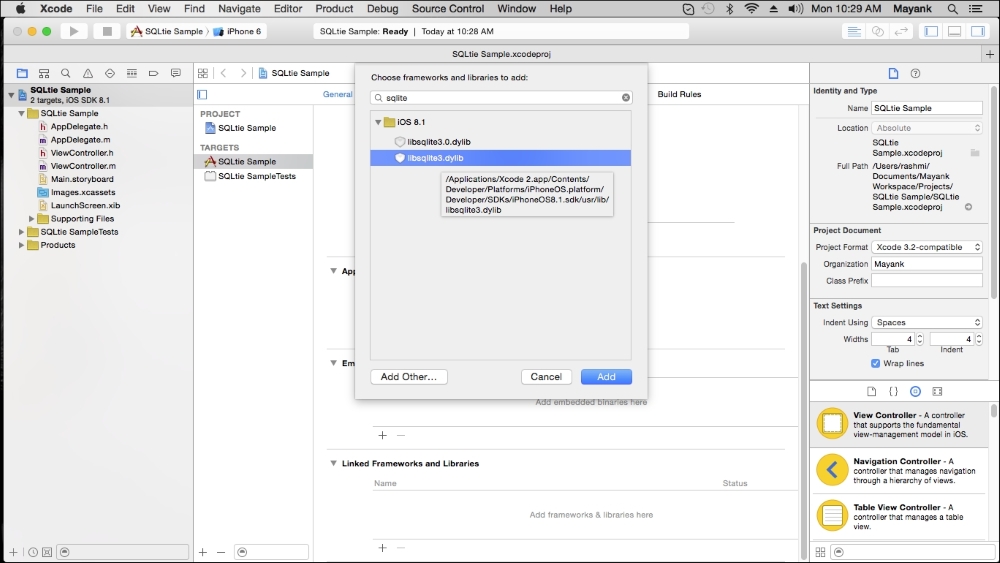
libsqlite3.dylib). To add this library, make sure that the General tab is open. Then, scroll down to the Linked Frameworks and Libraries section and click on the + button and add the libsqlite3.dylib library to our project:
Now, our project is ready to save the SQLite data. For that, we need to write some code. Perform the following steps to update the project as per our requirements:
sqlite3 and create a NSString property to store the database path. Within the main Xcode project navigator, select the DatabaseViewController.h file and modify it as follows:#import <UIKit/UIKit.h> #import <sqlite3.h> @interface DatabaseViewController : UIViewController @property (strong, nonatomic) NSString *pathDB; @property (nonatomic) sqlite3 *sqlDB; @end
tableviewcell, select the Subtitle style from the attribute and give it an identifier (for example, cell); and add one button on the navigation bar (style -> add). Make an outlet connection of the table view and button to ViewController.h.The final screen should look like the following screenshot:

tableView object to the ViewController.h file. Once connected, you should be able to see the connection in the dialog box with an establish outlet connection named tableView. Repeat the steps to establish the action connections for all the other UI components in view.Once the connections are established for all, on completion of these steps, the ViewController.h file should read as follows:
#import <UIKit/UIKit.h> #import <sqlite3.h> @interface ViewController: UIViewController <UITableViewDataSource, UITableViewDelegate> @property (strong, nonatomic) NSString *pathDB; @property (nonatomic) sqlite3 *sqlDB; @property (weak, nonatomic) IBOutlet UITableView *tableView; (IBAction)navigateToNextView:(id)sender; @end
viewDidLoad method. So go to the ViewController.m file and modify the viewDidLoad method as follows:- (void)viewDidLoad {
[super viewDidLoad];
NSString *directory;
NSArray *dirPaths;
dirPaths = NSSearchPathForDirectoriesInDomains(NSDocumentDirectory, NSUserDomainMask, YES);
NSArray *paths = NSSearchPathForDirectoriesInDomains(NSDocumentDirectory, NSUserDomainMask, YES);
NSString *documentsDirectory = [paths objectAtIndex:0];
NSString *dataPath = [documentsDirectory stringByAppendingPathComponent:@"/MyFolder"];
if (![[NSFileManager defaultManager] fileExistsAtPath:dataPath])
[[NSFileManager defaultManager] createDirectoryAtPath:dataPath withIntermediateDirectories:NO attributes:nil error:nil];
directory = dirPaths[0];
_pathDB = [[NSString alloc]
initWithString: [directory stringByAppendingPathComponent:@"employee.db"]];
NSFileManager *filemgr = [NSFileManager defaultManager];
if ([filemgr fileExistsAtPath: _pathDB] == NO)
{
const char *dbpath = [_pathDB UTF8String];
if (sqlite3_open(dbpath, &_sqlDB) == SQLITE_OK)
{
char *errMsg;
const char *sql_stmt =
"CREATE TABLE IF NOT EXISTS EMPLOYEE (ID INTEGER PRIMARY KEY AUTOINCREMENT, NAME TEXT, DESIGNATION TEXT)";
if (sqlite3_exec(_sqlDB, sql_stmt, NULL, NULL, &errMsg) != SQLITE_OK)
{
NSLog(@"Failed to create table");
}
sqlite3_close(_sqlDB);
} else {
NSLog(@"Failed to open/create table");
}
}The code in the preceding method performs the following tasks:
First, we identify the paths available in our directory and store them in an array (dirPaths). Then, we create the instance of NSFileManager and use it to detect whether the database has been created or not. If the file has not been created, then we create the database via a call to the SQLite sqlite3_open() function and create the table as well. And at last, we close the database.
SecondViewController. Go to the storyboard and drag one view controller to the canvas. Design the UI according to the following screenshot:
Now make an outlet and action connection for this.
SecondViewController.h:@property (strong, nonatomic) NSString *pathDB; @property (nonatomic) sqlite3 *sqlDB;
In order to implement this behavior, we need to modify the save method:
- (IBAction)saveButton:(id)sender {
sqlite3_stmt *statement;
const char *dbpath = [_pathDB UTF8String];
if (sqlite3_open(dbpath, &_sqlDB) == SQLITE_OK)
{
NSString *sqlQuery = [NSString stringWithFormat: @"INSERT INTO EMPLOYEE (name, designation) VALUES (\"%@\",\"%@\")",self.nameTextField.text, self.designationTextField.text];
const char *sqlSTMNT = [sqlQuery UTF8String];
sqlite3_prepare_v2(_sqlDB, sqlSTMNT,
-1, &statement, NULL);
if (sqlite3_step(statement) == SQLITE_DONE)
{
self.nameTextField.text = @"";
self.designationTextField.text = @"";
} else {
NSLog(@"Failed to add contact");
}
sqlite3_finalize(statement);
sqlite3_close(_sqlDB);
}
}tableview. To achieve this task, go to ViewController.m and create one mutable array using the following line of code and initialize it in viewDidLoad. This array is used to save our SQLite data:NSMutableArray *dataFromSQL;
SecondViewController *secondView = [self.storyboard instantiateViewControllerWithIdentifier:@"SecondViewController"]; secondView.pathDB = self.pathDB; secondView.sqlDB = self.sqlDB; [self.navigationController pushViewController:secondView animated:YES];
viewWillAppear method in the ViewController class and modify it as in the following code:-(void)viewWillAppear:(BOOL)animated
{
[super viewWillAppear:animated];
[dataFromSQL removeAllObjects];
[self.tableView reloadData];
const char *dbpath = [_pathDB UTF8String];
sqlite3_stmt *statement;
if (sqlite3_open(dbpath, &_sqlDB) == SQLITE_OK)
{
NSString *querySQL = [NSString stringWithFormat:
@"SELECT name, designation FROM EMPLOYEE"];
const char *query_stmt = [querySQL UTF8String];
if (sqlite3_prepare_v2(_sqlDB, query_stmt, -1, &statement, NULL) == SQLITE_OK)
{
while (sqlite3_step(statement) == SQLITE_ROW)
{
NSString *name = [[NSString alloc] initWithUTF8String:
(const char *) sqlite3_column_text(statement, 0)];
NSString *designation = [[NSString alloc] initWithUTF8String:
(const char *) sqlite3_column_text(statement, 1)];
NSString *string = [NSString stringWithFormat:@"%@,%@", name,designation];
[dataFromSQL addObject:string];
}
[self.tableView reloadData];
sqlite3_finalize(statement);
}
sqlite3_close(_sqlDB);
}
}In the preceding code, first we open SQLite and then we fire a query SELECT name, designation FROM EMPLOYEE through which we can get all the values from the database. After that, we will make a loop to store the values one by one in our mutable array (dataFromSQL). After storing all the values, we will reload the tableview.
tableview data source and the delegate method as follows, in ViewController.m:- (NSInteger)tableView:(UITableView *)tableView numberOfRowsInSection:(NSInteger)section {
return dataFromSQL.count;
}
(UITableViewCell *)tableView:(UITableView *)tableView cellForRowAtIndexPath:(NSIndexPath *)indexPath
{
static NSString *CellIdentifier = @"GBInboxCell";
UITableViewCell *cell = [tableView dequeueReusableCellWithIdentifier:CellIdentifier];
if (cell == nil) {
cell = [[UITableViewCell alloc] initWithStyle:UITableViewCellStyleSubtitle reuseIdentifier:CellIdentifier];
}
if (dataFromSQL.count>0) {
NSString *string = [dataFromSQL objectAtIndex:indexPath.row];
NSArray *array = [string componentsSeparatedByString:@","];
cell.textLabel.text = array[0];
cell.detailTextLabel.text =array[1];
}
return cell;
}

Change the font size
Change margin width
Change background colour