Sign In Start Free Trial
Account

Add to playlist

Create a Playlist

Modal Close icon
You need to login to use this feature.
  • Book Overview & Buying Ethical Hacking Workshop
  • Table Of Contents Toc
Ethical Hacking Workshop

Ethical Hacking Workshop

By : Rishalin Pillay, Mohammed Abutheraa
5 (3)
close
close
Ethical Hacking Workshop

Ethical Hacking Workshop

5 (3)
By: Rishalin Pillay, Mohammed Abutheraa

Overview of this book

The Ethical Hacking Workshop will teach you how to perform ethical hacking and provide you with hands-on experience using relevant tools. By exploring the thought process involved in ethical hacking and the various techniques you can use to obtain results, you'll gain a deep understanding of how to leverage these skills effectively. Throughout this book, you'll learn how to conduct a successful ethical hack, how to use the tools correctly, and how to interpret the results to enhance your environment's security. Hands-on exercises at the end of each chapter will ensure that you solidify what you’ve learnt and get experience with the tools. By the end of the book, you'll be well-versed in ethical hacking and equipped with the skills and knowledge necessary to safeguard your enterprise against cyber-attacks.
Table of Contents (13 chapters)
close
close
1
Part 1:Network Fundamentals
5
Part 2: Breaking and Entering
9
Part 3: Total Immersion

Setting up the lab

To perform the various exercises throughout this book, you will need to have a lab environment setup. In this section, I will walk you through building the lab environment. We will add to this environment as we progress through this book. So, let’s begin with the initial setup.

First, you will need to use a virtualization platform if you are building this locally on your PC. Common virtualization platforms include VirtualBox, which is free and can be downloaded from https://www.virtualbox.org/wiki/Downloads, and VMware Workstation. VMware Workstation has two editions: the VMware Workstation Player, which is free and can be downloaded from https://www.vmware.com/nl/products/workstation-player/workstation-player-evaluation.html, and a paid-for version called VMware Workstation Pro.

Pro tip

I do not recommend using Microsoft Hyper-V since this platform does not allow you to natively interact with hardware. For example, if you had to use a wireless network card for packet capturing, you would not be able to do this with Microsoft Hyper-V.

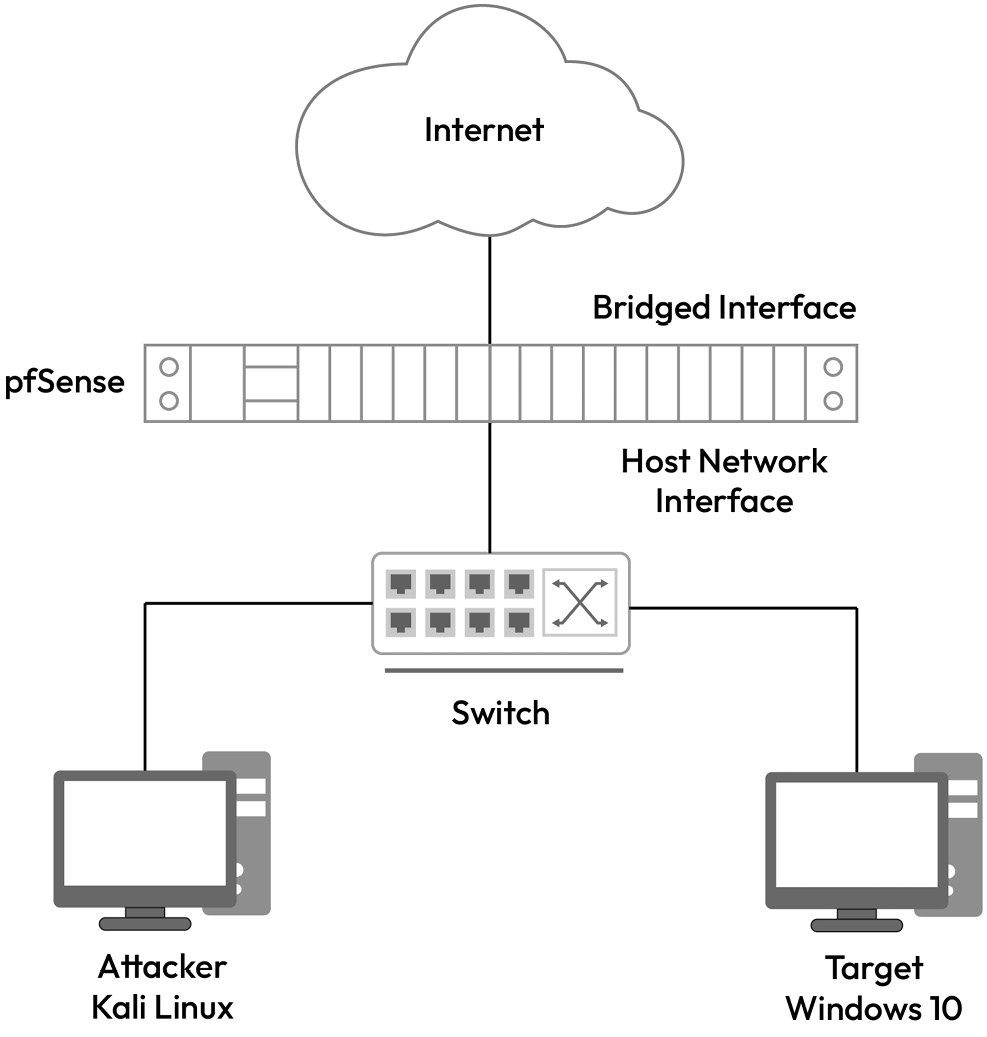
For this chapter, we will set up the lab as per the following diagram. We will use pfSense as an open source router, which will provide internet access to the lab environment. All devices will have a private IP address in the 192.168.1.0/24 range. The pfSense virtual router will have two network interfaces, one in bridged mode and the other connected to the private subnet of the lab environment.

Figure 1.11 – Lab diagram

Figure 1.11 – Lab diagram

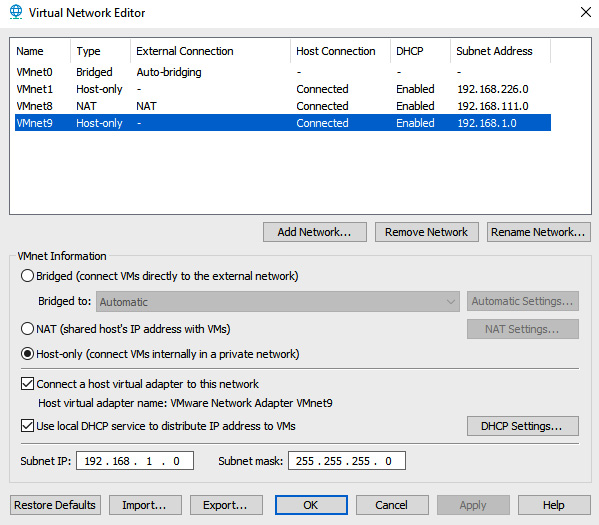
We will begin by setting up our virtual network within the hypervisor. Within VMware Workstation, this can be done from EDIT | Virtual Network Editor, as per the following figure. Ensure that this is set to Host-only since we want this network to simulate a private subnet of 192.168.1.0/24:

Figure 1.12 – Virtual network configuration on VMware

Figure 1.12 – Virtual network configuration on VMware

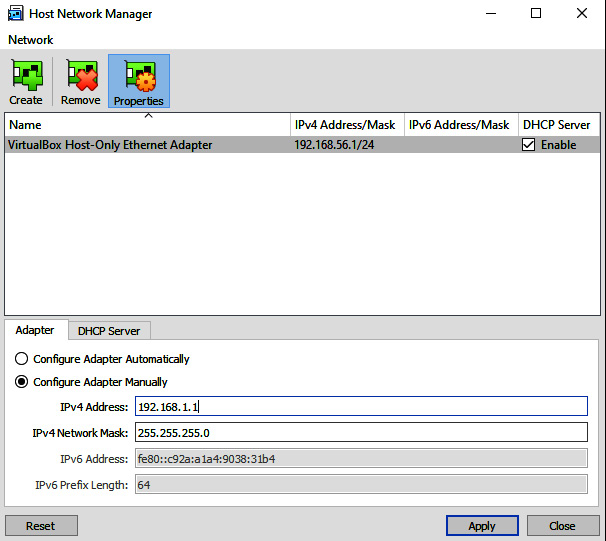
For VirtualBox, this can be done at File | Host Network Manager, as shown in the following screenshot:

Figure 1.13 – Virtual network editor in VirtualBox

Figure 1.13 – Virtual network editor in VirtualBox

Once you have the networks configured, you can proceed to install pfSense. The installation is straightforward. You will need to download the ISO file from https://www.pfsense.org/download/; remember to select the architecture according to AMD64. Once you have downloaded this, you will proceed to create a new virtual machine on your hypervisor. Remember to set your ISO file as the boot image so that you can install pfSense.

Pro tip

The steps to set up a new virtual machine for VMware are detailed here: https://kb.vmware.com/s/article/1018415.

The steps to set up a new virtual machine for VirtualBox are detailed here: https://docs.oracle.com/cd/E26217_01/E26796/html/qs-create-vm.html#:~:text=To%20create%20a%20new%20virtual,VirtualBox%20command%20in%20a%20terminal.

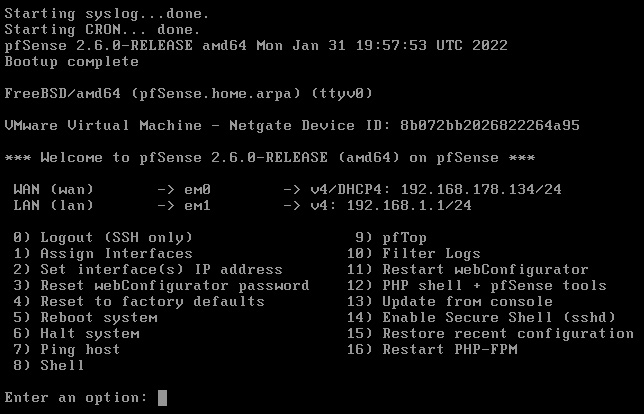
Ensure that your pfSense setup has two network interface cards – one set to bridged mode (this will enable it to communicate with the internet) and one set to your host-only network. Once you have installed pfSense, ensure that you remove the ISO file from its boot sequence; otherwise, you will have a setup loop. When pfSense boots up, you should see something like what’s shown in the following screenshot – one interface card bridged with your network (WAN) that has internet access and the other connected to your host-only network (LAN):

Figure 1.14 – pfSense IP configuration

Figure 1.14 – pfSense IP configuration

Once you’ve done this, you can leverage the pre-built virtual machines from Kali Linux. Kali makes both VMware and VirtualBox images readily available for download. Simply download the one that matches the hypervisor you are using. Once extracted and booted up, you should be able to log in using the default username and password of kali/kali. Remember that your Kali Linux network interface card should be set to Host-only.

The last step is to set up Windows 10. I recommend that you make use of Windows 10 Pro throughout this book. Your Windows 10 virtual machine should also make use of the Host-only network.

Note

You may need to manually configure an IP address on the private subnet for both the Kali and Windows virtual machines in case DHCP does not assign any IP address.

At the end of your lab setup, you should have three virtual machines configured. You should be able to ping each of them on their local private IP subnet and be able to browse the internet from the Kali and Windows machines. Now that we have set up the lab, let’s work on some exercises based on what we have covered in this chapter.

CONTINUE READING
83
Tech Concepts
36
Programming languages
73
Tech Tools
Icon Unlimited access to the largest independent learning library in tech of over 8,000 expert-authored tech books and videos.
Icon Innovative learning tools, including AI book assistants, code context explainers, and text-to-speech.
Icon 50+ new titles added per month and exclusive early access to books as they are being written.
Ethical Hacking Workshop
notes
bookmark Notes and Bookmarks search Search in title playlist Add to playlist font-size Font size

Change the font size

margin-width Margin width

Change margin width

day-mode Day/Sepia/Night Modes

Change background colour

Close icon Search
Country selected

Close icon Your notes and bookmarks

Confirmation

Modal Close icon
claim successful

Buy this book with your credits?

Modal Close icon
Are you sure you want to buy this book with one of your credits?
Close
YES, BUY

Submit Your Feedback

Modal Close icon
Modal Close icon
Modal Close icon