Sign In Start Free Trial
Account

Add to playlist

Create a Playlist

Modal Close icon
You need to login to use this feature.
  • Book Overview & Buying PrestaShop Module Development
  • Table Of Contents Toc
  • Feedback & Rating feedback
PrestaShop Module Development

PrestaShop Module Development

By : Serny
4.5 (15)
close
close
PrestaShop Module Development

PrestaShop Module Development

4.5 (15)
By: Serny

Overview of this book

If you are a developer who is new to PrestaShop and wants to get a good foundation in development on the PrestaShop framework, this book is for you. It's assumed that you will have some experience with PHP5, jQuery, and HTML/CSS (no need to be an expert on it).
Table of Contents (13 chapters)
close
close
12
Index

Adding the module configuration

We will now add configuration options to our module. To do so, we just have to add the getContent function to our module. The return value of this function will be the content displayed on your screen.

In our case, we will write the following code:

public function getContent()
{
  return 'My name is Raphael, I am a tourist';
}

Note

The sentence returned is only an example (and a private joke from one of the PrestaShop core developers).

When the getContent function is placed in a module's class, PrestaShop automatically displays a Configure link in the back office. When the Configure link is clicked, this function is called and the return value is displayed.

So, if you refresh the modules list in the back office and your module is installed, you should now see a Configure button:

Adding the module configuration

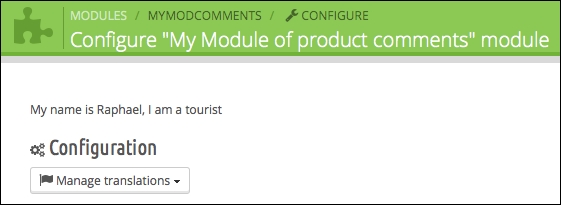
If you click on the configuration link, you will see the translations block (automatically generated by PrestaShop software), and the sentence that we wrote in the function:

Adding the module configuration

You must avoid writing HTML in PHP code (very bad practice). That's why we will use the Smarty template (the template engine used in PrestaShop). If you are not familiar with this library, or with template engines in general, I invite you to read the official documentation (the link is in the introduction of this book). However, do not panic; using Smarty templates is quite easy!

We will start by creating the templates directory in the root of the module's directory: /views/templates/hook/. All of the templates used in the module's class must be placed in this directory.

One of the best practices is to name the templates with the name of the method in which they are used. So, we will create a template named getContent.tpl. Let's write our previous text in this template:

My name is Raphael, I am still a tourist

Then, in the getContent method, we just have to change the return line to the following:

return $this->display(__FILE__, 'getContent.tpl');

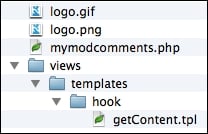
In this case, the display method will automatically use the getContent.tpl template in the /views/templates/hook/ directory. If you refresh the page, you'll see that your display has changed (we added one word). Now, your view is separated from your code. The following screenshot displays the file architecture you should have now:

Adding the module configuration
Visually different images
CONTINUE READING
83
Tech Concepts
36
Programming languages
73
Tech Tools
Icon Unlimited access to the largest independent learning library in tech of over 8,000 expert-authored tech books and videos.
Icon Innovative learning tools, including AI book assistants, code context explainers, and text-to-speech.
Icon 50+ new titles added per month and exclusive early access to books as they are being written.
PrestaShop Module Development
notes
bookmark Notes and Bookmarks search Search in title playlist Add to playlist font-size Font size

Change the font size

margin-width Margin width

Change margin width

day-mode Day/Sepia/Night Modes

Change background colour

Close icon Search
Country selected

Close icon Your notes and bookmarks

Confirmation

Modal Close icon
claim successful

Buy this book with your credits?

Modal Close icon
Are you sure you want to buy this book with one of your credits?
Close
YES, BUY

Submit Your Feedback

Modal Close icon
Modal Close icon
Modal Close icon