Sign In Start Free Trial
Account

Add to playlist

Create a Playlist

Modal Close icon
You need to login to use this feature.
  • Book Overview & Buying Restful Java Web Services Security
  • Table Of Contents Toc
Restful Java Web Services Security

Restful Java Web Services Security

By : Enríquez
4.2 (6)
close
close
Restful Java Web Services Security

Restful Java Web Services Security

4.2 (6)
By: Enríquez

Overview of this book

A sequential and easy-to-follow guide which allows you to understand the concepts related to securing web apps/services quickly and efficiently, since each topic is explained and described with the help of an example and in a step-by-step manner, helping you to easily implement the examples in your own projects. This book is intended for web application developers who use RESTful web services to power their websites. Prior knowledge of RESTful is not mandatory, but would be advisable.
Table of Contents (7 chapters)
close
close

Creating the base project

In order to make the process of building our sample project easier, we will use Maven. This wonderful software will create a base project at the blink of an eye, and our project can be easily compiled and packaged without depending on a specific IDE.

Maven uses archetypes for a specific kind of project. The archetypes are project templates that have been previously created; they allow us to create all kinds of applications from Java desktop applications to multimodule projects, where the EAR can contain several artifacts such as JAR and WAR. Its main objective is to get users up and running as quickly as possible by providing a sample project that demonstrates many of the features of Maven. If you want to learn more about Maven, you can find more information by visiting http://maven.apache.org/.

However, the information we described here is enough to keep moving on. We will use an archetype in order to create a basic project; if we want to be more specific, we will use an archetype to create a web application with Java. To do this, we will type the following command line in a terminal:

mvn archetype:generate

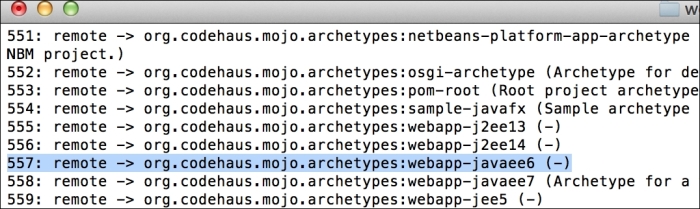
When we execute this command line in a terminal, we will obtain all available archetypes in Maven's repository. So, let's look for the archetype we need in order to create our web application; its name is webapp-javaee6, and it belongs to the group org.codehaus.mojo.archetypes. Also, we can search through it using a number that represents its ID; this number is 557, as shown in the following screenshot. We recommend that you search by the name as the numbers are likely to change because some other archetypes may be added later:

Creating the base project

Several questions will appear; we must provide the respective information for each question. Maven will use this information to create the archetype we selected before, as shown in the following screenshot:

Creating the base project

As you have probably noticed, each question asks you to define a property, and each property is explained as follows:

  • groupId: This property represents the company's domain reversed order; this way we can recognize which company is the code's owner
  • artifactId: This property represents the project's name
  • version: This property represents the project's version
  • package: This property represents the base package's name where classes are going to be added

Class names and package names together shape the class's full name. This full name allows the class names to be identified in a unique way. Sometimes, when there are several classes with the same name, the package name helps to identify which library it belongs to.

The next step is to put the project into Eclipse's workspace; to do this, we must import our project into Eclipse by navigating through File | Import | Maven | Existing Maven Projects.

We should see the project in the IDE, as shown in the following screenshot:

Creating the base project

Before moving on, let's fix the problems that have occurred in the file pom.xml.

The error shown in the following code is related to a bug that comes from Eclipse and Maven integration. In order to fix this, we have to add the <pluginManagement> tag after the <build> tag.

The pom.xml file should look like the following:

<project xmlns="http://maven.apache.org/POM/4.0.0" xmlns:xsi="http://www.w3.org/2001/XMLSchema-instance"
  xsi:schemaLocation="http://maven.apache.org/POM/4.0.0 http://maven.apache.org/xsd/maven-4.0.0.xsd">
  <modelVersion>4.0.0</modelVersion>

  <groupId>com.packtpub</groupId>
  <artifactId>resteasy-examples</artifactId>
  <version>1.0-SNAPSHOT</version>
  <packaging>war</packaging>

  . . .

  <build>
    <pluginManagement>
      <plugins>
        <plugin>
          . . .
        </plugin>
      </plugins>
    </pluginManagement>
  </build>

</project>

Tip

Downloading the sample code

You can download the sample code files for all Packt books you have purchased from your account at http://www.packtpub.com. If you purchased this book elsewhere, you can visit http://www.packtpub.com/support and register to have the files e-mailed directly to you. Also, we highly suggest obtaining the source code from GitHub available at https://github.com/restful-java-web-services-security.

This will fix the error, and now we only need to update Maven's configuration in the project, as shown in the following screenshot:

Creating the base project

After refreshing the project, the errors should go away because when we update Maven's configuration we are actually updating our project's dependencies, such as missing libraries. Through this, we will include them in our project and errors will disappear.

Inside the src/main/webapp path, let's create the WEB-INF folder.

Now, inside the WEB-INF folder, we will create a new file named web.xml with the following content:

<?xml version="1.0" encoding="UTF-8"?>
<web-app version="3.0" xmlns="http://java.sun.com/xml/ns/javaee"
  xmlns:xsi="http://www.w3.org/2001/XMLSchema-instance"
  xsi:schemaLocation="http://java.sun.com/xml/ns/javaee 
  http://java.sun.com/xml/ns/javaee/web-app_3_0.xsd">
</web-app>

This file is very useful when you are securing your applications; this time, we will create it without any configuration. For now, the /WEB-INF folder and the web.xml file only define the structure of the web application.

Visually different images
CONTINUE READING
83
Tech Concepts
36
Programming languages
73
Tech Tools
Icon Unlimited access to the largest independent learning library in tech of over 8,000 expert-authored tech books and videos.
Icon Innovative learning tools, including AI book assistants, code context explainers, and text-to-speech.
Icon 50+ new titles added per month and exclusive early access to books as they are being written.
Restful Java Web Services Security
notes
bookmark Notes and Bookmarks search Search in title playlist Add to playlist font-size Font size

Change the font size

margin-width Margin width

Change margin width

day-mode Day/Sepia/Night Modes

Change background colour

Close icon Search
Country selected

Close icon Your notes and bookmarks

Confirmation

Modal Close icon
claim successful

Buy this book with your credits?

Modal Close icon
Are you sure you want to buy this book with one of your credits?
Close
YES, BUY

Submit Your Feedback

Modal Close icon
Modal Close icon
Modal Close icon