Sign In Start Free Trial
Account

Add to playlist

Create a Playlist

Modal Close icon
You need to login to use this feature.
  • Book Overview & Buying KNOCKOUTJS BLUEPRINTS
  • Table Of Contents Toc
KNOCKOUTJS BLUEPRINTS

KNOCKOUTJS BLUEPRINTS

By : Carlo Russo
5 (1)
close
close
KNOCKOUTJS BLUEPRINTS

KNOCKOUTJS BLUEPRINTS

5 (1)
By: Carlo Russo

Overview of this book

If you are a JavaScript developer and already know the basics of KnockoutJS and you want to get the most out of it, then this book is for you. This book will help in your transition from a small site to a large web application that is easily maintainable.
Table of Contents (7 chapters)
close
close
6
Index

Getting data from the server

After a long explanation without any code, before you get really bored, let's update our code to use a real data source for the product.

In a real web application, we probably should have a database and a server-side REST API, which can be used to retrieve the data.

In the future, we may give your friend a full web interface to update the product data, and maybe we will add a true database as the backend, but at the moment, we will simply use a JSON file with all the products.

Tip

Pay attention when you want to use the jQuery function, getJSON; many browsers (such as Chrome) won't permit you to load JSON from the local file system because they need a web server.

You can use any web server you like, but if you plan to read the fifth chapter, I suggest you to try to use NodeJS and the package, http-server.

Installing NodeJS is really simple (you can use the installer); then you can get the http-server package with the following command (in the command line):

npm install –g http-server

Then, go to the SimpleShowCase folder and execute:

http-server

And now, you have a working web server (you can see the port in the console output) serving your files (at http://localhost:port). You can now use getJSON without any problem.

You will find a file named products.json inside the folder, SimpleShowCase, with all the products we can show (with descriptions and images); check it to see the structure of the JSON.

Now, we can update our View Model to use these products; we will remove all the fake data we put inside the View Model, and fill it with the data from the external JSON:

var myViewModel = {
  categories: ko.observableArray([])
};

$.getJSON("products.json", function(data) {
  myViewModel.categories(data.categories);
});

ko.applyBindings(myViewModel);

We renamed the property from jewels to categories because now we are showing categories.

Here, we have loaded the data from the JSON into the View Model; now we have to update the View to show the new data.

Before modifying the code, open the page, index.html, with a web browser; you should see only the category, Necklaces.

This not a problem with the data, but with the data binding; you have no idea of the problem, because KnockoutJS simply stopped working, without any visual information. So, open the developer tool, firebug, or any console you have in your browser.

Tip

Chrome, Firefox, and the latest version of Internet Explorer give you the console using the F12 key, if you're using Windows. To get the console on the Mac OS X, use Alt+Cmd+I for Chrome and Alt+Cmd+K for Firefox.

You should have something like this (this screenshot was taken on the Mac OS X with Safari):

Getting data from the server

KnockoutJS is saying it tried to apply the binding, and it died trying to apply it to the data bind, attr: function() { return { src: src} }, because it cannot find the variable, src, inside the current context of the View Model.

We will discuss binding context in detail in the next section, when we will reveal how KnockoutJS works internally.

Tip

Remember to check the browser console when you see strange behaviors but think your code is right; KnockoutJS logs all errors with the console.error function, so you'll find them there.

We will modify the code we rendered for each item, because now we want to show the category, then the list of products; so, we will replace the following markup:

  <div data-bind="foreach: jewels">
    <div class="jewel">
      <span data-bind="text: name"></span>
      <img data-bind="attr: { src: src }">
    </div>
  </div>

With this markup:

  <div data-bind="foreach: categories">
    <div class="category">
      <h3>Category: <span data-bind="text: name"></span></h3>
      <div data-bind="foreach: products">
        <div class="jewel">
          <div data-bind="text: title"></div>
          <img data-bind="attr: { src: 'images/' + thumb }">
        </div>
      </div>
    </div>
  </div>

Here, we have two foreach, two text, and an attr data binding. They are more in number than before, but, at the end, we are using the same kind of data binding, so there's nothing really special here.

Tip

Downloading the example code

You can download the example code files from your account at http://www.packtpub.com for all the Packt Publishing books you have purchased. If you purchased this book elsewhere, you can visit http://www.packtpub.com/support and register to have the files e-mailed directly to you.

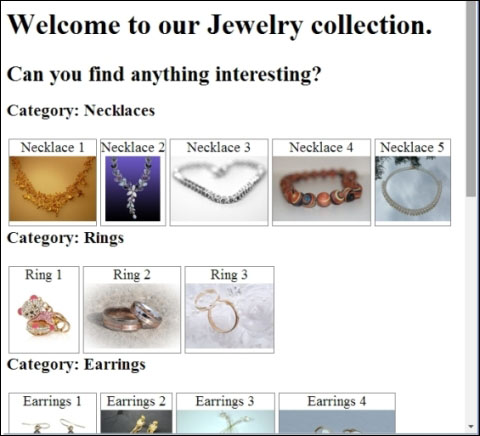
The current results should be as in this image, right?

Getting data from the server

Your results can be different if you didn't download the SimpleShowCase/products.json file and the content of the SimpleShowCase/images folder from the website.

Now, we have a page with all the products listed under the categories.

We could improve this page by adding filters, or maybe we could learn how KnockoutJS works internally. What do you prefer? Really? Perfect, let's start.

CONTINUE READING
83
Tech Concepts
36
Programming languages
73
Tech Tools
Icon Unlimited access to the largest independent learning library in tech of over 8,000 expert-authored tech books and videos.
Icon Innovative learning tools, including AI book assistants, code context explainers, and text-to-speech.
Icon 50+ new titles added per month and exclusive early access to books as they are being written.
KNOCKOUTJS BLUEPRINTS
notes
bookmark Notes and Bookmarks search Search in title playlist Add to playlist font-size Font size

Change the font size

margin-width Margin width

Change margin width

day-mode Day/Sepia/Night Modes

Change background colour

Close icon Search
Country selected

Close icon Your notes and bookmarks

Confirmation

Modal Close icon
claim successful

Buy this book with your credits?

Modal Close icon
Are you sure you want to buy this book with one of your credits?
Close
YES, BUY

Submit Your Feedback

Modal Close icon
Modal Close icon
Modal Close icon