Sign In Start Free Trial
Account

Add to playlist

Create a Playlist

Modal Close icon
You need to login to use this feature.
  • Book Overview & Buying Mastering ExtJS - Second Edition
  • Table Of Contents Toc
  • Feedback & Rating feedback
Mastering ExtJS - Second Edition

Mastering ExtJS - Second Edition - Second Edition

By : Loiane Avancini
4 (3)
close
close
Mastering ExtJS - Second Edition

Mastering ExtJS - Second Edition

4 (3)
By: Loiane Avancini

Overview of this book

If you are a developer who is familiar with Ext JS and want to augment your skills to create even better web applications, this is the book for you. Basic knowledge of JavaScript/HTML/CSS and any server-side language (PHP, Java, C#, Ruby, or Python) is required.
Table of Contents (13 chapters)
close
close
12
Index

Installing Ext JS

Let's take a look at how to install Ext JS locally. This step is required because we will need to have the Ext JS SDK in our computer prior to creating the application with Sencha Cmd.

Prerequisites for Ext JS and Sencha Cmd

Before downloading Ext JS and Sencha Cmd, we need to set up our computer to be ready. The following is a list of software needed so that we can create an Ext JS application:

  1. Ruby 1.8 or 1.9: The current version of Ruby is 2.x at the time of writing this. To be able to create an Ext JS application, we need to have Ruby 1.8 or 1.9 installed. Ruby is required because the theming engine used by Ext JS is based on Sass and Compass, which are Ruby gems. To download and install Ruby, please follow the instructions at https://www.ruby-lang.org/en/installation/.
  2. Sass and Compass: These are not CSS frameworks. Sass is a new way of writing CSS. It is possible to use variables and define functions and mixins. It is an alternative to Less (maybe you have worked with Less or heard about it—Sass is very similar). After downloading and installing Ruby, please install Sass as well. The instructions can be found at http://sass-lang.com/install (follow the command-line instructions). Compass is a Sass framework and is also required. Please install it as well from http://compass-style.org/install/. Sass and Compass are the heart of the Ext JS theming engine. All custom CSS we are going to create for our application will be compiled by Sass/Compass as well.
  3. Java JDK: If you are a Java developer, you probably have the Java JDK installed already. If not, please download and execute the installer at http://www.oracle.com/technetwork/articles/javase/index-jsp-138363.html. After installing the Java JDK, we also need to configure the JAVA_HOME environment variable. Instructions can be found at http://goo.gl/JFtKHF. The Java JDK is required because of ANT, our next step.
  4. Apache ANT: The Sencha Cmd engine to create the application and build it is based on ANT, a Java library. We need to download ANT from http://ant.apache.org/bindownload.cgi, unzip it to a directory of our choice, and set the ANT_HOME environment variable (http://ant.apache.org/manual/install.html).

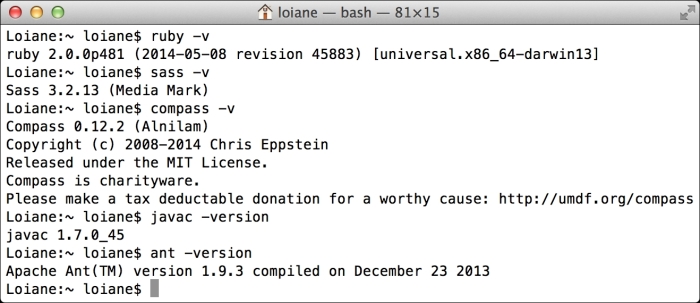
We can check whether we have the correct environment by executing the following commands in a terminal application:

Prerequisites for Ext JS and Sencha Cmd

Note that the Ruby version installed is 2.x, but as long as you have a 1.8 or 1.9 compatible version in your classpath, you should be OK.

The last step is a web server. The simplest one that we can use to execute the examples of this book is Apache Xampp. Download and follow the installation instructions at https://www.apachefriends.org.

Note

All the software required to set up the environment mentioned in this book is available for Linux, Windows, and Mac OS.

Downloading Ext JS and Sencha Cmd

Now that we have our environment configured, we can download Ext JS. Ext JS has some different license flavors: commercial and open source. For this book, we are going to use the open source one. You can download the open source version at http://www.sencha.com/products/extjs/details. Scroll until the end of the page and select OPEN SOURCE GPL LICENSING, as demonstrated in the following screenshot:

Downloading Ext JS and Sencha Cmd

Note

The latest version of Ext JS at the time of writing this book is 5.1.

We also need to download and install Sencha Cmd from http://www.sencha.com/products/sencha-cmd/download. Sencha Cmd is responsible for creating the application and making, building, and compiling Sass and Compass to generate the application's CSS. After the installation of Sencha Cmd, the sencha command will be available from the terminal application as well.

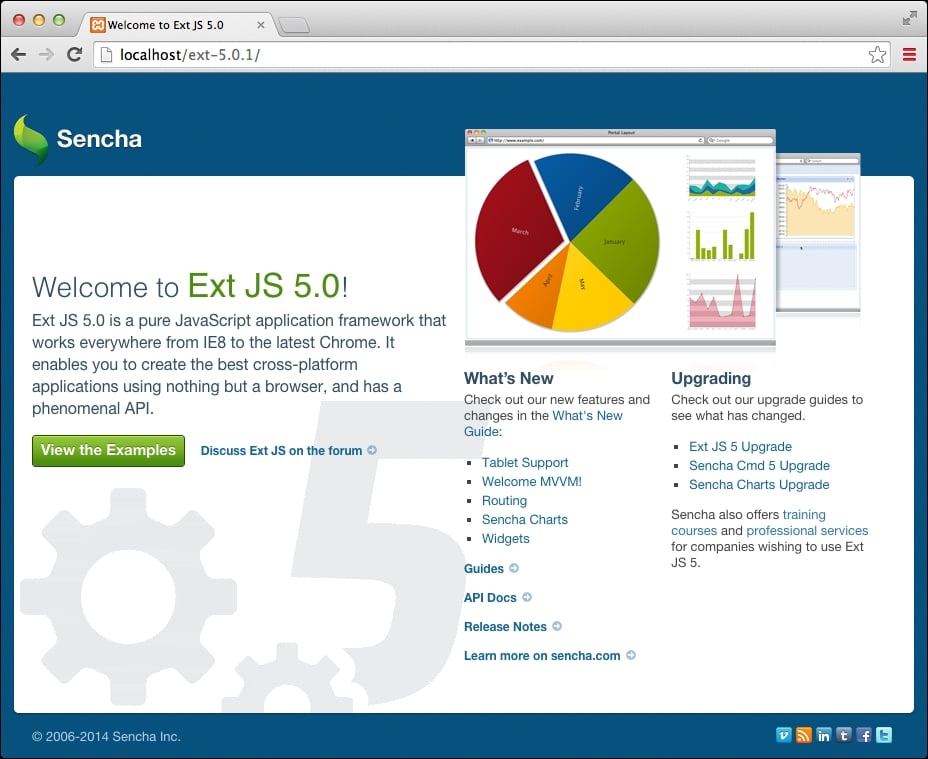
After downloading the Ext JS SDK, unzip it inside the Apache Xampp htdocs folder. Once we start the Apache server, we will be able to execute the Ext JS examples from our local environment:

Downloading Ext JS and Sencha Cmd

Offline documentation

While developing with Ext JS, we will consult the documentation a lot. Whenever we mention the name of an Ext JS component in this book, it is recommended that you go to the documentation and take a look at it. The Ext JS documentation is available at http://docs.sencha.com/extjs/5.0/. It contains guides (it is also highly recommended that you spend some time reading the guides before diving into this book since the guides provide basic knowledge about the framework), and links to blog posts and also to the documentation itself. As we will consult it a lot, we recommend installing the documentation locally as well. To do so, go to http://docs.sencha.com/, open the Sencha Guides menu, and select the offline docs link as demonstrated in the following screenshot:

Offline documentation

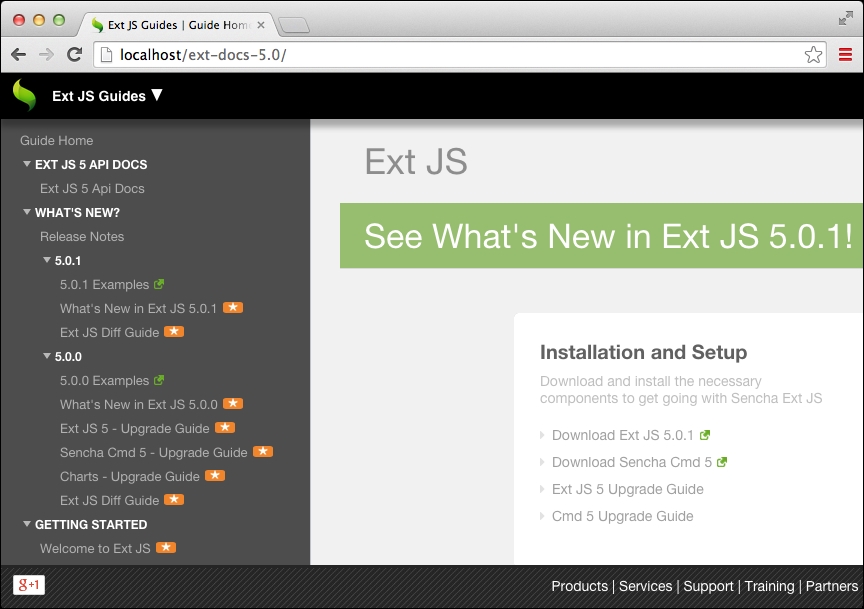
Unzip the docs inside the Xampp htdocs folder as well and access your localhost, as shown in the following screenshot:

Offline documentation

Note

A video tutorial with step-by-step instructions to set up the environment for Ext JS is available at http://youtu.be/B43bEnFBRRc.

IDE

You can use any IDE or editor of your preference to develop with Ext JS. There are a few editors that are very popular: Sublime Text, Atom, Eclipse (if you are a Java developer), Netbeans, and Visual Studio (if you are a C# developer), Notepad++, and WebStorm, among others.

If you are looking for the autocompleting feature, you can use the Sencha Eclipse Plugin that is part of Sencha Complete (paid) at http://www.sencha.com/products/complete/) or you can use WebStorm (also paid) at https://www.jetbrains.com/webstorm/).

There is also Sencha Architect (which also has the autocompleting feature). It is a what you see is what you get (WYSIWYG) editor and is a great Sencha tool that can be used with the IDE of your preference (to develop the server-side code of the application).

Feel free to use the editor or IDE you are most comfortable with to develop the source code of this book!

Visually different images
CONTINUE READING
83
Tech Concepts
36
Programming languages
73
Tech Tools
Icon Unlimited access to the largest independent learning library in tech of over 8,000 expert-authored tech books and videos.
Icon Innovative learning tools, including AI book assistants, code context explainers, and text-to-speech.
Icon 50+ new titles added per month and exclusive early access to books as they are being written.
Mastering ExtJS - Second Edition
notes
bookmark Notes and Bookmarks search Search in title playlist Add to playlist font-size Font size

Change the font size

margin-width Margin width

Change margin width

day-mode Day/Sepia/Night Modes

Change background colour

Close icon Search
Country selected

Close icon Your notes and bookmarks

Confirmation

Modal Close icon
claim successful

Buy this book with your credits?

Modal Close icon
Are you sure you want to buy this book with one of your credits?
Close
YES, BUY

Submit Your Feedback

Modal Close icon
Modal Close icon
Modal Close icon