-
Book Overview & Buying
-
Table Of Contents
-
Feedback & Rating
Spring MVC Cookbook
By :
This recipe entails configuration technics to develop efficiently on Eclipse with Java, Maven, and Tomcat.
Once the different products are installed, there are a couple of steps that we need to follow, mainly to make Eclipse work properly with Java SE 8, Maven 3, and Tomcat 8. In this recipe, we will also look at how to customize the Eclipse configuration file (Eclipse.ini) in order to make the most of the platform that runs Java and to make sure that it will cope with any significant growth of the application.
Let's take a look at the following steps to configure Eclipse on your desktop:
Eclipse.exe and is located at the eclipse directory rootEclipse and is also is located at the eclipse directory rooteclipse.ini file:In the Eclipse directory, where you have previously extracted the Eclipse archive, you can find the eclipse.ini file. It is a text file that contains a few command-line options in order to control the Eclipse startup.
For Windows, add the following:
-vm C:\java\jdk1.8.0_25\jre\bin\server\jvm.dll
For Linux/Mac, add this:
-vm /usr/java/jdk1.8.0_25/jre/lib/{your.architecture}/server/libjvm.so
The following is an optional setting that you can consider:
-vmargs-Xms128m-Xmx512m-Xverify:none-Dosgi.requiredJavaVersion=1.6-XX:MaxGCPauseMillis=10-XX:MaxHeapFreeRatio=70-XX:+UseConcMarkSweepGC-XX:+CMSIncrementalMode-XX:+CMSIncrementalPacing
If your machine has less than 2 GB of RAM, you can still enter this set of options without overriding the default –Xms and –Xmx arguments.
All the options under -vmargs are arguments that will be passed to the JVM at startup. It is important not to mess up the Eclipse options (the top part of the file) with the VM arguments (the bottom part).
Launch the executable described in the Step 2.
<home-directory>/workspaceThis path is different for each Operating System:
C:\Users\{system.username}\workspace: This is the path on Windows/home/usr/{system.username}/workspace: This is on Linux/Users/{system.username}/workspace: This is on Mac OSThe workspace is the place from where you manage your Java projects. It can be specific to one application, but not necessarily.
Here, a couple of settings need to be verified in Eclipse:
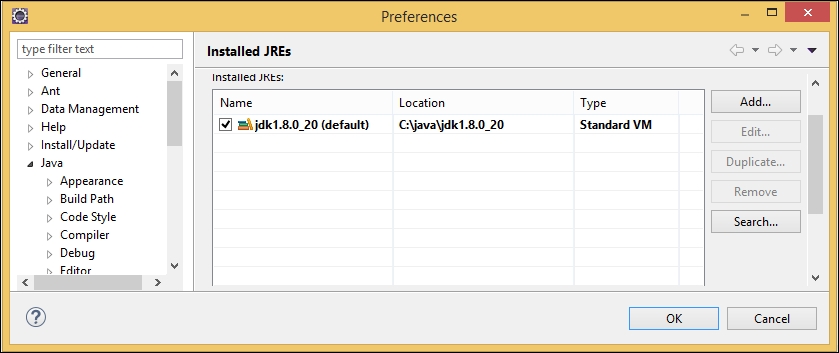
C:\java\jdk1.8.0_25 (or /usr/java/...) as JRE home.jdk1.8.0_25 as JRE name.We tell Eclipse to use the Java Runtime Environment of JDK 8.
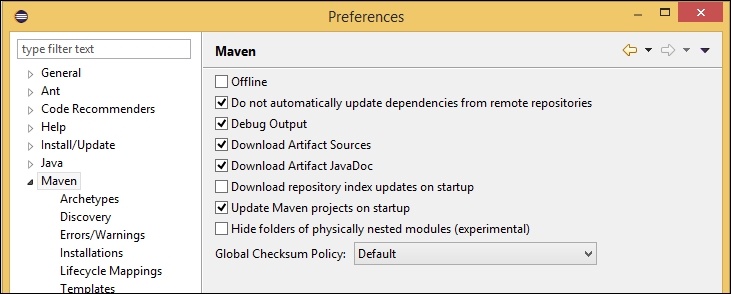
After completing these steps, you should end up with the following configuration:

<home-directory>/.m2/repository.In this local repository, our local cached versions of the required artefacts will reside. It will prevent our environment from having to download them on each build.
settings.xml file in the .m2 directory: <home-directory>/.m2/settings.xml.settings.xml file and add the following block:(You can also copy/paste it from the chapter_1/source_code/.m2 directory):
<settings xmlns="http://maven.apache.org/SETTINGS/1.1.0" xmlns:xsi="http://www.w3.org/2001/XMLSchema-instance"
xsi:schemaLocation="http://maven.apache.org/SETTINGS/1.1.0 http://maven.apache.org/xsd/settings-1.1.0.xsd">
<profiles>
<profile>
<id>compiler</id>
<properties>
<JAVA_HOME>C:\java\jdk1.8.0_25</JAVA_HOME>
</properties>
</profile>
</profiles>
<activeProfiles>
<activeProfile>compiler</activeProfile>
</activeProfiles>
</settings>If you are not on a Windows machine, change JAVA_HOME in this file to your JDK installation directory (/usr/java/jdk1.8.0_25).

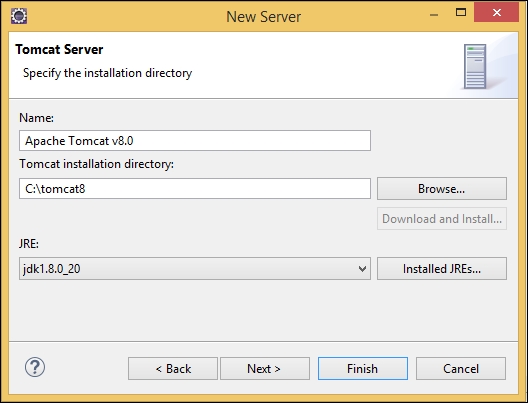
C:\tomcat8/home/usr/{system.username}/tomcat8/Users/{system.username}/tomcat8Depending on your system, you must be able to access the bin directory from the hierarchy: C:\tomcat8\bin, /home/usr/{system.username}/tomcat8/bin or /Users/{system.username}/tomcat8/bin.

If you are on Linux (or Mac OS X), replace C:\tomcat8 with your Tomcat installation directory.
We are going to review in this section the different elements and concepts that this recipe took us through.
As we've already seen, the eclipse.ini file controls the Eclipse startup. It is an extra component that makes the Eclipse platform very configurable. You can find the list of command-line arguments that can be used in their documentation at
http://help.eclipse.org/luna/topic/org.eclipse.platform.doc.isv/reference/misc/runtime-options.html
It is important to acknowledge the following warnings that this documentation mentions:
-vmargs are passed as arguments to the JVM; all arguments and options for Eclipse must be specified before -vmargs (just like when you use arguments on the command line)This explains why we have inserted the –vm option at the top of the file.
-vmargs on the command line replaces all -vmargs settings in the .ini file unless --launcher.appendVmargs is specified either in the .ini file or on the command lineSetting the -vm option allows us to be sure of the JVM implementation on which Eclipse runs as a program. You might have noticed that we've targeted the JVM as a library (*.dll / *.so). It has better performance on startup and also identifies the program process as the Eclipse executable and not just as the Java executable.
If you wonder which JVM Eclipse uses when a –vm option is not set, be aware that Eclipse DOES NOT consult the JAVA_HOME environment variable. (Eclipse wiki).
Instead, Eclipse executes the Java command that parses your path environment variable.
The suggested JVM argument list comes from Piotr Gabryanczyk's work on the Java memory management model. Initially, for JetBRAINS IntelliJ settings, this configuration is also useful for an Eclipse environment. It helps in the following tasks:
-XX:MaxGCPauseMillis=10)-XX:MaxHeapFreeRatio=70)-XX:+UseConcMarkSweepGC)–XX:+CMSIncrementalPacing)The instantiated objects throughout the program's life cycle are stored in the Heap memory. The suggested parameters define a JVM startup Heap space of 128 mb (-Xms) and an overall 512 mb maximum heap space (–Xmx). The heap is divided in two subspaces, which are as follows:
Eden: New objects are stored in this subdivision area. Objects with short lives will be deallocated from here.Survivor: This is a buffer between the young and old generation. The survivor space is smaller than the Eden and it is also divided in two (the FROM and TO areas). You can adjust the ratio between Eden and Survivor objects with -XX:SurvivorRatio (here, -XX: SurvivorRatio=10 means YOUNG = 12, EDEN = 10, FROM = 1 and TO =1).The minimum size of the young area can be adjusted with -XX:NewSize. The maximum size can be adjusted with -XX:MaxNewSize.
Eden or Survivor spaces are still referenced after enough garbage collections, they are moved here. It is possible to set the Young area size as a ratio of the Old area size with -XX:NewRatio. (That is, -XX:NewRatio=2 means HEAP = 3, YOUNG = 1 and OLD =2).The maximum size for the new generation space -XX:MaxNewSize must always remain smaller than half the heap space (-Xmx/2) because the garbage collector may move all the Young space to the Old space.
With Hotspot or OpenJDK, the permanent generation space was used to store information related to the classes' definition (structure, fields, methods, and so on.). You may have already encountered a PermGen space OutOfMemoryError exception when the loaded structure becomes too big. In this situation, the solution is to increase the -XX:MaxPermSize argument. It is no longer necessary with JDK8.
For this purpose, the Permanent Generation (PermGen) space has been replaced by a metadata space that is not part of the heap but of the native memory. The default maximum size of this space is unlimited. However, we can still restrict it with -XX:MetaspaceSize or -XX:MaxMetaspaceSize.
Downgrading a compliance level allows us to run a lower version of a Java compiler than the one the JDK is natively identified to. It impacts the Eclipse builds, errors, and warnings and also the JavaDocs. It is obviously not possible to set a higher compilation version than the native version of a compiler.
Inside Eclipse, most of the Maven configuration comes from the m2eclipse plugin (also called Maven integration for Eclipse). This plugin is included, by default, in Eclipse Luna. It is then not necessary to download it manually. After the Maven configuration that we went through, m2eclipse is also very helpful to trigger Maven operations from the IDE context and to provide assistance to create Java Maven projects. You will learn more about m2eclipse in the next section.
We then installed a basic settings.xml file. This file is used to configure Maven without being bound directly to any projects. The most common uses of settings.xml are probably profile definition and credential storage to access the repository manager(s).
With Maven profiles, you have the possibility to run a build for a specific environment and to match a specific configuration (variable values, set of dependencies, and so on.). Maven profiles can be cumulated with each other. They can be activated through a command line, declaratively in the Maven settings or from the environment configuration such as files being present or missing on the filesystem, the used JDK, and so on.
In our settings.xml file, we have defined a compiler profile with its own JAVA_HOME property. The compiler profile is activated by default to be declaratively defined in the <activeProfiles> section. Maven will consult the settings.xml file before looking up the system variables.
A repository manager is a third-party application that manages all the required binaries and dependencies that a developed application may need. Acting as a buffering proxy between development environments and public repositories, a repository manager provides control of critical parameters such as build time, availability of dependencies, visibility and access restriction, and so on.
Famous solutions include Apache Archiva, Artifactory, Sonatype Nexus. In the context of our application, we won't make use of a repository manager.
Eclipse for JEE developers allows the integration of Tomcat with other application servers within the development environment. This is made possible through the provided Web Tools Platform (WTP) plugins that can manage web artefacts, their compilation, and their deployment into the web server.
In the servers tab (made visible earlier), double-clicking on the created Tomcat v8.0 server, opens a configuration window and enables the possibility of setting up parameters that are normally defined in the server.xml Tomcat file, which is located in the tomcat8\conf directory.
By default, WTP abstracts this configuration and doesn't impact the genuine server.xml file. This behavior can be changed by activating the Publish module contexts to separate XML files option in the Server configuration window.
Eclipse.ini file at http://wiki.eclipse.org/Eclipse.iniChange the font size
Change margin width
Change background colour