-
Book Overview & Buying
-
Table Of Contents
WordPress 4.0 Site Blueprints (Second Edition)
By :
Now that you understand how WordPress works, you're probably itching to get started! So, let's start by installing WordPress. There are two ways to do this:
Let's start with the easier way, which is to use an installer.
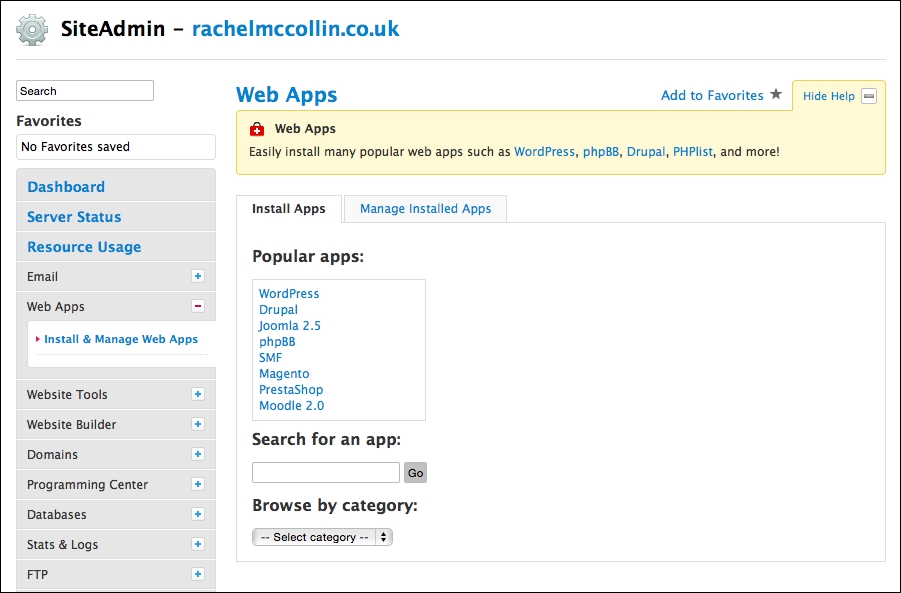
If your hosting provider gives you access to an installer, it will probably be accessible via your hosting dashboard or cPanel, which is a dashboard many hosting providers give you to manage your site.
The exact way this looks and where you find it will vary from host to host, so your screen will probably look slightly different from what you see here, but the process is much the same.
My hosting provider includes a link in its control panel called Web Apps. Yours might be called Fantastico, Softaculous, or something else. If you're unsure, check with your hosting company and ask them if they provide a WordPress installer.

Fig 1.2: Accessing an installer
When I open this, I see a list of the web apps available to me, including WordPress:

Fig 1.3: Choosing WordPress in the installer
These are the steps you need to follow now:
http:// as the www really isn't necessary these days.wp_.Some installers offer a backup option, which is a good idea to select if available. It's also a good idea to use a backup plugin in your site too. For a review of some of the best backup plugins, visit http://premium.wpmudev.org/blog/premium-freemium-wordpress-backup-plugins/.
Here, you can see an example for the installation I'm setting up:

Fig 1.4: Enter your site details
Once you've entered your details, click on Install and the installer will do its work. You will see a screen with a link to your new site and to the admin screens. Well done!
But what do you do if your hosting provider doesn't give you access to an installer? That's where manual installation comes in.
Installing WordPress manually takes a little longer, but isn't difficult as long as you know the steps to take. You'll need to learn how to do this if your hosting company doesn't provide an installer or if you want to install WordPress locally on your PC or Mac. This can be useful for working on a development site, where you're creating a dummy version of the site before you launch it to the world.
If you want to install WordPress on your local machine, the process is very similar to the one here, but you'll also need to install an app such as MAMP (for Mac and Windows) or XAMPP (for Mac, Windows, or Linux). You can find instructions at http://codex.wordpress.org/Installing_WordPress_Locally_on_Your_Mac_With_MAMP and http://premium.wpmudev.org/blog/how-to-install-wordpress-locally-for-pcwindows-with-xampp/. For a guide to migrating your site to the live site once you're happy with it, refer to http://code.tutsplus.com/tutorials/migrating-a-wordpress-site-from-a-local-server-to-production--wp-26.
Installing WordPress manually consists of four steps:
Let's work through each of those steps in turn.
To download the WordPress files, follow these steps:
.zip file to your computer. Unzip this.Your site will need a database to hold all of your content. WordPress doesn't create this for you; you'll have to do it yourself.

Fig 1.5: The phpMyAdmin home screen
You now have an empty database set up. The next step is to upload WordPress.
Some hosting providers don't let you create databases in phpMyAdmin; you have to do it in your hosting dashboard instead. If this is the case, follow the instructions given by your hosting provider.
To upload WordPress, you'll need an FTP client or a code editing program with FTP built in. I tend to use Coda (http://panic.com/coda/), which is a code editor for the Mac, or FileZilla (https://filezilla-project.org), which is a free FTP client.
Downloads folder locally and the files on your remote server.public_html folder. I'm creating a folder called blueprints1, as you can see in the following screenshot. If you don't have an existing site, you can skip this step.
Fig 1.6: The blueprints1 folder
wordpress folder from your Downloads folder to the folder you've created. If you haven't created a folder, copy it to the public_html folder. Don't copy the wordpress folder, copy its contents.Now that you have a database and the WordPress files uploaded, you just need to activate the WordPress installation script by visiting your new site's URL in your browser.
To activate the installation script, you'll need to perform the following steps in your browser:
http://yourdomain.com/folder, where folder is the name of your new folder and yourdomain.com is your domain name.You can see what I've entered in the following screenshot:

Fig 1.7: Entering your database details to install WordPress
Here's what I've added:

Fig 1.8: Entering information about your site
Now that you've installed WordPress (whichever method you used) and logged in, you'll see the Dashboard screen. If you can see this screen, you've done everything correctly. Well done!

Fig 1.9: The main Dashboard screen in WordPress
But before you start configuring your site and adding content to it, let's take a moment to look at how this affects your old site.
In the previous section, I mentioned installing WordPress in a subdirectory if you have an existing static site that you want to keep live while you create your new one.
Let's look at how this works:

Fig 1.10: The Reading Settings screen
Change the font size
Change margin width
Change background colour