Sign In Start Free Trial
Account

Add to playlist

Create a Playlist

Modal Close icon
You need to login to use this feature.
  • Book Overview & Buying WordPress 4.0 Site Blueprints (Second Edition)
  • Table Of Contents Toc
WordPress 4.0 Site Blueprints (Second Edition)

WordPress 4.0 Site Blueprints (Second Edition)

By : RACHEL MCCOLLIN
4.5 (4)
close
close
WordPress 4.0 Site Blueprints (Second Edition)

WordPress 4.0 Site Blueprints (Second Edition)

4.5 (4)
By: RACHEL MCCOLLIN

Overview of this book

WordPress is the world’s most popular Content Management System (CMS) and you can use it to create any kind of site you or your clients need. Using free plugins and themes for WordPress, you can create a store, a social media site, a review site, a video site, a network of sites or a community site, and more. Wordpress makes your job of creating your own website simple and hassle-free! If you’ve started using WordPress to create a blog or simple website, you’ll have had a taste of the opportunities offered by this massively popular CMS. This book will take you through the process of creating ten popular kinds of site using WordPress with free plugins and themes, each chapter covering various functionality of the web. After having learned how to migrate from your static site to Wordpress in the first chapter, you will then explore the world of social networking websites followed focusing on e-commerce. Without writing too much code, you’ll be able to create a store, a video streaming site, a team communications site, a jobs board, and more. This book is a one-stop solution to resolve all your worries about creating a website that will give the best experience to your users.
Table of Contents (12 chapters)
close
close
11
Index

Installing and configuring the P2 theme


The first step is to install the P2 theme in a fresh WordPress installation. If you're not sure how to install WordPress, take a look at Chapter 1, Migrating a Static Site to WordPress.

Installing the theme

Perform the following steps to install a theme:

  1. In the WordPress admin, go to Appearance | Themes.

  2. Click on the Add New button.

  3. In the search box, type P2.

    WordPress will display all the themes matching your search terms, as shown in the following screenshot:

    Fig 8.1: The P2 theme installation process

  4. Select P2 and click on the Install button.

  5. Once the theme has been installed, click on the Activate button.

The theme will now be active.

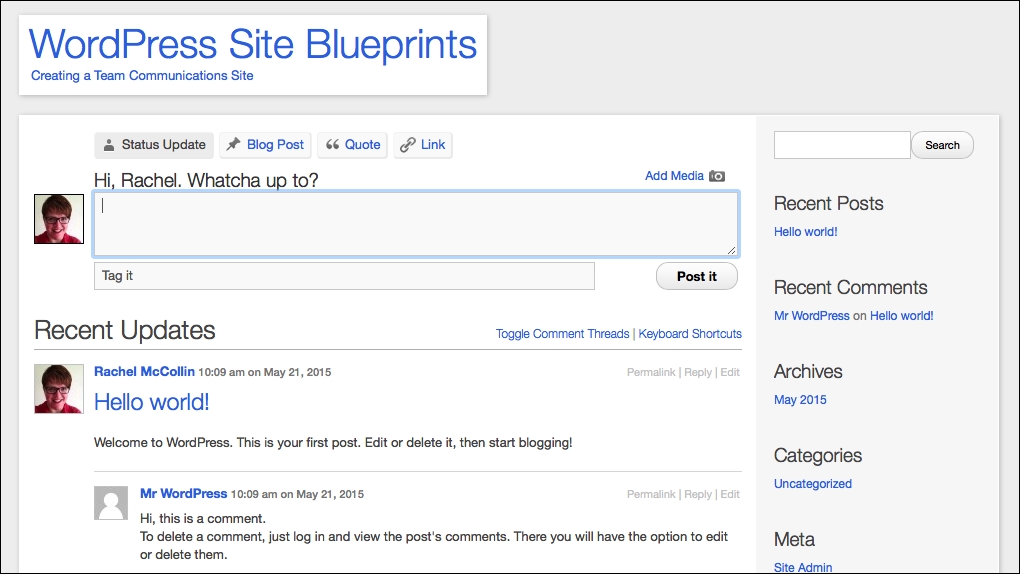
Now, if you visit your site's front page, it will look similar to the following screenshot:

Fig 8.2: The site's home page with P2 activated

Now that the theme is installed, let's do some configuration.

Configuring the P2 options

P2 comes with some options you can configure. Perform the following steps to configure the P2 options...

Visually different images
CONTINUE READING
83
Tech Concepts
36
Programming languages
73
Tech Tools
Icon Unlimited access to the largest independent learning library in tech of over 8,000 expert-authored tech books and videos.
Icon Innovative learning tools, including AI book assistants, code context explainers, and text-to-speech.
Icon 50+ new titles added per month and exclusive early access to books as they are being written.
WordPress 4.0 Site Blueprints (Second Edition)
notes
bookmark Notes and Bookmarks search Search in title playlist Add to playlist font-size Font size

Change the font size

margin-width Margin width

Change margin width

day-mode Day/Sepia/Night Modes

Change background colour

Close icon Search
Country selected

Close icon Your notes and bookmarks

Confirmation

Modal Close icon
claim successful

Buy this book with your credits?

Modal Close icon
Are you sure you want to buy this book with one of your credits?
Close
YES, BUY

Submit Your Feedback

Modal Close icon
Modal Close icon
Modal Close icon