-
Book Overview & Buying
-
Table Of Contents

Hands-On Visual Studio 2022 - Second Edition
By :


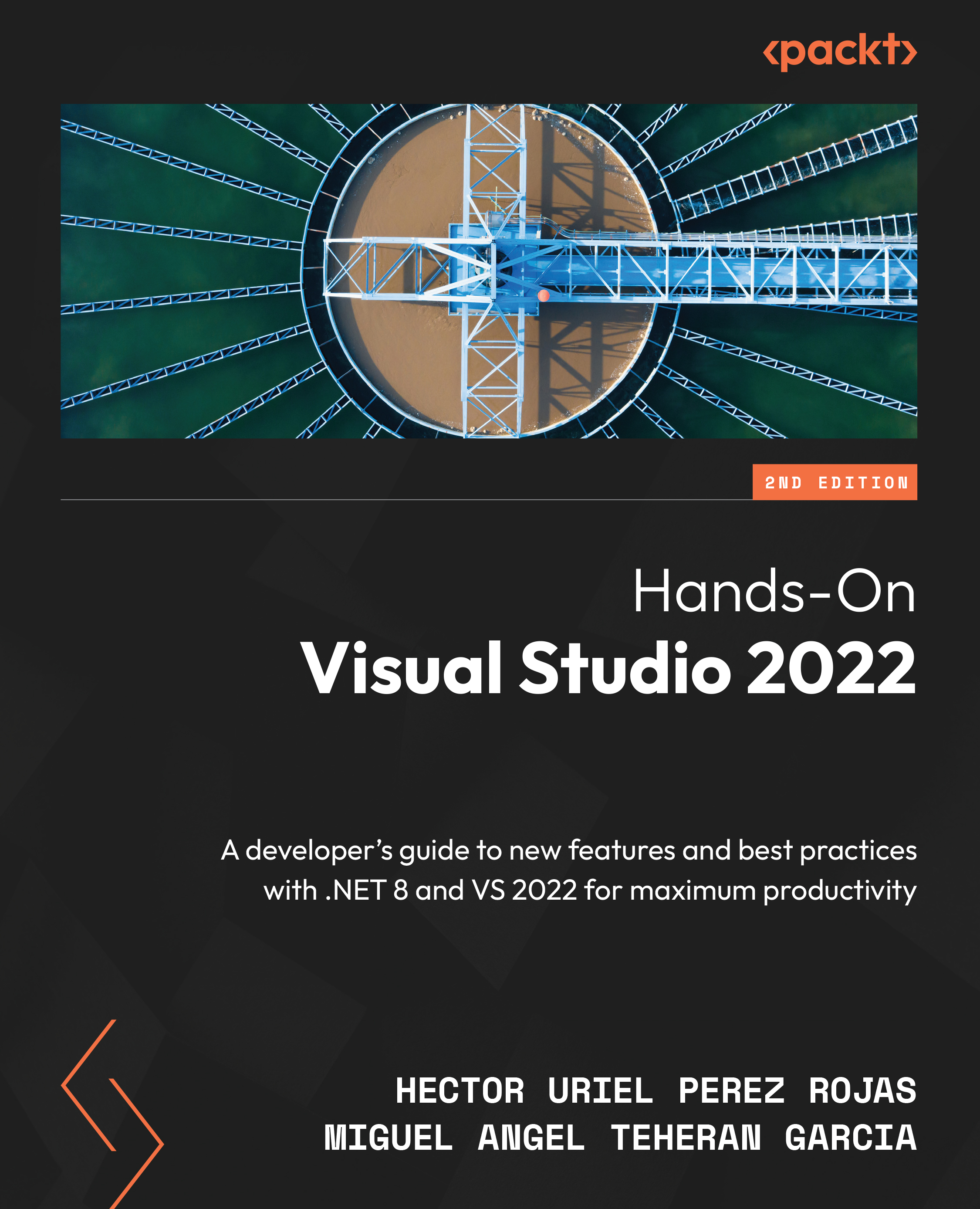
Hands-On Visual Studio 2022
By:
Overview of this book
Visual Studio 2022 is widely recognized as the best IDE for application development across various domains. This book is a comprehensive guide for both beginners and experienced .NET developers who wish to familiarize themselves with its basic, advanced, and new features.
This book is divided into three sections: the first is an overview of Visual Studio, the second part explores tools for productivity within the IDE, and the third delves into integration with GitHub and Visual Studio extensions.
In this second edition, we’ve also expanded the chapters on the use of Visual Studio to environments beyond web development, such as Azure, Desktop, .NET MAUI, and others. Updates to the IDE introduced since the release year of the first edition of the book in 2022 have also been included, such as the use of GPT-based extensions like GitHub Copilot and GitHub Copilot Chat, as well as profiling tools.
The book reviews breakpoint groups, a new way to configure breakpoints, as well as tools for web development, such as Browser Link, Dev Tunnels, and Web API Endpoints Explorer. For more advanced developers, the book addresses the topic of developing extensions through the use of the new Visual Studio SDK. By the end of this book, you’ll have a better understanding of Visual Studio 2022 and how to use it to its fullest potential.
Table of Contents (19 chapters)
Preface


Chapter 1: Getting Started with Visual Studio 2022
Chapter 2: Creating Projects and Templates
Chapter 3: Debugging and Profiling Your Apps
Part 2: Tools and Productivity
Chapter 4: Adding Code Snippets
Chapter 5: Coding Efficiently with AI and Code Views
Chapter 6: Using Tools for Frontend and Backend Development

Chapter 7: Styling and Cleanup Tools
Chapter 8: Publishing Projects
Part 3: GitHub Integration and Extensions
Chapter 9: Implementing Git Integration
Chapter 10: Sharing Code with Live Share
Chapter 11: Working with Extensions in Visual Studio
Chapter 12: Using Popular Extensions
Chapter 13: Learning Keyboard Shortcuts
Index
Other Books You May Enjoy