Sign In Start Free Trial
Account

Add to playlist

Create a Playlist

Modal Close icon
You need to login to use this feature.
  • Book Overview & Buying ChronoForms 3.1 for Joomla! site Cookbook
  • Table Of Contents Toc
ChronoForms 3.1 for Joomla! site Cookbook

ChronoForms 3.1 for Joomla! site Cookbook

By : Bob Janes
4.3 (4)
close
close
ChronoForms 3.1 for Joomla! site Cookbook

ChronoForms 3.1 for Joomla! site Cookbook

4.3 (4)
By: Bob Janes

Overview of this book

Joomla! is a fantastic way to create a dynamic CMS. Now you want to go to the next step and interact with your users. Forms are the way you ask questions and get replies. ChronoForms is the extension that lets you do that and this book tells you how. From building your first form to creating rich form based applications we will cover the features that ChronoForms offers you in a clear hands-on way. Drawing on three years daily experience using ChronoForms and supporting users there is valuable help for new users and experienced developers alike. We will take you through form development step by step: from creating your first form using ChronoForms’ built-in drag-and-drop tool; validating user input; emailing the results; saving data in the database, showing the form in your Joomla! site and much more.Each chapter addresses a topic like ‘validation’ or ‘email’ and the recipes in the chapter each address a different user question from the beginners’ question ‘How do I set up an email?’ through to more advanced questions like using some PHP to create a custom email Subject line.Over eight chapters and eighty recipes we cover all of the ‘Frequently Asked Questions’ that new users and developers have about using ChronoForms. The recipe structure allows you to pick and choose just the solution that you need.
Table of Contents (14 chapters)
close
close
13
Index

Customizing validation error messages

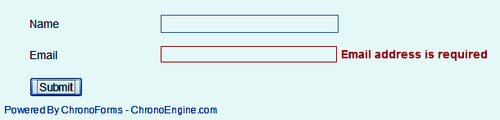
As we saw previously with the e-mail error message, they aren't always pretty. In this recipe we'll look at how to customize the messages and add your own versions.

Getting ready

We'll work with the same e-mail error message we saw in the previous recipe.

How to do it...

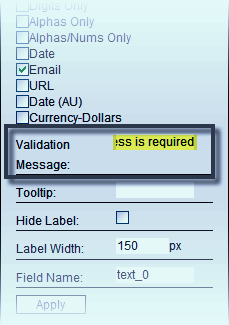
  1. The simplest fix is to add a validation message to the e-mail text input. There's an entry for this in the element Properties box in the Wizard Edit.
    How to do it...

    There is only one validation message entry for the element — the same message will be used for each validation check — in this case, it is Email address is required.

  2. As usual, click Apply to save the element properties and save the Form.
    How to do it...

    Tip

    There is no equivalent place to enter messages on the Validation tab in the Form Editor, just a note to remind you that you can set a message by adding a title attribute to the input in the Form HTML.

How it works...

All that ChronoForms has done in the Wizard is to add the...

CONTINUE READING
83
Tech Concepts
36
Programming languages
73
Tech Tools
Icon Unlimited access to the largest independent learning library in tech of over 8,000 expert-authored tech books and videos.
Icon Innovative learning tools, including AI book assistants, code context explainers, and text-to-speech.
Icon 50+ new titles added per month and exclusive early access to books as they are being written.
ChronoForms 3.1 for Joomla! site Cookbook
notes
bookmark Notes and Bookmarks search Search in title playlist Add to playlist font-size Font size

Change the font size

margin-width Margin width

Change margin width

day-mode Day/Sepia/Night Modes

Change background colour

Close icon Search
Country selected

Close icon Your notes and bookmarks

Confirmation

Modal Close icon
claim successful

Buy this book with your credits?

Modal Close icon
Are you sure you want to buy this book with one of your credits?
Close
YES, BUY

Submit Your Feedback

Modal Close icon
Modal Close icon
Modal Close icon