Sign In Start Free Trial
Account

Add to playlist

Create a Playlist

Modal Close icon
You need to login to use this feature.
  • Book Overview & Buying Mastering Linux Shell Scripting
  • Table Of Contents Toc
  • Feedback & Rating feedback
Mastering Linux Shell Scripting

Mastering Linux Shell Scripting

By : Andrew Mallett
4.3 (10)
close
close
Mastering Linux Shell Scripting

Mastering Linux Shell Scripting

4.3 (10)
By: Andrew Mallett

Overview of this book

Shell scripting is a quick method to prototype a complex application or a problem by automating tasks when working on Linux-based systems. Using both simple one-line commands and command sequences complex problems can be solved with ease, from text processing to backing up sysadmin tools. In this book, you’ll discover everything you need to know to master shell scripting and make informed choices about the elements you employ. Get to grips with the fundamentals of creating and running a script in normal mode, and in debug mode. Learn about various conditional statements' code snippets, and realize the power of repetition and loops in your shell script. Implement functions and edit files using the Stream Editor, script in Perl, program in Python – as well as complete coverage of other scripting languages to ensure you can choose the best tool for your project.
Table of Contents (16 chapters)
close
close
15
Index

Debugging your scripts

With the scripts as simple as we have seen so far, there is little that can go wrong or debug. As the script grows and decision paths are included with conditional statements, we may need to use some level of debugging to analyze the scripts progress better.

Bash provides two options for us, -v and -x.

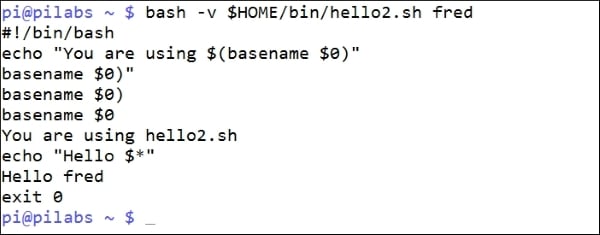
If we want to look at the verbose output from our script and the detailed information about the way the script is evaluated line by line, we can use the -v option. This can be within the shebang but it is often easier to run the script directly with bash:

$ bash -v $HOME/bin/hello2.sh fred

This is especially useful in this example as we can see how each element of the embedded basename command is processed. The first step is removing the quotes and then the parentheses. Take a look at the following output:

Debugging your scripts

More commonly used is the -x option, which displays the commands as they get executed. Its useful to know the decision branch that has been chosen by the script. The following shows this in use:

$ bash -x $HOME/bin/hello2.sh fred

We again see that the basename is evaluated first, but we do not see the more detailed steps involved in running that command. The screenshot that follows captures the command and output:

Debugging your scripts
Visually different images
CONTINUE READING
83
Tech Concepts
36
Programming languages
73
Tech Tools
Icon Unlimited access to the largest independent learning library in tech of over 8,000 expert-authored tech books and videos.
Icon Innovative learning tools, including AI book assistants, code context explainers, and text-to-speech.
Icon 50+ new titles added per month and exclusive early access to books as they are being written.
Mastering Linux Shell Scripting
notes
bookmark Notes and Bookmarks search Search in title playlist Add to playlist font-size Font size

Change the font size

margin-width Margin width

Change margin width

day-mode Day/Sepia/Night Modes

Change background colour

Close icon Search
Country selected

Close icon Your notes and bookmarks

Confirmation

Modal Close icon
claim successful

Buy this book with your credits?

Modal Close icon
Are you sure you want to buy this book with one of your credits?
Close
YES, BUY

Submit Your Feedback

Modal Close icon
Modal Close icon
Modal Close icon