Sign In Start Free Trial
Account

Add to playlist

Create a Playlist

Modal Close icon
You need to login to use this feature.
  • Book Overview & Buying Zabbix Cookbook
  • Table Of Contents Toc
  • Feedback & Rating feedback
Zabbix Cookbook

Zabbix Cookbook

By : Patrik Uytterhoeven
4.5 (4)
close
close
Zabbix Cookbook

Zabbix Cookbook

4.5 (4)
By: Patrik Uytterhoeven

Overview of this book

If you have some experience with Zabbix and wish to take your infrastructure to the next level, then this book is for you. Before you start with Zabbix, or monitoring in general, it is best to have some basic Linux knowledge and a good understanding of snmp, virtualization, and scripting.
Table of Contents (13 chapters)
close
close
12
Index

Installing the server in a distributed setup

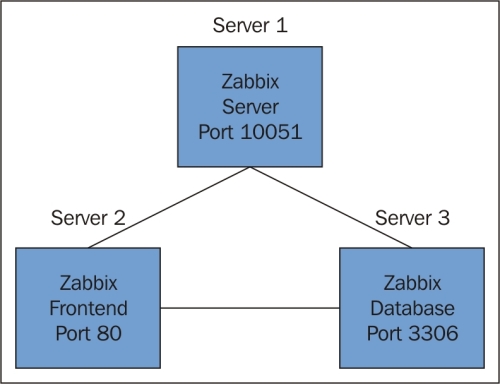
Next, we will see how to install the Zabbix server in a distributed way. This means that we will install all three components on different servers. In big setups, this can be a win as the frontend, Zabbix server, and database will have their own hardware.

Getting ready

For this setup to work, we need three machines, all with the latest version from Red Hat 6.x or CentOS 6.x with proper host name resolution, either by Domain Name System (DNS) or by host file. In this setup, I will talk about the setup of the server, db, and frontend. This time, we will disable SELinux on all machines as it is slightly more complicated and out of the scope of this book.

How to do it...

  1. First thing to do is add on every host the Zabbix repository from Zabbix like we have done with our server installation. Remember the repository can be found in the Zabbix installation manual under installation from package.
  2. On the DB server we install, of course, the MySQLserver:
    # yum install  mysql-server
    # service mysqld start
    # /usr/sbin/mysql_secure_installation (same options as before)
    # chkconfig mysqld on
    
  3. Open the firewall on the database server and disable SELinux on all servers:
    # iptables -I INPUT 5 -m state --state NEW -m tcp -p tcp -- dport 3306 -j ACCEPT
    # iptables save
    # service iptables restart
    # vi /etc/selinux/config
    
  4. Change the next value to permissive:
    # SELINUX=permissive
    
  5. Reboot the database server so that SELinux is disabled or type from the prompt:
    # setenforce 0
    
  6. Next thing we do is create our database and grant rights to it. When granting rights, don't forget to give rights to the Zabbix user from the Zabbix server as our connection is not alone from localhost but also from the server:
    # mysql -u root -p
    mysql> create database zabbix character set utf8 collate utf8_bin;
    mysql> grant all privileges on zabbix.* to zabbix@localhost identified by 'some_password';
    mysql> grant all privileges on zabbix.* to zabbix@server-ip identified by 'some_password';
    mysql> grant all privileges on zabbix.* to zabbix@frontend-ip identified by 'some_password';
    mysql> exit
    
  7. Next thing we have to do is upload the correct schemas for the Zabbix installation. For this, we have to copy the schemas from the Zabbix server or install the zabbix-mysql-server package:
    # cd /usr/share/doc/zabbix-server-mysql-2.4.x/create
    # mysql -uroot zabbix < schema.sql
    # mysql -uroot zabbix < images.sql
    # mysql -uroot zabbix < data.sql
    
  8. Now on the server, install the Zabbix server:
    # yum install zabbix-server zabbix-server-mysql
    # chkconfig zabbix-server on
    
  9. Edit the Zabbix server configuration file:
    # vi /etc/zabbix/zabbix_server.conf
    DBHost=<ip of the db>
    DBName=zabbix
    DBUser=zabbix
    DBPassword=<some password>
    #DBSocket=/var/lib/mysql/mysql.sock (put this in comment) DBPort=3306
    
  10. Start the Zabbix server and check the log file if there are no errors logged:
    # service zabbix-server start
    # tail /var/log/zabbix/zabbix_server.log
    
  11. Open port 10051 on the firewall:
    # iptables -I INPUT 5 -m state --state NEW -m tcp -p tcp -- dport 10051 -j ACCEPT
    # iptables save
    # service iptables restart
    
  12. Install the frontend on the server:
    # yum install zabbix-web-mysql
    # chkconfig httpd on
    
  13. Uncomment the timezone value and replace Riga with your location:
    # vi /etc/httpd/conf.d/zabbix.conf
    php_value date.timezone Europe/Riga
    
  14. Open port 80 on the firewall:
    # iptables -I INPUT 5 -m state --state NEW -m tcp -p tcp -- dport 80 -j ACCEPT
    # iptables save
    # service iptables restart
    # service httpd start
    
  15. Now let's open our browser and go to the frontend server:
    # http://frontend/zabbix
    

    After the first screens with the PHP option check if we get our screen with the connection settings for the database. Fill in the name or IP of our DB server with the DB name, username, and password:

    How to do it...

    Test the connection to the database, in case of problems, you could try to connect from the shell:

    # mysql -h <db ip> -u<username> -p<password> <db name>
    

    Or try to telnet

    # telnet <db ip> <port>  EX: telnet 192.168.1.5 3306
    

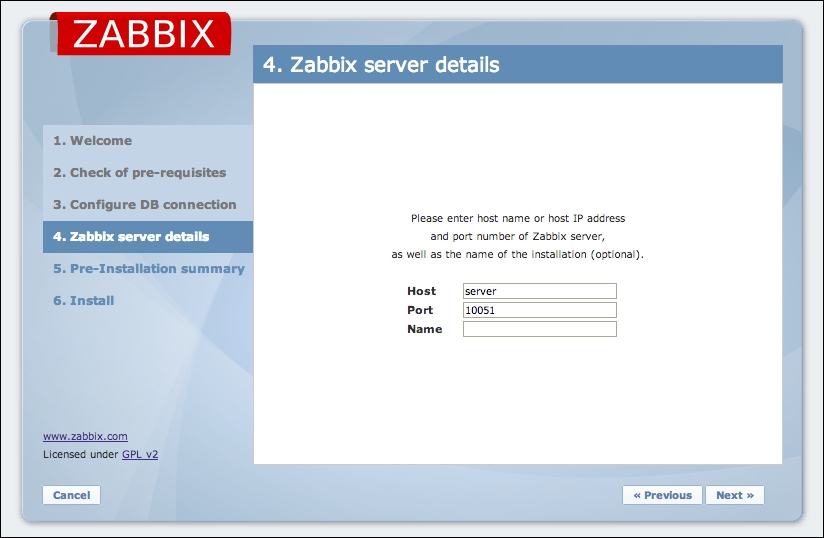
    When the connection tests are fine you can just click Next. This will bring us to the connection screen of the server as you can see in next screenshot.

  16. In the location of hostname, we have to fill in the hostname of our Zabbix server. The port is the port the server uses for the communication. Remember we have opened it in our firewall before? The port 10051 is the standard port but can be changed in the zabbix_server.conf file in case you want to change this:
    How to do it...

    For the name, we can give anything that makes sense for our setup. Now when we click Next, our Zabbix server is up and running and we can log in with the standard login and password: Admin / zabbix.

How it works...

Our Zabbix server, database and frontend are all installed on different servers. Because the database needs to be able to communicate with our server we had to open port 3306 in our firewall and grant the permissions, so that the server and frontend had rights to connect to our database.

The Zabbix server communicates on port 10051, so for the server, we had to open this port in the firewall on the Zabbix server.

Our frontend needs a web server so Apache was installed automatically when we installed the Zabbix package. To be able to see the Zabbix frontend, we had to open port 80 in the firewall.

As the frontend is not aware that we have installed a distributed setup we had to tell the frontend that our database was installed on another location and the same was done for the Zabbix server:

How it works...

There's more...

For the port of the database we did not put in 3306 port but 0. This way Zabbix knows that we have used the standard port. In case you changed it in your setup, you have to add the correct port instead of 0.

In case you edit the /etc/httpd/conf.d/zabbix.conf configuration file instead of making changes from the web interface, make sure that you don't remove the 0. If the port is empty, the configuration will not work.

Another issue occurs if Zabbix itself is down. Some companies make use of a small extra Zabbix server that monitors the Zabbix server. This is an easy, not too expensive option.

The setup of Zabbix as a virtual machine is also an option. Just make sure that the database in that case is on dedicated storage as a virtualized database on shared storage is not a good idea.

Yet another solution could be to build a cluster. The Zabbix server itself does not support a cluster setup but it can be done manually. There are several guides on how to do this available on the www.zabbix.org webpage.

Visually different images
CONTINUE READING
83
Tech Concepts
36
Programming languages
73
Tech Tools
Icon Unlimited access to the largest independent learning library in tech of over 8,000 expert-authored tech books and videos.
Icon Innovative learning tools, including AI book assistants, code context explainers, and text-to-speech.
Icon 50+ new titles added per month and exclusive early access to books as they are being written.
Zabbix Cookbook
notes
bookmark Notes and Bookmarks search Search in title playlist Add to playlist font-size Font size

Change the font size

margin-width Margin width

Change margin width

day-mode Day/Sepia/Night Modes

Change background colour

Close icon Search
Country selected

Close icon Your notes and bookmarks

Confirmation

Modal Close icon
claim successful

Buy this book with your credits?

Modal Close icon
Are you sure you want to buy this book with one of your credits?
Close
YES, BUY

Submit Your Feedback

Modal Close icon
Modal Close icon
Modal Close icon