Sign In Start Free Trial
Account

Add to playlist

Create a Playlist

Modal Close icon
You need to login to use this feature.
  • Book Overview & Buying Mastering CentOS 7 Linux Server
  • Table Of Contents Toc
Mastering CentOS 7 Linux Server

Mastering CentOS 7 Linux Server

By : Alibi, BHASKARJYOTI ROY
3.7 (16)
close
close
Mastering CentOS 7 Linux Server

Mastering CentOS 7 Linux Server

3.7 (16)
By: Alibi, BHASKARJYOTI ROY

Overview of this book

Most server infrastructures are equipped with at least one Linux server that provides many essential services, both for a user's demands and for the infrastructure itself. Setting up a sustainable Linux server is one of the most demanding tasks for a system administrator to perform. However, learning multiple, new technologies to meet all of their needs is time-consuming. CentOS 7 is the brand new version of the CentOS Linux system under the RPM (Red Hat) family. It is one of the most widely-used operating systems, being the choice of many organizations across the world. With the help of this book, you will explore the best practices and administration tools of CentOS 7 Linux server along with implementing some of the most common Linux services. We start by explaining the initial steps you need to carry out after installing CentOS 7 by briefly explaining the concepts related to users, groups, and right management, along with some basic system security measures. Next, you will be introduced to the most commonly used services and shown in detail how to implement and deploy them so they can be used by internal or external users. Soon enough, you will be shown how to monitor the server. We will then move on to master the virtualization and cloud computing techniques. Finally, the book wraps up by explaining configuration management and some security tweaks. All these topics and more are covered in this comprehensive guide, which briefly demonstrates the latest changes to all of the services and tools with the recent shift from CentOS 6 to CentOS 7.
Table of Contents (11 chapters)
close
close
10
Index

Quotas

In order to control the disk space used in the Linux filesystem, we must use quota, which enables us to control the disk space and thus helps us resolve low disk space issues to a great extent. For this, we have to enable user and group quotas on the Linux system.

In CentOS 7, the user and group quotas are not enabled by default so we have to enable them first.

To check whether quota is enabled or not, we issue the following command:

mount | grep ' / '
Quotas

The image shows that the root filesystem is enabled without quota as mentioned by the noquota in the output.

Now, we have to enable quota on the root (/) filesystem, and to do that, we have to first edit the file /etc/default/grub and add the following to GRUB_CMDLINE_LINUX:

rootflags=usrquota,grpquota

In file GRUB_CMDLINE_LINUX line should read as follows:

GRUB_CMDLINE_LINUX="rd.lvm.lv=centos/swap vconsole.font=latarcyrheb-sun16 rd.lvm.lv=centos/root crashkernel=auto  vconsole.keymap=us rhgb quiet rootflags=usrquota,grpquota"

The output of cat /etc/default/grub command should look like the following screenshot:

Quotas

Since we have to reflect the changes we just made, we should backup the grub configuration using the following command:

cp /boot/grub2/grub.cfg /boot/grub2/grub.cfg.original

Now, we have to rebuild the grub with the changes we just made using the command:

grub2-mkconfig -o /boot/grub2/grub.cfg

Next, reboot the system. Once it's up, log in and verify that the quota is enabled using the command we used before:

mount | grep ' / '

It should now show us that the quota is enabled and will show us an output as follows:

/dev/mapper/centos-root on / type xfs (rw,relatime,attr2,inode64,usrquota,grpquota)

Add the following lead-in before image and apply CIT style to mount | grep ' / '

Quotas

Now, since quota is enabled, we will further install quota using the following to operate quota for different users and groups, and so on:

yum -y install quota

Once quota is installed, we check the current quota for users using the following command:

repquota -as

The preceding command will report user quotas in a human-readable format.

Quotas

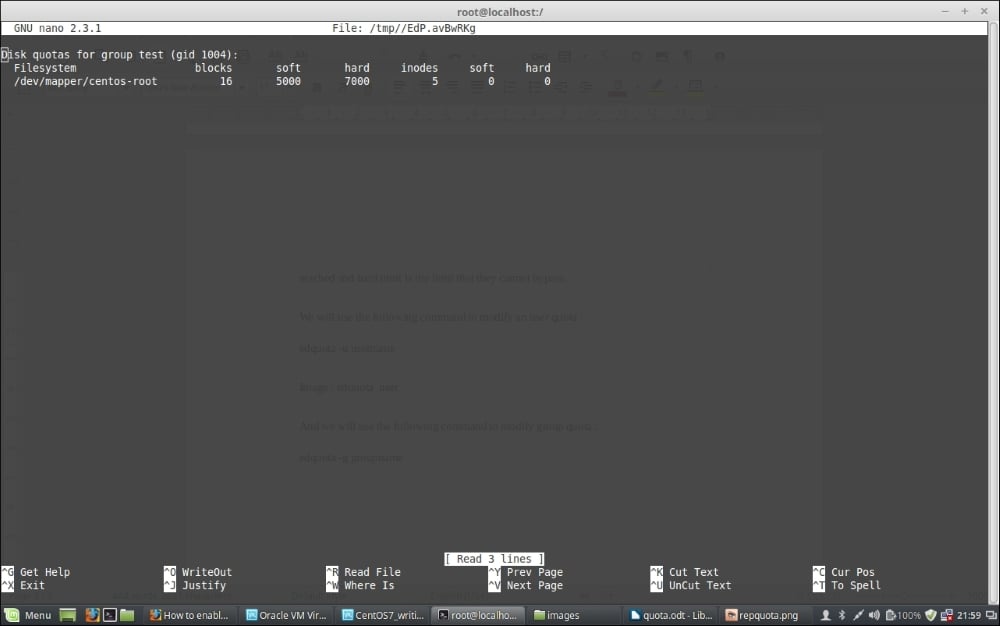
From the preceding screenshot, there are two ways we can limit quota for users and groups; one is setting soft and hard limits for the size of disk space used, and another is limiting the user or group by limiting the number of files they can create. In both cases, soft and hard limits are used. A soft limit is something that warns the user when the soft limit is reached, and the hard limit is the limit that they cannot bypass.

We will use the following command to modify a user quota:

edquota -u username

The preceding command output shall look like the following screenshot:

Quotas

Now, we will use the following command to modify the group quota:

edquota -g groupname
Quotas

If you have other partitions mounted separately, you have to modify the /etc/fstab file command to enable quota on the filesystem by adding usrquota and grpquota after the defaults for that specific partition as in the following screenshot, where we have enabled the quota for the /var partition:

Quotas

Once you are finished enabling quota, remount the filesystem and run the following commands:

To remount /var :
mount -o remount /var
To enable quota :
quotacheck -avugm
quotaon -avug

Quota is something all system admins use to handle disk space consumed on a server by users or groups and limit over usage of the space. It thus helps them manage the disk space usage on the system. In this regard, it should be noted that you plan before your installation and create partitions accordingly as well so that the disk space is used properly. Multiple separate partitions such as /var and /home etc are always suggested, as generally these are the partitions which consume most space on a Linux system. So, if we keep them on a separate partition, it will not eat up the root (/) filesystem space and will be more failsafe than using an entire filesystem mounted as only root.

CONTINUE READING
83
Tech Concepts
36
Programming languages
73
Tech Tools
Icon Unlimited access to the largest independent learning library in tech of over 8,000 expert-authored tech books and videos.
Icon Innovative learning tools, including AI book assistants, code context explainers, and text-to-speech.
Icon 50+ new titles added per month and exclusive early access to books as they are being written.
Mastering CentOS 7 Linux Server
notes
bookmark Notes and Bookmarks search Search in title playlist Add to playlist download Download options font-size Font size

Change the font size

margin-width Margin width

Change margin width

day-mode Day/Sepia/Night Modes

Change background colour

Close icon Search
Country selected

Close icon Your notes and bookmarks

Confirmation

Modal Close icon
claim successful

Buy this book with your credits?

Modal Close icon
Are you sure you want to buy this book with one of your credits?
Close
YES, BUY

Submit Your Feedback

Modal Close icon
Modal Close icon
Modal Close icon