-
Book Overview & Buying
-
Table Of Contents
Mastering CentOS 7 Linux Server
By :
It is a good policy to have password aging so that the users are forced to change their passwords at a certain interval. This, in turn, helps to keep the security of the system as well.
We can use chage to configure the password to expire the first time the user logs in to the system.
Note: This process will not work if the user logs in to the system using SSH.
This method of using chage will ensure that the user is forced to change the password right away.
If we use only chage <username>, it will display the current password aging value for the specified user and will allow them to be changed interactively.
The following steps need to be performed to accomplish password aging:
useradd command to create the user. However, we will not assign any password to the user so that it remains locked. But, if the user already exists on the system, we will use the usermod command to lock the user:Usermod -L <username>
chage -d 0 <username>
import crypt; print crypt.crypt("Q!W@E#R$","Bing0000/")
Q!W@E#R$ password with a salt combination of the alphanumeric character: Bing0000 followed by a / character. The output is the encrypted password, similar to BiagqBsi6gl1o.usermod -p "<encrypted-password>" <username>
So, here, in our case, if the username is testuser, and the encrypted output is " BiagqBsi6gl1o" we will do:
usermod -p "BiagqBsi6gl1o" testuser
Now, upon initial login using the Q!W@E#R$ password, the user will be prompted for a new password.
This is a set of rules defined in some files, which have to be followed when a system user is setting up. It's an important factor in security because one of the many security breach histories was started with hacking user passwords. This is the reason why most organizations set a password policy for their users. All users and passwords must comply with this.
A password policy usually is defined by the following:
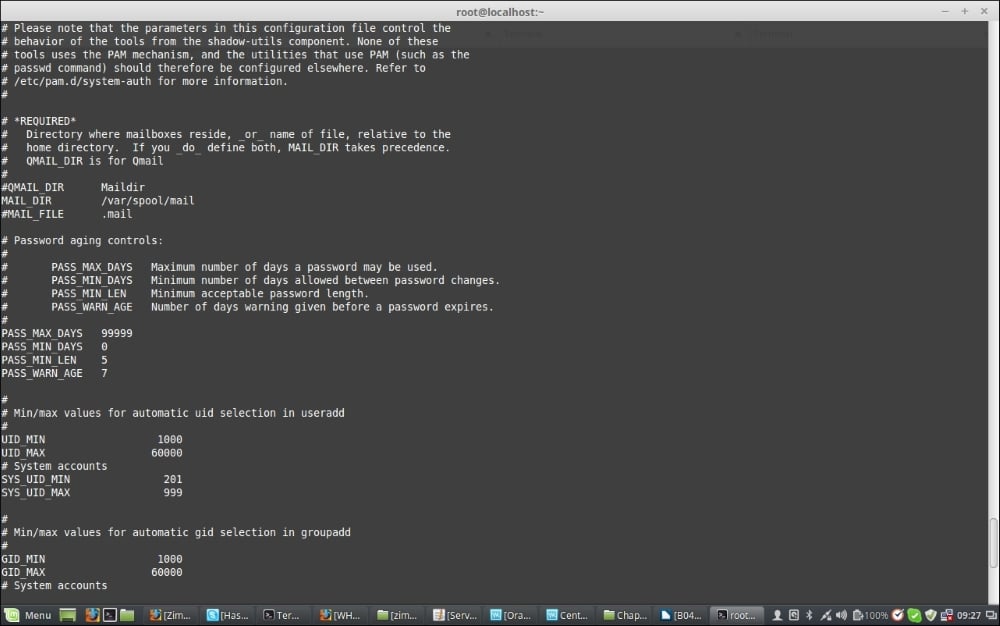
Password aging and password length are defined in /etc/login.defs. Aging basically means the maximum number of days a password might be used, minimum number of days allowed between password changes, and number of warnings before the password expires. Length refers to the number of characters required for creating the password. To configure password aging and length, we should edit the /etc/login.defs file and set different PASS values according to the policy set by the organization.
Note: The password aging controls defined here do not affect existing users; it only affects the newly created users. So, we must set these policies when setting up the system or the server at the beginning. The values we modify are:
PASS_MAX_DAYS: The maximum number of days a password can be usedPASS_MIN_DAYS: The minimum number of days allowed between password changesPASS_MIN_LEN: The minimum acceptable password lengthPASS_WARN_AGE: The number of days' warning to be given before a password expiresLet's take a look at a sample configuration of the login.defs file:

By editing the /etc/pam.d/system-auth file, we can configure the password complexity and the number of reused passwords to be denied. Password complexity refers to the complexity of the characters used in the password, and the reused password deny refers to denying the desired number of passwords the user used in the past. By setting the complexity, we force the usage of the desired number of capital characters, lowercase characters, numbers, and symbols in a password. The password will be denied by the system until and unless the complexity set by the rules is met. We do this using the following terms:
ucredit=-X, where X is the number of capital characters required in the password.lcredit=-X, where X is the number of lowercase characters required in the password.dcredit=-X, where X is the number of numbers required in the password.ocredit=-X, where X is the number of symbols required in the password. For example:password requisite pam_cracklib.so try_first_pass retry=3 type= ucredit=-2 lcredit=-2 dcredit=-2 ocredit=-2
remember=X, where X is the number of past passwords to be denied. For example:password sufficient pam_unix.so sha512 shadow nullok try_first_pass use_authtok remember=5
Let's now take a look at a sample configuration of /etc/pam.d/system-auth:

We set the number of login failures allowed by a user in the /etc/pam.d/password-auth, /etc/pam.d/system-auth, and /etc/pam.d/login files. When a user's failed login attempts are higher than the number defined here, the account is locked and only a system administrator can unlock the account. To configure this, make the following additions to the files. The following deny=X parameter configures this, where X is the number of failed login attempts allowed.
Add these two lines to the /etc/pam.d/password-auth and /etc/pam.d/system-auth files and only the first line to the /etc/pam.d/login file:
auth required pam_tally2.so file=/var/log/tallylog deny=3 no_magic_root unlock_time=300 account required pam_tally2.so
The following screenshot is a sample /etc/pam.d/system-auth file:

The following is a sample /etc/pam.d/login file:

To see failures, use the following command:
pam_tally2 –user=<User Name>
To reset the failure attempts and to enable the user to log in again, use the following command:
pam_tally2 –user=<User Name> --reset
Change the font size
Change margin width
Change background colour