Sign In Start Free Trial
Account

Add to playlist

Create a Playlist

Modal Close icon
You need to login to use this feature.
  • Book Overview & Buying Ubuntu Server Cookbook
  • Table Of Contents Toc
Ubuntu Server Cookbook

Ubuntu Server Cookbook

By : Uday Sawant
5 (2)
close
close
Ubuntu Server Cookbook

Ubuntu Server Cookbook

5 (2)
By: Uday Sawant

Overview of this book

Ubuntu is one of the most secure operating systems and defines the highest level of security as compared other operating system. Ubuntu server is a popular Linux distribution and the first choice when deploying a Linux server. It can be used with a $35 Raspberry Pi to top-notch, thousand-dollar-per-month cloud hardware. Built with lists that there are 4 million + websites built using Ubuntu. With its easy-to-use package management tools and availability of well-known packages, we can quickly set up our own services such as web servers and database servers using Ubuntu. This book will help you develop the skills required to set up high performance and secure services with open source tools. Starting from user management and an in-depth look at networking, we then move on to cover the installation and management of web servers and database servers, as well as load balancing various services. You will quickly learn to set up your own cloud and minimize costs and efforts with application containers. Next, you will get to grips with setting up a secure real-time communication system. Finally, we’ll explore source code hosting and various collaboration tools. By the end of this book, you will be able to make the most of Ubuntu’s advanced functionalities.
Table of Contents (16 chapters)
close
close
15
Index

Managing file permissions

We have created users and groups. In this recipe, you will work with default file permissions for users and groups, as well as see how to modify those permissions.

Getting ready

Create two users, user1 and user2. Create new group editor and add user1 and user2 as members.

How to do it…

Follow these steps to manage file permissions, follow these steps:

  1. To change groups for files and directories:
    1. Log in with user1.
    2. Create a new directory documents under home:
      	user1@ubuntu:~$ mkdir documents
      
    3. Create a text file under documents:
      	user1@ubuntu:~$ echo "hello world"> documents/file.txt
      
    4. Now log in with user2:
      	user1@ubuntu:~$ su user2
      
    5. Try to edit the same text file. It should say Permission denied:
      user2@ubuntu:/home/user1$ echo "hello again">documents/file.txt
      
      How to do it…
    6. log in as user1 and change the group of documents to editor:
      	user1@ubuntu:~$ chgrp -R editor documents
      
      How to do it…
    7. Switch to user2 and try editing the same file. Now it should work:
      How to do it…
  2. To set permissions with chmod, follow these steps:
    1. Create simple shell script with the following command:
      	$ echo 'echo "Hello World!!"'> hello.sh
      
    2. Execute a shell script with the following command:
      	$ ./hello.sh
      
      How to do it…
    3. Set executable permission to hello.sh with the following command:
      	$ chmod u+x hello.sh
      
    4. Check new permission with the following command:
      	$ ls -l
      
      How to do it…
    5. Execute hello.sh again:
    How to do it…
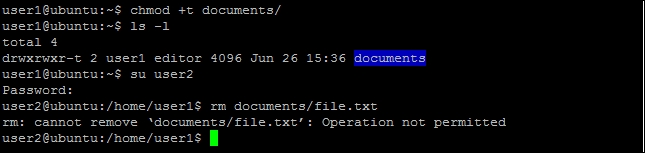
  3. To protect shared files with sticky bit, follow these steps:
    1. Log in as user1 and set sticky bit for directory documents:
      	user1@ubuntu:~$ chmod +t documents
      
    2. Log in as user2 and create a new file.
    3. Try to delete any file under documents. It should fail:
    How to do it…

How it works…

When you create a new file or directory in Ubuntu, the default permissions for files are read and write access to owner and owner's private group, along with read, write, and execute access for directories. You can check the default setting with umask -S.

In our example, we have user1 and user2. Both of them are members of the editor group. When user1 creates a file, the default permissions are limited to user1 and its private group (user1) named after the user account. This is the reason user2 sees Permission denied on editing file. By changing the group of documents to editor we allow all members of editor to read and write to files in documents.

With the chmod command, we can set permissions at a more granular level. In our example of hello.sh, we have set the executable permission for hello.sh. Similarly, we can set read permission as follows:

$chmod +r filename

To set write permission, use the following command:

$chmod +w filename

You can set more selective permissions with additional parameters before mode expression as follows:

$chmod ugo+x filename

Here, u sets the permission for user, g for group, and o for all others.

To remove permissions, replace + with -. For example, $chmod o-w filename. Alternatively, you can use the Octal format to specify permissions:

$chmod 777 filename

This gives read, write, and execute permission to user group and others, whereas the command $chmod 600 filename gives set, read, and write permissions for owner and no permission to groups and others. In Octal format [777], the first bit is used for the user or owner of the file, the second bit is for group, and the third bit is for everyone else. Check out the following table for more information:

Notation

Octal value

Permissions

-|---|---|---

0|000|000|000

Regular files, no permissions

d|r--|r--|r--

d|400|400|400

Directory, read permission to owner, group, and others

-|rw-|r--|r--

-|644|644|644

Regular file, read and write permission to owner and read permission to group or others

-|rwx|rwx|rwx

-|777|777|777

Regular file, all permissions to everyone

Finally, when you share files within a group of users, there are chances that someone deletes the file that is required by other users. Sticky bit can protect these file from deletion. When sticky bit is set, only the owner or a user with root privileges can delete a file.

You can set sticky bit with the command chmod as $chmod +t directoryName. Sticky bit is shown in long listing (ls -l) with symbol t or T. Additionally, sticky bit works only with directories and is ignored on ordinary files.

There's more…

Many times when working as a root user, all files and directories created are owned by root. A non-root user can't write to these directories or files. You can use the command chown to change the ownership of such files and assign them to respective users.

To change ownership of a file, use the following command:

$chown newuser filename

To change the owner as well as the group of file, use the following command:

$chown newuser:newgroup filename

You can skip changing owner and change only the group with the following command:

$chown :newgroup filename

Note that the chown command can only be used by users with root privileges.

CONTINUE READING
83
Tech Concepts
36
Programming languages
73
Tech Tools
Icon Unlimited access to the largest independent learning library in tech of over 8,000 expert-authored tech books and videos.
Icon Innovative learning tools, including AI book assistants, code context explainers, and text-to-speech.
Icon 50+ new titles added per month and exclusive early access to books as they are being written.
Ubuntu Server Cookbook
notes
bookmark Notes and Bookmarks search Search in title playlist Add to playlist download Download options font-size Font size

Change the font size

margin-width Margin width

Change margin width

day-mode Day/Sepia/Night Modes

Change background colour

Close icon Search
Country selected

Close icon Your notes and bookmarks

Confirmation

Modal Close icon
claim successful

Buy this book with your credits?

Modal Close icon
Are you sure you want to buy this book with one of your credits?
Close
YES, BUY

Submit Your Feedback

Modal Close icon
Modal Close icon
Modal Close icon