-
Book Overview & Buying
-
Table Of Contents

GitHub Actions Cookbook
By :


GitHub Actions Cookbook
By:
Overview of this book
Say goodbye to tedious tasks! GitHub Actions is a powerful workflow engine that automates everything in the GitHub ecosystem, letting you focus on what matters most.
This book explains the GitHub Actions workflow syntax, the different kinds of actions, and how GitHub-hosted and self-hosted workflow runners work. You’ll get tips on how to author and debug GitHub Actions and workflows with Visual Studio Code (VS Code), run them locally, and leverage the power of GitHub Copilot. The book uses hands-on examples to walk you through real-world use cases that will help you automate the entire release process. You’ll cover everything, from automating the generation of release notes to building and testing your software and deploying securely to Azure, Amazon Web Services (AWS), or Google Cloud using OpenID Connect (OIDC), secrets, variables, environments, and approval checks.
The book goes beyond CI/CD by demonstrating recipes to execute IssueOps and automate other repetitive tasks using the GitHub CLI, GitHub APIs and SDKs, and GitHub Token. You’ll learn how to build your own actions and reusable workflows to share building blocks with the community or within your organization.
By the end of this GitHub book, you'll have gained the skills you need to automate tasks and work with remarkable efficiency and agility.
Table of Contents (10 chapters)
Preface


 Free Chapter
Chapter 1: GitHub Actions Workflows

Chapter 2: Authoring and Debugging Workflows
Chapter 3: Building GitHub Actions
Chapter 4: The Workflow Runtime
Chapter 5: Automate Tasks in GitHub with GitHub Actions
Chapter 6: Build and Validate Your Code
Chapter 7: Release Your Software with GitHub Actions
Index
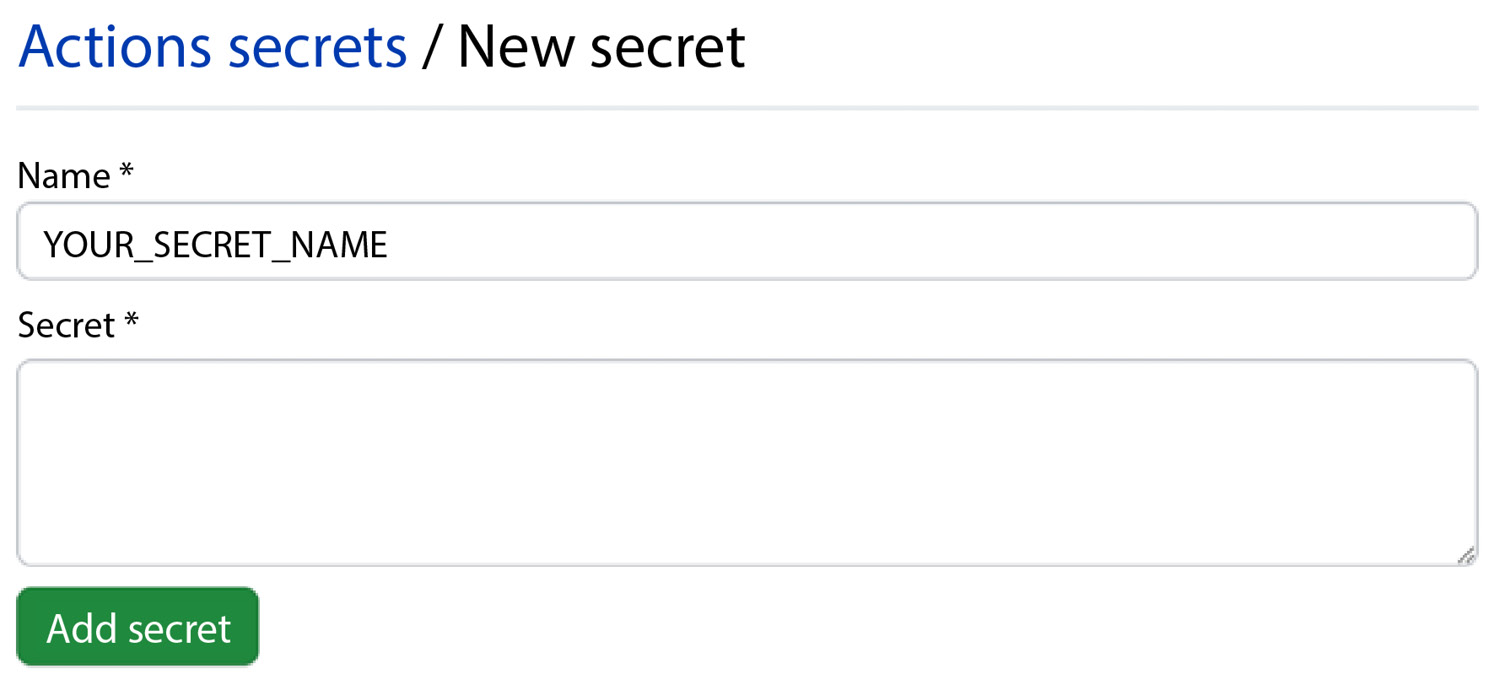
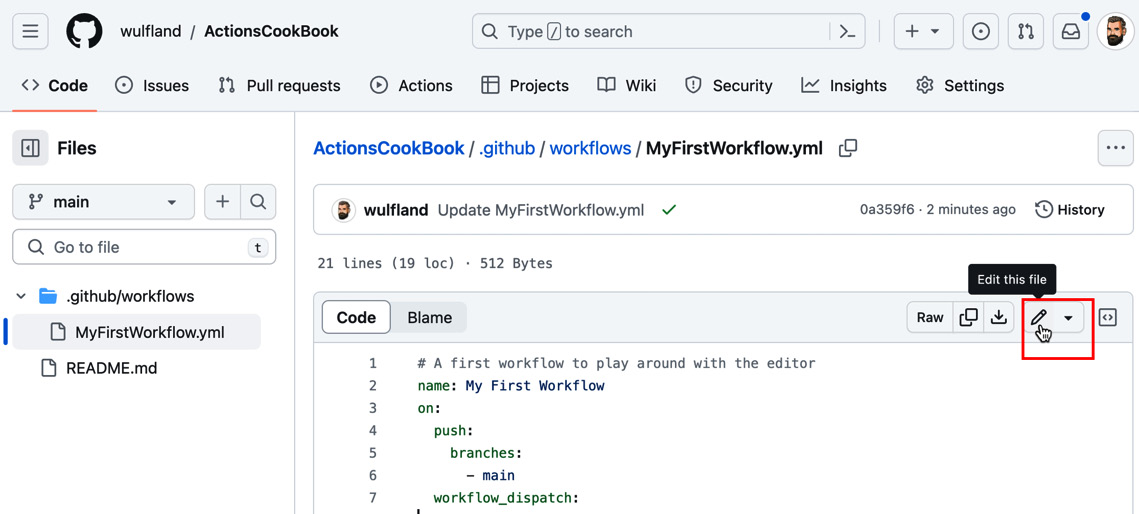
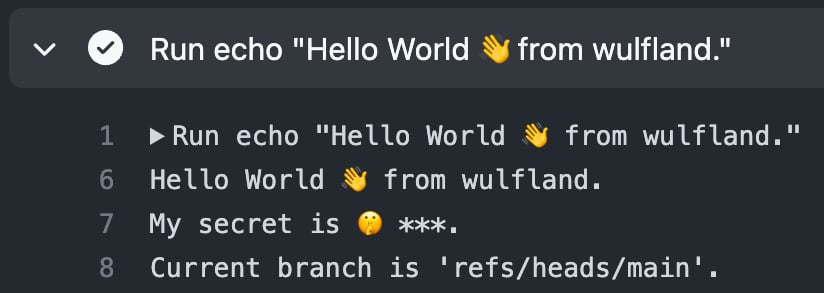
 from ${{ github.actor }}."
echo "My secret is
from ${{ github.actor }}."
echo "My secret is  ${{ secrets.MY_SECRET }}."