Sign In Start Free Trial
Account

Add to playlist

Create a Playlist

Modal Close icon
You need to login to use this feature.
  • Book Overview & Buying Practical Serverless and Microservices with C#
  • Table Of Contents Toc
Practical Serverless and Microservices with C#

Practical Serverless and Microservices with C#

By : Gabriel Baptista, Francesco Abbruzzese
close
close
Practical Serverless and Microservices with C#

Practical Serverless and Microservices with C#

By: Gabriel Baptista, Francesco Abbruzzese

Overview of this book

From the authors of the Software Architecture with C# and .NET series comes this practical and grounded showcase of microservices using the .NET stack. Written for .NET developers entering the world of modern cloud and distributed applications, it shows you when microservices and serverless architectures are the right choice for building scalable enterprise solutions and when they’re not. You’ll gain a realistic understanding of their use cases and limitations. Rather than promoting microservices as a one-size-fits-all solution, it encourages thoughtful adoption based on real-world needs. Following a brief introduction and important setup, the book helps you prepare for practical application through examples such as a ride-sharing website. You’ll work with Docker, Kubernetes, Azure Container Apps, and the new .NET Aspire with considerations for security, observability, and cost management. The book culminates in a complete event-driven application that brings together everything you've covered. By the end of this microservices book, you’ll have a well-rounded understanding of cloud and distributed .NET—through the lens of two industry veterans. *Email sign-up and proof of purchase required
Table of Contents (16 chapters)
close
close
14
Other Books You May Enjoy
15
Index

Coding Azure functions using VS Code

Creating an HTTP trigger Azure function using VS Code involves several well-defined steps. Here is a detailed guide to help you through the process.

There are some prerequisites to enable the development of Azure functions using VS Code, as follows:

  • Ensure you have VS Code installed on your machine. The use of VS Code will help you not only develop the Azure functions needed but also manage your Azure account using the Azure Tools extension.
  • It is recommended that you sign in to your Azure account to create the new function. The C# Dev Kit may also be installed.
  • The GitHub Copilot extension can also be installed to help you solve coding problems and, at the same time, guide you while writing code.
  • Install the Azure Functions extension for VS Code. This VS Code extension will facilitate the development of functions, giving you wizards for each function trigger desired.
  • Install the Azurite extension for VS Code. This VS Code extension is an open source Azure Storage API-compatible server for debugging Azure Functions locally.
  • Make sure you have the Azure Functions Core Tools, and the .NET SDK installed if you are using C#.

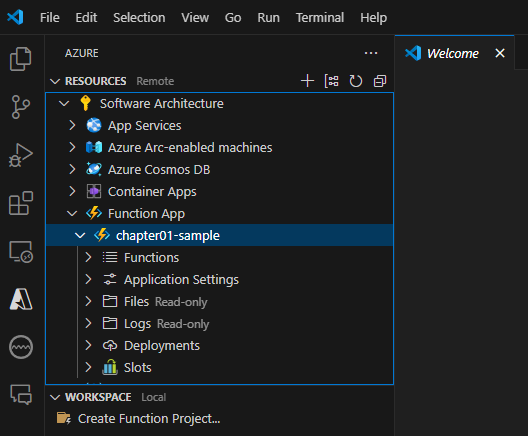
Once you have set up your environment, you will have something like the following figure:

Figure 1.6: VS Code ready to write Azure functions

Figure 1.6: VS Code ready to write Azure functions

  • Once all the prerequisites are set, in the Azure tab, go to WORKSPACE and select Create Function Project…. Next, perform the following steps:
    1. Choose a location for your project and select your preferred programming language.
    2. Follow the prompts to create a new HTTP trigger function. You can name it Health and call the namespace CarShare.Function.
    3. You will need to decide on the access rights for this function. For this example, you can choose Anonymous. We will discuss each of the security options later.
    4. Open the newly created function file. You will see a template code for an HTTP trigger function.
    5. Modify the function to meet your specific requirements, which, in this case, means to respond if the function is working properly. Notice that this is a GET and POST function. For the purpose we have defined, you can change the code to only be an HTTP GET function.
    6. Save your changes.

For running and debugging locally, you just need to press F5 or navigate to Run > Start Debugging. VS Code will start the Azure Functions host, and you will see the function URL in the output window. Then, you can use tools such as Postman or your browser to send HTTP requests to your function endpoint.

It is worth mentioning that for running Azure Functions locally, you will need to allow PowerShell scripts to run without being digitally signed. This can be a problem depending on the security policies provided by your company.

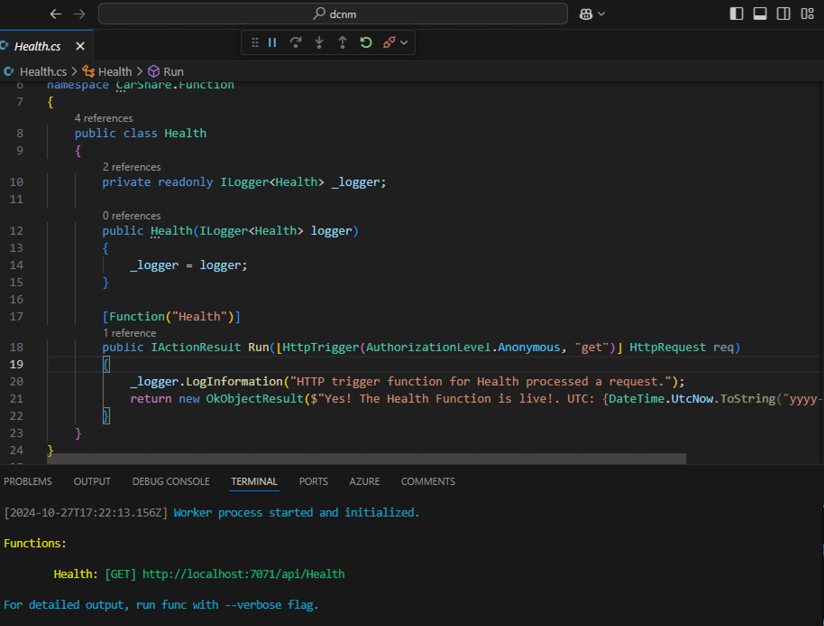
Once the function is running, you can consider it the same as when you work on other types of software projects, and even the debugging will work properly. The trigger will depend on the function you set. The following figure shows the code of the function program, where you can see the response to the caller with a status of 200 by using OkObjectResult with the message “Yes! The function is live!” and the UTC time.

Figure 1.7: Azure Functions running locally

Figure 1.7: Azure Functions running locally

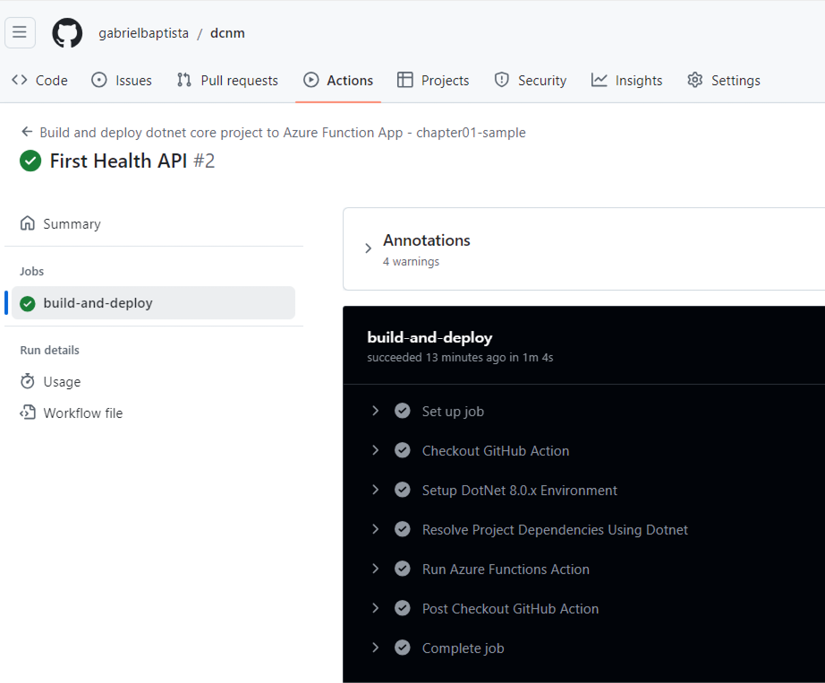
As you have created a function app connected to a GitHub repository with the deployment process handled by GitHub Actions, once you commit and pull the code to GitHub, GitHub Actions will automatically build the function and deploy it as a function app.

Figure 1.8: Function app deployed using GitHub Actions

Figure 1.8: Function app deployed using GitHub Actions

It is not the purpose of this book to discuss CI/CD strategies, but you will certainly need to think about them when it comes to professional development.

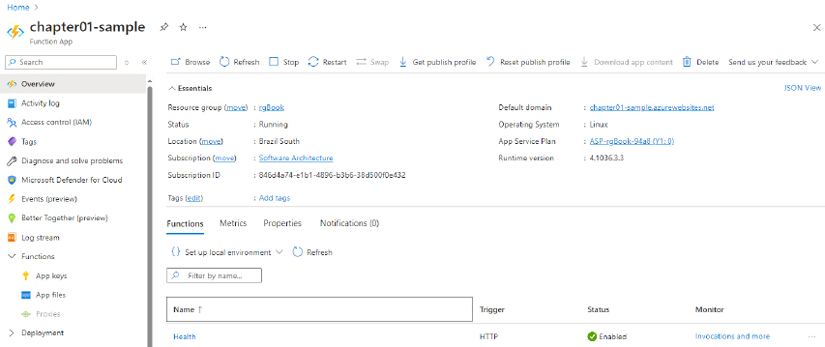
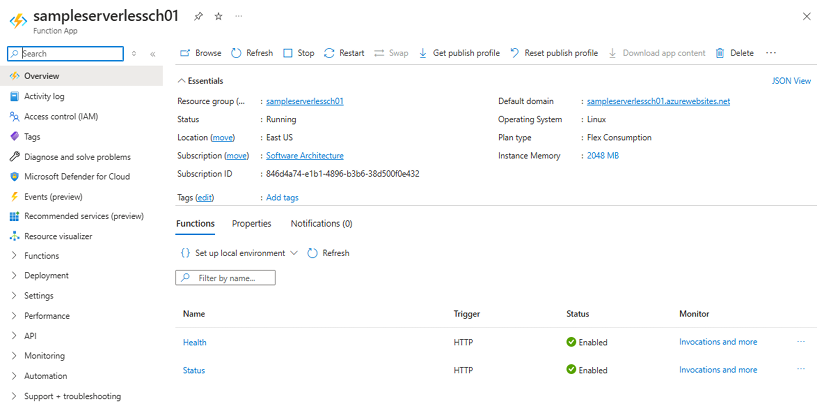
The result of this deployment can be checked in the Azure portal, where the function developed will be available in the list of functions. It is worth noting that a function app can handle more than one function at the same time.

Figure 1.9: Health function available in the function app

Figure 1.9: Health function available in the function app

The function can be executed as soon as it is published to Azure. As a result of the sample function, as this was developed as a GET HTTP trigger, we can check that the function is working by accessing the API in the web browser.

Figure 1.10: Health function running properly

Figure 1.10: Health function running properly

As you don’t have a live CI/CD pipeline, you can also publish your Azure function directly from the VS Code IDE. To do so, you may use the Azure Functions extension provided by VS Code.

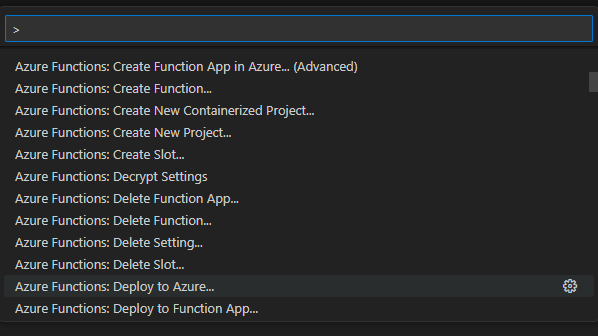
There are a few steps to follow in this case. The first one is to select the action to deploy the function in the VS Code prompt:

Figure 1.11: Deploying to Azure using VS Code

Figure 1.11: Deploying to Azure using VS Code

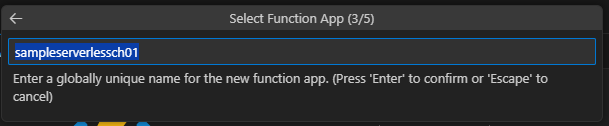
After that, you will need to select the corresponding subscription and the name of the new function app you want to deploy, considering a new function:

Figure 1.12: Creating a new function app

Figure 1.12: Creating a new function app

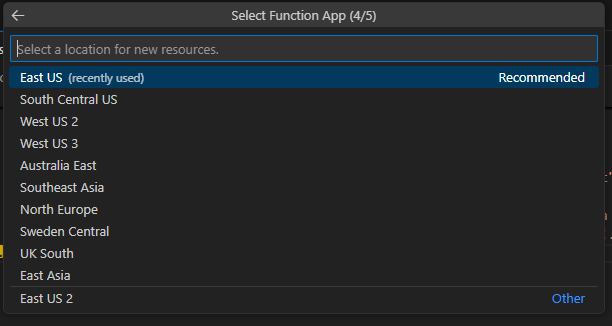
The current process proposed by the extension is to deploy an Azure function in the Flex Consumption plan. There are some specific locations where this option is available:

Figure 1.13: Defining the location for the new function app

Figure 1.13: Defining the location for the new function app

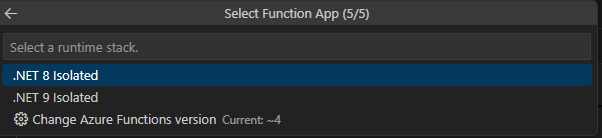
The definition of the runtime stack is also important to get the most out of your Azure function. In the case of the Flex Consumption plan, you will also be asked for the memory usage in the instance and the maximum number of instances available for parallel calls.

Figure 1.14: Defining the runtime stack for the new function app

Figure 1.14: Defining the runtime stack for the new function app

Once these sets are defined, your Azure function will be deployed correctly. You can also redeploy functions using the same technique later, without needing to recreate the Azure function app every single time.

Figure 1.15: Function app properly deployed

Figure 1.15: Function app properly deployed

Last, but not least, the Azure portal also gives you the possibility to monitor and manage the functions deployed. Once this process is done, you can monitor your function’s performance and log. By using the Monitoring section of your function app, you can view execution details, track failures, and analyze performance metrics.

CONTINUE READING
83
Tech Concepts
36
Programming languages
73
Tech Tools
Icon Unlimited access to the largest independent learning library in tech of over 8,000 expert-authored tech books and videos.
Icon Innovative learning tools, including AI book assistants, code context explainers, and text-to-speech.
Icon 50+ new titles added per month and exclusive early access to books as they are being written.
Practical Serverless and Microservices with C#
notes
bookmark Notes and Bookmarks search Search in title playlist Add to playlist download Download options font-size Font size

Change the font size

margin-width Margin width

Change margin width

day-mode Day/Sepia/Night Modes

Change background colour

Close icon Search
Country selected

Close icon Your notes and bookmarks

Confirmation

Modal Close icon
claim successful

Buy this book with your credits?

Modal Close icon
Are you sure you want to buy this book with one of your credits?
Close
YES, BUY

Submit Your Feedback

Modal Close icon
Modal Close icon
Modal Close icon