Sign In Start Free Trial
Account

Add to playlist

Create a Playlist

Modal Close icon
You need to login to use this feature.
  • Book Overview & Buying Python Business Intelligence Cookbook
  • Table Of Contents Toc
  • Feedback & Rating feedback
Python Business Intelligence Cookbook

Python Business Intelligence Cookbook

By : Dempsey
3.6 (9)
close
close
Python Business Intelligence Cookbook

Python Business Intelligence Cookbook

3.6 (9)
By: Dempsey

Overview of this book

The amount of data produced by businesses and devices is going nowhere but up. In this scenario, the major advantage of Python is that it's a general-purpose language and gives you a lot of flexibility in data structures. Python is an excellent tool for more specialized analysis tasks, and is powered with related libraries to process data streams, to visualize datasets, and to carry out scientific calculations. Using Python for business intelligence (BI) can help you solve tricky problems in one go. Rather than spending day after day scouring Internet forums for “how-to” information, here you’ll find more than 60 recipes that take you through the entire process of creating actionable intelligence from your raw data, no matter what shape or form it’s in. Within the first 30 minutes of opening this book, you’ll learn how to use the latest in Python and NoSQL databases to glean insights from data just waiting to be exploited. We’ll begin with a quick-fire introduction to Python for BI and show you what problems Python solves. From there, we move on to working with a predefined data set to extract data as per business requirements, using the Pandas library and MongoDB as our storage engine. Next, we will analyze data and perform transformations for BI with Python. Through this, you will gather insightful data that will help you make informed decisions for your business. The final part of the book will show you the most important task of BI—visualizing data by building stunning dashboards using Matplotlib, PyTables, and iPython Notebook.
Table of Contents (7 chapters)
close
close
6
Index

Installing, configuring, and running MongoDB

In this section, you'll see how to install, configure, and run MongoDB on all the major operating systems—Mac OS X, Windows, and Linux.

Getting ready

Open a web browser and visit: https://www.mongodb.org/downloads.

How to do it…

Mac OS X

The following steps explain how to install, configure, and run MongoDB on Mac OS X:

  1. On the download page, click on the Mac OS X tab, and select the version you want.
  2. Click on the Download (TGZ) button to download MongoDB.
  3. Unpack the downloaded file and copy to any directory that you like. I typically create an Applications folder in my home directory where I install apps like this.
  4. For our purpose, we're going to set up a single instance of MongoDB. This means there is literally nothing to configure. To run MongoDB, open a command prompt and do the following:
    • At the root of your computer, make a data directory:
      sudo mkdir data
      
    • Make your user the owner of the directory using the chown command:
      chown your_user_name:proper_group data
      
    • Go to the directory where you have MongoDB.
    • Go to the MongoDB directory.
    • Type the following command:
      ./mongod
      
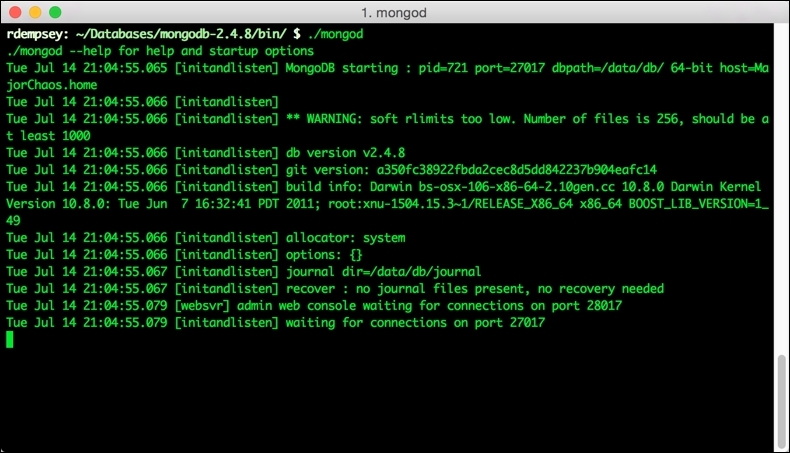
  5. You should see the following output from Mongo:

    Mac OS X

Windows

The following steps explain how to install, configure, and run MongoDB on Windows:

  1. Click on the Windows tab, and select the version you want.
  2. Click on the Download (MSI) button to download MongoDB.
  3. Once downloaded, browse to the folder where Mongo was downloaded, and double-click on the installer file.

    When asked which setup type you want, select Complete

  4. Follow the instructions to complete the installation.
  5. Create a data folder at C:\data\db. MongoDB needs this directory in order to run. This is where, by default, Mongo is going to store all its database files.
  6. Next, at the command prompt, navigate to the directory where Mongo was installed and run Mongo:
    cd C:\Program Files\MongoDB\Server\3.0\bin
    Mongod.exe
    
  7. If you get any security warnings, give Mongo full access.
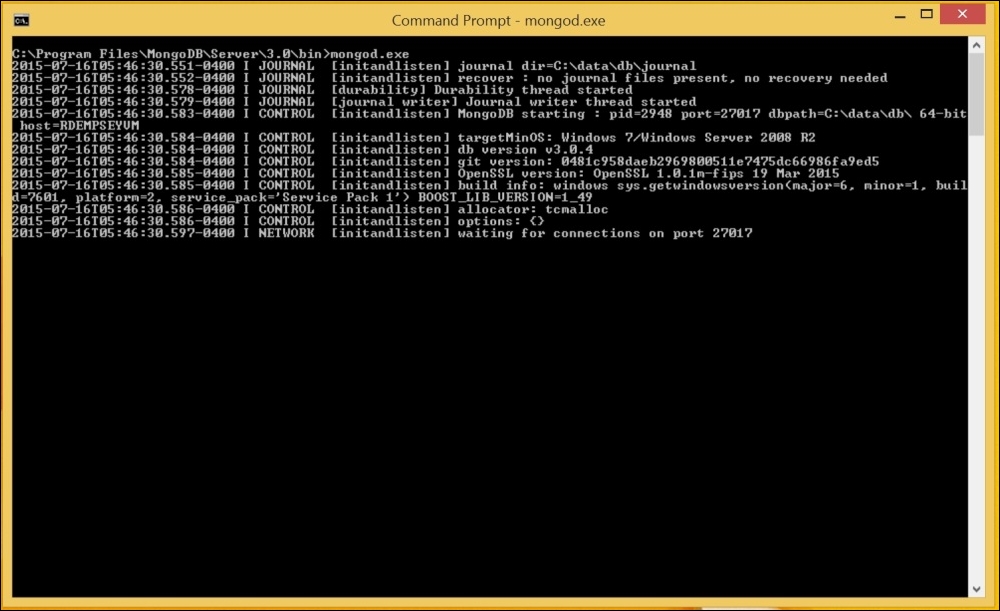
  8. You should see an output like the following screenshot from Mongo, letting you know it's working:

    Windows

Linux

The easiest way to install MongoDB in Linux is by using apt. At the time of writing, there are apt packages for 64-bit long-term support Ubuntu releases, specifically 12.04 LTS and 14.04 LTS. Since the URL for the public key can change, please visit the Mongo Installation Tutorial to ensure that you have the most recent one: https://docs.mongodb.org/manual/tutorial/install-mongodb-on-ubuntu/.

Install Mongo as follows:

  1. Log in to your Linux box
  2. Import the public key:
    sudo apt-key adv --keyserver hkp://keyserver.ubuntu.com:80 --  recv 7F0CEB10
    
  3. Create a list file for MongoDB:
    echo "deb http://repo.mongodb.org/apt/ubuntu "$(lsb_release -sc)"/mongodb-org/3.0 multiverse" | sudo tee /etc/apt/sources.list.d/mongodb-org-3.0.list
    
  4. Update apt:
    sudo apt-get update
    
  5. Install the latest version of Mongo:
    sudo apt-get install -y mongodb-org
    
  6. Run Mongo with the following command:
    sudo service mongod start
  7. Verify that MongoDB is running by checking the contents of the log file at /var/log/mongodb/mongod.log for a line that looks like this: [initandlisten] waiting for connections on port 27017
  8. You can stop MongoDB by using the following mongod command:
    sudo service mongod stop
    
  9. Restart MongoDB with this command:
    sudo service mongod restart
    

    Note

    MongoDB log file location

    MongoDB stores its data files in /var/lib/mongodb and its log files in /var/log/mongodb.

How it works…

MongoDB's document data model makes it easy for you to store data of any structure and to dynamically modify the schema. In layman's terms, MongoDB provides a vast amount of flexibility when it comes to storing your data. This comes in very handy when we import our data. Unlike with an SQL database, we won't have to create a table, set up a scheme, or create indexes—all of that will happen automatically when we import the data.

Visually different images
CONTINUE READING
83
Tech Concepts
36
Programming languages
73
Tech Tools
Icon Unlimited access to the largest independent learning library in tech of over 8,000 expert-authored tech books and videos.
Icon Innovative learning tools, including AI book assistants, code context explainers, and text-to-speech.
Icon 50+ new titles added per month and exclusive early access to books as they are being written.
Python Business Intelligence Cookbook
notes
bookmark Notes and Bookmarks search Search in title playlist Add to playlist font-size Font size

Change the font size

margin-width Margin width

Change margin width

day-mode Day/Sepia/Night Modes

Change background colour

Close icon Search
Country selected

Close icon Your notes and bookmarks

Confirmation

Modal Close icon
claim successful

Buy this book with your credits?

Modal Close icon
Are you sure you want to buy this book with one of your credits?
Close
YES, BUY

Submit Your Feedback

Modal Close icon
Modal Close icon
Modal Close icon