Sign In Start Free Trial
Account

Add to playlist

Create a Playlist

Modal Close icon
You need to login to use this feature.
  • Book Overview & Buying MDX with Microsoft SQL Server 2016 Analysis Services Cookbook
  • Table Of Contents Toc
MDX with Microsoft SQL Server 2016 Analysis Services Cookbook

MDX with Microsoft SQL Server 2016 Analysis Services Cookbook - Third Edition

By : Tomislav Piasevoli, Sherry Li
5 (3)
close
close
MDX with Microsoft SQL Server 2016 Analysis Services Cookbook

MDX with Microsoft SQL Server 2016 Analysis Services Cookbook

5 (3)
By: Tomislav Piasevoli, Sherry Li

Overview of this book

If you're often faced with MDX challenges, this is a book for you. It will teach you how to solve various real-world business requirements using MDX queries and calculations. Examples in the book introduce an idea or a problem and then guide you through the process of implementing the solution in a step-by-step manner, inform you about the best practices and offer a deep knowledge in terms of how the solution works. Recipes are organized by chapters, each covering a single topic. They start slowly and logically progress to more advanced techniques. In case of complexity, things are broken down. Instead of one, there are series of recipes built one on top of another. This way you are able to see intermediate results and debug potential errors faster. Finally, the cookbook format is here to help you quickly identify the topic of interest and in it a wide range of practical solutions, that is – MDX recipes for your success.
Table of Contents (11 chapters)
close
close

Handling division by zero errors

Handling errors is a common task, especially the handling of division by zero type errors. This recipe offers a common practice to handle them.

Getting ready

Start a new query in SQL Server Management Studio and check that you're working on the Adventure Works database. Then write and execute this query:

WITH 
MEMBER [Date].[Calendar Year].[CY 2012 vs 2011 Bad] AS 
   [Date].[Calendar Year].[Calendar Year].&[2012] / 
   [Date].[Calendar Year].[Calendar Year].&[2011], 
   FORMAT_STRING = 'Percent' 
SELECT 
   { [Date].[Calendar Year].[Calendar Year].&[2012], 
     [Date].[Calendar Year].[Calendar Year].&[2011], 
     [Date].[Calendar Year].[CY 2012 vs 2011 Bad] } * 
     [Measures].[Reseller Sales Amount] ON 0, 
   { [Sales Territory].[Sales Territory].[Country].MEMBERS } 
   ON 1 
FROM 
   [Adventure Works] 

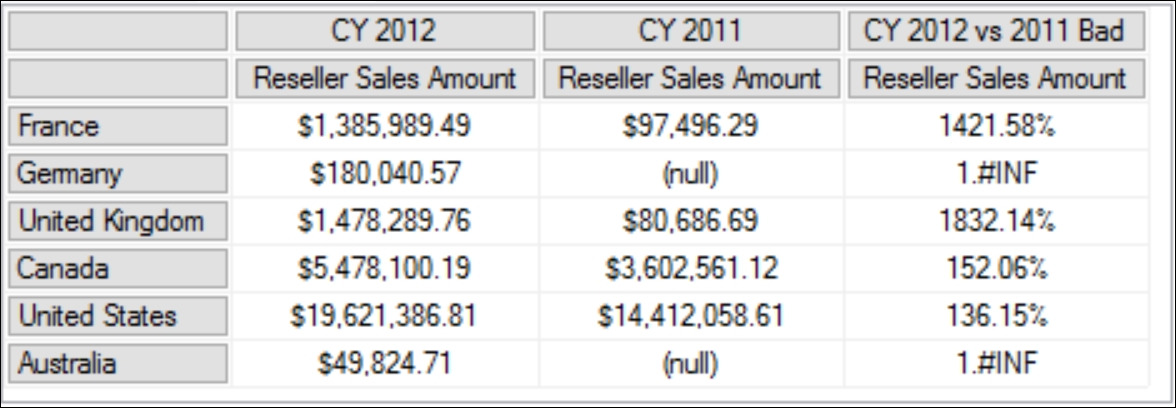
This query returns six countries on the rows axis, and two years and a ratio on the column axis:

Getting ready

The problem is that we get 1.#INF on some ratio cells. 1.#INF is the formatted value of infinity, and it appears whenever the denominator CY 2011 is null and the nominator CY 2012 is not null.

We will need help from the IIF() function, which takes three arguments: IFF(<condition>, <then branch>, <else branch>). The IIF() function is a Visual Basic for Applications (VBA) function and has a native implementation in MDX. The IIF() function will allow us to evaluate the condition of CY 2011, then decide what the ratio calculation formula should be.

How to do it...

Follow these steps to handle division by zero errors:

  1. Copy the calculated member and paste it as another calculated member. During that, replace the term Bad with Good in its name, just to differentiate between those two members.
  2. Copy the denominator.
  3. Wrap the expression in an outer IIF() statement.
  4. Paste the denominator in the condition part of the IIF() statement and compare it against 0.
  5. Provide null value for the true part.
  6. Your initial expression should be in the false part.
  7. Don't forget to include the new member on columns and execute the query:
          WITH 
          MEMBER [Date].[Calendar Year].[CY 2012 vs 2011 Bad] AS 
             [Date].[Calendar Year].[Calendar Year].&[2012] / 
             [Date].[Calendar Year].[Calendar Year].&[2011], 
             FORMAT_STRING = 'Percent' 
          MEMBER [Date].[Calendar Year].[CY 2012 vs 2011 Good] AS 
             IIF([Date].[Calendar Year].[Calendar Year].&[2011] = 0, 
                 null, 
                 [Date].[Calendar Year].[Calendar Year].&[2012] / 
                 [Date].[Calendar Year].[Calendar Year].&[2011] 
                ), 
             FORMAT_STRING = 'Percent' 
          SELECT 
             { [Date].[Calendar Year].[Calendar Year].&[2011], 
               [Date].[Calendar Year].[Calendar Year].&[2012], 
               [Date].[Calendar Year].[CY 2012 vs 2011 Bad], 
               [Date].[Calendar Year].[CY 2012 vs 2011 Good] } * 
               [Measures].[Reseller Sales Amount] ON 0, 
             { [Sales Territory].[Sales Territory].[Country].MEMBERS } 
             ON 1 
          FROM 
             [Adventure Works] 
    

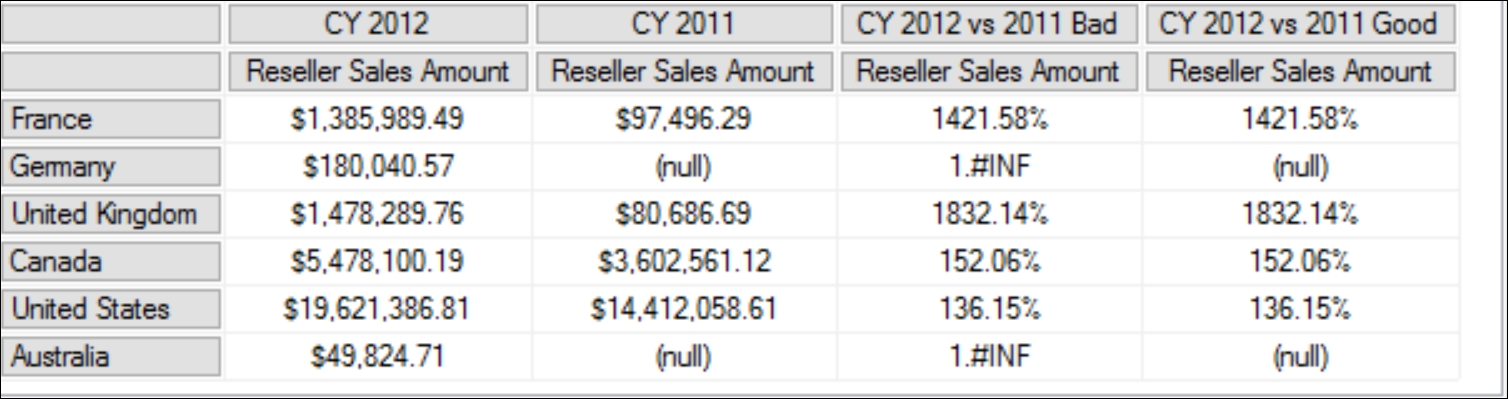
The result shows that the new calculated measure has corrected the problem. The last column [CY 2012 vs 2011 Good] is now showing (null) correctly when the denominator CY 2011 is null and the nominator CY 2012 is not null.

How to do it...

How it works...

A division by zero error occurs when the denominator is null or zero and the numerator is not null. In order to prevent this error, we must test the denominator before the division and handle the two scenarios in the two branches using the IIF() statement.

In the condition part of the IIF statement, we've used a simple scalar number zero to determine whether [Measures].[Reseller Sales Amount] in the following slicer is zero or not. If it is zero, then it will be true and the calculated member will be NULL:

[Date].[Calendar Year].[Calendar Year].&[2011] = 0 

What about the NULL condition? It turned out for a numerical value; we do not need to test the NULL condition specifically. It is enough to test just for zero because null = 0 returns true. However, we could test for a NULL condition if we want to, by using the IsEmpty() function.

For the calculated member, [CY 2012 vs 2011 Good] we could wrap the member with the IsEmpty() function. The result will be the same:

MEMBER [Date].[Calendar Year].[CY 2012 vs 2011 Good] AS 
   IIF(IsEmpty([Date].[Calendar Year].[Calendar Year].&[2011]), 
       null, 
       [Date].[Calendar Year].[Calendar Year].&[2012] / 
       [Date].[Calendar Year].[Calendar Year].&[2011] 
      ), 
   FORMAT_STRING = 'Percent' 

There's more...

SQLCAT's SQL Server 2008 Analysis Services Performance Guide has a lot of interesting details regarding the IIF() function, found at http://tinyurl.com/PerfGuide2008R2 .

Additionally, you may find the blog article MDX and DAX topics by Jeffrey Wang, explaining the details of the IIF() function, found at http://tinyurl.com/IIFJeffrey .

Earlier versions of SSAS

If you're using a version of SSAS prior to 2008 (that is, 2005), the performance of the IIF() function will not be as good. See Mosha Pasumansky's article for more information: http://tinyurl.com/IIFMosha .

CONTINUE READING
83
Tech Concepts
36
Programming languages
73
Tech Tools
Icon Unlimited access to the largest independent learning library in tech of over 8,000 expert-authored tech books and videos.
Icon Innovative learning tools, including AI book assistants, code context explainers, and text-to-speech.
Icon 50+ new titles added per month and exclusive early access to books as they are being written.
MDX with Microsoft SQL Server 2016 Analysis Services Cookbook
notes
bookmark Notes and Bookmarks search Search in title playlist Add to playlist download Download options font-size Font size

Change the font size

margin-width Margin width

Change margin width

day-mode Day/Sepia/Night Modes

Change background colour

Close icon Search
Country selected

Close icon Your notes and bookmarks

Confirmation

Modal Close icon
claim successful

Buy this book with your credits?

Modal Close icon
Are you sure you want to buy this book with one of your credits?
Close
YES, BUY

Submit Your Feedback

Modal Close icon
Modal Close icon
Modal Close icon