
Sign In Start Free Trial
Account

Add to playlist

Create a Playlist

Modal Close icon
You need to login to use this feature.
  • Book Overview & Buying Data Analysis with IBM SPSS Statistics
  • Table Of Contents Toc
Data Analysis with IBM SPSS Statistics

Data Analysis with IBM SPSS Statistics

By : Ken Stehlik-Barry, Anthony Babinec
4.9 (7)
close
close
Data Analysis with IBM SPSS Statistics

Data Analysis with IBM SPSS Statistics

4.9 (7)
By: Ken Stehlik-Barry, Anthony Babinec

Overview of this book

SPSS Statistics is a software package used for logical batched and non-batched statistical analysis. Analytical tools such as SPSS can readily provide even a novice user with an overwhelming amount of information and a broad range of options for analyzing patterns in the data. The journey starts with installing and configuring SPSS Statistics for first use and exploring the data to understand its potential (as well as its limitations). Use the right statistical analysis technique such as regression, classification and more, and analyze your data in the best possible manner. Work with graphs and charts to visualize your findings. With this information in hand, the discovery of patterns within the data can be undertaken. Finally, the high level objective of developing predictive models that can be applied to other situations will be addressed. By the end of this book, you will have a firm understanding of the various statistical analysis techniques offered by SPSS Statistics, and be able to master its use for data analysis with ease.
Table of Contents (17 chapters)
close
close
4
Dealing with Missing Data and Outliers
10
Crosstabulation Patterns for Categorical Data

Executing a basic SPSS session

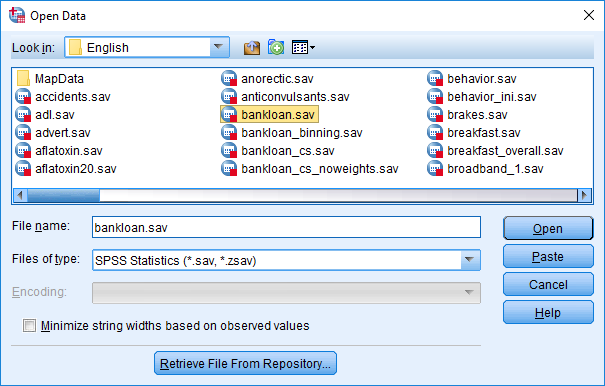
Click on OK to return to the Data Editor window. To confirm that the software is ready for use, go to the File menu and select Open Data. Navigate to the location where SPSS Statistics was installed, and down through the folders to the SamplesEnglish subfolder. The path shown here is typically where the sample SPSS data files that ship with the software get installed:

C:Program FilesIBMSPSSStatistics24SamplesEnglish

A list of sample SPSS data files (those with a .sav extension) will be displayed. For this example, select the bankloan.sav file, as shown in the following screenshot, and click on Open:
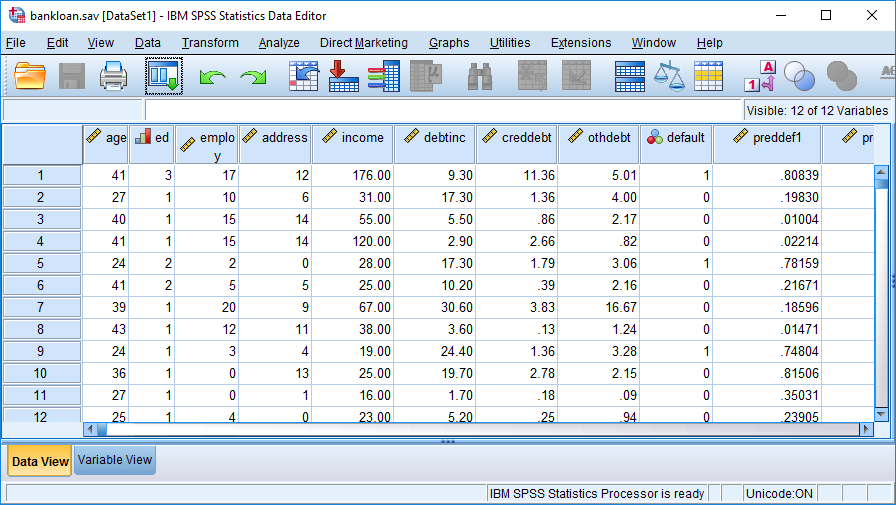
The Data Editor window now displays the name of the file just opened in the title bar with the fields (variables in SPSS terminology) as the column names and the actual values in the rows. Here, each row represents a bank customer and the columns contain their associated information. Only the first 12 rows are visible in the following screenshot, but after scrolling down, you will see more.

There are 850 rows in total:
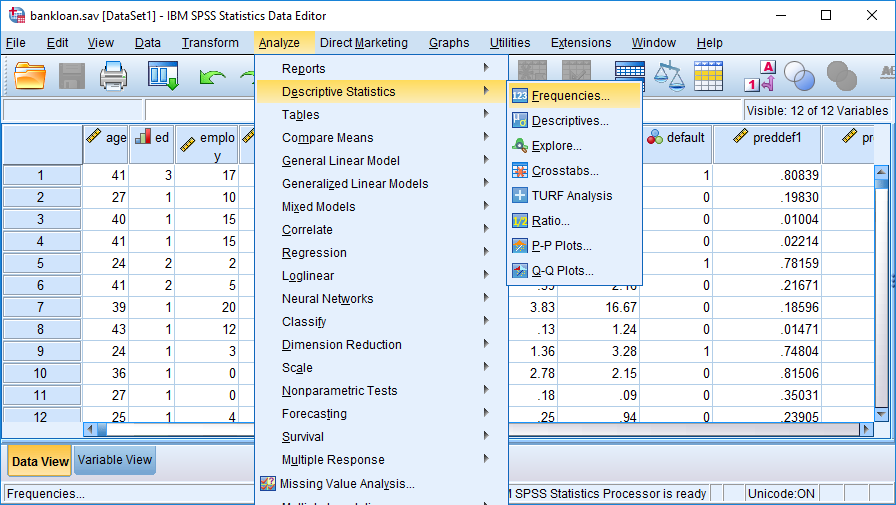
Go to the Analyze menu and select Descriptive Statistics | Frequencies, as shown in the following screenshot:

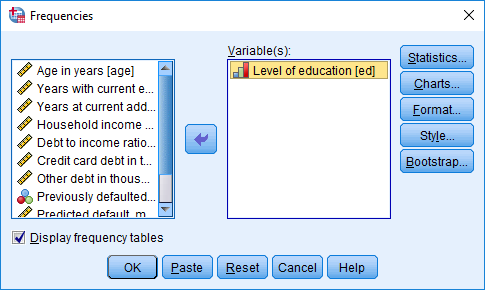
The Frequencies dialog box shown here has a Bootstrap button on the lower right. This is present because the license used for this installation included the Bootstrap option, which results in this added feature appearing in appropriate places within SPSS.

The dialog box shown in the previous image allows you to select fields and obtain basic descriptive statistics for them.

For this initial check of the software installation, select just the education field, which is shown by its label, Level of education, as shown in the following screenshot. You can double-click on the label or highlight it and use the arrow in the middle of the screen to make the selection:
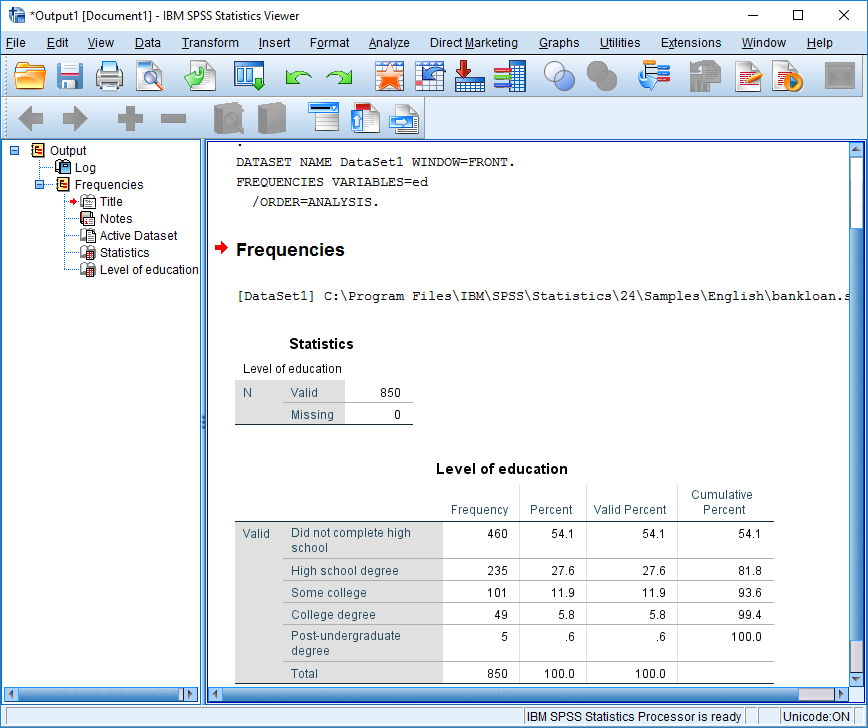
The descriptive statistics requested for the education field are presented in a new output window as shown in the following image. The left side of the output window is referred to in SPSS as the navigation pane and it lists the elements available for viewing in the main portion of the window. The frequency table for education shows that there are five levels of education present in the data for the bank's customers and that over half, 54.1%, of these 850 customers did not complete high school. This very simple example will confirm that the SPSS Statistics software is installed and ready to use on your machine.

Refer to the following image for a better understanding of descriptive statistics and the navigation pane:
To complete this check of the installation process, go to the File menu and select Exit at the bottom. You will be prompted to save the newly-created output window, which was automatically assigned the name, *Output1. There is no need to save the results of the frequency table that was created, but you can do so if you like.

The title bar of the output window shows the name *Output1, which was generated automatically by SPSS. The * indicates that the window contains material that has not been saved.
CONTINUE READING
83
Tech Concepts
36
Programming languages
73
Tech Tools
Icon Unlimited access to the largest independent learning library in tech of over 8,000 expert-authored tech books and videos.
Icon Innovative learning tools, including AI book assistants, code context explainers, and text-to-speech.
Icon 50+ new titles added per month and exclusive early access to books as they are being written.
Data Analysis with IBM SPSS Statistics
notes
bookmark Notes and Bookmarks search Search in title playlist Add to playlist download Download options font-size Font size

Change the font size

margin-width Margin width

Change margin width

day-mode Day/Sepia/Night Modes

Change background colour

Close icon Search
Country selected

Close icon Your notes and bookmarks

Confirmation

Modal Close icon
claim successful

Buy this book with your credits?

Modal Close icon
Are you sure you want to buy this book with one of your credits?
Close
YES, BUY

Submit Your Feedback

Modal Close icon
Modal Close icon
Modal Close icon