Sign In Start Free Trial
Account

Add to playlist

Create a Playlist

Modal Close icon
You need to login to use this feature.
  • Book Overview & Buying Jupyter Cookbook
  • Table Of Contents Toc
Jupyter Cookbook

Jupyter Cookbook

By : Toomey
1 (1)
close
close
Jupyter Cookbook

Jupyter Cookbook

1 (1)
By: Toomey

Overview of this book

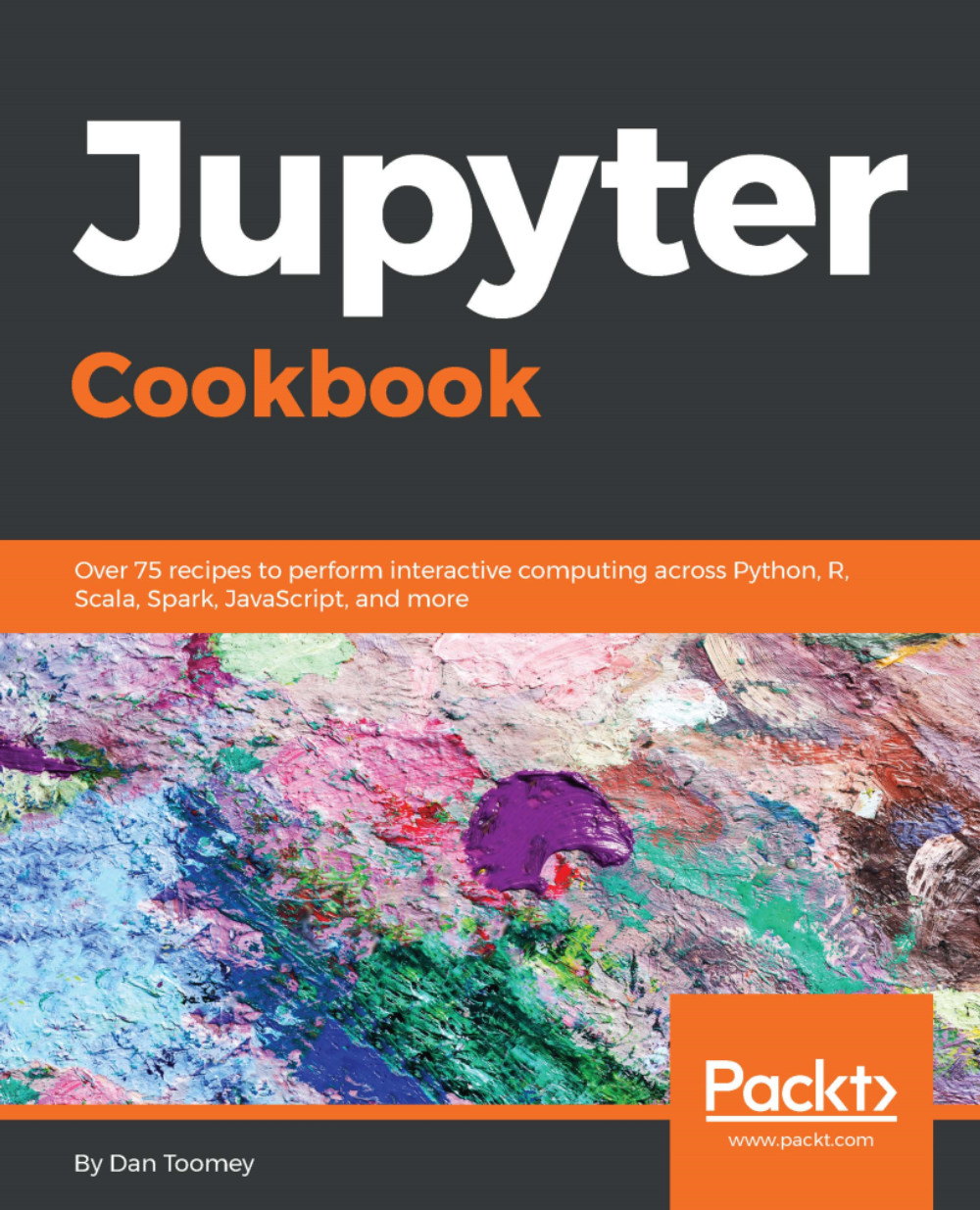
Jupyter has garnered a strong interest in the data science community of late, as it makes common data processing and analysis tasks much simpler. This book is for data science professionals who want to master various tasks related to Jupyter to create efficient, easy-to-share, scientific applications. The book starts with recipes on installing and running the Jupyter Notebook system on various platforms and configuring the various packages that can be used with it. You will then see how you can implement different programming languages and frameworks, such as Python, R, Julia, JavaScript, Scala, and Spark on your Jupyter Notebook. This book contains intuitive recipes on building interactive widgets to manipulate and visualize data in real time, sharing your code, creating a multi-user environment, and organizing your notebook. You will then get hands-on experience with Jupyter Labs, microservices, and deploying them on the web. By the end of this book, you will have taken your knowledge of Jupyter to the next level to perform all key tasks associated with it.
Table of Contents (12 chapters)
close
close

Installing Jupyter on Linux

Linux is one of the easier installations for Jupyter. Linux has all the tools required to update Jupyter going forward. For Linux, we use similar commands to those shown earlier to install on the Mac from the command line. 

How to do it...

Linux is a very common platform for most programming tasks. Many of the tools used in programming have been developed on Linux and later ported to other operating systems, such as Windows.

We are using Anaconda to install on Linux, but the graphical interface is not available.

The script to install Jupyter on Linux via the command line with the Python 3 engine is:

bash ~/Downloads/Anaconda3-5.0.0.1-Linux-x86_64.sh

Similarly, the command to install with the Python 2 engine is:

bash ~/Downloads/Anaconda2-5.0.0.1-Linux-x86_64.sh

In either case, you will be prompted by some regular install questions:

  • Review and agree to the license agreement
  • Specify whether the standard install directory is OK (if not, you can specify where to install the software)
  • Specify whether to prepend the Anaconda location in your user path (Anaconda recommends this step)

And, as shown earlier under specify Windows and Mac installation sections, you can have the Python 2 and Python 3 engines available using similar steps.

At this point, you should be able to start Anaconda Navigator with the command line:

anaconda-navigator

Or you can run Jupyter directly using the regular command line:

jupyter notebook
CONTINUE READING
83
Tech Concepts
36
Programming languages
73
Tech Tools
Icon Unlimited access to the largest independent learning library in tech of over 8,000 expert-authored tech books and videos.
Icon Innovative learning tools, including AI book assistants, code context explainers, and text-to-speech.
Icon 50+ new titles added per month and exclusive early access to books as they are being written.
Jupyter Cookbook
notes
bookmark Notes and Bookmarks search Search in title playlist Add to playlist download Download options font-size Font size

Change the font size

margin-width Margin width

Change margin width

day-mode Day/Sepia/Night Modes

Change background colour

Close icon Search
Country selected

Close icon Your notes and bookmarks

Confirmation

Modal Close icon
claim successful

Buy this book with your credits?

Modal Close icon
Are you sure you want to buy this book with one of your credits?
Close
YES, BUY

Submit Your Feedback

Modal Close icon
Modal Close icon
Modal Close icon