Sign In Start Free Trial
Account

Add to playlist

Create a Playlist

Modal Close icon
You need to login to use this feature.
  • Book Overview & Buying Data Labeling in Machine Learning with Python
  • Table Of Contents Toc
Data Labeling in Machine Learning with Python

Data Labeling in Machine Learning with Python

By : Vijaya Kumar Suda
5 (3)
close
close
Data Labeling in Machine Learning with Python

Data Labeling in Machine Learning with Python

5 (3)
By: Vijaya Kumar Suda

Overview of this book

Data labeling is the invisible hand that guides the power of artificial intelligence and machine learning. In today’s data-driven world, mastering data labeling is not just an advantage, it’s a necessity. Data Labeling in Machine Learning with Python empowers you to unearth value from raw data, create intelligent systems, and influence the course of technological evolution. With this book, you'll discover the art of employing summary statistics, weak supervision, programmatic rules, and heuristics to assign labels to unlabeled training data programmatically. As you progress, you'll be able to enhance your datasets by mastering the intricacies of semi-supervised learning and data augmentation. Venturing further into the data landscape, you'll immerse yourself in the annotation of image, video, and audio data, harnessing the power of Python libraries such as seaborn, matplotlib, cv2, librosa, openai, and langchain. With hands-on guidance and practical examples, you'll gain proficiency in annotating diverse data types effectively. By the end of this book, you’ll have the practical expertise to programmatically label diverse data types and enhance datasets, unlocking the full potential of your data.
Table of Contents (18 chapters)
close
close
1
Part 1: Labeling Tabular Data
5
Part 2: Labeling Image Data
9
Part 3: Labeling Text, Audio, and Video Data

Profiling data using the ydata-profiling library

In this section, let us explore the dataset and generate a profiling report with various statistics using the ydata-profiling library (https://docs.profiling.ydata.ai/4.5/).

The ydata-profiling library is a Python library for easy EDA, profiling, and report generation.

Let us see how to use ydata-profiling for fast and efficient EDA:

  1. Install the ydata-profiling library using pip as follows:
    pip install ydata-profiling
  2. First, let us import the Pandas profiling library as follows:
    from ydata_profiling import ProfileReport

    Then, we can use Pandas profiling to generate reports.

  3. Now, we will read the Income dataset into the Pandas DataFrame:
    df=pd.read_csv('adult.csv',na_values=-999)
  4. Let us run the upgrade command to make sure we have the latest profiling library:
    %pip install ydata-profiling --upgrade
  5. Now let us run the following commands to generate the profiling report:
    report = ProfileReport(df)
    report

We can also generate the report using the profile_report() function on the Pandas DataFrame.

After running the preceding cell, all the data loaded in df will be analyzed and the report will be generated. The time taken to generate the report depends on the size of the dataset.

The output of the preceding cell is a report with sections. Let us understand the report that is generated.

The generated profiling report contains the following sections:

  • Overview
  • Variables
  • Interactions
  • Correlations
  • Missing values
  • Sample
  • Duplicate rows

Under the Overview section in the report, there are three tabs:

  • Overview
  • Alerts
  • Reproduction

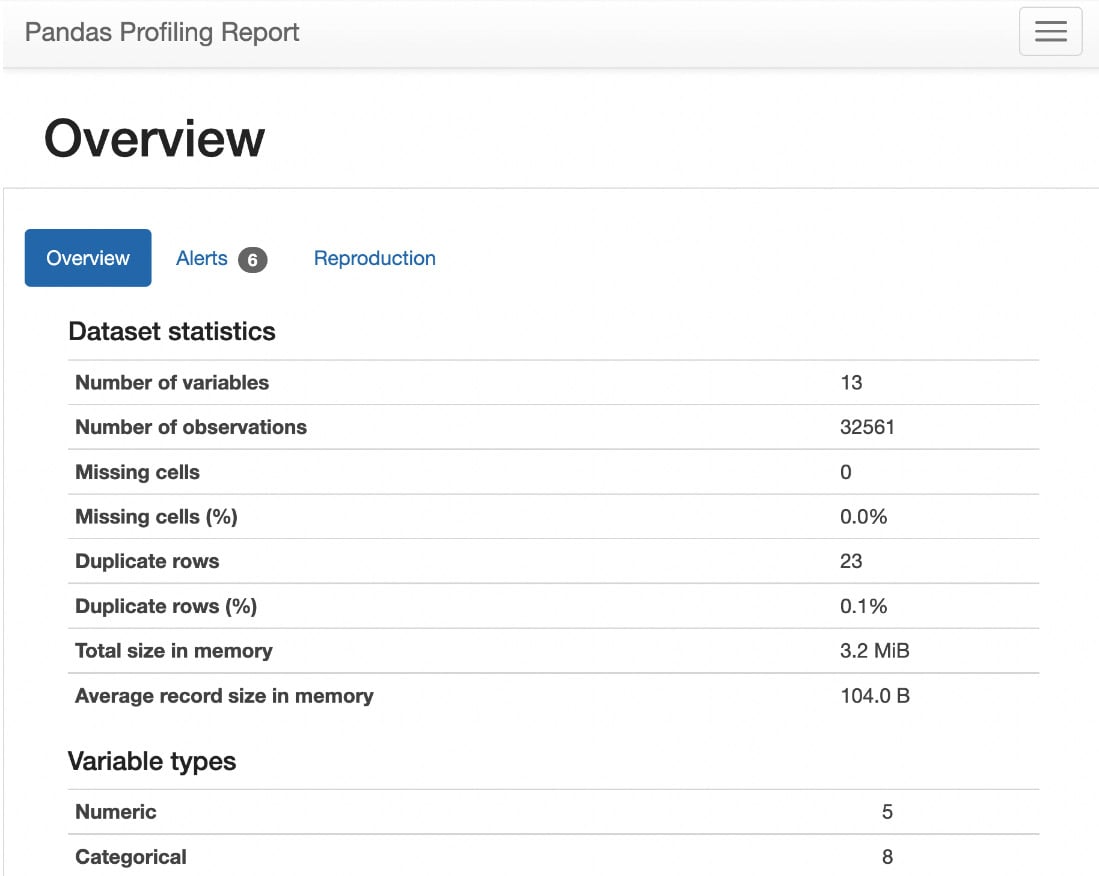
As shown in the following figure, the Overview tab shows statistical information about the dataset – that is, the number of columns (number of variables) in the dataset; the number of rows (number of observations), duplicate rows, and missing cells; the percentage of duplicate rows and missing cells; and the number of Numeric and Categorical variables:

Figure 1.25 – Statistics of the dataset

Figure 1.25 – Statistics of the dataset

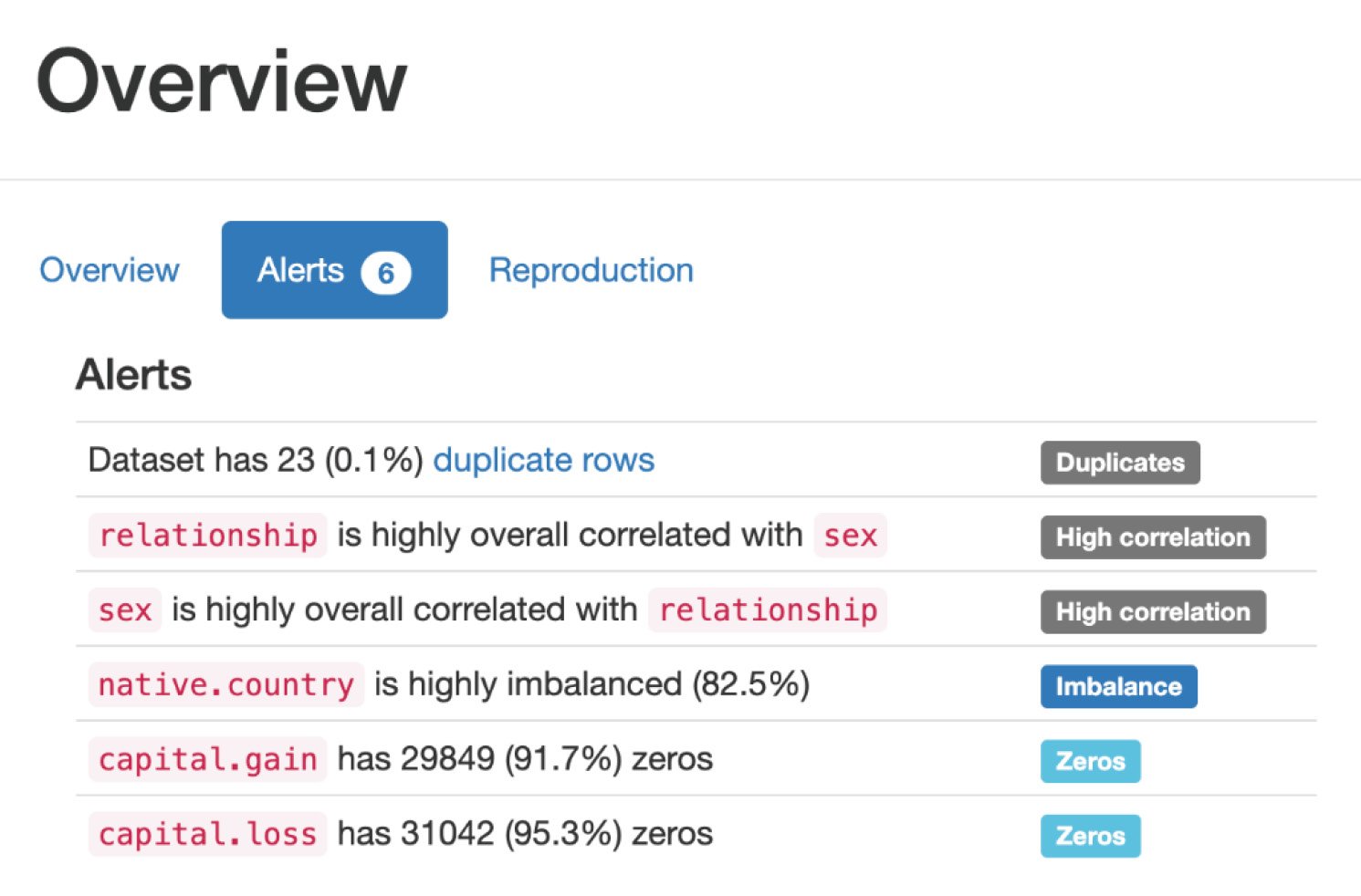
The Alerts tab under Overview shows all the variables that are highly correlated with each other and the number of cells that have zero values, as follows:

Figure 1.26 – Alerts

Figure 1.26 – Alerts

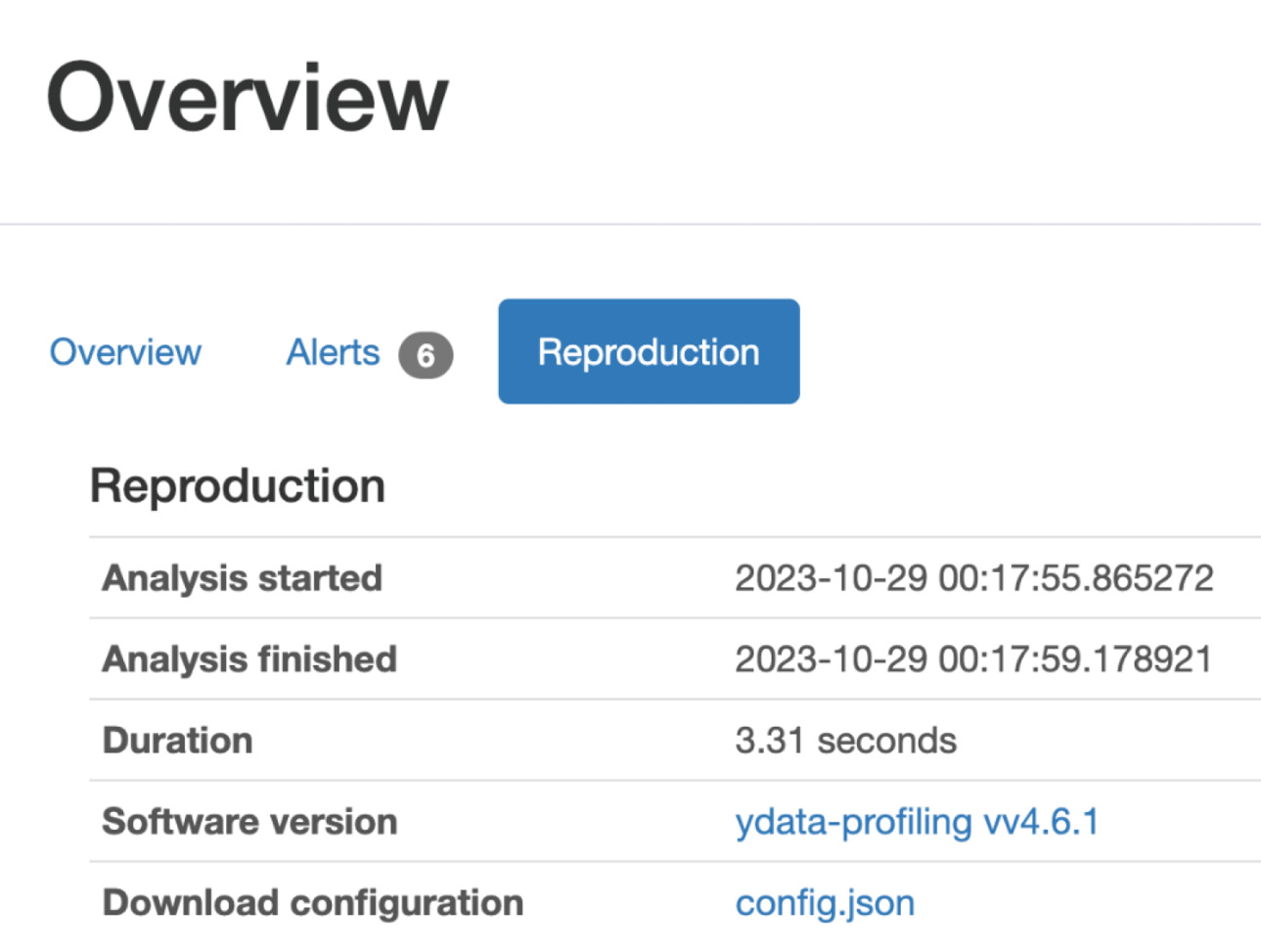
The Reproduction tab under Overview shows the duration it took for the analysis to generate this report, as follows:

Figure 1.27 – Reproduction

Figure 1.27 – Reproduction

Variables section

Let us walk through the Variables section in the report.

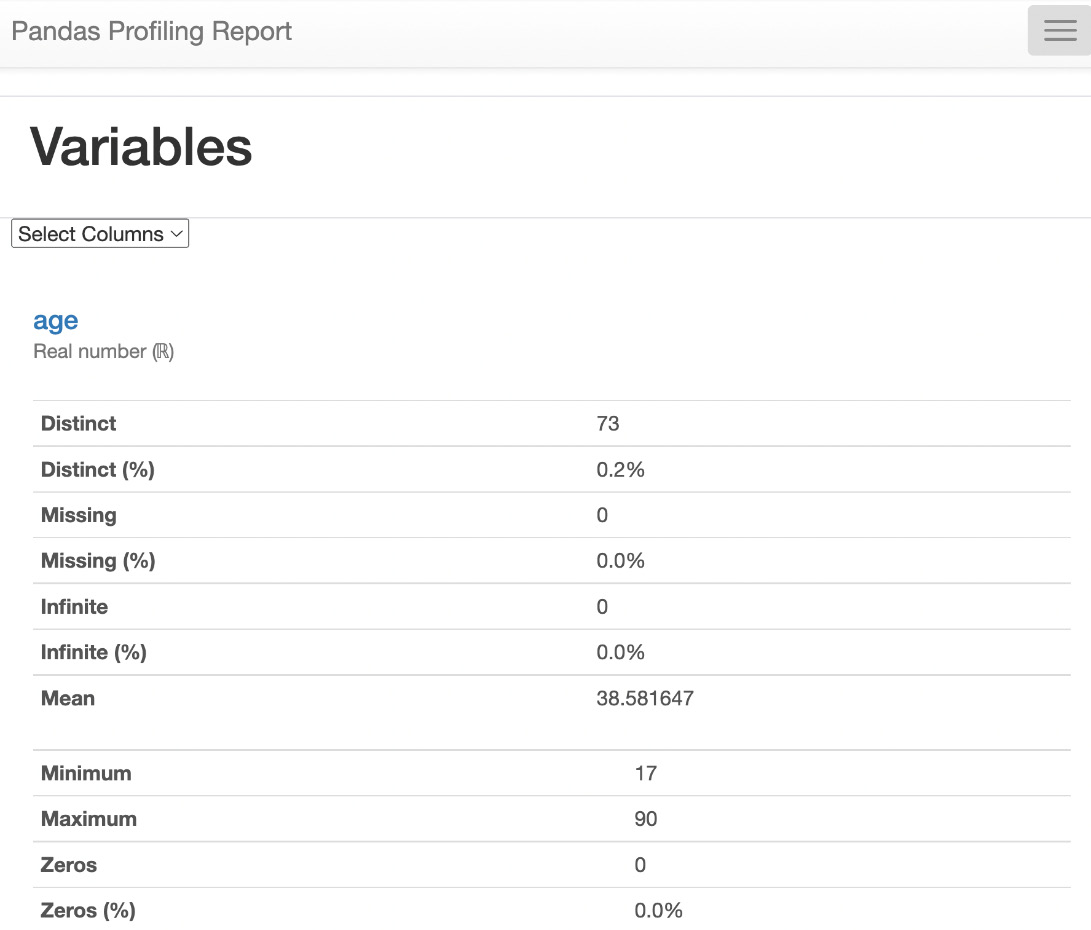
Under the Variables section, we can select any variable in the dataset under the dropdown and see the statistical information about the dataset, such as the number of unique values for that variable, missing values for that variable, the size of that variable, and so on.

In the following figure, we selected the age variable in the dropdown and can see the statistics about that variable:

Figure 1.28 – Variables

Figure 1.28 – Variables

Interactions section

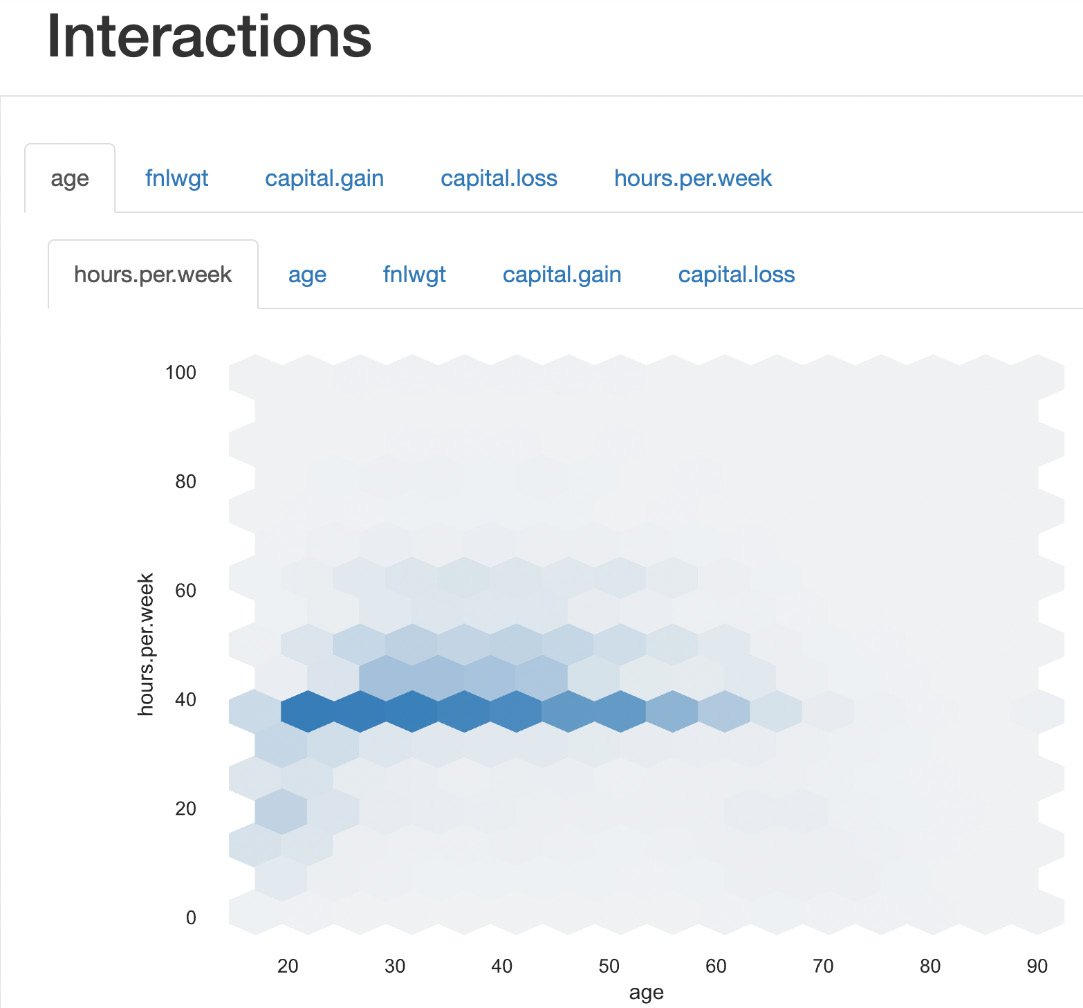
As shown in the following figure, this report also contains the Interactions plot to show how one variable relates to another variable:

Figure 1.29 – Interactions

Figure 1.29 – Interactions

Correlations

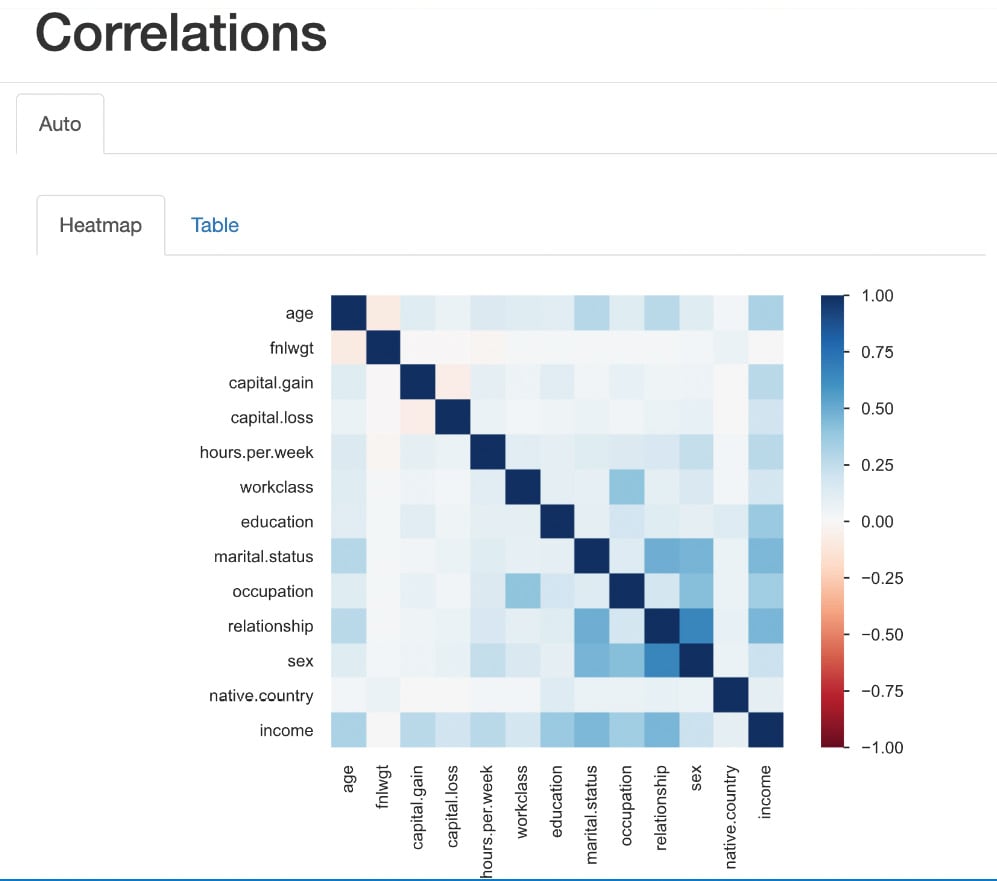
Now, let's see the Correlations section in the report; we can see the correlation between various variables in Heatmap. Also, we can see various correlation coefficients in the Table form.

Figure 1.30 – Correlations

Figure 1.30 – Correlations

Heatmaps use color intensity to represent values. The colors typically range from cool to warm hues, with cool colors (e.g., blue or green) indicating low values and warm colors (e.g., red or orange) indicating high values. Rows and columns of the matrix are represented on both the x axis and y axis of the heatmap. Each cell at the intersection of a row and column represents a specific value in the data.

The color intensity of each cell corresponds to the magnitude of the value it represents. Darker colors indicate higher values, while lighter colors represent lower values.

As we can see in the preceding figure, the intersection cell between income and hours per week shows a high-intensity blue color, which indicates there is a high correlation between income and hours per week. Similarly, the intersection cell between income and capital gain shows a high-intensity blue color, indicating a high correlation between those two features.

Missing values

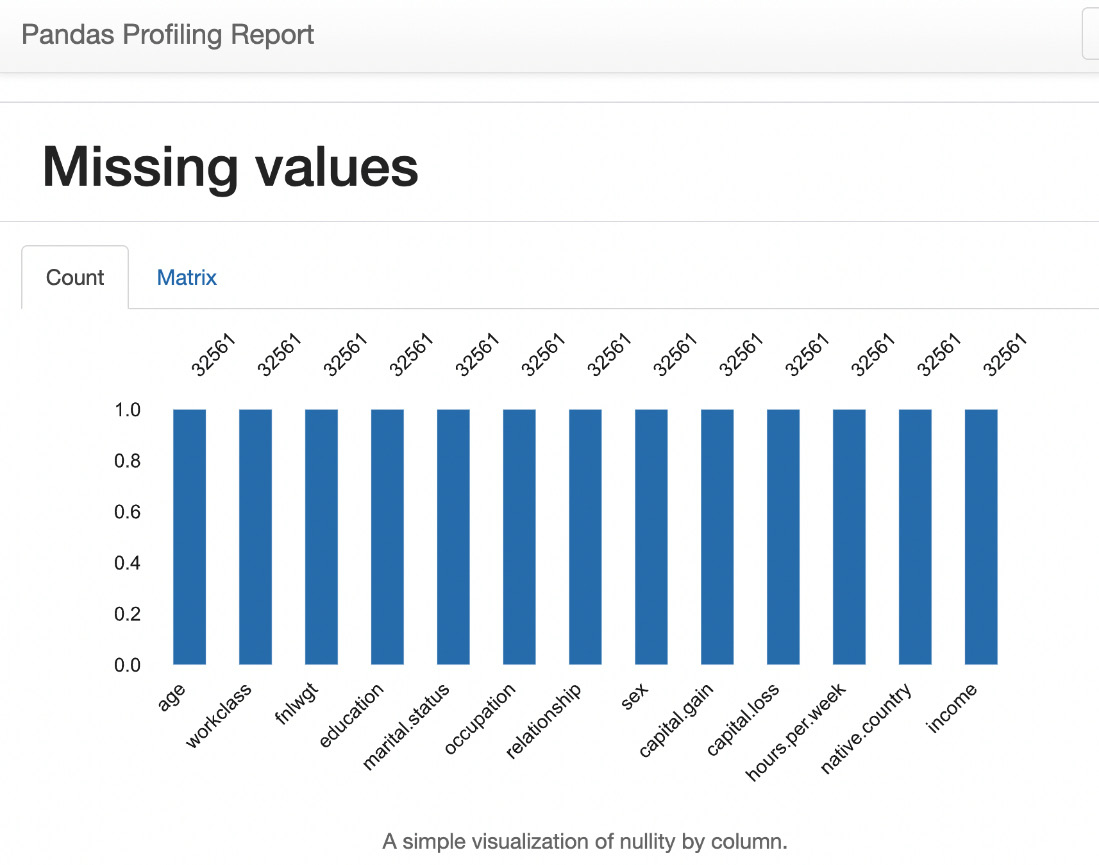
This section of the report shows the counts of total values present within the data and provides a good understanding of whether there are any missing values.

Under Missing values, we can see two tabs:

  • The Count plot
  • The Matrix plot

Count plot

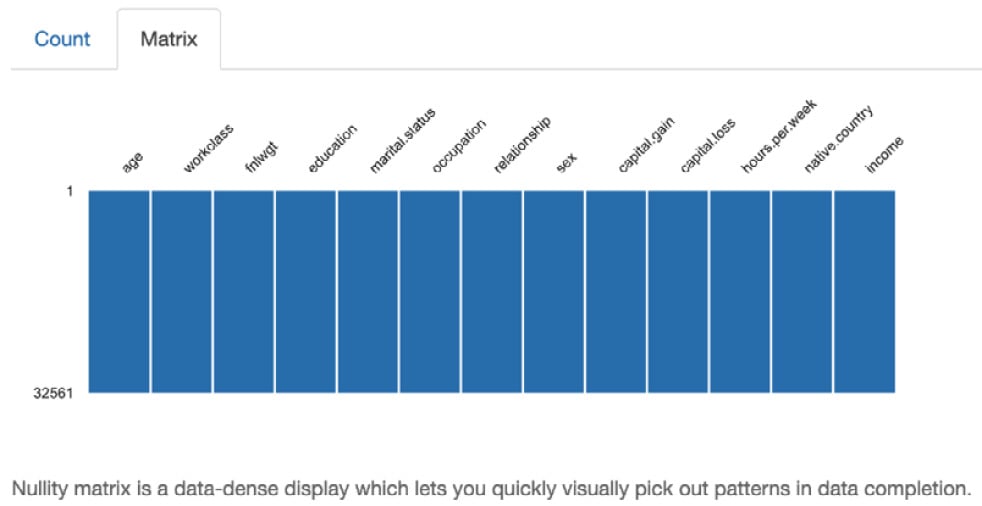
In Figure 1.31, the shows that all variables have a count of 32,561, which is the count of rows (observations) in the dataset. That indicates that there are no missing values in the dataset.

Figure 1.31 – Missing values count

Figure 1.31 – Missing values count

Matrix plot

The following Matrix plot indicates where the missing values are (if there are any missing values in the dataset):

Figure 1.32 – Missing values matrix

Figure 1.32 – Missing values matrix

Sample data

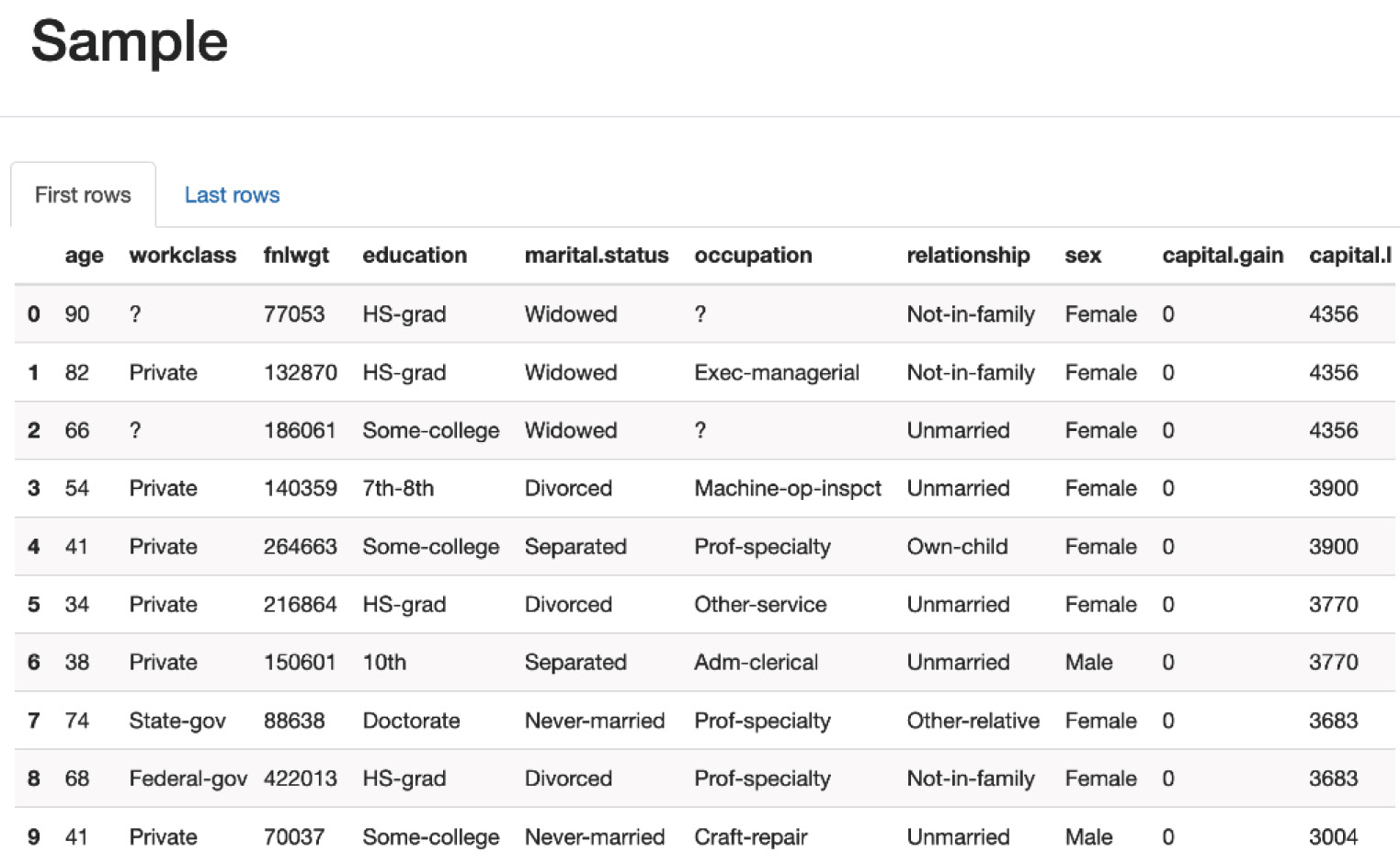
This section shows the sample data for the first 10 rows and the last 10 rows in the dataset.

Figure 1.33 – Sample data

Figure 1.33 – Sample data

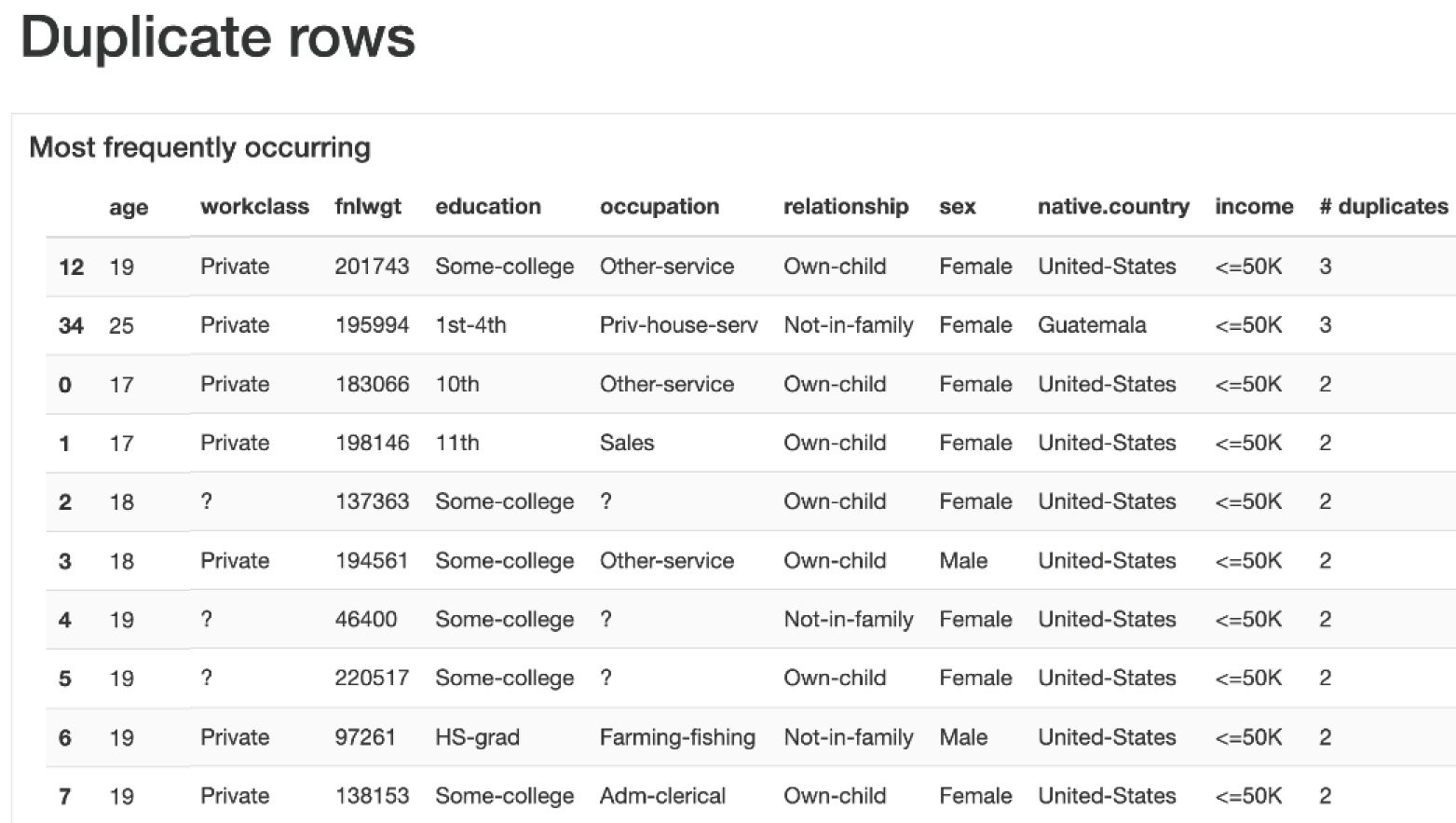
This section shows the most frequently occurring rows and the number of duplicates in the dataset.

Figure 1.34 – Duplicate rows

Figure 1.34 – Duplicate rows

We have seen how to analyze the data using Pandas and then how to visualize the data by plotting various plots such as bar charts and histograms using sns, seaborn, and pandas-ydata-profiling. Next, let us see how to perform data analysis using OpenAI LLM and the LangChain Pandas Dataframe agent by asking questions with natural language.

CONTINUE READING
83
Tech Concepts
36
Programming languages
73
Tech Tools
Icon Unlimited access to the largest independent learning library in tech of over 8,000 expert-authored tech books and videos.
Icon Innovative learning tools, including AI book assistants, code context explainers, and text-to-speech.
Icon 50+ new titles added per month and exclusive early access to books as they are being written.
Data Labeling in Machine Learning with Python
notes
bookmark Notes and Bookmarks search Search in title playlist Add to playlist download Download options font-size Font size

Change the font size

margin-width Margin width

Change margin width

day-mode Day/Sepia/Night Modes

Change background colour

Close icon Search
Country selected

Close icon Your notes and bookmarks

Confirmation

Modal Close icon
claim successful

Buy this book with your credits?

Modal Close icon
Are you sure you want to buy this book with one of your credits?
Close
YES, BUY

Submit Your Feedback

Modal Close icon
Modal Close icon
Modal Close icon