Sign In Start Free Trial
Account

Add to playlist

Create a Playlist

Modal Close icon
You need to login to use this feature.
  • Book Overview & Buying Unreal Engine 4 Game Development Essentials
  • Table Of Contents Toc
  • Feedback & Rating feedback
Unreal Engine 4 Game Development Essentials

Unreal Engine 4 Game Development Essentials

By : Satheesh P.V, PV
4 (8)
close
close
Unreal Engine 4 Game Development Essentials

Unreal Engine 4 Game Development Essentials

4 (8)
By: Satheesh P.V, PV

Overview of this book

Unreal Engine 4 is a complete suite of game development tools that gives you power to develop your game and seamlessly deploy it to iOS and Android devices. It can be used for the development of simple 2D games or even stunning high-end visuals. Unreal Engine features a high degree of portability and is a tool used by many game developers today. This book will introduce you to the most popular game development tool called Unreal Engine 4 with hands-on instructions for building stunning video games. You will begin by creating a new project or prototype by learning the essentials of Unreal Engine by getting familiar with the UI and Content Browser. Next, we'll import a sample asset from Autodesk 3ds max and learn more about Material Editor. After that we will learn more about Post Process. From there we will continue to learn more about Blueprints, Lights, UMG, C++ and more.
Table of Contents (13 chapters)
close
close
12
Index

Adding Post Process

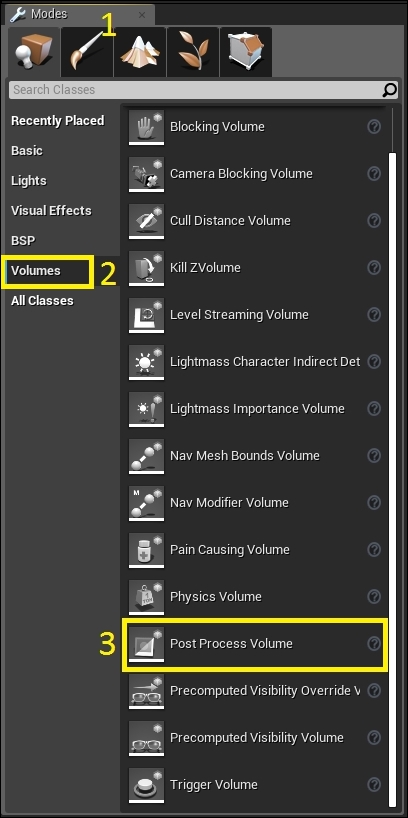
To use Post Process, you need a Post Process Volume in your scene:

  1. Go to the Modes tab (if you closed it, press Shift + 1).
  2. Select the Volumes tab.
  3. Drag and drop Post Process Volume into the scene:
    Adding Post Process

You now have a Post Process Volume in your scene. However, it only shows the effects when the player is inside that volume. To make it affect the whole scene perform the following steps:

  1. Select Post Process Volume
  2. In the Details panel, scroll down and expand the Post Process Volume section
  3. Enable Unbound

Enabling Unbound will ignore the bounds of this volume and affect the whole scene. Now, let's take a quick look at these Post Process settings:

Adding Post Process
  • Priority: If multiple volumes are overlapping each other, then the volume with higher priority overrides the lower one.
  • Blend Radius: This is the radius of the volume used for blending. Generally, a value of 100 works best. This setting is ignored if you have Unbound enabled.
  • Blend Weight: This defines the influence of properties. 0 means...
Visually different images
CONTINUE READING
83
Tech Concepts
36
Programming languages
73
Tech Tools
Icon Unlimited access to the largest independent learning library in tech of over 8,000 expert-authored tech books and videos.
Icon Innovative learning tools, including AI book assistants, code context explainers, and text-to-speech.
Icon 50+ new titles added per month and exclusive early access to books as they are being written.
Unreal Engine 4 Game Development Essentials
notes
bookmark Notes and Bookmarks search Search in title playlist Add to playlist font-size Font size

Change the font size

margin-width Margin width

Change margin width

day-mode Day/Sepia/Night Modes

Change background colour

Close icon Search
Country selected

Close icon Your notes and bookmarks

Confirmation

Modal Close icon
claim successful

Buy this book with your credits?

Modal Close icon
Are you sure you want to buy this book with one of your credits?
Close
YES, BUY

Submit Your Feedback

Modal Close icon
Modal Close icon
Modal Close icon