Sign In Start Free Trial
Account

Add to playlist

Create a Playlist

Modal Close icon
You need to login to use this feature.
  • Book Overview & Buying Building a 3D Game with LibGDX
  • Table Of Contents Toc
Building a 3D Game with LibGDX

Building a 3D Game with LibGDX

By : Sebastián Di Giuseppe, Andreas Krühlmann, Elmar van Rijnswou
2.7 (3)
close
close
Building a 3D Game with LibGDX

Building a 3D Game with LibGDX

2.7 (3)
By: Sebastián Di Giuseppe, Andreas Krühlmann, Elmar van Rijnswou

Overview of this book

LibGDX is a hugely popular open source, cross-platform, Java-based game development framework built for the demands of cross-platform game development. This book will teach readers how the LibGDX framework uses its 3D rendering API with the OpenGL wrapper, in combination with Bullet Physics, 3D Particles, and Shaders to develop and deploy a game application to different platforms You will start off with the basic Intellij environment, workflow and set up a LibGDX project with necessary APIs for 3D development. You will then go through LibGDX’s 3D rendering API main features and talk about the camera used for 3D. Our next step is to put everything together to build a basic 3D game with Shapes, including basic gameplay mechanics and basic UI. Next you will go through modeling, rigging, and animation in Blender. We will then talk about refining mechanics, new input implementations, implementing enemy 3D models, mechanics, and gameplay balancing. The later part of this title will help you to manage secondary resources like audio, music and add 3D particles in the game to make the game more realistic. You will finally test and deploy the app on a multitude of different platforms, ready to start developing your own titles how you want!
Table of Contents (8 chapters)
close
close

Modeling

Finally, we can move on to the most exciting part of the chapter, modeling:

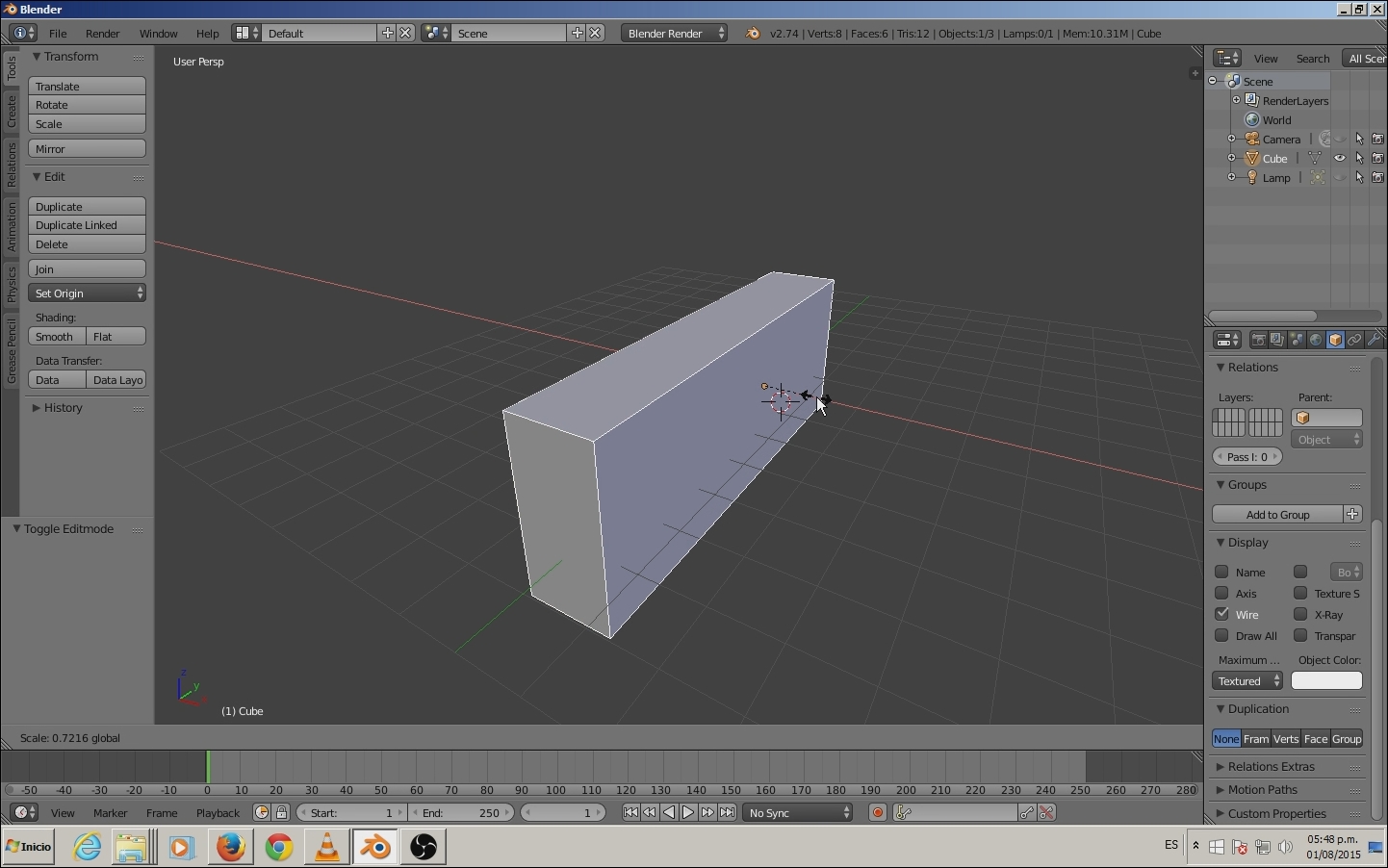
  1. Select the Scale tool (explained in the basics).
  2. Make the cube wider on the y and z axis by clicking on the corresponding axis on the gizmo (one axis at a time).
  3. You can cancel any change on the model by right-clicking the mouse button or Ctrl + Z from the keyboard to undo, and Ctrl + Shift + Z to redo.

    Modeling

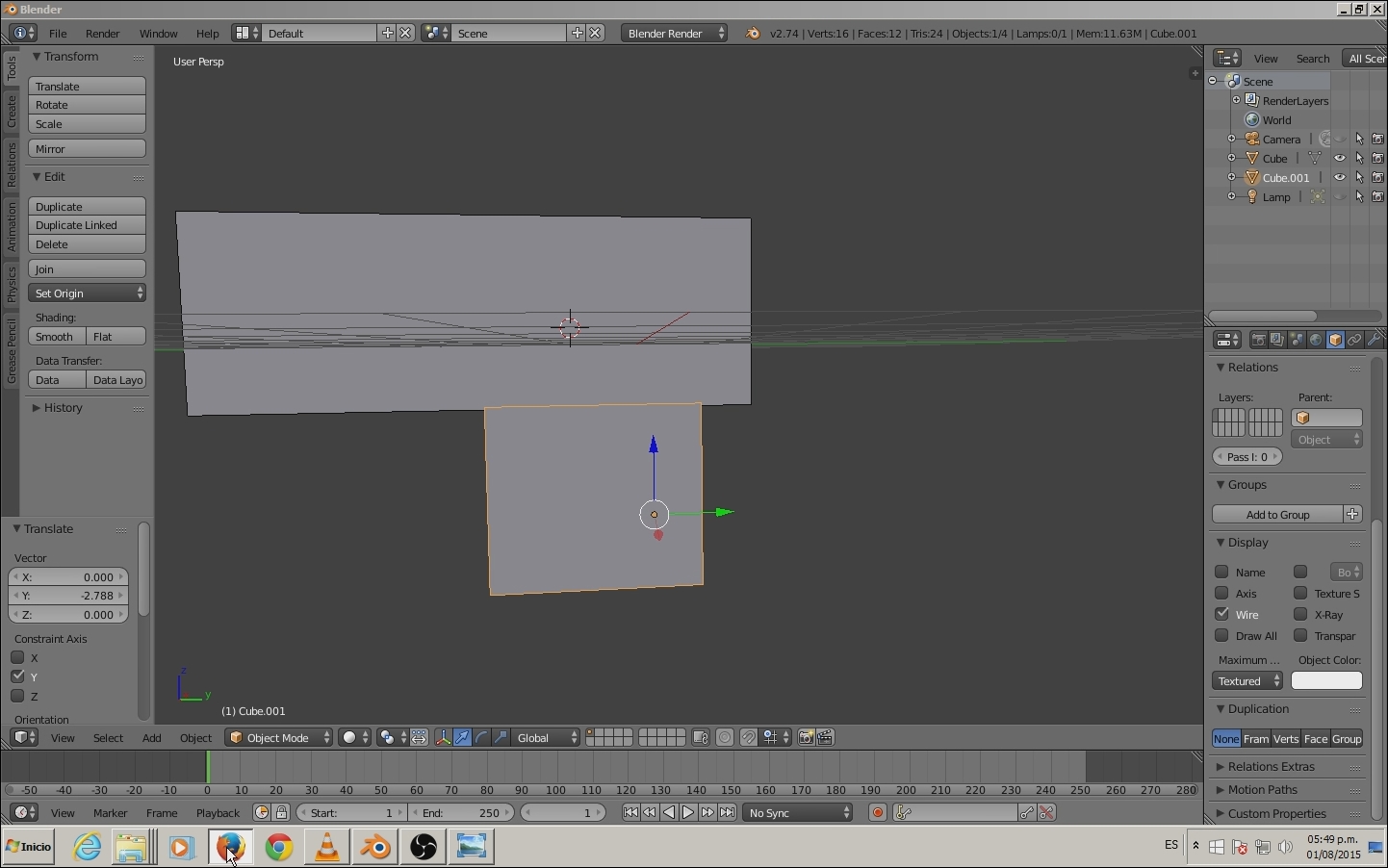
  4. Duplicate the cube by pressing Ctrl+C/ Ctrl+V on Object Mode or Shift+D on both Object Mode and Edit Mode, then scale it down and move it below the first one. This will be our grip.

    Modeling

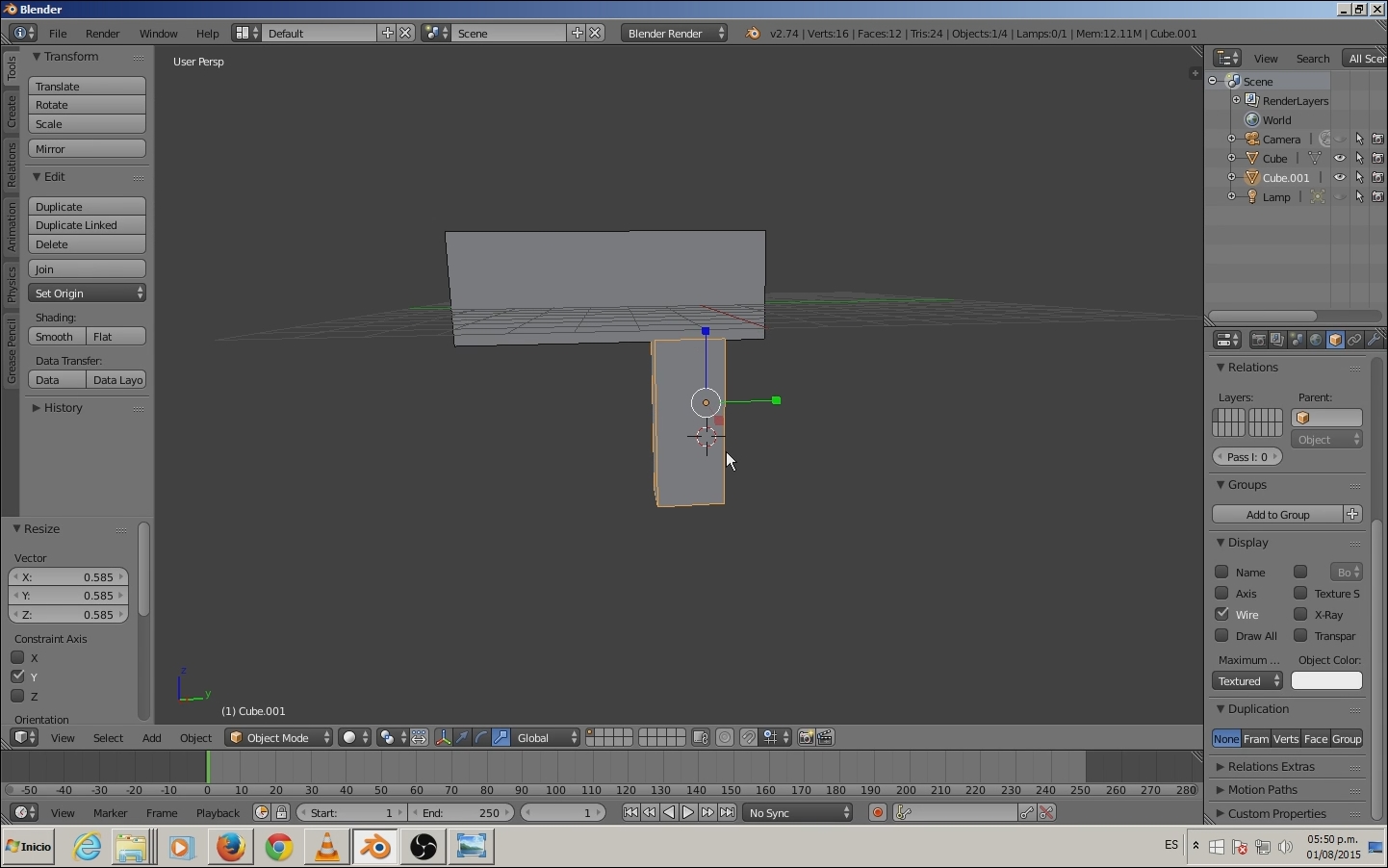
  5. Now, just like we did with the body of the gun, scale the cube to make it thinner and taller.

    Modeling

  6. Select the first cube again (right-click over it).
  7. Now, let's add some resolution by splitting the vertical edges in half using the Loop Cut and Slice tool. To get access to that tool we need to change the mode to Edit Mode from the bottom bar:

    Modeling

  8. Now, by pressing Ctrl+R, we'll select Loop Cut and Slice...
CONTINUE READING
83
Tech Concepts
36
Programming languages
73
Tech Tools
Icon Unlimited access to the largest independent learning library in tech of over 8,000 expert-authored tech books and videos.
Icon Innovative learning tools, including AI book assistants, code context explainers, and text-to-speech.
Icon 50+ new titles added per month and exclusive early access to books as they are being written.
Building a 3D Game with LibGDX
notes
bookmark Notes and Bookmarks search Search in title playlist Add to playlist download Download options font-size Font size

Change the font size

margin-width Margin width

Change margin width

day-mode Day/Sepia/Night Modes

Change background colour

Close icon Search
Country selected

Close icon Your notes and bookmarks

Confirmation

Modal Close icon
claim successful

Buy this book with your credits?

Modal Close icon
Are you sure you want to buy this book with one of your credits?
Close
YES, BUY

Submit Your Feedback

Modal Close icon
Modal Close icon
Modal Close icon