Sign In Start Free Trial
Account

Add to playlist

Create a Playlist

Modal Close icon
You need to login to use this feature.
  • Book Overview & Buying Buildbox 2.x Game Development
  • Table Of Contents Toc
Buildbox 2.x Game Development

Buildbox 2.x Game Development

By : Audronis
2.8 (4)
close
close
Buildbox 2.x Game Development

Buildbox 2.x Game Development

2.8 (4)
By: Audronis

Overview of this book

Buildbox is an “any skill level” development platform to develop video games with no coding experience. It also exports these games to be compiled for any platform (from Windows to Mac to iOS to Android and Blackberry) all using the same graphic user interface. Using an example as a tutorial, we will relate the driving principles and you’ll see how you can implement these principles to develop any games on the platform. We begin by setting expectations and providing a brief overview of the software. But it’s not long before you “dive in” to creating your first video game. You will actually have a playable level (“world”) by the end of the second chapter. Later on, you’ll learn everything from basic graphics creation to advanced world design while you refine your first game, called “Ramblin’ Rover.” All along the way, you will see how certain functions could be used in tandem to create other types of games; hoping to spark imagination. We will follow the principles and process of monetization through ads and in-game rewards. Lastly, we will go through the process of exporting, compiling, and preparing your storefront to sell the games you will eventually create.
Table of Contents (10 chapters)
close
close

Collisions and obstacles


We can't wait for you to see your parallax backgrounds, but right now the game is not testable. There is no ground to drive on, and our rover still needs its collision shapes adjusted. If you remember from our previous chapter, collision shapes must be edited in the base object, and not the instance on the game stage. So, let's start with the wheels.

In the asset library, open the Objects section and select the Wheel. In the properties window, you'll see a field called CollisionShape. Click the Edit button for this field.

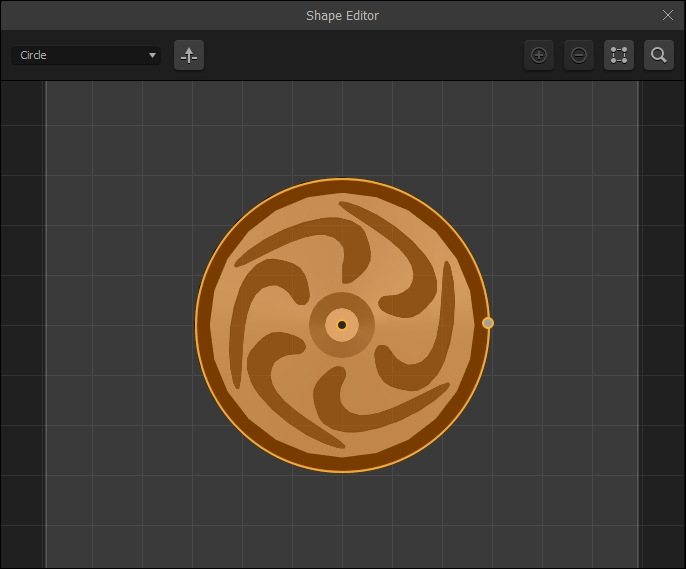
Within the shape editor, you can see that the current collision shape barely covers the axle of the wheel. Let's expand this selection using the handle (a small dot) on the right side of the circle to cover the entire wheel. It should look like the following screenshot:

Since we did this with the master object for the wheels (and not the two instances of the wheels on our stage), both wheels are affected by this new shape. Now the wheels will actually...

CONTINUE READING
83
Tech Concepts
36
Programming languages
73
Tech Tools
Icon Unlimited access to the largest independent learning library in tech of over 8,000 expert-authored tech books and videos.
Icon Innovative learning tools, including AI book assistants, code context explainers, and text-to-speech.
Icon 50+ new titles added per month and exclusive early access to books as they are being written.
Buildbox 2.x Game Development
notes
bookmark Notes and Bookmarks search Search in title playlist Add to playlist download Download options font-size Font size

Change the font size

margin-width Margin width

Change margin width

day-mode Day/Sepia/Night Modes

Change background colour

Close icon Search
Country selected

Close icon Your notes and bookmarks

Confirmation

Modal Close icon
claim successful

Buy this book with your credits?

Modal Close icon
Are you sure you want to buy this book with one of your credits?
Close
YES, BUY

Submit Your Feedback

Modal Close icon
Modal Close icon
Modal Close icon