Sign In Start Free Trial
Account

Add to playlist

Create a Playlist

Modal Close icon
You need to login to use this feature.
  • Book Overview & Buying iOS 10 Programming for Beginners
  • Table Of Contents Toc
iOS 10 Programming for Beginners

iOS 10 Programming for Beginners

By : Craig Clayton
4.5 (2)
close
close
iOS 10 Programming for Beginners

iOS 10 Programming for Beginners

4.5 (2)
By: Craig Clayton

Overview of this book

You want to build iOS applications for iPhone and iPad—but where do you start? Forget sifting through tutorials and blog posts, this is a direct route into iOS development, taking you through the basics and showing you how to put the principles into practice. With every update, iOS has become more and more developer-friendly, so take advantage of it and begin building applications that might just take the App Store by storm! Whether you’re an experienced programmer or a complete novice, this book guides you through every facet of iOS development. From Xcode and Swift—the building blocks of modern Apple development—and Playgrounds for beginners, one of the most popular features of the iOS development experience, you’ll quickly gain a solid foundation to begin venturing deeper into your development journey. For the experienced programmer, jump right in and learn the latest iOS 10 features. You’ll also learn the core elements of iOS design, from tables to tab bars, as well as more advanced topics such as gestures and animations that can give your app the edge. Find out how to manage databases, as well as integrating standard elements such as photos, GPS into your app. With further guidance on beta testing with TestFlight, you’ll quickly learn everything you need to get your project on the App Store!
Table of Contents (20 chapters)
close
close
Lock Free Chapter
1
1. Getting Familiar with Xcode
chevron up
19
Index

Getting started

In order to download Xcode, launch the App Store on your Mac and then type Xcode into the search bar in the upper-right corner:

Getting started

Next, click on INSTALL:

Getting started

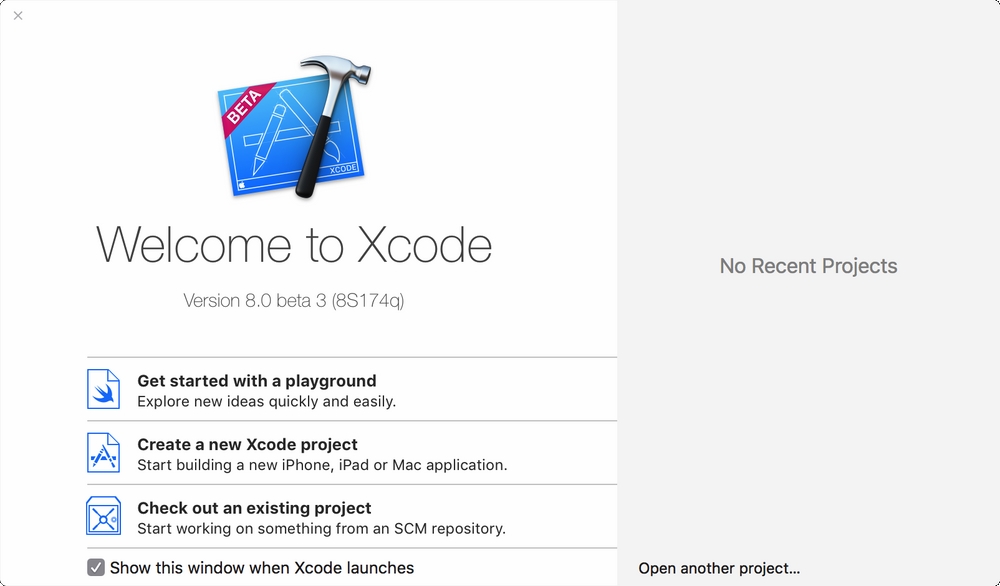
Once installed, launch Xcode, and you should see the following Welcome to Xcode screen:

Getting started

If this is the first time you have launched Xcode, then you will see No Recent Projects in the right panel. If you have previously created projects, then you will see those listed to the right. To get started, we are going to click on Create a new Xcode project in the left panel of the welcome screen. This will take us to the new project screen:

Getting started

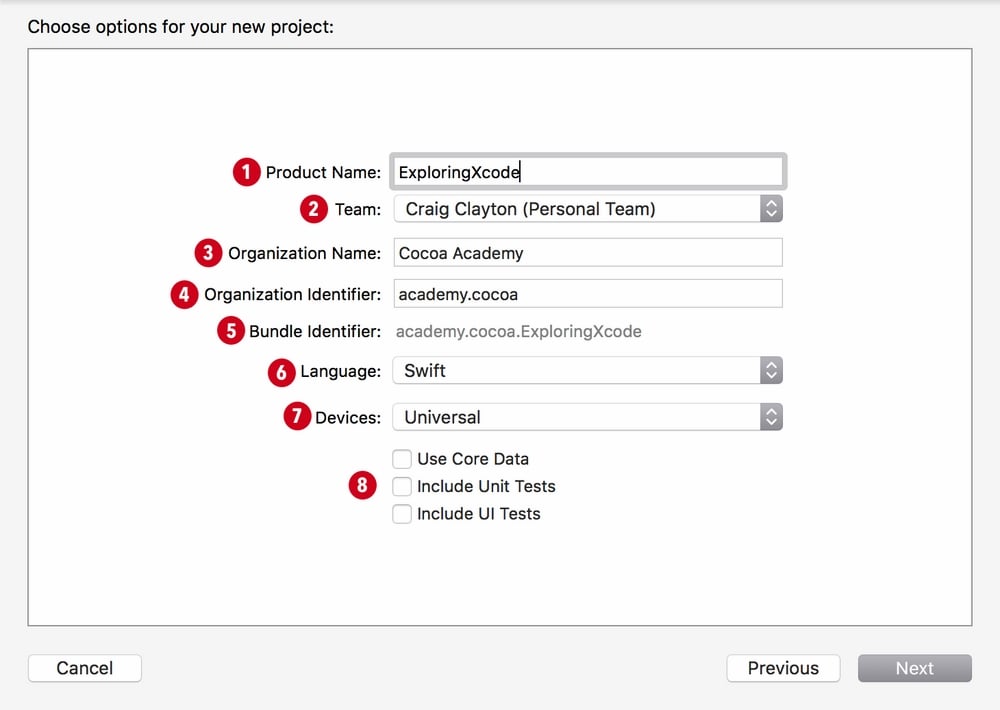
Across the top of this screen, you can select one of the following items—iOS, watchOS, tvOS, macOS, and Cross-Platform. Since we are creating apps for iOS, make sure that you have iOS selected. Then, select Single View Application and click on Next. Now, you will see an options screen for a new project:

Getting started

This option screen has the following eight items to complete or choose:

  1. Product Name: The product name is your app. We are going to set ours as ExploringXcode.
  2. Team: The team is connected to your Apple account. We are going to ignore this for now, because it is not needed for this chapter. If you have a team set up, just leave it as is. We will cover this in greater detail later in the book.
  3. Organization Name: You can set the organization name to your company name or just your name.
  4. Organizer Identifier: You will set the organizer identifier to be your domain name in reverse. For example, my website URL is cocoa.academy, and therefore, my identifier is academy.cocoa. Since URLs are unique, it will ensure that no one else will have your identifier. If you do not have a domain, then just use your first and last name for now. You will eventually have to purchase a domain if you would like to submit your app to the Apple store.
  5. Bundle Identifier: When you create a new project, Apple will combine your Product Name with your Organizer Identifier to create your unique bundle identifier. So even if 10,000 people create this project, each person will have a different bundle identifier.
  6. Language: Make sure your language is set to Swift.
  7. Devices: We are going to set this as Universal (iPhone and iPad).
  8. Checkboxes: You can uncheck Use Core Data, Include Unit Tests, and Include UI Tests, as these are things we will not be using in this chapter.

Now, select Next, and Xcode will prompt us to save our project. I have a dedicated folder for all my projects, but you can save it on your desktop for easy access.

CONTINUE READING
83
Tech Concepts
36
Programming languages
73
Tech Tools
Icon Unlimited access to the largest independent learning library in tech of over 8,000 expert-authored tech books and videos.
Icon Innovative learning tools, including AI book assistants, code context explainers, and text-to-speech.
Icon 50+ new titles added per month and exclusive early access to books as they are being written.
iOS 10 Programming for Beginners
notes
bookmark Notes and Bookmarks search Search in title playlist Add to playlist download Download options font-size Font size

Change the font size

margin-width Margin width

Change margin width

day-mode Day/Sepia/Night Modes

Change background colour

Close icon Search
Country selected

Close icon Your notes and bookmarks

Confirmation

Modal Close icon
claim successful

Buy this book with your credits?

Modal Close icon
Are you sure you want to buy this book with one of your credits?
Close
YES, BUY

Submit Your Feedback

Modal Close icon
Modal Close icon
Modal Close icon