Sign In Start Free Trial
Account

Add to playlist

Create a Playlist

Modal Close icon
You need to login to use this feature.
  • Book Overview & Buying Visual Studio 2013 Cookbook
  • Table Of Contents Toc
Visual Studio 2013 Cookbook

Visual Studio 2013 Cookbook - Second Edition

By : Jeff Martin
4.2 (13)
close
close
Visual Studio 2013 Cookbook

Visual Studio 2013 Cookbook

4.2 (13)
By: Jeff Martin

Overview of this book

This book is a practical guide to using Visual Studio 2013 that will help you become familiar with the improvements made over previous versions. Each recipe provides a hands-on approach to the new features with step-by-step instructions on how to increase your productivity. If you are a developer excited about the new features introduced in Visual Studio 2013, then no matter what your programming language of choice is, Visual Studio 2013 Cookbook is for you. You should have a good knowledge of working with previous versions of Visual Studio to enjoy the recipes in this book. This book provides practical examples to help you use Visual Studio 2013 more effectively.
Table of Contents (17 chapters)
close
close
Visual Studio 2013 Cookbook
Credits
About the Authors
About the Reviewers
www.PacktPub.com
Preface
2
Index

Finding Visual Studio commands


The goal of the Quick Launch box is to provide a keyboard-friendly way of accessing the extended features of Visual Studio without needing to clutter the central interface. Keyboard shortcuts are a great way to speed up tasks, but it can be difficult to learn and remember while first starting out, or while exploring a new area of Visual Studio. The Quick Launch option addresses this by providing a way to locate different areas of the program, learn keyboard shortcuts, and provide a keyboard-centric way to access commands.

Getting ready

Simply start Visual Studio 2013.

How to do it…

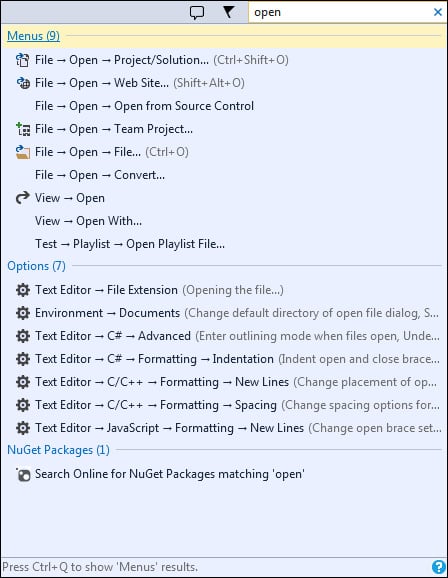
To try it out, start by pressing Ctrl + Q, then begin typing the topic/subject that you are looking for, as shown in the following screenshot:

What is important to notice is that Quick Launch can do even more than what may be obvious at first glance. In this example, notice that open was the term entered as a search term. Quick Launch produces a list of results to this query, grouped by the following categories: Menus, Options, and NuGet Packages. As you can see, this list of results is more than just commands, it also includes various areas in the Options dialog as well as NuGet Packages.

You can immediately navigate through the search results with the arrow keys on the keyboard if the desired result is immediately available. You can access a command directly from this list, and where available, the accompanying keyboard hotkey for a command will be listed. In this way, you can learn new shortcuts while doing your daily work.

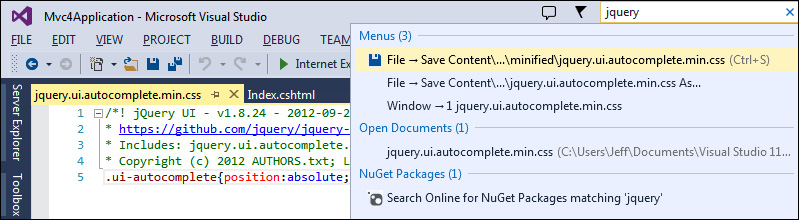
In the next example, jquery was entered into Quick Launch, producing a list of results that includes context-specific File menu commands (Save and Save As), the option to switch to an open editor window with jquery in the file name (jquery.ui.autocomplete.min.css), or to search NuGet for packages using jquery as the search term.

The following screenshot is showing the availability of these various options:

There's more…

The Quick Launch option can go further. Let's return to the results of the open term. Note that at the bottom, the Quick Launch option indicates that Ctrl + Q can index through additional views. Additional presses of Ctrl + Q will toggle the list of results to show only results from an individual category, in this case Menus, Options, or NuGet Packages. A final press of Ctrl + Q will return to displaying all of the available results. The ability to toggle through categories is particularly useful when your Quick Launch list is lengthy and you would like to ignore unnecessary categories that are cluttering the list of results. Pressing Esc once will clear the search results in Quick Launch, and pressing Esc again will return you to the open file in your editor.

Tip

Using the Command Window / Command Aliases

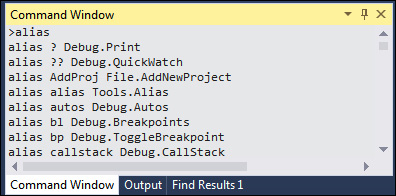
The Command Window (accessible via Ctrl +Alt +A and available on premium editions of VS2013) allows you to keep your hands on the keyboard while quickly accessing commands via an integrated command prompt window. As Microsoft ships Visual Studio preloaded with command definitions, entering an alias will display all of the currently defined commands, and the alias cmd action (where cmd is the desired name of your alias and action defines what should happen) will allow you to define your own. You can see from the following screenshot that typing bl is much faster than typing Debug.Breakpoints. Note that by default, command aliases are stored as part of your synchronized profile:

CONTINUE READING
83
Tech Concepts
36
Programming languages
73
Tech Tools
Icon Unlimited access to the largest independent learning library in tech of over 8,000 expert-authored tech books and videos.
Icon Innovative learning tools, including AI book assistants, code context explainers, and text-to-speech.
Icon 50+ new titles added per month and exclusive early access to books as they are being written.
Visual Studio 2013 Cookbook
notes
bookmark Notes and Bookmarks search Search in title playlist Add to playlist download Download options font-size Font size

Change the font size

margin-width Margin width

Change margin width

day-mode Day/Sepia/Night Modes

Change background colour

Close icon Search
Country selected

Close icon Your notes and bookmarks

Confirmation

Modal Close icon
claim successful

Buy this book with your credits?

Modal Close icon
Are you sure you want to buy this book with one of your credits?
Close
YES, BUY

Submit Your Feedback

Modal Close icon
Modal Close icon
Modal Close icon