-
Book Overview & Buying
-
Table Of Contents
-
Feedback & Rating
ArcGIS By Example
By :
In this section, we will talk about ArcGIS for Desktop: What is it? How does it work? What different components does it consist of? What does it require to run? We will also explain about core ArcGIS concepts and will use the application out-of-the-box.
ArcGIS for Desktop was originally designed to allow users to author maps and spatial data. The ability for analysis was added to this product to make it one of the best GIS desktop solutions on the market. ArcGIS for Desktop consists of many components. Firstly, ArcMap is the map authoring and viewing tool, and this is the one we will be dealing with throughout this book. You can run tools on your map, edit, analyze, or export your map to different formats to support other platforms. The second component is ArcCatalog. You can use it to connect to geodatabases, author your own geodatabases, manipulate datasets, feature classes, and much more. We will be defining the ArcGIS geodatabase in the coming sections. You can learn more about geodatabases in my other book Learning ArcGIS Geodatabases, Packt Publishing. There are other products that come under the umbrella of Desktop like ArcGlobe and ArcScene for 3D analysis, which are out of the scope of this book.
ArcGIS for Desktop has three different licenses: Basic, Standard, and Advanced previously known as ArcView, ArcEditor, and ArcInfo, respectively. The Basic license mainly gives you the viewer features, which allows you to read map documents and query the data. You can, in fact, do simple editing with the Basic license, but it is very limited. The Standard license is the editor, which allows you to view, create, and edit maps and spatial data. It allows you to edit and create complex data structures and allows multiple users to edit the same geodatabase. The Advanced license allows you to do what the Basic and Standard do, plus the ability to do advance data analysis and modeling, which we will not require in this book. You can take a look at the differences in details at http://bit.ly/b04847_agslicenses.
In this book, the first two examples only require the Basic license. However, the third example requires the Standard license to fully implement it. Esri provides the Standard license for 60 days, which you can get by creating an account at http://www.esri.com/.
The latest out-of-the-box ArcGIS for Desktop can be downloaded from the official Esri website at http://bit.ly/b04748_agsfree. However, if you want to customize, in the same way we will be doing in this book, you should officially request the media disc from your local Esri distributor that will have the ArcObjects SDK.
ArcObjects is a software development kit by ArcGIS that can be used by software developers to extend the ArcGIS functionality.
ArcGIS for Desktop requires the .NET Framework 3.5 service pack 1 and Microsoft Internet Explorer 9.0 or higher in order to run. The .NET Framework can be downloaded from http://bit.ly/b04748_dotnet35. Some operating systems, such as Windows Server can be configured to enable the .NET Framework, instructions to do that can be found in the same link. The system requirements for running ArcGIS for Desktop as of version 10.3 and full details on the system and hardware requirements can be found at http://bit.ly/b04748_ags103sysreq.
In this book, I will be using Microsoft Windows 8.1 Pro with ArcGIS for Desktop 10.3. Feel free to use any version of Desktop (10 or higher) with the supported version of Windows as per the system requirements in the following table:
|
Product Version |
Supported OS |
Reference |
|---|---|---|
|
ArcGIS 10.3 |
Windows 7, 8, 8.1, Server 2008, Server 2008R2, Server 2012, Server 2012R2 | |
|
ArcGIS 10.2.x |
Windows XP, Vista, 7, 8, 8.1, Server 2003, Server 2008, Server 2008R2, Server 2012, Server 2012R2 | |
|
ArcGIS 10.1 |
Windows XP, Vista, 7, 8, Server 2003, Server 2008, Server 2008R2, Server 2012 | |
|
ArcGIS 10.0 |
Windows XP, Vista, 7, Server 2003, Server 2008, Server 2008R2 | |
|
ArcGIS 9.3.x |
Windows XP, Vista, 7, Server 2003, Server 2008, Server 2008R2 | |
|
ArcGIS 9.2.x |
Windows XP, Vista, Server 2000, Server 2003 |
The examples in this book can also be applied to older versions of ArcGIS (10.0, 10.1, 10.2.x). I will be providing designated copies of the data and map documents for each version so that you can freely work with the version of ArcGIS you prefer.
ArcGIS versions prior to 10 won't be able to take advantage of the new add-in feature.
Before we dive into customizing ArcGIS, it is important to know some key concepts and definitions. We will start with the geodatabase.
The database is a fascinating storage system. It allows you to retrieve, store, and edit the different types of information such as text, images, music, and videos. However, for people who work with maps, we feel there is a missing element in that compound, that is, location. Adding location information to database helps applications bring life to the tabular records in the database and make it available visually. Esri has done this in its ArcGIS product and called this special location-based database a geodatabase.
The ArcGIS geodatabase is the proprietary database for Esri. All Esri geospatial software is built around this geodatabase.
Adding location information to a database requires two parameters: the actual location coordinates and how these coordinates are supposed to be drawn, which is also known as the spatial reference. The spatial reference describes whether the location is projected on to a two- or three-dimensional map, and it should be defined for every dataset in the geodatabase that has a spatial component. While working in ArcMap, all datasets should share the same spatial reference.
A spatial reference is a collection of properties that describes the system for locating a particular object in a coordinate system. You can find more information about this topic at http://bit.ly/b04748_spatialref.
There are a lot of spatial references tailored for different locations on the earth. There are some standard references used universally, and among them is the WGS 84, which we will be continuously using in this book.
Let us start using the software and get familiar with geodatabase components. Make sure you have installed ArcGIS for Desktop and then follow these steps:
c:\ArcGISByExample\. In the supporting files for this chapter, copy the B04847_01_Files folder to the C:\ArcGISbyExample folder.You can dock and pin ArcCatalog in your start menu to access it quickly.
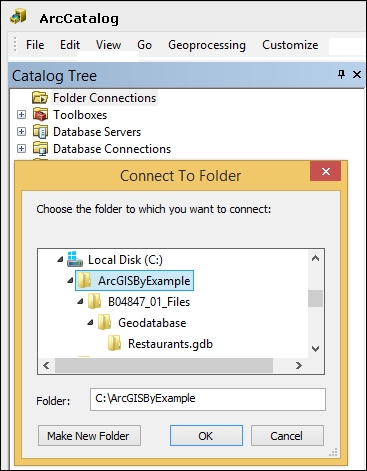
C:\ArcGISbyExample folder and click on OK, as illustrated in the next screenshot. Note that if you don't see the Catalog Tree window, you can show it from the Windows menu in the toolbar.
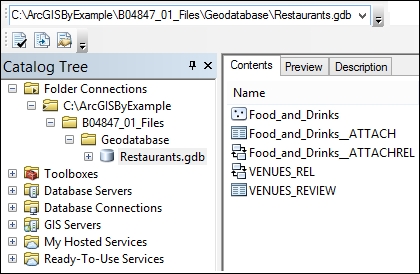
C:\ArcGISbyExample folder has been added to the Folder Connections folder. Use this folder to browse to C:\ArcGISByExample\B04847_01_Files\Geodatabase\Restaurants.gdb, as shown in the following screenshot:
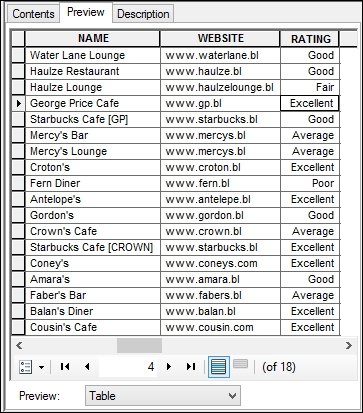
Food_and_Drinks, which is the feature class of some restaurants. The Food_and_Drinks object has a one-to-many relationship with VENUES_REVIEW which stores the reviews of a given restaurant.The feature class is one of the basic objects in a geodatabase. This object is a table with a shape attribute that defines the location and geometry. It could be a point, line, or a polygon.


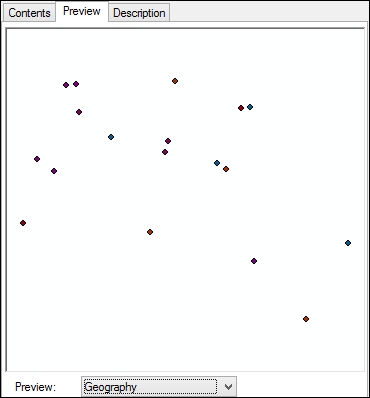
Food_and_Drinks feature class and select Properties.Venues only. Click on Apply to save your changes.Now that we have worked with ArcCatalog and learned about the basics of the geodatabase, it is time to learn about the map:
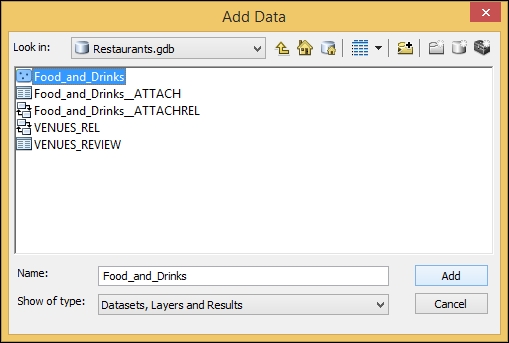
Restaurants.gdb geodatabase, select the Food_and_Drinks feature class, and then click on Add, as illustrated in the following screenshot:
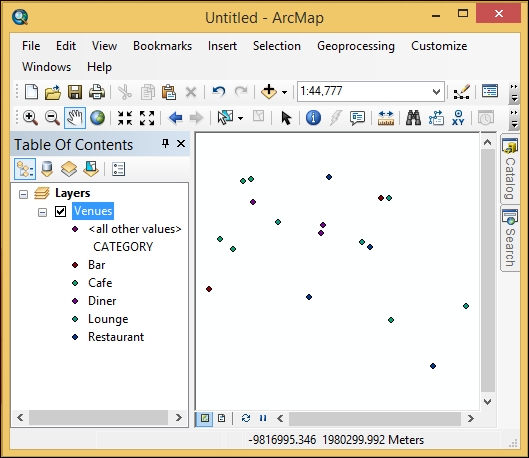
A layer is an ArcMap object and a visual representation of a physical feature class. A layer does not exist by itself and needs a source dataset to read data from.
A symbology is a notation for the features in a feature class. A given feature class might have multiple symbologies based on its attributes.

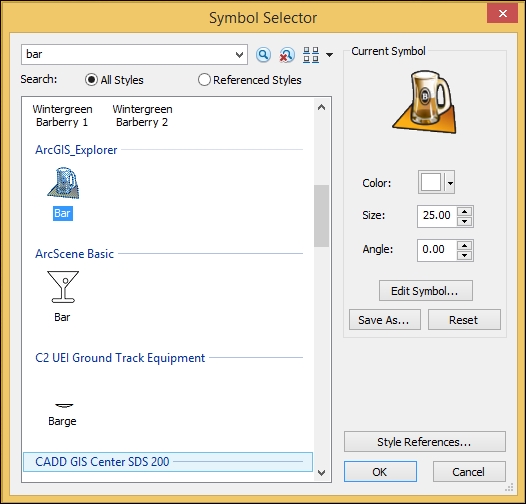
Bar in the search box and hit Enter. Select your favorite symbol and click on OK, as shown in the next screenshot:

Change the font size
Change margin width
Change background colour