-
Book Overview & Buying
-
Table Of Contents
Microsoft Team Foundation Server 2015 Cookbook
By :
In TFS, a Team Project is a logical container that stores artifacts such as Work Items, code, builds, and releases. Different Teams follow different processes to organize, manage, and track work. TFS allows process specification via Process Templates. The Scrum, Agile, and CMMI template are offered out of the box. The Process Template defines the set of Work Item types, queries, and reports that can be used to plan and track the project. In this recipe, you'll learn how to create a new Team Project using the Scrum Template.
Team Projects cannot be created from the Team Portal; in this recipe, we'll be using Team Explorer to create a new Team Project. If you haven't already, connect Team Explorer to TFS. Refer to the Connecting to TFS using Team Explorer recipe for more information on how this can be done.
In order to create a new Team Project, you will need the following permissions:
In order to use the SQL Server Reporting Services, you must be a member of the Team Foundation Content Manager role in Reporting Services.
To verify whether you have the correct permissions, you can download the Team Foundation Server Administration Tool from CodePlex available at https://tfsadmin.codeplex.com/. TFS Admin is an open source tool available under the Microsoft Public license (Ms-PL).


The Process Template defines the set of Work Item types and reports that will be used to plan and track the project. The Process Template also applies the Work Item workflows and state transitions. Let's look at how the out-of-the-box templates differ broadly from one another:
The out-of-the-box templates are designed to meet the needs of most Teams. All of them support using the Agile planning tools to create the Product Backlog and work in sprints with the task board. If your Team has different needs, you can customize a template and then create the Team Project, or you can create a Team Project from a template and then customize the project.
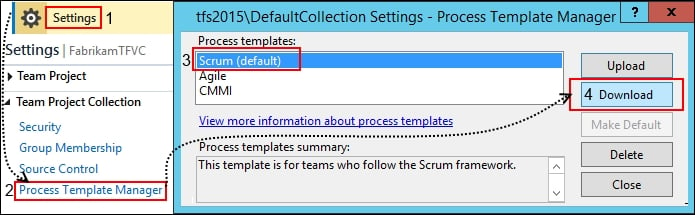
You can download the Process Template by going into the Process Template Manager from the Settings view in Team Explorer. Refer to https://msdn.microsoft.com/Library/vs/alm/Work/guidance/manage-process-templates for further instructions on how to download the Process Template.

Open ProcessTemplate.xml from the earlier download location; you'll note that it follows an XML structure that constructs a sequence of plugins and instructions for setting up the plugins. The Main Template is linked to sub modules that are defined by other XML structures. In the following representation, you'll see the correlation between these XML Templates and the instrumentation generated from the project creation workflow. Process Template customization is discussed in detail in Chapter 8, Extending and Customizing Team Foundation Server.

The following items are created for you as part of the Team Project creation process:
If your Team Foundation Server is configured to support SharePoint project portal and reporting, you'll see the Documents and Reports hub in Team Explorer. The Documents view offers deep integration with the SharePoint project portal. This allows you to create document libraries and organize and share documents with your Team members. The Reports view gives you a collection of precreated SSRS reports that you can use to track and manage the progress of work in your Teams:

Change the font size
Change margin width
Change background colour