-
Book Overview & Buying
-
Table Of Contents

App Inventor 2 Essentials
By :


App Inventor 2 Essentials
By:
Overview of this book
App Inventor 2 will take you on a journey of mobile app development. We begin by introducing you to the functionalities of App Inventor and giving you an idea about the types of apps you can develop using it. We walk you through the technical set up so you can take advantage of the interactive development environment (live testing). You will get hands-on, practical experience building three different apps using tutorials. Along the way, you will learn computer science principles as well as tips to help you prepare for the creative process of building an app from scratch. By the end of the journey, you will learn how to package an app and deploy it to app markets. App Inventor 2 Essentials prepares you to amass a resource of skills, knowledge and experience to become a mobile app developer
Table of Contents (10 chapters)
Preface


 Free Chapter
1. Unleashing Creativity with MIT App Inventor 2
2. Setting Up MIT App Inventor 2
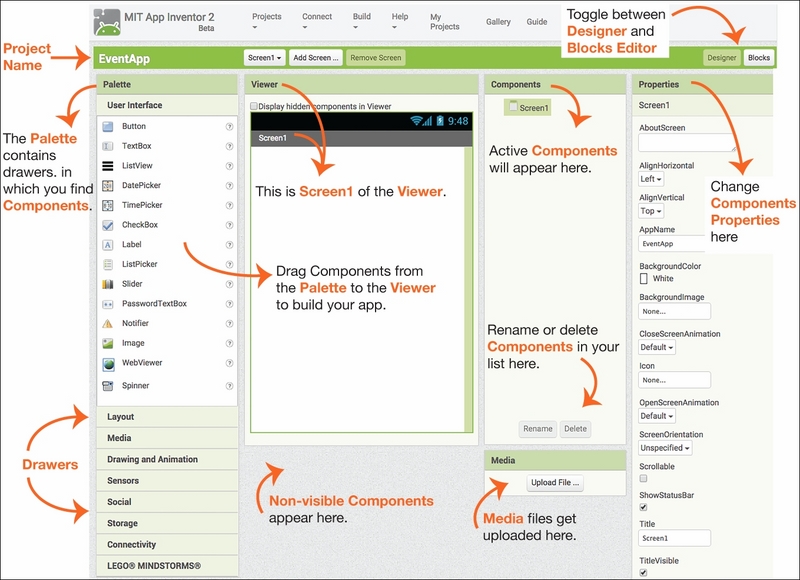
3. Navigating the App Inventor Platform

4. Fling App – Part 2
5. Building an Event App
6. Introduction to Databases
7. Learning About Loops with a Raffle App
8. Expanding Your Mobile App Development Skills
Index