Sign In Start Free Trial
Account

Add to playlist

Create a Playlist

Modal Close icon
You need to login to use this feature.
  • Book Overview & Buying Mastering Netbeans
  • Table Of Contents Toc
  • Feedback & Rating feedback
Mastering Netbeans

Mastering Netbeans

By : David Salter
5 (1)
close
close
Mastering Netbeans

Mastering Netbeans

5 (1)
By: David Salter

Overview of this book

With the increasing complexity of software development and the abundance of tools available, learning your IDE in-depth will instantly increase your developer productivity. NetBeans is the only IDE that can be downloaded with Java itself and provides you with many cutting edge features not readily available with many IDEs. The IDE also provides a great set of tools for PHP and C/C++ developers. It is free and open source and has a large community of users and developers around the world. This book will teach you to ace NetBeans IDE and make use of it in creating Java business and web services. It will help you to become a proficient developer and use NetBeans for software development. You will learn effective third-party interaction and enable yourself for productive database development. Moving on, you will see how to create EJB projects and write effective and efficient web applications. Then you will learn how to use Swing and manage and configure a relational database. By the end of the book, you will be able to handle external services such as databases, Maven repositories, and cloud providers, and extend your NetBeans when you require more from your IDE.
Table of Contents (12 chapters)
close
close
11
Index

Downloading and installing NetBeans

Downloading an installation of NetBeans (Java SE, Java EE, or All) is achieved by selecting the bundle to download and then clicking on the Download button for that bundle, as shown in the preceding screenshot.

All of the examples and screenshots in this book have been created with the Java EE bundle of NetBeans. It is recommended that you use the Java EE download bundle of NetBeans to adhere as closely as possible to the examples in this book.

Note

To install any version of NetBeans 8, the Java JDK Version 7 Update 10 or later, or Java JDK 8 or later, is required. These can be downloaded, if not already installed on your target system, from http://www.oracle.com/technetwork/java/javase/downloads.

Having downloaded the appropriate NetBeans bundle installer for your operating system, you can install NetBeans on your development system. The installation procedure differs slightly for the three main operating systems NetBeans is available for.

For Windows, simply launch the NetBeans installer by double-clicking on the file, netbeans-<xxx>-windows.exe (the exact filename differs depending upon the version and bundle downloaded).

For Mac OS X, double-click on the downloaded file, netbeans-<xxx>-macosx.dmg, to mount the installation device. From there, double-click on the included NetBeans xxx.mpkg file to start the installation (the exact names of the .dmg and .mpkg files vary, depending upon the version and bundle downloaded).

For Linux, NetBeans is installed via a command-line script, so first we must change the permissions of the downloaded file to be executable. From a terminal window, execute the following command:

chmod +x netbeans-<xxx>-linux.sh

Tip

Downloading the example code

You can download the example code files from your account at http://www.packtpub.com for all the Packt Publishing books you have purchased. If you purchased this book elsewhere, you can visit http://www.packtpub.com/support and register to have the files e-mailed directly to you. You can also download the code samples from https://github.com/doobrie/masteringnb.

To continue with the installation on Linux, we must now execute the downloaded installer. From a terminal window, execute the following command:

./netbeans-xxx-linux.sh

Tip

The installation of the JDK can sometimes be complex on some Linux distributions. Fortunately, NetBeans can be easily executed with an unpacked JDK. If installation of the JDK is complex, simply unpack the JDK files into a <jdk_folder> folder and then execute the installer with the –javahome argument passing in the JDK folder, for example, /netbeans-xxx-linux.sh –javahome <jdk_folder>.

On all of the major operating systems (Windows, Mac OS X, and Linux), the procedure for installing NetBeans is now very similar. After launching the setup procedure, the installer takes you through the several steps in a wizard style to install NetBeans.

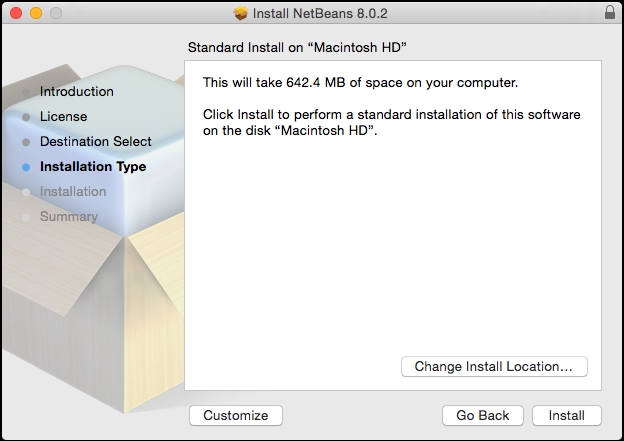
Having agreed to the NetBeans license and selected a folder for installation, the installer displays the Installation Type window:

Downloading and installing NetBeans

From here, we can customize NetBeans by clicking on the Customize button.

Note

On Windows and Linux, the preceding screenshot will differ slightly, showing the different application servers that can be installed with NetBeans.

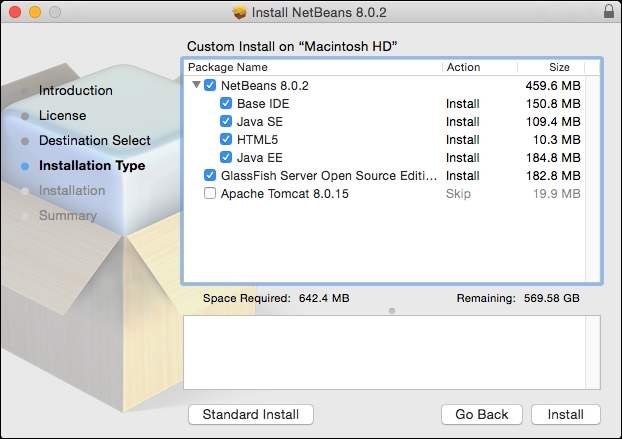
The next screenshot shows the customization options for the Java EE bundle. The options may differ depending upon which bundle you choose to download. For the Java EE bundle, different base components of the NetBeans Platform can be installed, namely Base IDE, Java SE, HTML5, and Java EE.

The Java EE bundle (and also the All bundle) gives the option of installing GlassFish Open Source Edition and Tomcat 8. If either GlassFish or Tomcat is chosen for installation, NetBeans will automatically configure them as servers within the IDE.

Downloading and installing NetBeans

Installing other versions of NetBeans

Usually, installing the latest released version of NetBeans is the best course of action. With NetBeans, however, it is possible to download and install the previous versions or even daily builds.

Tip

Be careful with daily builds; they have not been through the rigorous testing procedure that the full release builds had, and may contain bugs!

To download the previous released versions of NetBeans, browse to the NetBeans download page at http://www.netbeans.org/downloads and click on the Archive link in the top-right corner of the page, as shown in the following screenshot:

Installing other versions of NetBeans

Tip

For easy access, the previous version of NetBeans is available for downloading by clicking on the appropriate link at the top of the page (version 8.0.1 in the preceding screenshot) rather than clicking on the Archive link and manually selecting a version to install.

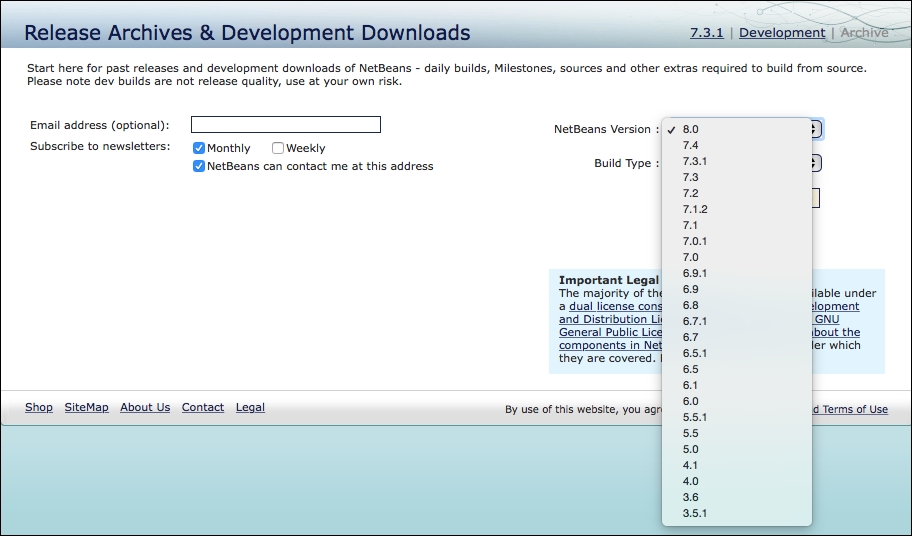
From the resultant page, select the previous release you wish to download (for example, NetBeans 7.3) and then click on the Continue button. From here, you can choose whether to download the Java SE, Java EE, or All distributions of NetBeans. The following screenshot shows the previous versions of NetBeans that are currently available for download:

Installing other versions of NetBeans

To download the latest daily build of NetBeans, simply click on the Development link in the top-right corner of the NetBeans download page. Again, from the resulting page, select the download bundle (Java SE, Java EE, or All) you require and follow the standard NetBeans installation procedure for your operating system, as outlined previously.

NetBeans user directory

When installing NetBeans, a special directory is created on your computer that stores all the user configuration data for NetBeans; this folder is referred to as a userdir or user directory. This folder contains information on what plugins you have activated in NetBeans, what editor settings you've configured, and much more data. In fact, everything that makes your instance of NetBeans unique to you is stored in this folder.

On Mac OS X, the user directory is located at ~/Library/Application Support/NetBeans.

On Windows, it is located at c:\Users\<user>\AppData\Roaming\NetBeans.

On Linux, the user directory is located at ~/.netbeans.

In the user directory are the separate directories for each different version of NetBeans that you have installed. With this technique, it is therefore possible to have different configurations for different versions of NetBeans that are installed.

In addition to a user directory, NetBeans also makes use of a hidden cache directory, often referred to as a cachedir. The cache directory contains large amount of cache data and thus, it can become a large directory. Due to the information that's written into the cache directory, it must be stored in a different location to the user directory. The contents of the cache directory can be deleted without any settings being lost; it will be recreated the next time NetBeans is executed.

On Mac OS X, the cache directory is located at ~/Library/Caches/NetBeans.

On Windows, the cache directory is located at c:\Users\<user>\AppData\Local\NetBeans\Cache.

On Linux, the cache directory is located at ~/.cache/netbeans.

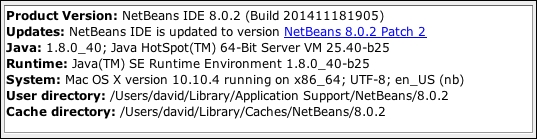
An easy way to find out the location of the user and cache directories is to display the NetBeans About dialog. In this dialog, the location of these directories is given along with the information about the version of NetBeans and Java that are in use:

NetBeans user directory
Visually different images
CONTINUE READING
83
Tech Concepts
36
Programming languages
73
Tech Tools
Icon Unlimited access to the largest independent learning library in tech of over 8,000 expert-authored tech books and videos.
Icon Innovative learning tools, including AI book assistants, code context explainers, and text-to-speech.
Icon 50+ new titles added per month and exclusive early access to books as they are being written.
Mastering Netbeans
notes
bookmark Notes and Bookmarks search Search in title playlist Add to playlist font-size Font size

Change the font size

margin-width Margin width

Change margin width

day-mode Day/Sepia/Night Modes

Change background colour

Close icon Search
Country selected

Close icon Your notes and bookmarks

Confirmation

Modal Close icon
claim successful

Buy this book with your credits?

Modal Close icon
Are you sure you want to buy this book with one of your credits?
Close
YES, BUY

Submit Your Feedback

Modal Close icon
Modal Close icon
Modal Close icon