Sign In Start Free Trial
Account

Add to playlist

Create a Playlist

Modal Close icon
You need to login to use this feature.
  • Book Overview & Buying Mastering Netbeans
  • Table Of Contents Toc
  • Feedback & Rating feedback
Mastering Netbeans

Mastering Netbeans

By : David Salter
5 (1)
close
close
Mastering Netbeans

Mastering Netbeans

5 (1)
By: David Salter

Overview of this book

With the increasing complexity of software development and the abundance of tools available, learning your IDE in-depth will instantly increase your developer productivity. NetBeans is the only IDE that can be downloaded with Java itself and provides you with many cutting edge features not readily available with many IDEs. The IDE also provides a great set of tools for PHP and C/C++ developers. It is free and open source and has a large community of users and developers around the world. This book will teach you to ace NetBeans IDE and make use of it in creating Java business and web services. It will help you to become a proficient developer and use NetBeans for software development. You will learn effective third-party interaction and enable yourself for productive database development. Moving on, you will see how to create EJB projects and write effective and efficient web applications. Then you will learn how to use Swing and manage and configure a relational database. By the end of the book, you will be able to handle external services such as databases, Maven repositories, and cloud providers, and extend your NetBeans when you require more from your IDE.
Table of Contents (12 chapters)
close
close
11
Index

NetBeans configuration

In the previous sections of this chapter, we saw how to choose an installation of NetBeans and install it. We also saw how to download and build NetBeans from its Java source code.

Let's now take a look at the different options that are used to start NetBeans and see how these can be configured.

The configuration options used to start NetBeans are defined as command-line arguments in the netbeans.conf file supplied with a NetBeans distribution.

On Windows and Linux, this file is located within the NetBeans installation directory at <NetBeans Install Dir>/etc/netbeans.conf.

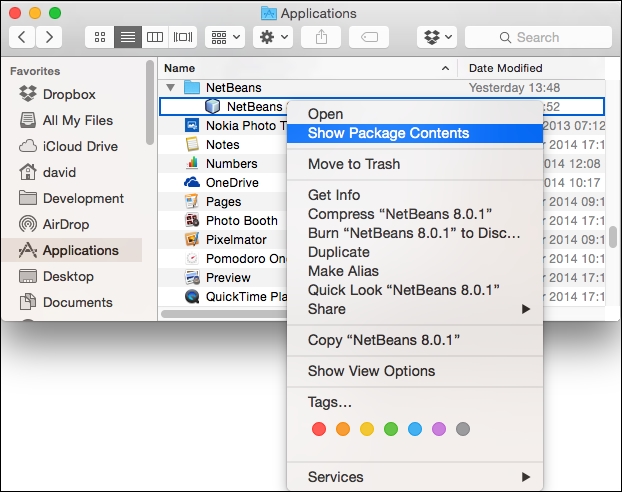
On Mac OS X, this file is hidden due to the way Mac OS X packages are deployed. To view and edit the netbeans.conf file on OS X, right-click on the NetBeans.app executable file and select the Show Package Contents menu option:

NetBeans configuration

The contents of the NetBeans.app package will then be displayed. The netbeans.conf file is located at Contents/Resources.NetBeans/etc/netbeans.conf within the package contents.

This configuration is a simple text file and can be opened with any text editor. In the file, we can see several configuration properties that can be modified to suit your requirements. Let's go through these now and see what options are available.

User and cache directories

Earlier in this chapter, we discussed the NetBeans user and cache directories and what information is stored within them. If you wish to change the user directory for a specific instance of NetBeans (for example, you may want to use a completely fresh user directory or a user directory from a previous installation of NetBeans), this can be achieved by specifying the netbeans_default_userdir parameter. Similarly, the cache directory can be changed by specifying the netbeans_default_cachedir parameter:

netbeans_default_userdir="${DEFAULT_USERDIR_ROOT}/8.0.2"
netbeans_default_cachedir="${DEFAULT_CACHEDIR_ROOT}/8.0.2"

Tip

Unless you have a specific reason, you're probably not going to need to change the user and cache directories for NetBeans.

NetBeans default options

The NetBeans default startup options are probably the most likely of the command-line arguments that you'll need to change for NetBeans. These options are specified by the netbeans_default_options parameter:

netbeans_default_options="-J-client -J-Xss2m -J-Xms32m -J-XX:PermSize=32m -J-Dapple.laf.useScreenMenuBar=true -J-Dapple.awt.graphics.UseQuartz=true -J-Dsun.java2d.noddraw=true -J-Dsun.java2d.dpiaware=true -J-Dsun.zip.disableMemoryMapping=true""true"

The preceding example options are from a Mac OS X installation of NetBeans 8.0.2.

The first option (-J-client) specifies that the JVM for NetBeans will run as a client VM instead of server VM. The client VM is essentially useful for applications requiring fast startup or small footprints. The server VM is typically used where performance is more important.

Tip

For more information on client and server configurations, check out http://www.oracle.com/technetwork/java/hotspotfaq-138619.html#compiler_types.

The second set of options (-J-Xss2m -J–Xms32m –J-XX:PermSize=32m) define the default memory allocation sizes used by the JVM running NetBeans (the thread stack size, initial memory allocation pool size, and size of the permanent generation, respectively). These options are specific for different version of the JDK, and all of them may not apply to the version of the JDK you are using.

The final parameters specified in the default options ensure that certain optimizations are performed on the JVM to make it more stable and perform better. Some of these parameters are operating system-specific and may not exist on configuration files for different operating system.

NetBeans JDK

By default, NetBeans uses the system-defined JDK to run the IDE (you'll remember this can be overridden using the --javahome argument to the NetBeans installer, as discussed earlier in this chapter). This can be overridden in the netbeans.conf file by defining the netbeans_jdkhome property to specify the base directory of a different JDK installation:

netbeans_jdkhome="/path/to/jdk"

It's not usually necessary to change the JDK that NetBeans uses as this is set at the time of installation. However, if you wish to use a newer (or older) JDK than the one used when you installed NetBeans, it can be configured with this variable.

If you wish to run NetBeans as a one-off instance and do not wish to edit the netbeans.conf file, you can pass the --jdkhome <jdk_home> parameter on the command line instead when launching NetBeans.

Additional module clusters

A NetBeans cluster is a directory on disk that contains a set of modules such as the NetBeans Platform or the Java EE support within the NetBeans IDE. Additional clusters can be configured within NetBeans by adding the directory in which the cluster resides onto the netbeans_extraclusters parameter:

netbeans_extraclusters="/absolute/path/to/cluster1:/absolute/path/to/cluster2""cluster2"

It is most likely that you will not need to define the additional module clusters to be loaded at the startup unless you are developing NetBeans rich client platform (RCP) applications.

Tip

Installing additional module clusters is not to be confused with installing NetBeans plugins. Plugins are installed into the IDE directly within the IDE itself.

Further options

Several other NetBeans command-line arguments are available that provide more control over the NetBeans user experience.

To run NetBeans in a locale different from that of the operating system, the --locale option can be used. For example, --locale en:GB runs NetBeans with the en:GB locale.

If you wish to increase the base font size of NetBeans, the --fontsize option allows this to be achieved. For example, --fontsize 20 increases the base font size to 20px. This can be useful when demoing code or showing NetBeans to larger audiences.

The full list of different command-line options that are available within NetBeans is provided at http://wiki.netbeans.org/FaqStartupParameters.

Visually different images
CONTINUE READING
83
Tech Concepts
36
Programming languages
73
Tech Tools
Icon Unlimited access to the largest independent learning library in tech of over 8,000 expert-authored tech books and videos.
Icon Innovative learning tools, including AI book assistants, code context explainers, and text-to-speech.
Icon 50+ new titles added per month and exclusive early access to books as they are being written.
Mastering Netbeans
notes
bookmark Notes and Bookmarks search Search in title playlist Add to playlist font-size Font size

Change the font size

margin-width Margin width

Change margin width

day-mode Day/Sepia/Night Modes

Change background colour

Close icon Search
Country selected

Close icon Your notes and bookmarks

Confirmation

Modal Close icon
claim successful

Buy this book with your credits?

Modal Close icon
Are you sure you want to buy this book with one of your credits?
Close
YES, BUY

Submit Your Feedback

Modal Close icon
Modal Close icon
Modal Close icon