-
Book Overview & Buying
-
Table Of Contents
-
Feedback & Rating
ArcGIS Blueprints
By :
There are two ways to create toolboxes in ArcGIS: script tools in custom toolboxes and script tools in Python toolboxes. Python toolboxes encapsulate everything in one place: parameters, validation code, and source code. This is not the case with custom toolboxes, which are created using a wizard and a separate script that processes the business logic.
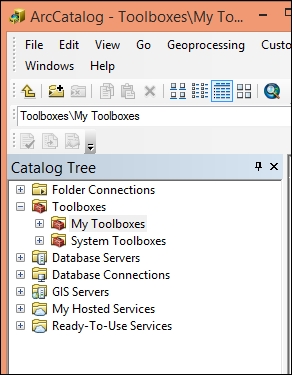
A Python Toolbox functions like any other toolbox in ArcToolbox, but it is created entirely in Python and has a file extension of .pyt. It is created programmatically as a class named Toolbox. In this section, you will learn how to create a Python Toolbox and add a tool. You'll only create the basic structure of the toolbox and tool that will ultimately connect to an ArcGIS Server map service containing the wildfire data. In a later section, you'll complete the functionality of the tool by adding code that connects to the map service, downloads the current data, and inserts it into a feature class. Take a look at the following steps:

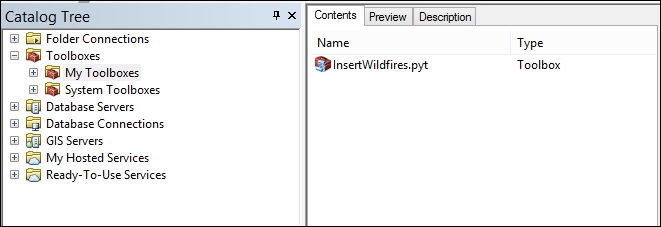
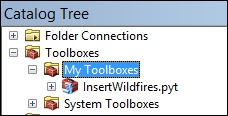
InsertWildfires.pyt.
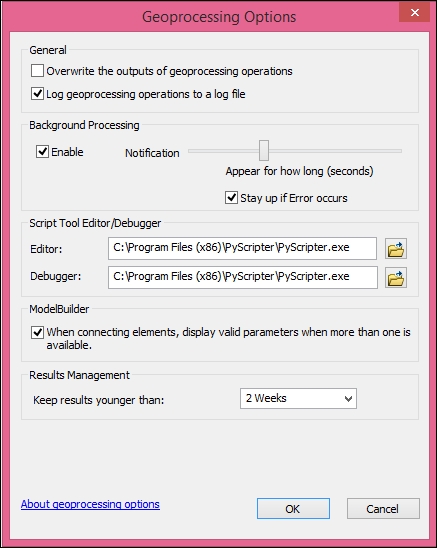
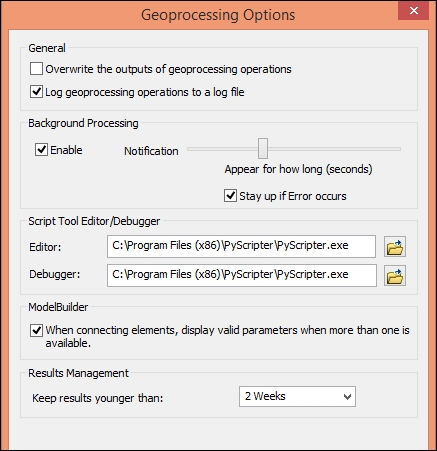
.pyt) can be edited in any text or code editor. By default, the code will open in Notepad. However, you will want to use a more advanced Python development environment, such as PyScripter, IDLE, and so on. You can change this by setting the default editor for your script by navigating to Geoprocessing | Geoprocessing Options and going to the Editor section. In the following screenshot, you'll notice that I have set my editor to PyScripter, which is my preferred environment. You may want to change this to IDLE or whichever development environment you are currently using.
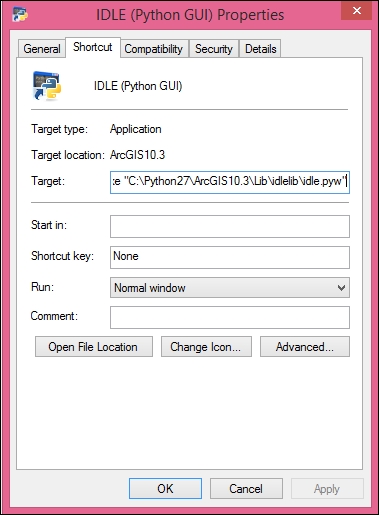
C:\Python27 and not the quotes that surround the path.

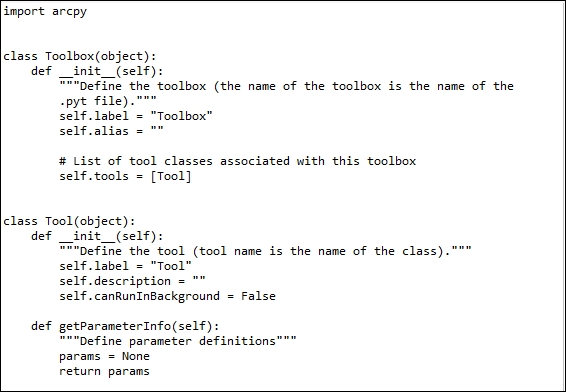
InsertWildfires.pyt and select Edit. This will open the development environment you defined earlier, as shown in the following screenshot. Your environment will vary depending upon the editor that you have defined:
Toolbox. However, you will have to rename the Tool class to reflect the name of the tool you want to create. Each tool will have various methods, including __init__(), which is the constructor for the tool along with getParameterInfo(), isLicensed(), updateParameters(), updateMessages(), and execute(). You can use the __init__() method to set initialization properties, such as the tool's label and description. Find the class named Tool in your code, and change the name of this tool to USGSDownload, and set the label and description properties:class USGSDownload(object):
def __init__(self):
"""Define the tool (tool name is the name of the class)."""
self.label = "USGS Download"
self.description = "Download from USGS ArcGIS Server instance"
self.canRunInBackground = FalseDownloading the example code.
You can download the example code files from your account at http://www.packtpub.com for all the Packt Publishing books you have purchased. If you purchased this book elsewhere, you can visit http://www.packtpub.com/support and register to have the files e-mailed directly to you
You can use the Tool class as a template for other tools that you'd like to add to the toolbox by copying and pasting the class and its methods. We're not going to do that in this chapter, but I wanted you to be aware of this.
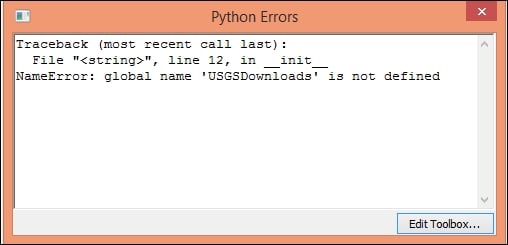
tools property (the Python list) in the Toolbox class. Add the USGSDownload tool, as shown in the following code snippet: def __init__(self):
"""Define the toolbox (the name of the toolbox is the name of the .pyt file."""
self.label = "Toolbox"
self.alias = ""
#List of tool classes associated with this toolbox
self.tools = [USGSDownload]


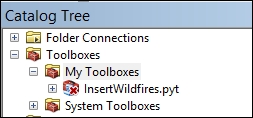
Assuming that you don't have any syntax errors, you should see the following screenshot of the Toolbox/Tool structure:

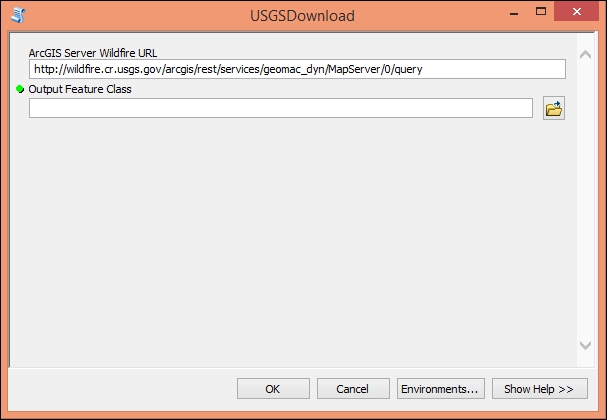
Almost all tools have parameters. The parameter values will be set by the end user with the Tool dialog box, or they will be hardcoded within the script. When the tool is executed, the parameter values are sent to your tool's source code. Your tool reads these values and proceeds with its work. You use the getParameterInfo() method to define the parameters for your tool. Individual parameter objects are created as part of this process. If necessary, open InsertWildfires.pyt in your code editor and find the getParameterInfo() function in the USGSDownload class. Add the following parameters, and then we'll discuss what the code is doing:
def getParameterInfo(self):
"""Define parameter definitions"""
# First parameter
param0 = arcpy.Parameter(displayName="ArcGIS Server Wildfire URL",
name="url",
datatype="GPString",
parameterType="Required",
direction="Input")
param0.value = "http://wildfire.cr.usgs.gov/arcgis/rest/services/geomac_dyn/MapServer/0/query"
# Second parameter
param1 = arcpy.Parameter(displayName="Output Feature Class",
name="out_fc",
datatype="DEFeatureClass",
parameterType="Required",
direction="Input")Each parameter is created using arcpy.Parameter and is passed a number of arguments that define the object. For the first Parameter object (param0), we are going to capture a URL to an ArcGIS Server map service containing real-time wildfire data. We give it a display name ArcGIS Server Wildfire URL, which will be displayed on the dialog box for the tool. A name for the parameter, a datatype, a parameter type, and a direction. In the case of the first parameter (param0), we also assign an initial value, which is the URL to an existing map service containing the wildfire data. For the second parameter, we're going to define an output feature class where the wildfire data that is read from the map service will be written. An empty feature class to store the data has already been created for you.
Next we'll add both the parameters to a Python list called params and return, to the list to the calling function. Add the following code:
def getParameterInfo(self):
"""Define parameter definitions"""
# First parameter
param0 = arcpy.Parameter(displayName="ArcGIS Server Wildfire URL",
name="url",
datatype="GPString",
parameterType="Required",
direction="Input")
param0.value = "http://wildfire.cr.usgs.gov/arcgis/rest/services/geomac_dyn/MapServer/0/query"
# Second parameter
param1 = arcpy.Parameter(displayName="Output Feature Class",
name="out_fc",
datatype="DEFeatureClass",
parameterType="Required",
direction="Input")
params = [param0, param1]
return params
The main work of a tool is done inside the execute() method. This is where the geoprocessing of your tool takes place. The execute() method, as shown in the following code snippet, can accept a number of arguments, including the tools self, parameters, and messages:
def execute(self, parameters, messages):
"""The source code of the tool."""
returnTo access the parameter values that are passed into the tool, you can use the valueAsText() method. The following steps will guide you through how to add and execute the execute() method:
execute() function in the USGSDownload class and add the following code snippet to access the parameter values that will be passed into your tool. Remember from a previous step that the first parameter will contain a URL to a map service containing the wildfire data and the second parameter will be the output feature class where the data will be written:def execute(self, parameters, messages):
inFeatures = parameters[0].valueAsText
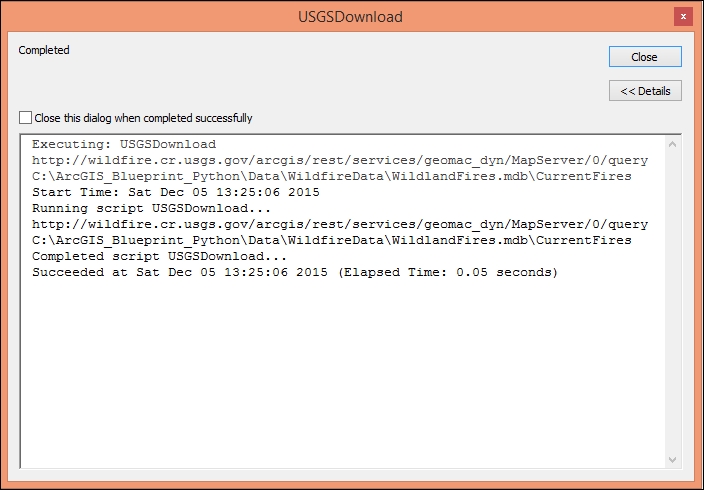
outFeatureClass = parameters[1].valueAsTextAt this point, you have created a Python Toolbox, added a tool, defined the parameters for the tool, and created variables that will hold the parameter values that the end user has defined. Ultimately, this tool will use the URL that is passed to the tool to connect to an ArcGIS Server map service, download the current wildfire data, create a feature class, and write the wildfire data to the feature class. However, we're going to save the geoprocessing tasks for later. For now, I just want you to print out the values of the parameters that have been entered so that we know that the structure of the tool is working correctly. Print this information using the following code:
def execute(self, parameters, messages):
inFeatures = parameters[0].valueAsText
arcpy.AddMessage(inFeatures)
outFeatureClass = parameters[1].valueAsText
arcpy.AddMessage(outFeatureClass)
C:\ArcGIS_Blueprint_Python\Data\WildfireData folder and select the WildlandFires geodatabase. Inside, there is an empty feature class called CurrentFires. Select this feature class.
We'll complete the actual geoprocessing of this tool in the next section.
Change the font size
Change margin width
Change background colour