Sign In Start Free Trial
Account

Add to playlist

Create a Playlist

Modal Close icon
You need to login to use this feature.
  • Book Overview & Buying Mastering  QGIS
  • Table Of Contents Toc
  • Feedback & Rating feedback
Mastering  QGIS

Mastering QGIS - Second Edition

By : Kurt Menke, GISP, Paolo Corti, Richard Smith Jr., GISP, Luigi Pirelli, John Van Hoesen, GISP
4.5 (4)
close
close
Mastering  QGIS

Mastering QGIS

4.5 (4)
By: Kurt Menke, GISP, Paolo Corti, Richard Smith Jr., GISP, Luigi Pirelli, John Van Hoesen, GISP

Overview of this book

QGIS is an open source solution to GIS. It is widely used by GIS professionals all over the world. It is the leading alternative to the proprietary GIS software. Although QGIS is described as intuitive, it is also by default complex. Knowing which tools to use and how to apply them is essential to producing valuable deliverables on time. Starting with a refresher on the QGIS basics, this book will take you all the way through to creating your first custom QGIS plugin. From the refresher, we will recap how to create, populate, and manage a spatial database. You’ll also walk through styling GIS data, from creating custom symbols and color ramps to using blending modes. In the next section, you will discover how to prepare vector, heat maps, and create live layer effects, labeling, and raster data for processing. You’ll also discover advanced data creation and editing techniques. The last third of the book covers the more technical aspects of QGIS such as using LAStools and GRASS GIS’s integration with the Processing Toolbox, how to automate workflows with batch processing, and how to create graphical models. Finally, you will see how to create and run Python data processing scripts and write your own QGIS plugin with pyqgis. By the end of the book, you will understand how to work with all the aspects of QGIS, and will be ready to use it for any type of GIS work.
Table of Contents (13 chapters)
close
close
12
Index

Running a model


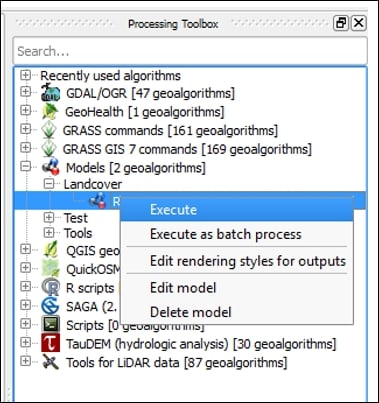
The model can be run either from the Processing modeler window or from the Processing Toolbox panel. To run a model from the Processing modeler window, click on the Run model button (). To run a model from the Processing Toolbox panel, first save and close the model. Then, find the model by navigating to Processing Toolbox | Models, right-click on it, and choose Execute from the context menu. In our example, the model will be found in the Landcover group:

Landcover group

The model dialog will open with the listed inputs. For the data layer input, you can choose data loaded into QGIS by using the drop-down arrow or you can use the browse button () to locate the data on disk. For this example, we are using the AKrivers.shp and the trees.shp sample data. The Buffer distance field is set to 100 since this was the default value set for the number input. For the output, you can choose to have the layer as a temporary one, or choose a location and filename for it. Here, the data is...

Visually different images
CONTINUE READING
83
Tech Concepts
36
Programming languages
73
Tech Tools
Icon Unlimited access to the largest independent learning library in tech of over 8,000 expert-authored tech books and videos.
Icon Innovative learning tools, including AI book assistants, code context explainers, and text-to-speech.
Icon 50+ new titles added per month and exclusive early access to books as they are being written.
Mastering  QGIS
notes
bookmark Notes and Bookmarks search Search in title playlist Add to playlist font-size Font size

Change the font size

margin-width Margin width

Change margin width

day-mode Day/Sepia/Night Modes

Change background colour

Close icon Search
Country selected

Close icon Your notes and bookmarks

Confirmation

Modal Close icon
claim successful

Buy this book with your credits?

Modal Close icon
Are you sure you want to buy this book with one of your credits?
Close
YES, BUY

Submit Your Feedback

Modal Close icon
Modal Close icon
Modal Close icon