-
Book Overview & Buying
-
Table Of Contents
ArcGIS Pro 2.x Cookbook
By :
Now that you know how to open an existing project, it is time to learn how to open a map stored within the project. Projects can contain 2D maps, 3D scenes, data connections, layouts, styles, toolboxes, and more. However, 2D maps are still the primary canvas that GIS professionals work with.
In this recipe, you will learn how to open existing 2D maps. Once open, you will learn how to navigate within the map.
If you have successfully completed all the previous recipes, you should not need to do anything more to continue with this recipe. If you have not completed the other recipes in this chapter, you will need to do so before starting this one.
Chapter 1 Ex 1A project located in C:\Student\ArcGISProCookbook\Chapter1.If you don’t remember how, you should refer back to the previous recipe or click the project name in the list of recently opened projects.
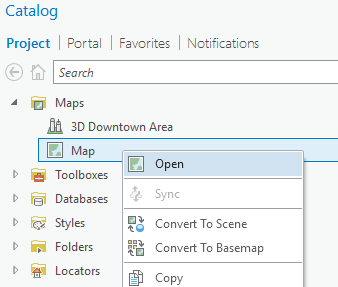
Catalog pane located on the right of the ArcGIS Pro interface, expand the Maps folder by clicking the small arrowhead to the left of the word Maps.If the Catalog pane is not open, check that it is not set to autohide. If it is, you will see a small tab located on the right side, named Catalog. Simply click the tab to make the Catalog pane open. If you have closed the Catalog pane, click the View tab in the ribbon. Then click the small arrowhead located below Catalog and select Catalog Pane.
Map and select Open, as shown here:
You have just opened an existing project map. A project can contain multiple maps that can be either 2D or 3D. 3D maps are referred to as scenes. Now you will learn how to navigate within the maps.
Map tab in the ribbon.Explore tool located on the Map tab in the Navigate tool group.The Explore tool is a jack of all trades. It allows you to pan, zoom, and access data about features in your map. For those that have used ArcMap, the Explore tool replaces the identify, zoom in, zoom out, and pan tools.
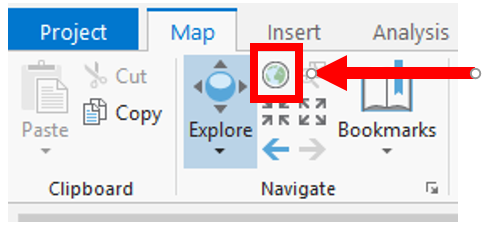
Full Extent button located in the Navigate group on the Map tab in the ribbon, as shown here:
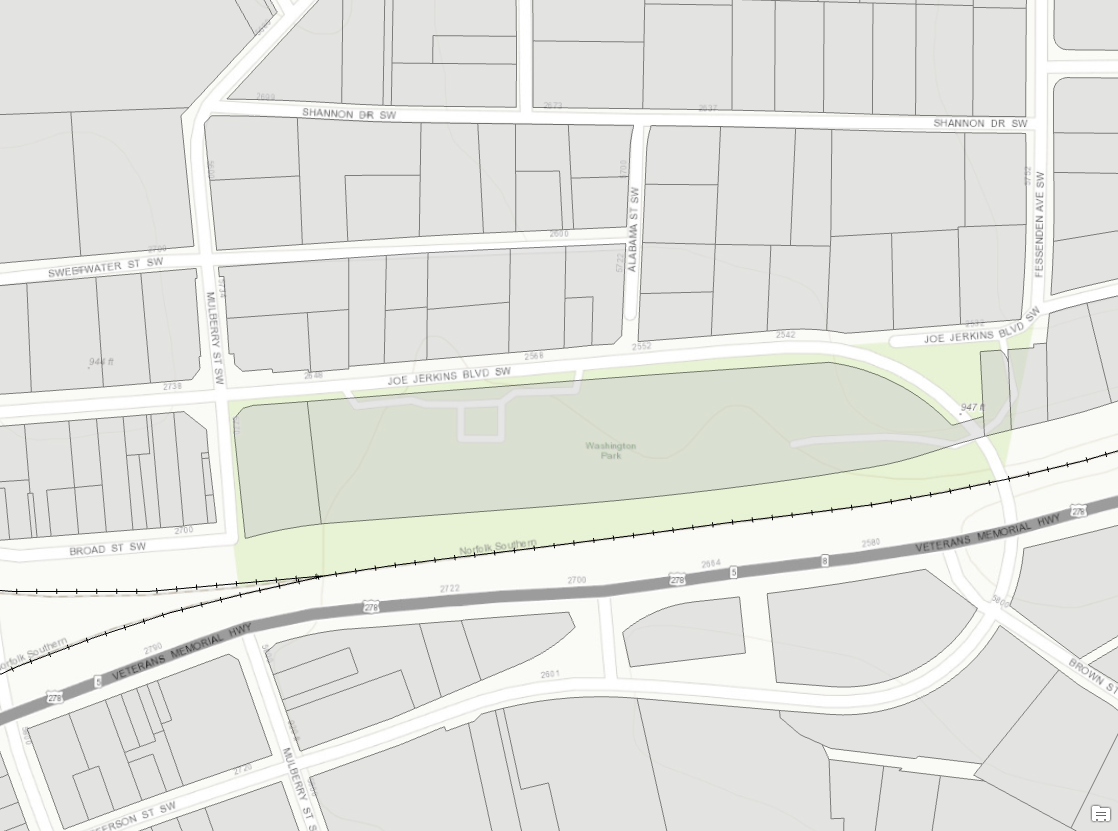
Bookmarks in the Navigate group on the Map tab in the ribbon.Washington Park from the window that appears. This will zoom you to a predefined area in your map that focuses on Washington Park. Your map should now look similar to this:
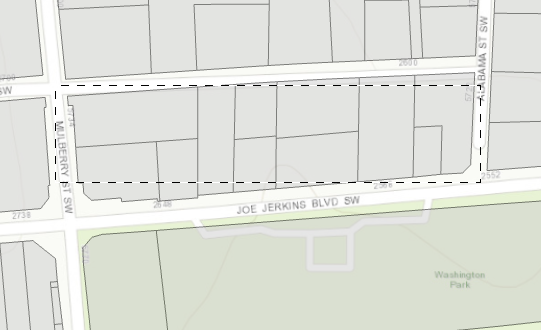
Explore tool again.Mulberry ST SW and Sweetwater ST SW. Continue holding down the Shift key and drag your mouse pointer to the southeast until you reach the intersection of Alabama St SW and Joe Jerkins Blvd SW. As you are dragging your mouse, you should see a dashed rectangular box appear in the map. This represents the area you want to zoom into. Once you have created a box that looks similar to the following image, release both the Shift key and your mouse button:
Explore tool is still active in the Map tab.Question: What happens when you click on this parcel?
Answer:
If you look closely at the information window that appears, you will notice it shows the information for the City Limits and not the parcel. You need to adjust the settings for the Explore tool.
X located in the upper right corner.Explore tool and select Visible Layers.City Limit.Explore tool to see how they work.Full Extent button to return to the full extents of the map.Save Project button located in the Quick Access toolbar.In this recipe, you began exploring the contents of a project by opening an existing map that was contained in a project that you opened in the last recipe. Once you opened the map from that Catalog pane, you began to navigate within it using the Explore tool. You used the Explore tool to first zoom in and out within the map. Then, you used the Full Extent button to return to the full extent of the map view. Next, you used a book mark to zoom to Washington Park in the map. From there, you zoomed into an even more specific area, using a combination of the Explore tool and the Shift key along with your mouse.
Once you zoomed into a block of parcels you were interested in, you used the Explore tool to retrieve information about a specific parcel.