




- Create a one-step Approval Process for an account, to get an approval from the CEO once an account becomes active. Use Process Builder to automatically submit an account for approval, once it gets activated.
- Automatically update the lead rating to Warm whenever the lead status gets updated to Working—Contacted.
- Develop an application using Flow and Process Builder. It will automatically remove all of the followers from an opportunity, except for the opportunity owner, once its stage is updated to Closed-Won or Closed-Lost.
- Automatically create a child case whenever a case is created with a High priority. Use the following information to create the child case:
- Status: New
- Priority: Medium
- Case Origin: Phone
- Associate it with a high priority case
- Create a one-step Approval Process for an account, to get an approval from the CEO once an account becomes active. Use Process Builder to automatically submit an account for approval once it gets activated.
- Develop an application, using Flow and Process Builder, that will automatically add a new user that has the role of Sales Executive to the Sales Executive Chatter group.
If the Sales Executive Chatter group does not exist in your Salesforce organization, create a new one.
- Once the account has been created, auto-post the account details to a Chatter group (Sales Executive).
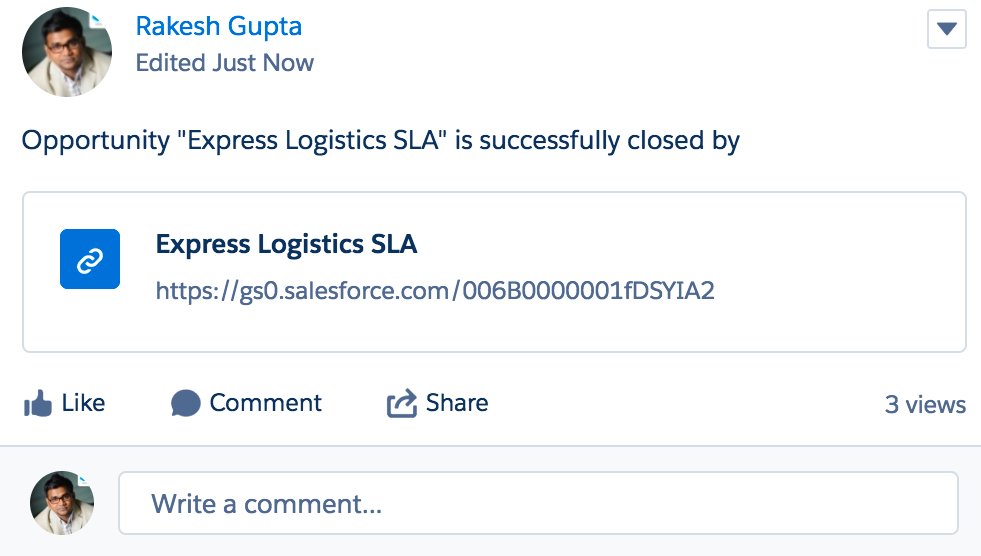
- Once the opportunity has successfully closed, auto-post a linkpost on a Chatter group (Sales Executive). The output should look similar to the following screenshot:
- Auto-create a child case whenever the case's Type field changes to Mechanical, and assign it to the Mechanical Engineers queue.
If the Mechanical Engineers queue does not exist in your Salesforce organization, create a new one.
- Whenever a case is created, automatically add the user Helina Jolly to the case team members.
Create a new user in your organization, named Helina Jolly.
- First, set the OWD for Lead to Private. Now, develop an application, using Flow and Process Builder, that will automatically share new lead records with the user Helina Jolly, and grant her read/write access.
- Once an account becomes inactive, send an email notification to all opportunity owners related to that account. Also, update any related open opportunities' statuses to Closed Lost.
Use the Active field to decide the account status.
- Once an opportunity has successfully closed, auto-create a new opportunity by copying the data from the closed opportunity. Set the opportunity closed date as the new opportunity's created date, plus 100 days.
Copy only the field that is required to create an opportunity.
- Create a process that will automatically add new users that have the profile APAC Support Agent to a queue (High Priority Accounts).
If the High Priority Accounts queue and the APAC Support Agent profile do not exist in your Salesforce organization, create new ones.


