-
Book Overview & Buying
-
Table Of Contents
PostGIS Cookbook
By :
If you need to import a shapefile in PostGIS, you have at least a couple of options such as the ogr2ogr GDAL command, as you have seen previously, or the shp2pgsql PostGIS command.
In this recipe, you will load a shapefile in the database using the shp2pgsql command, analyze it with the ogrinfo command, and display it in the QGIS Desktop software.
The steps you need to follow to complete this recipe are as follows:
ogr2ogr command (note that in this case, you do not need to specify the -f option, as the shapefile is the default output format for the ogr2ogr command):$ ogr2ogr global_24h.shp global_24h.vrt
shp2pgsql command. You are going to use the -G option to generate a PostGIS spatial table using the geography type, and the -I option to generate the spatial index on the geometric column:$ shp2pgsql -G -I global_24h.shp chp01.global_24h_geographic > global_24h.sql
global_24h.sql file (in Windows, use a text editor such as Notepad):$ head -n 20 global_24h.sql SET CLIENT_ENCODING TO UTF8; SET STANDARD_CONFORMING_STRINGS TO ON; BEGIN; CREATE TABLE "chp01"."global_24h_geographic" (gid serial PRIMARY KEY, "latitude" varchar(80), "longitude" varchar(80), "brightness" varchar(80), ... "frp" varchar(80), "geog" geography(POINT,4326)); INSERT INTO "chp01"."global_24h_geographic" ("latitude","longitude","brightness","scan","track","acq_date","acq_time","satellite","confidence","version","bright_t31","frp",geog) VALUES ('-23.386','-46.197','307.5','1.1','1','2012-08-20','0140','T','54','5.0','285.7','16.5','0101000000F0A7C64B371947C0894160E5D06237C0'); ...
global_24h.sql file in PostgreSQL:$ psql -U me -d postgis_cookbook -f global_24h.sql
If you are on Linux, you may concatenate the commands from the last two steps in a single line in the following manner:
$ shp2pgsql -G -I global_24h.shp chp01.global_24h_geographic | psql -U me -d postgis_cookbook
geography_columns view (and not in the geometry_columns view as with the -G option of the shp2pgsql command, we have opted for a geography type):postgis_cookbook=# SELECT f_geography_column, coord_dimension, srid, type FROM geography_columns WHERE f_table_name = 'global_24h_geographic';
f_geography_column | coord_dimension | srid | type --------------------+-----------------+-------+------- geog | 2 | 4326 | Point
ogrinfo (use the -fid option just to display one record from the table):$ ogrinfo PG:"dbname='postgis_cookbook' user='me' password='mypassword'" chp01.global_24h_geographic -fid 1 INFO: Open of `PG:dbname='postgis_cookbook' user='me' password='mypassword'' using driver `PostgreSQL' successful. Layer name: chp01.global_24h_geographic Geometry: Point Feature Count: 30326 Extent: (-155.284000, -40.751000) - (177.457000, 70.404000) Layer SRS WKT: (unknown) FID Column = gid Geometry Column = the_geom latitude: String (80.0) longitude: String (80.0) brightness: String (80.0) ...frp: String (80.0) OGRFeature(chp01.global_24h_geographic):1 latitude (String) = -23.386 longitude (String) = -46.197 brightness (String) = 307.5 ...frp (String) = 16.5 POINT (-46.197 -23.386)

The PostGIS command, shp2pgsql, allows the user to import a shapefile in the PostGIS database. Basically, it generates a PostgreSQL dump file that can be used to load data by running it from within PostgreSQL.
The SQL file will be generally composed of the following sections:
CREATE TABLE section (if the -a option is not selected, in which case, the table should already exist in the database)INSERT INTO section (one INSERT statement for each feature to be imported from the shapefile)CREATE INDEX section (if the -I option is selected)Unlike ogr2ogr, there is no way to make spatial or attribute selections (-spat, -where ogr2ogr options) for features in the shapefile to import.
On the other hand, with the shp2pgsql command, it is possible to import the m coordinate of the features too (ogr2ogr only supports x, y, and z at the time of writing).
To have a complete list of the shp2pgsql command options and their meaning, just type the command name in the shell (or in the command windows, if you are on Windows) and check the output.
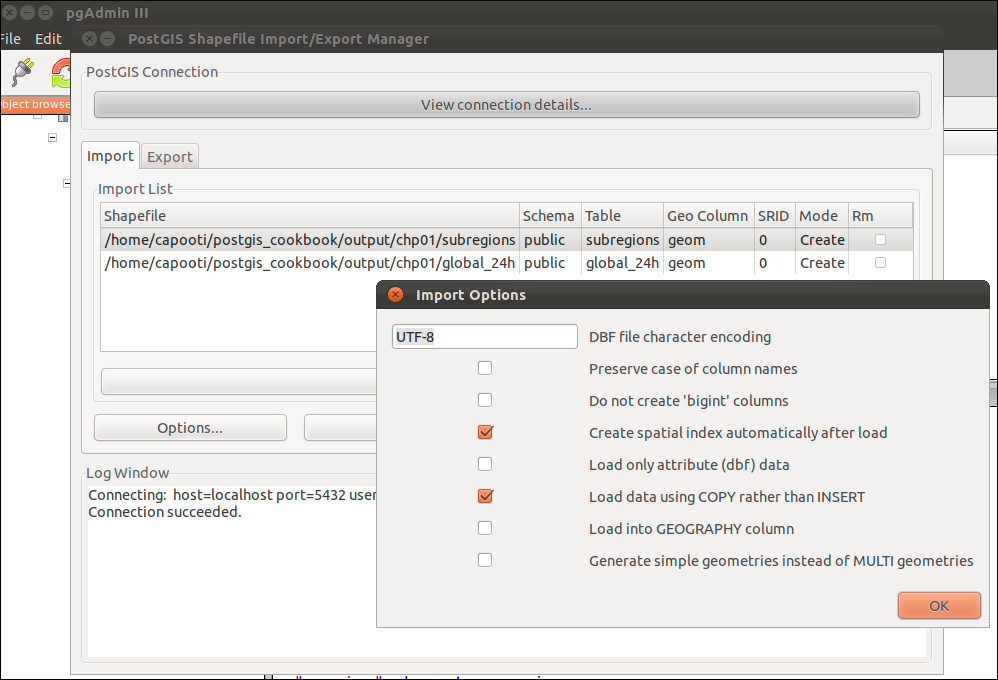
If you do not prefer using the command-line utilities, you can still export your shapefiles, even multiple ones all at once, by using shp2pgsql-gui, which is a GUI software that can also be used as a plugin in pgAdmin. From its interface, you can select the shapefiles to import in PostGIS and select all the parameters that the shp2pgsql command allows the user to specify as shown in the following screenshot:

PostGIS 2.0 onward, shp2pgsql-gui is also a GUI for the pgsql2shp command (there will be a recipe about it later). It allows the user to select one or more PostGIS tables and export them to shapefiles. The GUI lets the user specify all the options that can be used in the pgsql2shp command.
There are other GUI tools to manage data in and out of PostGIS, generally integrated in the GIS Desktop software. In the last chapter of this book, we will take a look at the most popular ones.
Change the font size
Change margin width
Change background colour