-
Book Overview & Buying
-
Table Of Contents

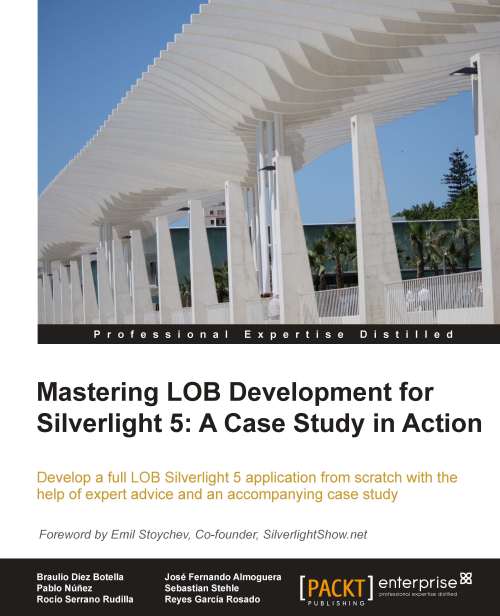
Mastering LOB Development for Silverlight 5: A Case Study in Action
By :


Mastering LOB Development for Silverlight 5: A Case Study in Action
By:
Overview of this book
Microsoft Silverlight is fully established as a powerful tool for creating and delivering Rich Internet Applications and media experiences on the Web. This book will help you dive straight into utilizing Silverlight 5, which now more than ever is a top choice in the Enterprise for building Business Applications. "Mastering LOB Development for Silverlight 5: A Case Study in Action" focuses on the development of a complete Silverlight 5 LOB application, helping you to take advantage of the powerful features available along with expert advice. Fully focused on LOB development, this expert guide takes you from the beginning of designing and implementing a Silverlight 5 LOB application, all the way through to completion. Accompanied by a gradually built upon case study, you will learn about data access via RIA and Web services, architecture with MEF and MVVM applied to LOB development, testing and error control, and much more.With "Mastering LOB Development for Silverlight 5: A Case Study in Action" in hand, you will be fully equipped to expertly develop your own Silverlight Line of Business application, without dwelling on the basics of Enterprise Silverlight development.
Table of Contents (13 chapters)
Preface


 Free Chapter
1. Express Introduction to Silverlight
2. Forms and Browsing
3. Data Binding
4. Architecture
5. RIA Services Data Access
6. Out of Browser (OOB) Applications

7. Testing your LOB Application
8. Error Control
9. Integration with other Web Applications
10. Consuming Web Services
11. Security
Index