-
Book Overview & Buying
-
Table Of Contents
Oracle APEX Best Practices
By :
When installing APEX, by
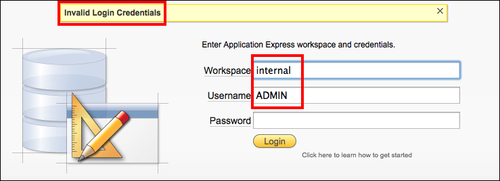
default the workspace Internal with the administrator user Admin is created. Some users know more than the average end user. Also, developers have more knowledge than the average user. Imagine that such users try to log in to either the APEX Administration Services or the normal login page with the workspace Internal and administrator Admin, and consequently use the wrong password. As a consequence, the Admin account would be locked after a number of login attempts. This is a very annoying situation, especially when it happens often. Big companies and APEX Hosting companies with many workspaces and a lot of anonymous users or developers may suffer from this. Fortunately there is an easy solution, creating a second administrator account.

Login attempt in workspace Internal as Admin
If the account is already locked, we have to unlock it first. This can be easily done by running the apxchpwd.sql script, which can be found in the main Apex directory of the unzipped installation file of
APEX:
sys with the sysdba role.@apxchpwd.sql.Now we are ready to create a second administrator account. This can be done in two ways, using the web interface or the command line.
Follow these steps to create a new administrator, using the browser.
First, we need to log in to the APEX Administrator Services at http://server:port/apex/. Log in to the workspace Internal, with the administrator credentials.
After logging in, perform the following steps:
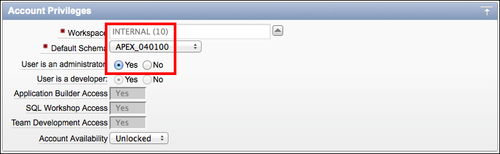
Internal to inspect the settings. You cannot change them. Select Cancel to return to the previous screen.Internal by clicking on the name.Admin.Admin to change the password. Other settings cannot be changed. Select Cancel or Apply Changes to return to the previous screen.APEX_xxxxxx is selected in Default Schema, and that the new user is an administrator. xxxxxx has to match your APEX scheme version in the database, for instance, APEX_040100.
Settings for the new administrator
When we still have access, we can use the web interface of APEX. If not we can use the command line:
SYS with the SYSDBA role.APEX_xxxxxx account by issuing the following command:alter user APEX_xxxxxx account unlock;
APEX_xxxxxx account. If you don't remember your password, you can just reset it, without impacting the APEX instance.BEGIN
wwv_flow_api.set_security_group_id(p_security_group_id=>10);
wwv_flow_fnd_user_api.create_fnd_user(
p_user_name => 'second_admin',
p_email_address => '[email protected]',
p_web_password => 'second_admin_password') ;
END;
/
COMMIT
/SYS with the SYSDBA role and lock the account again with the following command:alter user APEX_xxxxxx account lock;
Internal workspace with your newly created account and you'll be asked to change your password.When an administrator of a developer workspace loses his/her password or has a locked account, you can bring that account back to life by following these steps:
A developer or an APEX end user account can be managed by the administrator of the workspace from the workspace itself. Follow these steps to do so:
Change the font size
Change margin width
Change background colour