Recording a macro, adding modules, browsing objects, and variables
Before you get your hands "dirty" with coding in VBA, there are a few things you need to know. These things will help when it comes to coding. In this section, you will learn how to:
We will start with macro recording, a feature which is available in most Office applications.
A macro, in Office applications, is a synonym for VBA code. In Excel, we can record almost any action we perform (such as mouse clicks and typing), which in turn is registered as VBA code. This can come in handy when we need to discover properties and methods related to an object. Let us now have a look at some ways you can record a macro in Excel. There are two options:
Recording a macro from the status bar.
Recording from the Developer tab.
Option 1 – Recording a macro from the status bar
From the status bar, click on the Record Macro button. If the button is not visible, right-click on the status bar and from the pop-up menu, choose the Macro Recording option, as shown in the following screenshot:
Option 2 – Recording from the Developer tab
Now that you know how to record a macro from the status bar, let us check another option. This option requires that you activate the Developer tab. In order to activate it, assuming it is not active yet, follow these steps:
Go to File | Excel Options | Customize Ribbon.
Under Main Tabs check the Developer checkbox, as shown in the following screenshot:
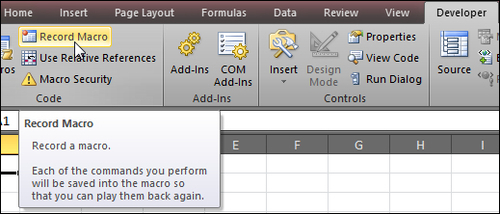
Next, activate the Developer tab and click on Record Macro, as shown in the following screenshot:
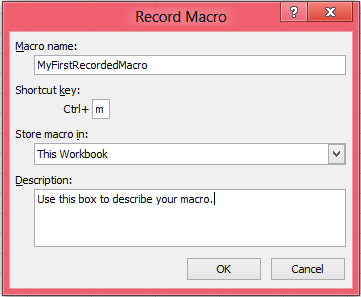
Once the macro recording process starts, you will be prompted to enter some basic information about the macro such as the macro name, the shortcut key, location where the macro should be stored, and its description. The following screenshot shows these options filled out:
Once the macro has been recorded, you can access its container module by pressing, simultaneously, the Alt + F11 keys. Alternatively, you can click on the Visual Basic button in the Developer tab. This button is to the left of the Record Macro button introduced previously. This will open the Visual Basic Editor (VBE), where all the VBA code is kept.
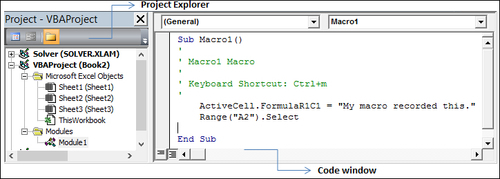
The VBE is the tool we use to create, modify, and maintain any code we write or record. The following screenshot shows the VBE window with the project explorer, properties, and code window visible:
If upon opening the VBE, the VBA project explorer window is not visible, then follow these steps:
Go to View | Project Explorer.
Alternatively, press the Ctrl + R keys simultaneously.
If, on the other hand, the VBA project explorer is visible, but the code window is not, you can choose which code window to show.
Suppose you are interested in the content of the module you've recorded from the project explorer window, follow these step to show the module window:
Click on View | Code.
Alternatively, press F7.
Once you have recorded your macro, if you have added a shortcut to it, then you will be able to run the code by using this keyboard combination.
However, if you are coding directly into the container object (a user form, standard module, class module, and so on), then you may have to use different methods in case there is no shortcut to your procedures.
Here are some methods you can use to execute your code (all of them assume you have the Visual Basic Editor open):
Pressing the function key F5: Place the cursor inside the procedure you wish to execute and press the function key F5. This will run your entire procedure.
Pressing the function key F8: When you press the function key F8, you will step into your code. This means that each line will be executed only when you press this key. This is a great method if you need to check line by line within your code or a section of your code.
Pressing the Ctrl + F8 keys simultaneously: This will force the code run until it finds the mouse cursors placed in your code. The cursor is the blinking beam that represents your mouse pointer.
Call the code from the Immediate window: See the Immediate window section in this guide for instructions on how this is done.
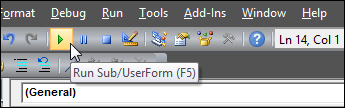
Click on the "play" button: On the standard toolbar, click on the "play" button. This has the same effect as pressing the function key F5. If the toolbar is not visible, go to View | Toolbars | Standard.
.
Saving a workbook containing macros
Before you get too excited with coding in VBA, be aware that Excel has specific file formats which are appropriate for specific tasks. The default file format does not allow you to save embedded macros in it. This format ends with the extension .xlsx. Any macros placed in such a file will be wiped out.
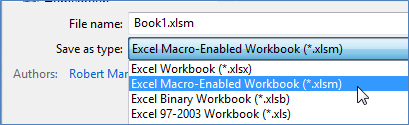
When it is time to save your Excel workbook, you must select the Excel Macro-Enabled Workbook (*.xlsm) type (which ends with the extension xlsm). The open format (xlsm) is the preferred format. However, you can also use the binary format (xlsb) or, to ensure the code can be run in older versions of Excel, you can use the xls format:
You can easily distinguish the files by their desktop icons. The macro-enabled workbook has an exclamation mark, while the macro-free version does not.
You add code to the code window of any object. These objects can be the workbook itself (also called ThisWorkbook; see the screenshot in the Immediate window section), the worksheet object, user forms, modules, and class modules. Your choice will depend on the usage of the code. If the code needs to be public, then you should add it to a module.
In order to add a module, follow these steps:
Go to Insert | Module.
Alternatively, right-click anywhere in the Project Explorer window and from the pop-up menu, go to Insert | Module.
The Object Browser is a very important tool that you can use to check for the properties and methods of an object as well as any other information related to that object.
In order to access the Object Browser, follow these steps:
Go to View | Object Explorer.
Alternatively, press the function key F2 on your keyboard.
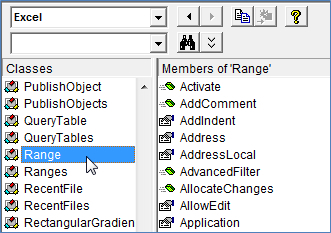
Once the Object Browser is open, you will be presented with the window shown in the following screenshot. From the first drop-down list you can choose which library you want to browse to. You can browse all libraries in one go or you can browse a specific library. In the following example, the active library is Excel. Below it, there is a list with all the classes (objects) available in the Excel object library. Currently, the active class is Range and to its right you have all the properties and methods that are members of this class:
The methods are represented by a small "running brick" whereas the properties are represented by a hand holding a card.
Methods are named using verbs while properties are named using nouns. Methods represent procedures, that is, actions to be performed or functions. Therefore, the Activate method is a procedure that activates the object Range, which has been specified in the code. Similarly, properties refer to the qualities of the object. For example, the Name property can be used to retrieve the name of a worksheet as well as to rename it. Properties can be read-only, write-only, or read-write.
If you find that confusing, you can think of it in terms of your own body. For example, Height is a property that tells how tall you are, whereas Grow is a method (think of this method as a growth hormone) that instructs your body to grow.
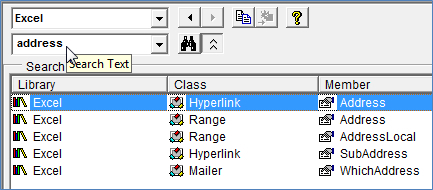
Finally, you can search for properties and methods while in this window. Simply enter what you are looking for in the box right under the Excel box, as shown in the following screenshot. The Object Browser will show you all the matching results with the corresponding class and its membership:
One important aspect of VBA programming lies in declaring your variables. Variables, as the name suggests, are things that vary or change over a period of time. Therefore, a variable could be specific such as a text string, a number (such as integer and long), or an object. But it can also be a variant, which means it takes no specific shape to begin with, but it will take whatever shape it is set to later on in your code.
It is not a prerequisite that you declare your variables (unless the container has the key phrase Option Explicit placed on the first line of the code window). In this scenario we have what we call implicit declaration
, that is, you don't declare any variables and let VBA automatically create a variant type whenever a variable is needed.
Forcing explicit variable declaration is a good practice as it improves code performance, it makes reading your code easier (for others and yourself), and it also avoids ambiguity in your code. If you want the compiler to force variable declarations, follow these steps to switch on explicit variable declaration:
Open the Visual Basic Editor.
Go to Tools | Options.
When the Options dialog box open, activate the Editor tab (if it is not active), and check the Require Variable Declaration option.
Variables can be declared as:
Private: A private variable implies that it can only be accessed by its container object. In other words, if a variable is declared as private inside a module, it is only accessible by the module that contains it. By default, declarations inside built-in objects (user forms, ThisWorkbook, worksheets, and classes) are private. Declaring a variable as public within such objects only changes the scope at the object level, not at the project level.
Public: A public variable implies that any object within your project can access it, as long as it is declared in a standard module. Public variables must be placed inside standard modules if you want their scope to be global (project level).
The preceding declarations relate to accessibility of the variables you declare. However, there are other keywords you can use in the declaration:
Dim: This stands for Dimension and is the most common way to declare a variable
Static: This determines that the variable must remain static throughout the execution of your code
Const: This determines that the variable must remain constant throughout the execution of your code
The following code snippet illustrates the usage of such declarations and combinations. Explanations are embedded in the code:
The
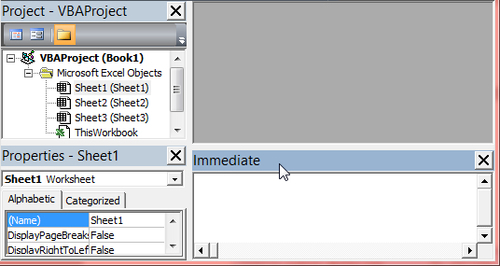
Immediate window allows you to display information related to the debugging of your code. Debugging refers to the process of finding and mitigating "bugs". Bugs are coding mistakes that cause your program to deviate from its original intended use. The Immediate window will also execute commands that you type directly into it. It appears, by default, at the bottom of Visual Basic Editor (VBE) window:
To display the Immediate window (if it is not active), follow these steps:
Go to View | Immediate window.
Alternatively, press Ctrl + G simultaneously (press F7 to jump back to the code window).
The Immediate window has many uses, some of which we will look at now. To demonstrate the possibilities, ensure that the Immediate window is active and replicate the following code snippets in a standard module; then, execute it:
Debugging problems in your code: This first method uses debug.print and it is great if you need to find out what is going on in your code. A code sample as follows. Copy it into a standard module and execute it.
In this example, we instruct VBA to resume the next line of code if it finds an error. As division by zero is not defined, an error will occur. Then, we use the Print method of the Debug object to write the description of the error to the Immediate window.
Calling a procedure or function: Using the same example code just used, on the Immediate window, write the following and then press Enter:
This will force the execution of the procedure entitled ErrorCode(). As the procedure generates an error, the error description will also be written to the Immediate window.
If you are calling a function, however, you will need to do something slightly different. As an example, copy the following function into a standard module:
The function simply returns my name. It has no other use, but supposing this was an internal function and you wanted to know my name, you could call this function from the Immediate window as follows:
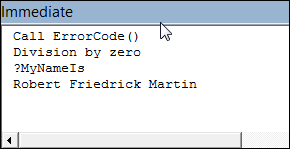
Upon execution, the output will be shown in the Immediate window, as shown in the following screenshot (previous example included):
Executing the code: You can run code straight from the Immediate window. Let us take the first example given in this section. Let us suppose we want to check what happens to the division before putting that line of code in your procedure. We can run the following in the Immediate window (press Enter after entering the procedure):
In this section, you have learned some basic stuff about VBA. These included macro recording, adding modules, and browsing objects.
You also learned how to use the immediate window to debug your code. This feature is very important because it allows you to carry out many critical debugging tests.
With these tools mastered, you are now able to move on to the next step of your VBA quest.





 Free Chapter