Sign In Start Free Trial
Account

Add to playlist

Create a Playlist

Modal Close icon
You need to login to use this feature.
  • Book Overview & Buying Azure Security Cookbook
  • Table Of Contents Toc
Azure Security Cookbook

Azure Security Cookbook

By : Steve Miles
4.7 (20)
close
close
Azure Security Cookbook

Azure Security Cookbook

4.7 (20)
By: Steve Miles

Overview of this book

With evolving threats, securing your cloud workloads and resources is of utmost importance. Azure Security Cookbook is your comprehensive guide to understanding specific problems related to Azure security and finding the solutions to these problems. This book starts by introducing you to recipes on securing and protecting Azure Active Directory (AD) identities. After learning how to secure and protect Azure networks, you’ll explore ways of securing Azure remote access and securing Azure virtual machines, Azure databases, and Azure storage. As you advance, you’ll also discover how to secure and protect Azure environments using the Azure Advisor recommendations engine and utilize the Microsoft Defender for Cloud and Microsoft Sentinel tools. Finally, you’ll be able to implement traffic analytics; visualize traffic; and identify cyber threats as well as suspicious and malicious activity. By the end of this Azure security book, you will have an arsenal of solutions that will help you secure your Azure workload and resources.
Table of Contents (15 chapters)
close
close
1
Part 1: Azure Security Features
8
Part 2: Azure Security Tools

Implementing Conditional Access policies

There must be a balance of protecting an organization’s resources while ensuring every user, wherever they are, is empowered to be productive whenever.

To further strengthen our Azure AD identities, we can use insights from identity-driven signal data to make informed access control decisions and then use those decisions to enforce access policies.

MFA works alongside Conditional Access to provide further granular control of access.

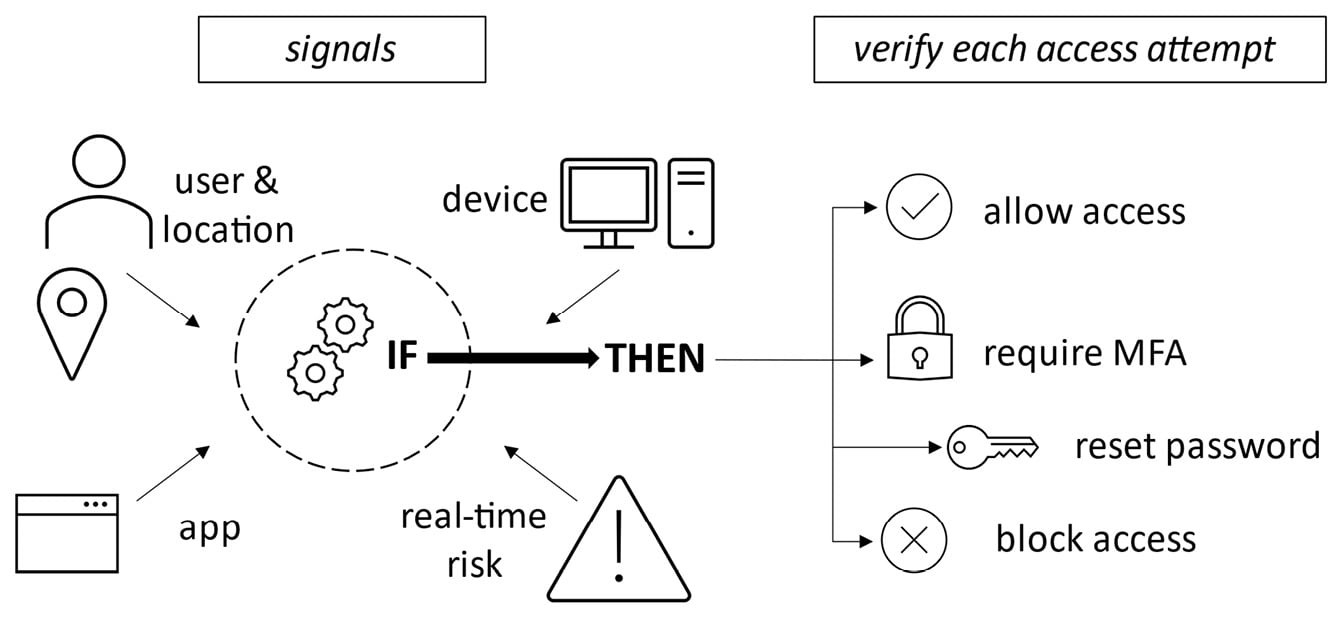
Conditional Access is based on an IF/THEN approach. This approach means that IF signal information collected from the sign-in process matches certain criteria, THEN decisions are made based on the information as to whether access will be allowed or blocked.

Conditional Access will also determine whether the user will be required to perform additional authentication methods or take other actions, such as resetting their password. This is represented in the following diagram:

Figure 1.29 – Conditional Access concept

Figure 1.29 – Conditional Access concept

The following are some common Conditional Access policies:

  • Require MFA for all users
  • Require MFA for Microsoft portals/services access
  • Require password reset for risky users
  • Block the use of legacy authentication protocols
  • Require hybrid-joined or compliant devices
  • Allow or deny from specific locations

This recipe will teach you how to implement Conditional Access policies in your environment’s AD tenancy. We will take you through enabling conditional access policies and configuring them to restrict user access to apps based on if a set of conditions have been met.

Getting ready

This recipe requires the following:

  • A device with a browser, such as Edge or Chrome, to access the Azure portal: https://portal.azure.com.
  • You should sign into the Azure portal with an account with the Global Administrator role.
  • You will require Azure AD Premium licenses or trial licenses.
  • If you have Security Defaults enabled, you will automatically have MFA enabled for all users and administrators using the free benefits of Azure AD. Using one of the paid Azure AD Premium licenses provides additional capabilities such as the additional authentication methods of verification codes, text messages, or phone calls, as well as the following:
    • Azure AD Premium P1: This license includes Azure Conditional Access for MFA
    • Azure AD Premium P2: This license adds risk-based Conditional access to MFA

How to do it…

This recipe consists of the following task:

  • Configuring Conditional Access

Task – configuring Conditional Access

Perform the following steps:

  1. From the Azure portal, go to Azure Active Directory, click Security in the Manage section from the side menu, and then click Conditional Access in the Protect section.
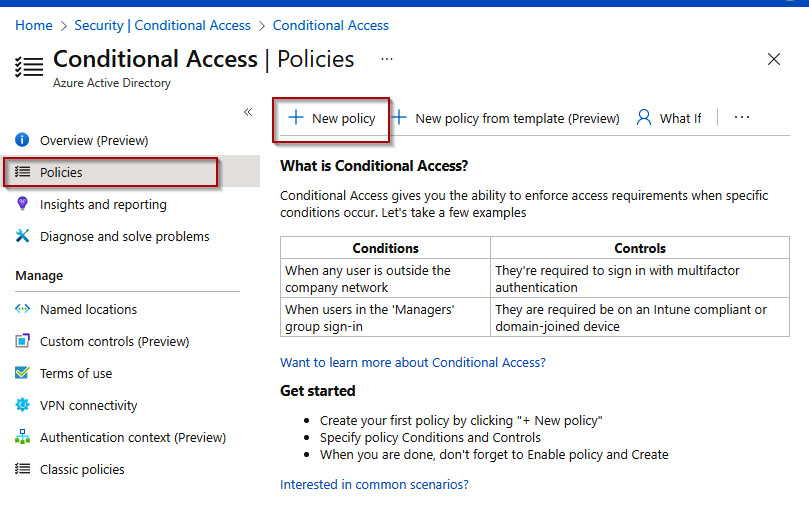
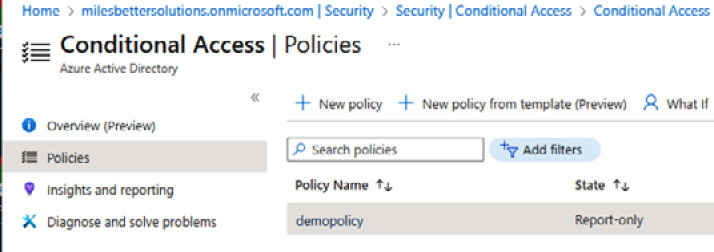
  2. Click + New Policy from the top toolbar in the Conditional Access Policies blade:
Figure 1.30 – Conditional Access | Policies

Figure 1.30 – Conditional Access | Policies

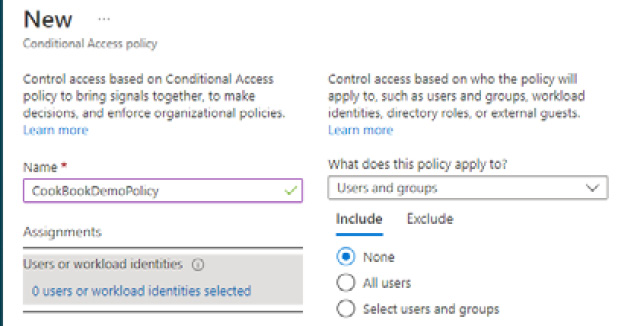
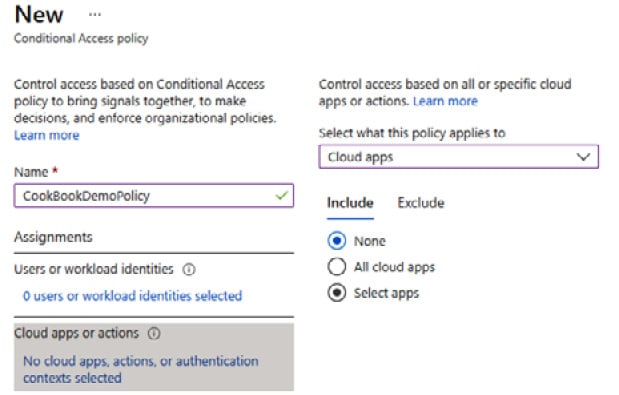
  1. Select a Name for your policy from the New conditional access policy blade.
  2. From the Assignments section, select which users and groups this policy will apply to:
Figure 1.31 – User settings

Figure 1.31 – User settings

  1. From the Cloud apps or actions section, select whether this policy will apply to Cloud apps or Actions; we will select Cloud apps:
Figure 1.32 – Apps setting

Figure 1.32 – Apps setting

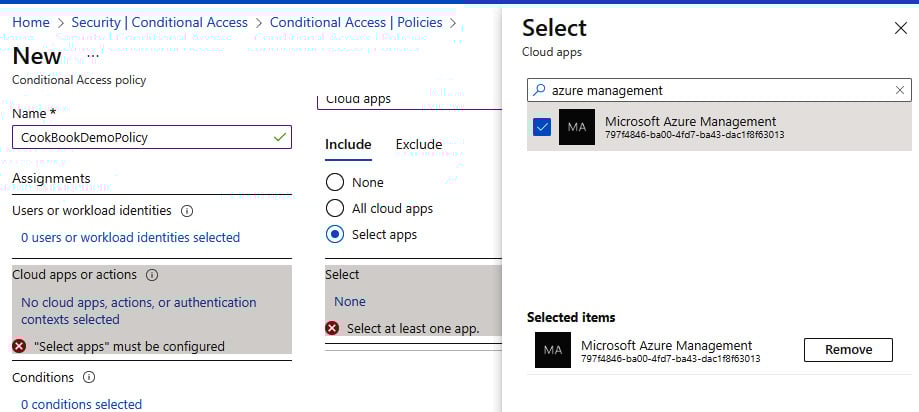
  1. From the Include tab, we will click Select apps, search for Azure Management, tick the check box next to Microsoft Azure Management app in the list, and click Select. Note the warning dialog box about not locking yourself out:
Figure 1.33 – App selection

Figure 1.33 – App selection

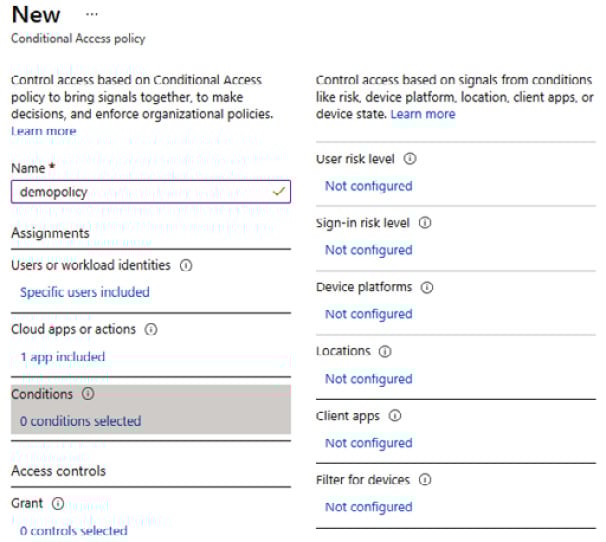
  1. Click the Conditions settings, set any required conditions, or leave it unconfigured:
Figure 1.34 – Conditions settings

Figure 1.34 – Conditions settings

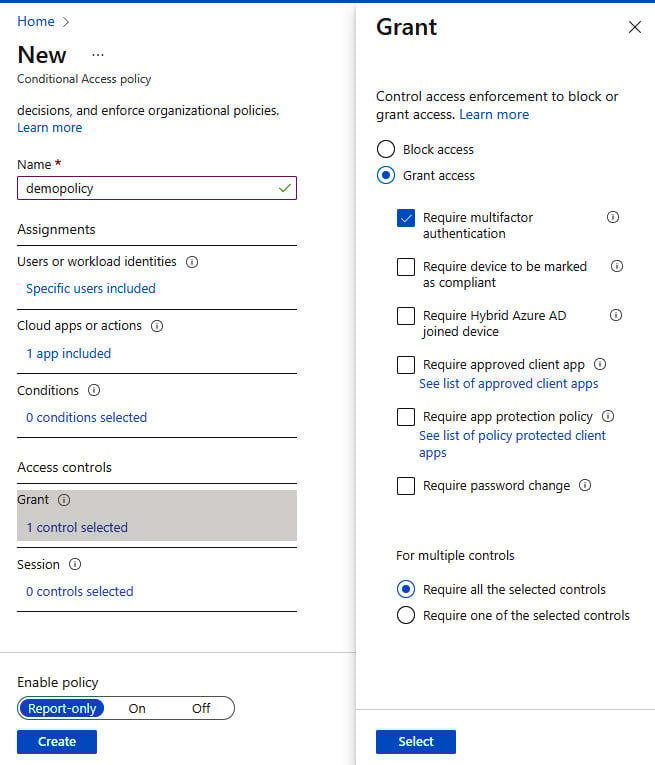
  1. From Grant, under the Access controls section, click on 0 controls selected, set it to Grant access, tick Require multifactor authentication, and then click Select:
Figure 1.35 – Access settings

Figure 1.35 – Access settings

  1. In the Enable policy section, leave it set to Report-only, then click Create.
  2. Your policy will now appear in the policies list:
Figure 1.36 – Access policies list

Figure 1.36 – Access policies list

With that, you have configured Conditional Access. This concludes the hands-on tasks for this recipe.

How it works…

In this recipe, we looked at how we can implement Conditional Access policies in addition to MFA to layer on an additional layer of defense while maintaining the users’ productivity needs.

We configured a Conditional Access policy to a set of selected users (or groups) that required MFA when they accessed the Azure portal; this was enabled by selecting the Microsoft Azure Management app.

See also

Should you require further information, you can refer to the following Microsoft Learn articles:

CONTINUE READING
83
Tech Concepts
36
Programming languages
73
Tech Tools
Icon Unlimited access to the largest independent learning library in tech of over 8,000 expert-authored tech books and videos.
Icon Innovative learning tools, including AI book assistants, code context explainers, and text-to-speech.
Icon 50+ new titles added per month and exclusive early access to books as they are being written.
Azure Security Cookbook
notes
bookmark Notes and Bookmarks search Search in title playlist Add to playlist font-size Font size

Change the font size

margin-width Margin width

Change margin width

day-mode Day/Sepia/Night Modes

Change background colour

Close icon Search
Country selected

Close icon Your notes and bookmarks

Confirmation

Modal Close icon
claim successful

Buy this book with your credits?

Modal Close icon
Are you sure you want to buy this book with one of your credits?
Close
YES, BUY

Submit Your Feedback

Modal Close icon
Modal Close icon
Modal Close icon