Sign In Start Free Trial
Account

Add to playlist

Create a Playlist

Modal Close icon
You need to login to use this feature.
  • Book Overview & Buying Leaflet.js Essentials
  • Table Of Contents Toc
Leaflet.js Essentials

Leaflet.js Essentials

By : Paul Crickard III
4 (7)
close
close
Leaflet.js Essentials

Leaflet.js Essentials

4 (7)
By: Paul Crickard III

Overview of this book

If you are a web developer working with geospatial concepts and mapping APIs, and you want to learn Leaflet to create mapping solutions, this book is for you. You need to have a basic knowledge of working with JavaScript and performing web application development.
Table of Contents (8 chapters)
close
close
7
Index

Mobile mapping

The maps you have made so far have been tested on the desktop. One of the benefits of mapping in JavaScript is that mobile devices can run the code in a standard web browser without any external applications or plugins. Leaflet runs on mobile devices, such as iPhone, iPad, and Android devices. Any web page with a Leaflet map will work on a mobile device without any changes; however, you probably want to customize the map for mobile devices so that it works and looks like it was built specifically for mobile.

Lastly, the L.map() class has a locate() method, which uses the W3C Geolocation API. The Geolocation API allows you to find and track a user's location using the IP address, the wireless network information, or the GPS on a device. You do not need to know how to use the API; Leaflet handles all of this when you call locate().

HTML and CSS

The first step in converting your Leaflet map to a mobile version is to have it display properly on mobile devices. You can always tell when you open a website on your phone whether the developer took the time to make it mobile-accessible. How many times have you been on a website where the page loads and all you can see is the top-left corner, and you have to zoom around to read the page. It is not a good user experience. In LeafletEssentials.html in the <head> tag after the <link> tag for the CSS file, add the following code:

<style>

body{
padding: 0;
margin: 0;
    }
html, body, #map {
height: 100%;
        }
</style>

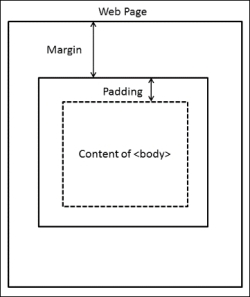
In the preceding CSS code, you set the padding and margin values to 0. Think of a web page as a box model, where each element exists in its own box. Each box has a margin, which is the space between it and other boxes, and also padding, which is the space between the content inside the box and the box border (even if a border is not physically drawn). Setting the padding and margin values to 0 makes the <body> content fit to the size of the page. Lastly, you set the height value of the <html>, <body>, and <div id = 'map'> elements to 100%.

Note

In CSS, # is the ID selector. In the code, #map is telling us to select the element with the id = 'map' line. In this case, it is our <div> element that holds the map.

The following diagram shows an overview of the settings for the web page:

HTML and CSS

The last step is to add the following code in the <head> section and after the </title> element:

<meta name="viewport" content="width=device-width, initial-scale=1.0, maximum-scale=1.0, user-scalable=no">

The preceding code modifies the viewport that the site is seen through. This code sets the viewport to the width of the device and renders it by a ratio of 1:1. Lastly, it disables the ability to resize the web page. This, however, does not affect your ability to zoom on the map.

Creating a mobile map with JavaScript

Now that you have configured the web page to render properly on mobile devices, it is time to add the JavaScript code that will grab the user's current location. For this, perform the following steps:

  1. Create the map instance, but do not use setView:
    var map = L.map('map');
  2. Add a tile layer:
    L.tileLayer('http://{s}.tile.osm.org/{z}/{x}/{y}.png').addTo(map);
  3. Define a function to successfully find the location:
    Function foundLocation(e){}
  4. Define a function to unsuccessfully find the location:
    functionnotFoundLocation(e){}
    
  5. Add an event listener for foundLocation() and notFoundLocation():
    map.on('locationfound', foundLocation);
    map.on('locationerror', notFoundLocation);
  6. Use locate() to set the map view:
    map.locate({setView: true, maxZoom:10});

The code creates the map and adds a tile layer. It then skips over the functions and event listeners and tries to locate the user. If it is able to locate the user, it runs the code in foundLocation() and sets the view to the latitude and longitude of the user. If it does not locate the user, it executes the code in notFoundLocation() and displays a zoomed-out world map.

To make this example more usable, add the following code to notFoundLocation():

function notFoundLocation(e){
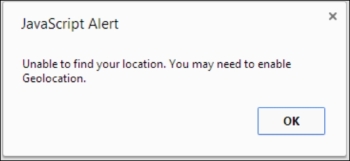
alert("Unable to find your location. You may need to enable Geolocation.");}

The alert() function creates a pop up in the browser with the message passed as a parameter. Anytime that the browser is unable to locate the user, they will see the following message. While some devices do not have location capabilities, at times, they need to be allowed in their security settings:

Creating a mobile map with JavaScript

Now, add the following code to foundLocation():

function foundLocation(e){
varmydate = new Date(e.timestamp);
L.marker(e.latlng).addTo(map).bindPopup(mydate.toString());
     }

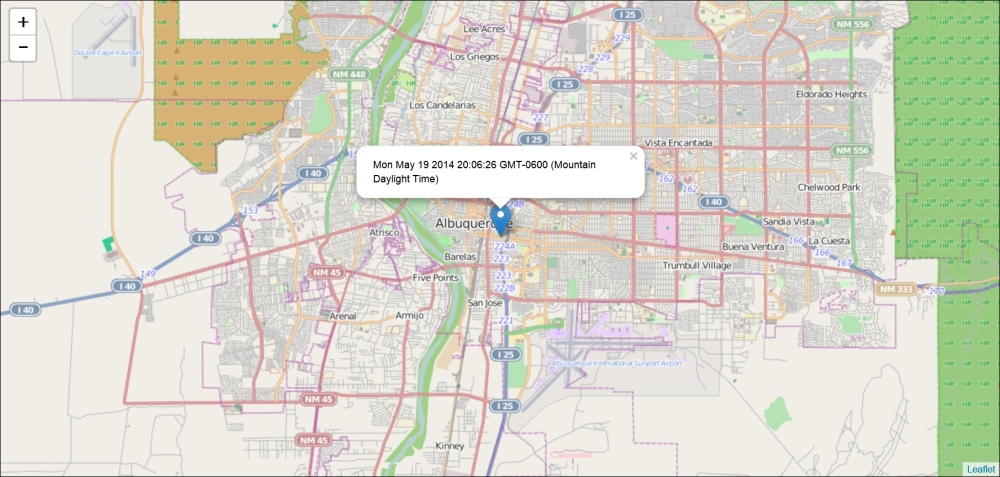
The preceding code will run when the user's location is found. The e in foundLocation(e) is an event object. It is sent when an event is triggered to the function that is responsible for handling that specific event type. It contains information about the event that you will want to know. In the preceding code, the first event object we grab is the timestamp object. If you were to display the timestamp in a pop up, you would get a bunch of numbers: 1400094289048. The timestamp is the number of milliseconds that have passed since January 1, 1970 00:00:00 UTC. If you create an instance of the date class and pass it to the timestamp object, you receive a human-readable date. Next, the code creates a marker. The latitude and longitude are stored in e.latlng. You then add the marker to the map and bind a pop up. The pop up needs a string as a parameter, so you can use the toString() method of the date class or use String(mydate) to convert it. The following screenshot shows the pop up with the date and time when the user clicked on it:

Creating a mobile map with JavaScript
CONTINUE READING
83
Tech Concepts
36
Programming languages
73
Tech Tools
Icon Unlimited access to the largest independent learning library in tech of over 8,000 expert-authored tech books and videos.
Icon Innovative learning tools, including AI book assistants, code context explainers, and text-to-speech.
Icon 50+ new titles added per month and exclusive early access to books as they are being written.
Leaflet.js Essentials
notes
bookmark Notes and Bookmarks search Search in title playlist Add to playlist font-size Font size

Change the font size

margin-width Margin width

Change margin width

day-mode Day/Sepia/Night Modes

Change background colour

Close icon Search
Country selected

Close icon Your notes and bookmarks

Confirmation

Modal Close icon
claim successful

Buy this book with your credits?

Modal Close icon
Are you sure you want to buy this book with one of your credits?
Close
YES, BUY

Submit Your Feedback

Modal Close icon
Modal Close icon
Modal Close icon