-
Book Overview & Buying
-
Table Of Contents

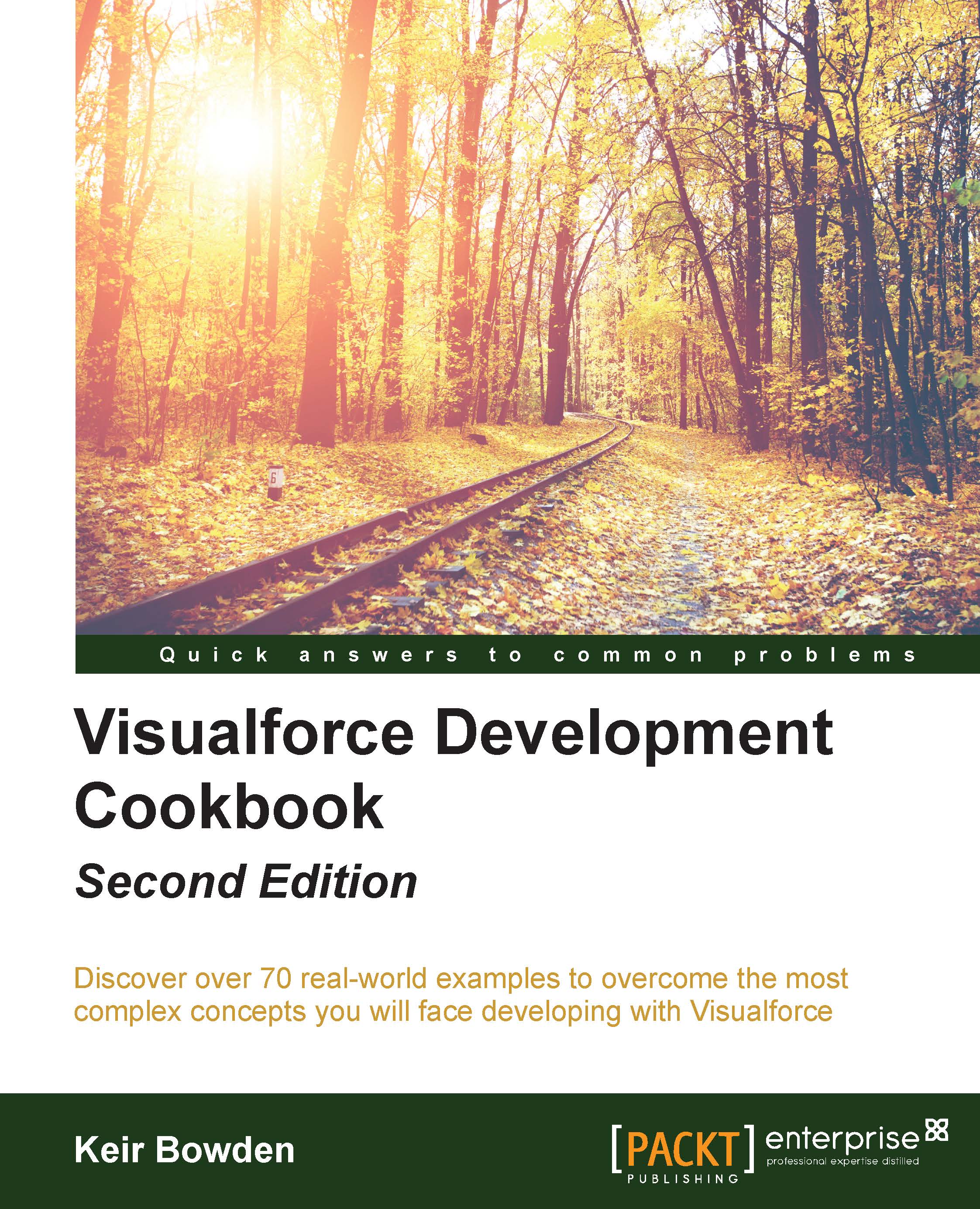
Visualforce Development Cookbook - Second Edition
By :


Visualforce Development Cookbook
By:
Overview of this book
Visualforce is a framework that allows developers to build sophisticated, custom user interfaces that can be hosted natively on the Force.com platform. The Visualforce framework includes a tag-based markup language, similar to HTML that is used to write the Visualforce pages and a set of controllers that are used to write business logic to the Visualforce pages.
Visualforce Development Cookbook provides solutions to a variety of challenges faced by Salesforce developers and demonstrates how easy it is to build rich, interactive pages using Visualforce. Whether you are looking to make a minor addition to the standard page functionality or override it completely, this book will provide you with the help you require throughout.
You will start by learning about the simple utilities and will build up to more advanced techniques for data visualization and to reuse functionality. You will learn how to perform various tasks such as creating multiple records from a single page, visualizing data as charts, using JavaScript to enhance client-side functionality, building a public website, and making data available to a mobile device.
With an interesting chapter on tackling common issues faced while developing Visualforce pages, the book provides lots of practical examples to enhance and extend your Salesforce user interface.
Table of Contents (11 chapters)
Preface


 Free Chapter
1. General Utilities

2. Custom Components
3. Capturing Data Using Forms
4. Managing Records
5. Managing Multiple Records
6. Visualforce Charts
7. Enhancing the Client with JavaScript
8. Force.com Sites
9. Visualforce in Salesforce1
10. Troubleshooting