Sign In Start Free Trial
Account

Add to playlist

Create a Playlist

Modal Close icon
You need to login to use this feature.
  • Book Overview & Buying Vue.js 2 Design Patterns and Best Practices
  • Table Of Contents Toc
Vue.js 2 Design Patterns and Best Practices

Vue.js 2 Design Patterns and Best Practices

By : Halliday
3.5 (6)
close
close
Vue.js 2 Design Patterns and Best Practices

Vue.js 2 Design Patterns and Best Practices

3.5 (6)
By: Halliday

Overview of this book

Vue.js 2 Design Patterns and Best Practices starts by comparing Vue.js with other frameworks and setting up the development environment for your application, and gradually moves on to writing and styling clean, maintainable, and reusable Vue.js components that can be used across your application. Further on, you'll look at common UI patterns, Vue form submission, and various modifiers such as lazy binding, number typecasting, and string trimming to create better UIs. You will also explore best practices for integrating HTTP into Vue.js applications to create an application with dynamic data. Routing is a vitally important part of any SPA, so you will focus on the vue-router and explore routing a user between multiple pages. Next, you'll also explore state management with Vuex, write testable code for your application, and create performant, server-side rendered applications with Nuxt. Toward the end, we'll look at common antipatterns to avoid, saving you from a lot of trial and error and development headaches. By the end of this book, you'll be on your way to becoming an expert Vue developer who can leverage design patterns to efficiently architect the design of your application and write clean and maintainable code.
Table of Contents (14 chapters)
close
close
Lock Free Chapter
1
Vue.js Principles and Comparisons
chevron up
12
Server-Side Rendering with Nuxt

Prerequisites

Although you could develop Vue applications without Node, we'll be using Node.js throughout this book to manage dependencies and interact with the Vue Command Line Interface (CLI). This allows us to bootstrap projects quicker and gives us a better development experience as we can use ECMAScript 2015 by default. Let's have a quick refresher on setting up your development environment.

Windows

Installing Node for Windows is as simple as visiting https://nodejs.org and downloading the latest version. Ensure that when following the installation steps, Add to PATH is selected as this will allow us to access node commands within our Terminal.

Once you've done that, check your Node installation works by typing node -v and npm -v. If you get two version numbers back (that is, one for each), then you're ready to go ahead with the rest of the book!

Mac

Installing Node for Mac involves a little more work than simply downloading the installer from the Node website. While it is possible to use the installer from https://nodejs.org,it is not advised due to the requirement of sudo.

If we did it this way, we'd have to prefix all of our npm commands with sudo and this can leave our system vulnerable to potential scripting attacks and is inconvenient. Instead, we can install Node via the Homebrew package manager and we can then interact with npm without worrying about having to run things as sudo.

Another great thing about using Homebrew to install Node is that it's automatically added to our PATH. This means we'll be able to type node commands without having to fiddle around with our environment files.

Installing Node via Homebrew

The quickest way to get Homebrew is to visit http://brew.sh and get hold of the installation script. It should look a little something like this:

/usr/bin/ruby -e "$(curl -fsSL https://raw.githubusercontent.com/Homebrew/install/master/install)"

Simply paste that into your Terminal and it'll download the Homebrew package manager to your Mac. We can then use brew install node to install Node on our system without any worries.

Once you've done that, check your Node installation works by typing node -v and npm -v. If you get two version numbers back (that is, one for each), then you’re ready to go ahead with the rest of the book!

In order to manage the different Node versions, we could also install the Node Version Manager (NVM). Do note however that this is currently only supported by Mac at present and not Windows. To install NVM, we can use Homebrew like so:

--use Brew to install the NVM
brew install nvm

--File directory
mkdir ~/.nvm

--Install latest version
nvm install --lts

--Ensure latest version is used
nvm use node

--Remember details across sessions
nano ~/.bash_profile

--Execute in every session
export NVM_DIR="$HOME/.nvm"
. "$(brew --prefix nvm)/nvm.sh"

Editor

A variety of editors can be used, such as Visual Studio Code, Sublime Text, Atom, and WebStorm. I recommend Visual Studio Code (https://code.visualstudio.com) as it has a frequent release cycle and a wealth of Vue extensions that we can use to improve our workflow.

Browser

We will be using Google Chrome to run our project(s) as this has an extension named Vue devtools that is instrumental to our development workflow. If you do not use Google Chrome, ensure your browser has the same Vue devtools extension that is available for usage.

Installing the Vue devtools

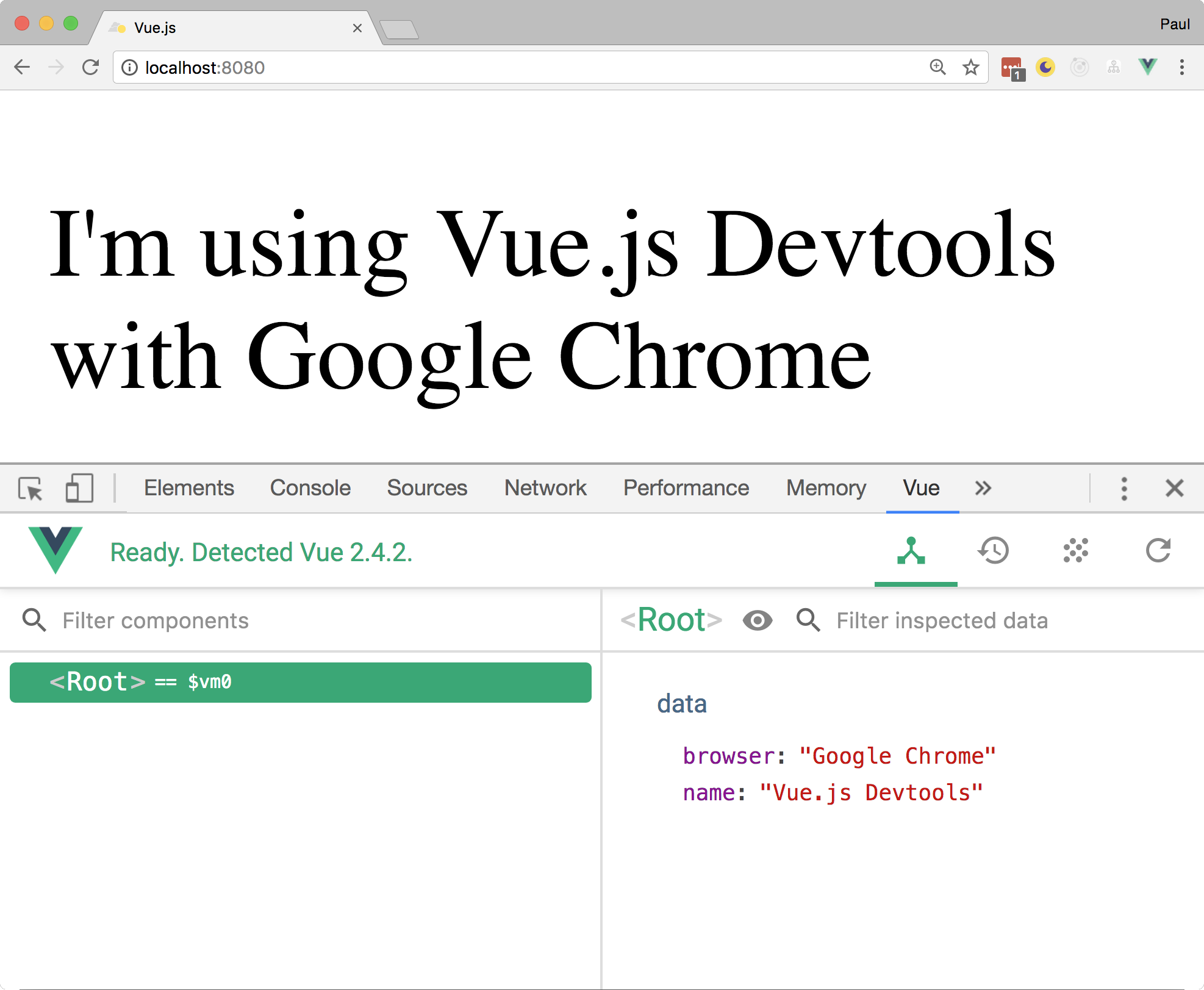
Head over to the Google Chrome Extensions store and download Vue.js devtools (https://goo.gl/Sc3YU1). After installing this, you'll then have access to the Vue panel within your developer tools. In the following example, we're able to see the data object inside of our Vue instance:

<!DOCTYPE html>
<html lang="en">
<head>
<meta charset="UTF-8">
<meta name="viewport" content="width=device-width, initial-
scale=1.0">
<meta http-equiv="X-UA-Compatible" content="ie=edge">
<title>Vue.js</title>
</head>
<body>
<div id="app"></div>
<script src="http://unpkg.com/vue"></script>
<script>
Vue.config.devtools = true
new Vue({
el: '#app',
data: {
name: 'Vue.js Devtools',
browser: 'Google Chrome'
},
template: `
<div>
<h1> I'm using {{name}} with {{browser}}</h1>
</div>
`
});
</script>
</body>
</html>

If we then head over to our browser and open up the devtools we can see that Vue has been detected and that our message has outputted on to the screen:

We'll be using this throughout the book to gain extra insight into our applications. Do be aware that the developer tools will only recognize your Vue project if it is served on a local server.

Vue CLI

To take advantage of all of the features of Vue, we'll be using Vue CLI. This allows us to create projects with various starter templates with appropriate bundling/transpilation configurations. Type the following into your Terminal ensuring Node is installed:

$ npm install vue-cli -g

This sets us up for the future sections as using starter templates significantly empowers our workflow.

Visually different images
CONTINUE READING
83
Tech Concepts
36
Programming languages
73
Tech Tools
Icon Unlimited access to the largest independent learning library in tech of over 8,000 expert-authored tech books and videos.
Icon Innovative learning tools, including AI book assistants, code context explainers, and text-to-speech.
Icon 50+ new titles added per month and exclusive early access to books as they are being written.
Vue.js 2 Design Patterns and Best Practices
notes
bookmark Notes and Bookmarks search Search in title playlist Add to playlist download Download options font-size Font size

Change the font size

margin-width Margin width

Change margin width

day-mode Day/Sepia/Night Modes

Change background colour

Close icon Search
Country selected

Close icon Your notes and bookmarks

Confirmation

Modal Close icon
claim successful

Buy this book with your credits?

Modal Close icon
Are you sure you want to buy this book with one of your credits?
Close
YES, BUY

Submit Your Feedback

Modal Close icon
Modal Close icon
Modal Close icon