One of the great things about working with Angular is that it promotes building applications in a modular and componentized way. In Angular, NgModule (or simply Module) is a way to group an application into logical blocks of functionality. A Module is a TypeScript class with the @NgModule decorator. In the decorator, we define how Angular compiles and runs the code inside the module.
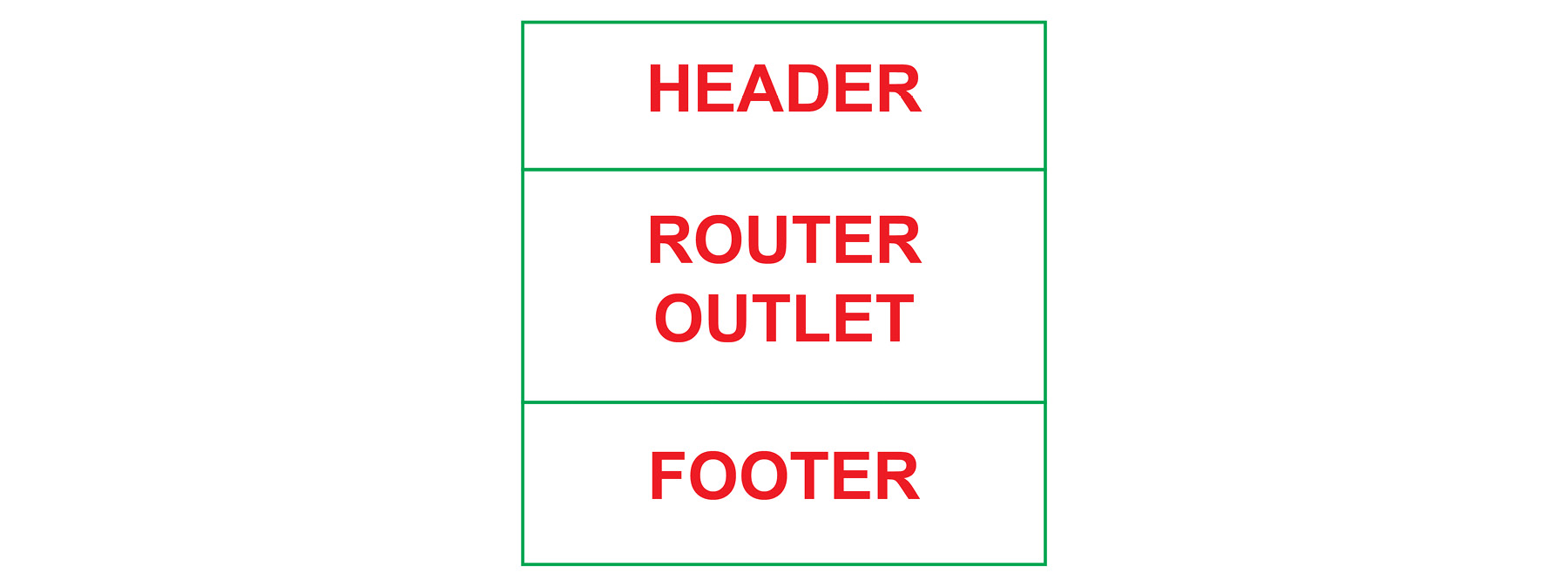
In this chapter, we are going to build a module that groups together the components we want to use in the application's global user interface. We will create a LayoutComponent that consists of a HeaderComponent and a FooterComponent, and in between those we will define the space where the actual application logic will be displayed:
Figure 1.8: Structure of our module
Creating the UiModule
In this section, we will generate the UiModule using the ng command, import the UiModule in the AppModule, and add Router Outlet to the AppComponent.
Exercise 7: Creating the UiModule
Using the ng generate command, we can generate or scaffold out all sorts of code that can be used in an Angular application. In this exercise, we will use the ng generate module command to generate the UiModule. This command has one required parameter, which is the name. In this case, we use ui. Follow these steps to complete this exercise:
- Open the terminal and navigate to the project directory.
- Run the ng generate module command from inside the project directory.
ng generate module ui
CREATE src/app/ui/ui.module.ts (186 bytes)
As you can see by the output of the preceding command, the UiModule is generated in the new folder called src/app/ui.
When we take a look at this file, we can see what an empty Angular module looks like:
import { NgModule } from '@angular/core';
import { CommonModule } from '@angular/common';
@NgModule({
  imports: [
    CommonModule
  ],
  declarations: []
})
export class UiModule { }
Figure 1.9: Generating the UI module
Exercise 8: Importing the UiModule
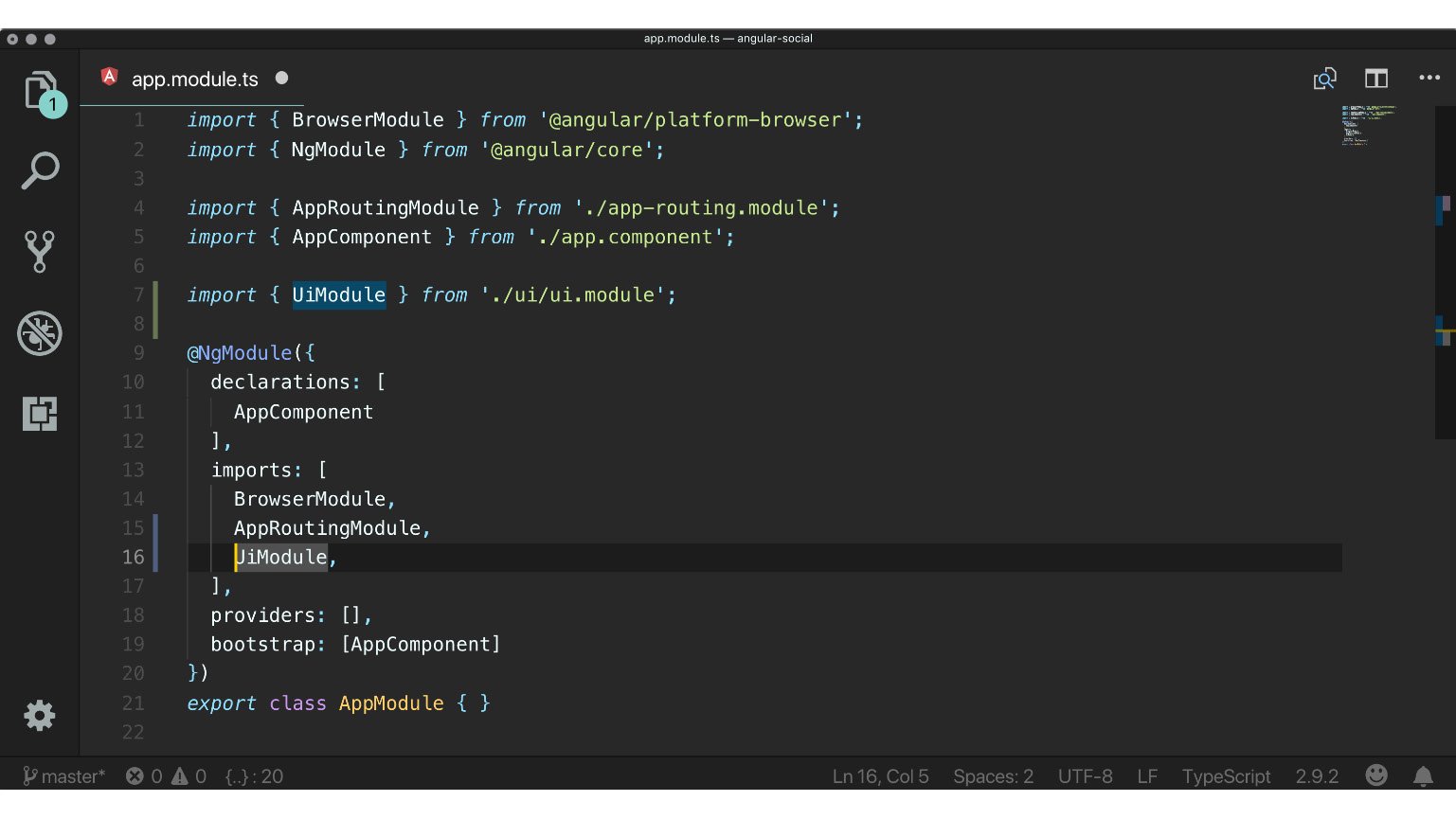
Now that the UiModule has been created, we need to import it from the AppModule. This way, we can use the code inside the UiModule from other code that lives inside the AppModule. Follow these steps to complete this exercise:
- In the editor, open the
src/app/app.module.ts file.
- Add the
import statement at the top of the file:import { UiModule } from './ui/ui.module';
- Add a reference to
UiModule in the imports array inside the NgModule decorator:@NgModule({
...
imports: [
// other imports
UiModule
],
...
})The UiModule has now been created and imported in the AppModule, which makes it ready to use:
Figure 1.10: Importing the UI module
Let's go ahead and create the first component inside the UiModule to make it display in the app!
Exercise 9: Updating the AppComponent Template
When building an Angular app, you generally lean on Angular's router to tie all of the modules and components together. We will build all the application logic in modules and use the AppComponent to display the current route.
For this to work, we need to update the AppComponent template and define the router-outlet component. Follow these steps to complete this exercise:
- In the editor, open the
src/app/app.component.html file.
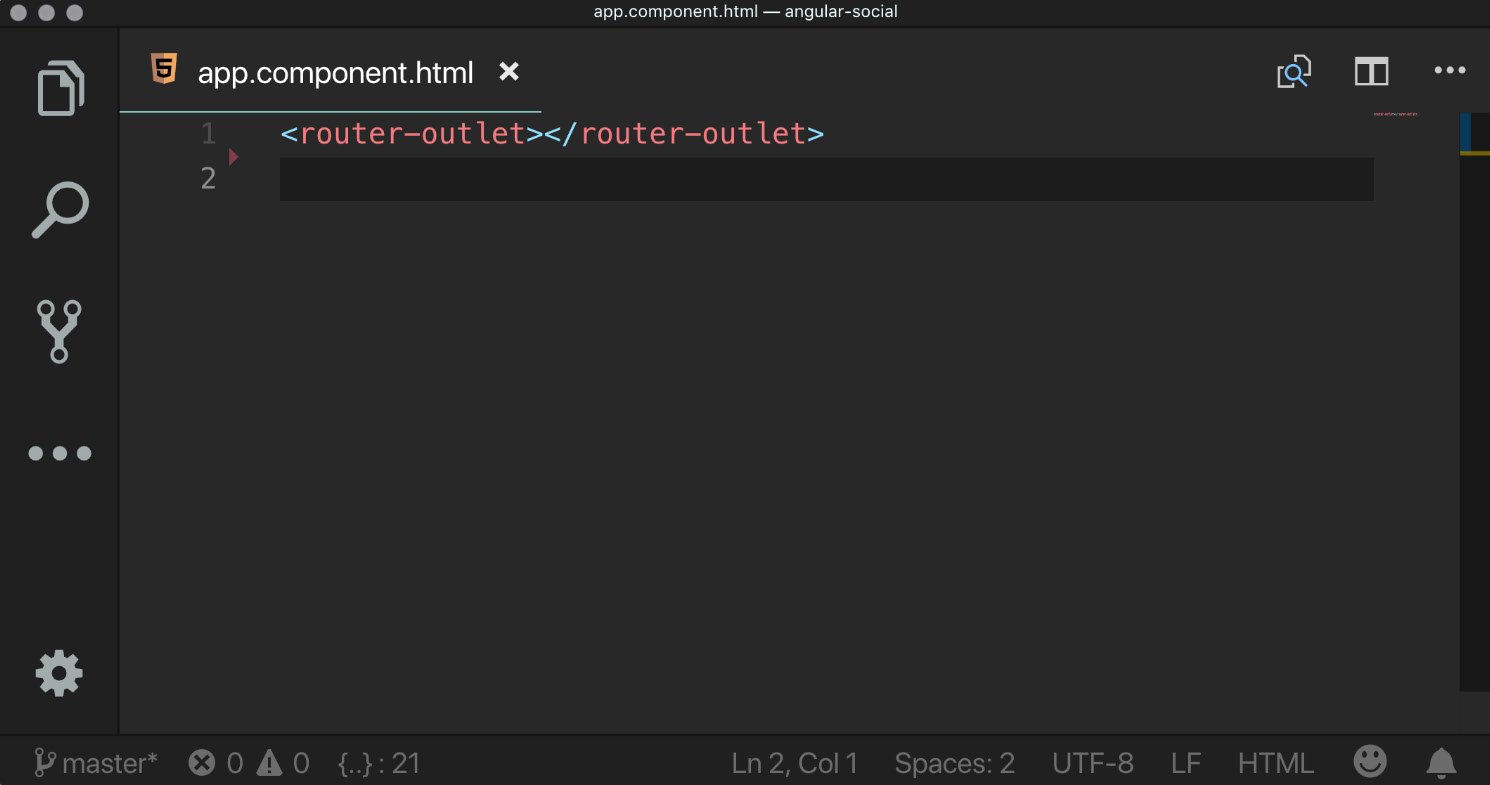
- Remove all of its content and add the following tag:
<router-outlet></router-outlet>
Figure 1.11: Updating the template
After refreshing the app, we should see a blank page. This is because we don't have any routes set up, and thus there is no way that the Angular app knows what to display.
Let's move to the next topic so that we can create the basic layout.
Creating the Layout Component
In this section, you will use ng generate to create the LayoutComponent inside the UiModule, add the LayoutComponent to the AppRoutingModule so that it gets displayed, and implement the template of the LayoutComponent.
The LayoutComponent is the main template of the application. The function of this component is to glue together the HeaderComponent and the FooterComponent and show the actual application pages in between those two.
Exercise 10: Generating the LayoutComponent
In this exercise, we will use the ng generate command to create the LayoutComponent. Follow these steps to complete this exercise:
- Open the terminal in the project directory.
- Run the following command from inside the project directory:
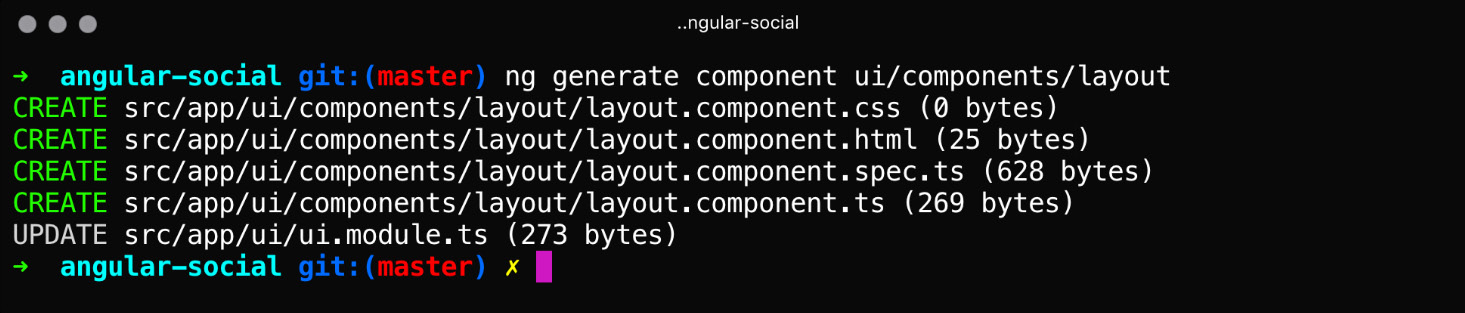
ng generate component ui/components/layout
CREATE src/app/ui/components/layout/layout.component.css (0 bytes)
CREATE src/app/ui/components/layout/layout.component.html (25 bytes)
CREATE src/app/ui/components/layout/layout.component.spec.ts (628 bytes)
CREATE src/app/ui/components/layout/layout.component.ts (269 bytes)
UPDATE src/app/ui/ui.module.ts (273 bytes)
We can see that the component was created in the new src/app/ui/components directory:
Figure 1.12: Generating the layout component
The last line of the output shows us that the UiModule got updated.
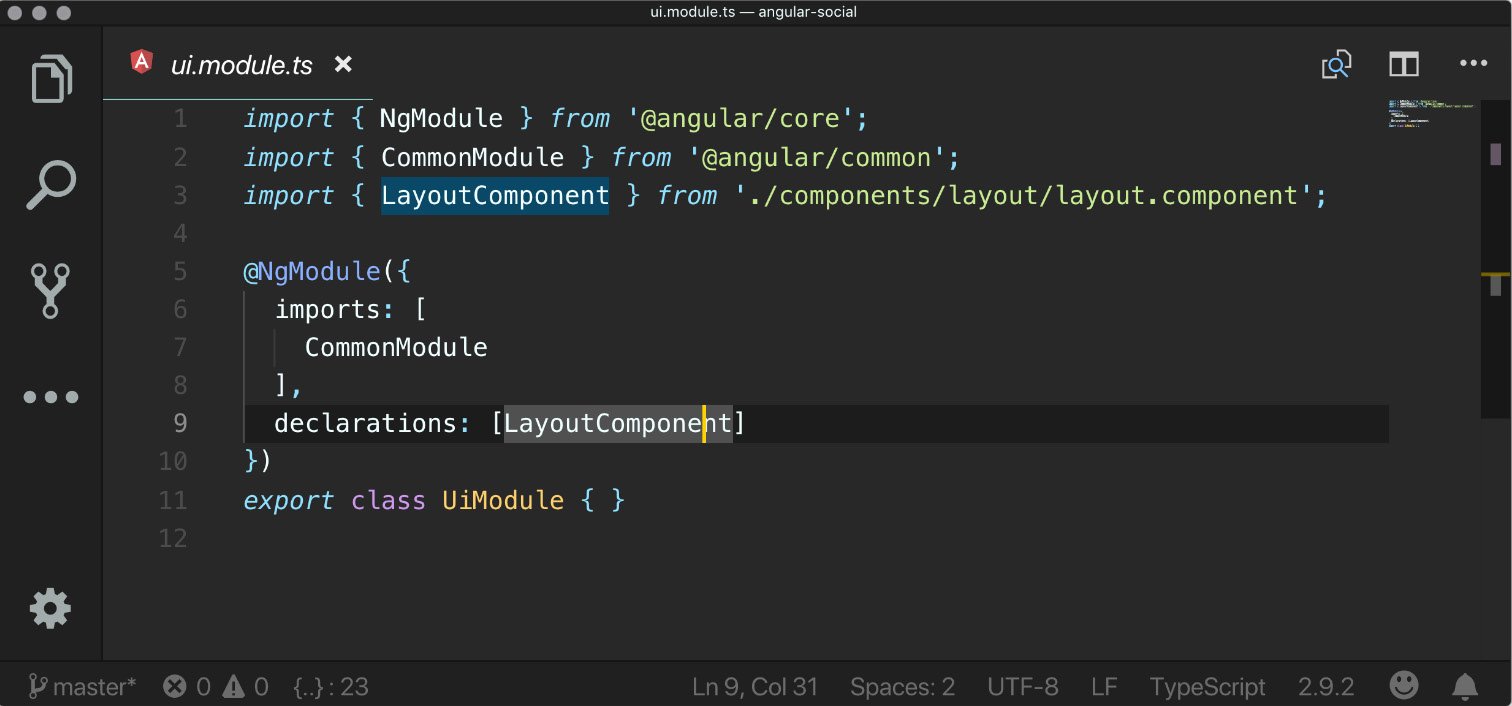
When we open the UiModule in the editor, we can see that it added an import for the LayoutModule and added it to the declarations array in the NgModule decorator.
Using declarations, we declare the existence of components in a module so that Angular knows that they exist and can be used:
import { NgModule } from '@angular/core';
import { CommonModule } from '@angular/common';
import { LayoutComponent } from './components/layout/layout.component';
@NgModule({
  imports: [
    CommonModule
  ],
  declarations: [LayoutComponent]
})
export class UiModule { }
Figure 1.13: Declaring the component
Exercise 11: Adding the LayoutComponent to the AppRoutingModule
As described in the introduction of this section, we will use the LayoutComponent as the base for the whole application. It will display the header, footer, and a router outlet to show the actual application screens. We will leverage Angular's built-in routing mechanism to do this. We will add a new route to the routing array and reference the LayoutComponent in this route's component.
Follow these steps to complete this exercise:
- Open the
src/app/app-routing.module.ts file.
- Add an
import statement to the list of imports at the top of the file:import { LayoutComponent } from './ui/components/layout/layout.component';
- Inside the empty array that is assigned to the
routes property, we will add a new object literal.
- Add the
path property and set its value to an empty string, ''.
- Add the
component property and set its value to reference the LayoutComponent that we just imported.The line of code that we must add to the routes array is as follows:
{
  path: '',
  component: LayoutComponent,
  children: [] ,
}
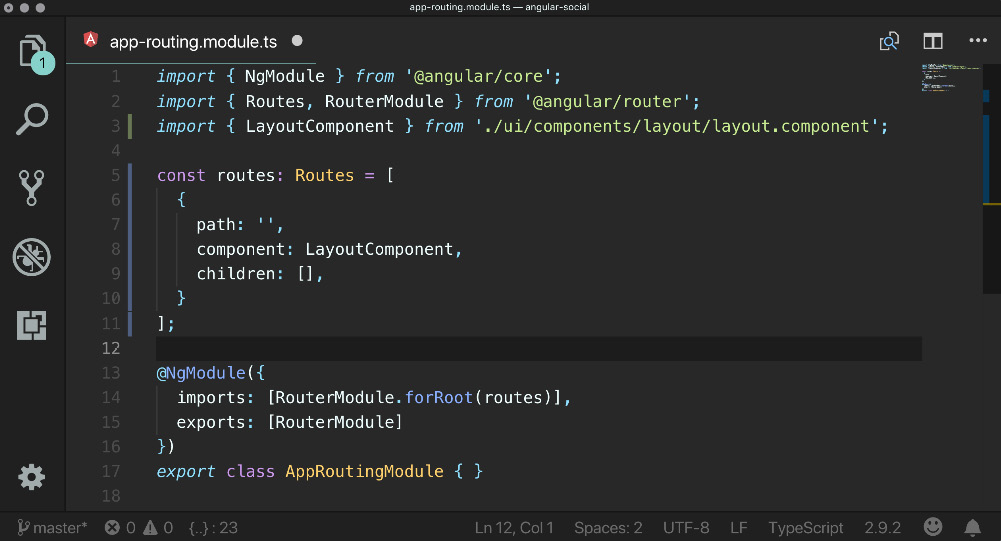
For reference, the complete file should look like this:
import { NgModule } from '@angular/core';
import { Routes, RouterModule } from '@angular/router';
import { LayoutComponent } from './ui/components/layout/layout.component';
const routes: Routes = [
  {
    path: '',
    component: LayoutComponent,
    children: [],
  }
] ;
@NgModule({
  imports: [RouterModule.forRoot(routes)],
  exports: [RouterModule]
})
export class AppRoutingModule { }
Figure 1.14: Adding the LayoutComponent to the AppRoutingModule
When the application refreshes, we should see the text layout works!:
Figure 1.15: Layout component
Exercise 12: Implementing the LayoutComponent Template
In this exercise, we'll get rid of this default text and start implementing the template. Follow these steps to complete this exercise:
- Open the
src/app/ui/layout/layout.component.html file.
- Replace the contents of the file with the following code:
<h1>header placeholder</h1>
<div class="container my-5">
  <router-outlet></router-outlet>
</div>
<h1>footer placeholder</h1>
When we save the file, we will see that the browser outputs a blank page.
Looking in the Console tab from Chrome Developer Tools, we can see that we have an error stating Template parse errors: 'router-outlet' is not a known element:.
Figure 1.16: The router-outlet error
To make the router-outlet available to be used in the LayoutComponent, we need to import the RouterModule in UiModule.
- Open
src/app/ui/ui.module.ts.
- Add an
import statement to the list of imports at the top of the file:import { RouterModule } from '@angular/router';
- Add a reference to the
RouterModule inside the imports array in the NgModule decorator.
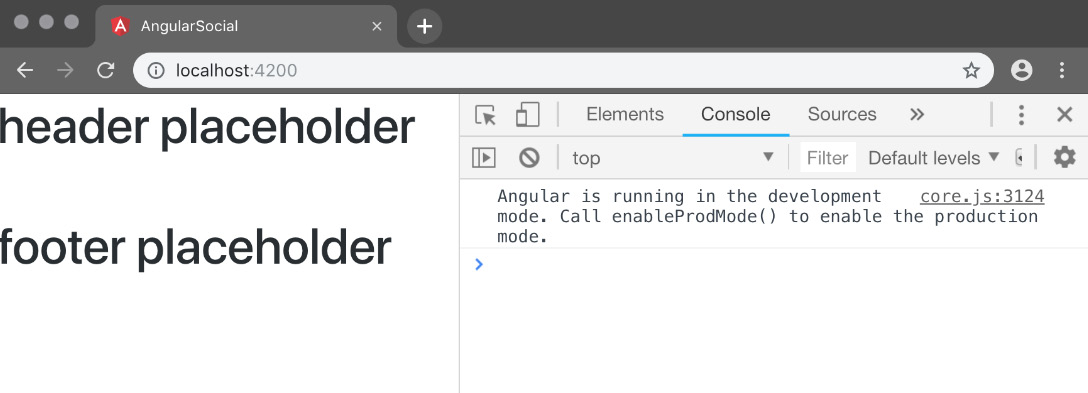
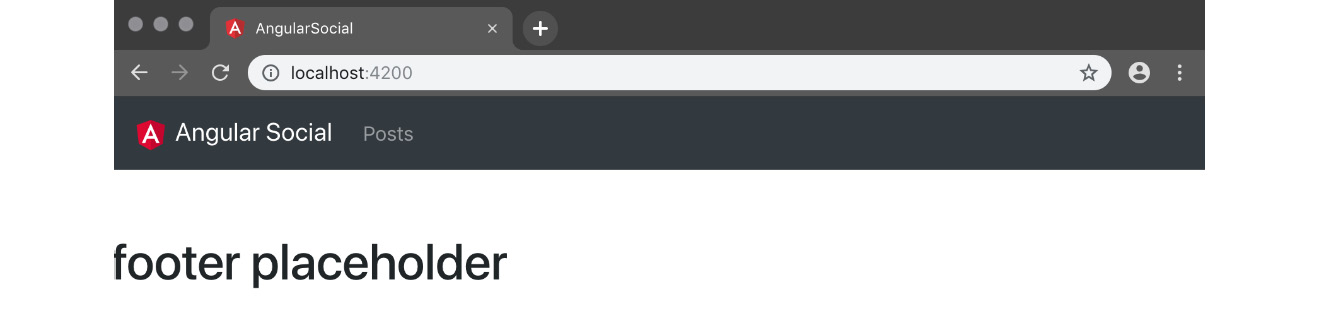
When we now save the file, we should see the placeholders for the header and footer, with some whitespace in-between and the router error gone from the console:
Figure 1.17: The header and footer placeholders
Now that that's done, let's add some content to the placeholders.
Creating the Header and Footer
In this section, you will download a logo to use in the application header, implement the header with a dynamic title and navigation items, and implement the footer with dynamic text.
Downloading the Angular Logo
We will now download the Angular logo and place it in the assets folder:
- Download the
https://angular.io/assets/images/logos/angular/angular.svg file.
- Save the file as
src/assets/logo.svg in the project directory.
Exercise 13: Adding the Header to the LayoutComponent
In this exercise, we will add the header to LayoutComponent. We will define three class properties: a string for the application logo, a title, and an array of objects that represent the navigation items we want to display in the header.
In the template, we will create a Bootstrap navbar consisting of a nav element with some styles, a link with the logo, the title, and the navigation items. Follow these steps to complete this exercise:
- In the editor, open the
src/app/ui/components/layout/layout.component.ts file.
- Inside the component class, we will add some new properties:
public logo = 'assets/logo.svg';
public title = 'Angular Social';
public items = [{ label: 'Posts', url: '/posts'}];
Figure 1.18: Adding the header
- In the editor, open the
src/app/ui/components/layout/layout.component.html file.
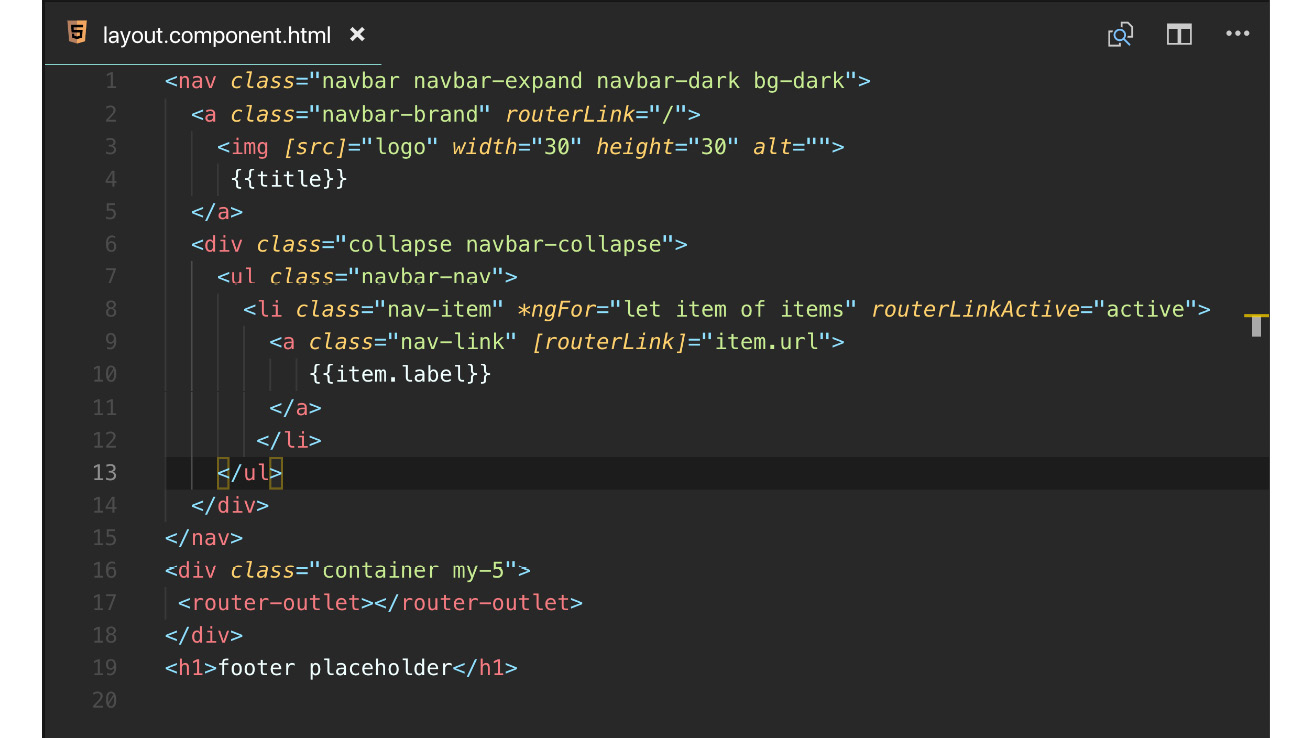
- Replace the contents of the header placeholder with the following markup:
<nav class="navbar navbar-expand navbar-dark bg-dark">
  <a class="navbar-brand" routerLink="/">
    <img [src]="logo" width="30" height="30" alt="">
    {{title}}
  </a>
  <div class="collapse navbar-collapse">
    <ul class="navbar-nav">
      <li class="nav-item" *ngFor="let item of items" routerLinkActive="active">
        <a class="nav-link" [routerLink]="item.url">
          {{item.label}}
        </a>
      </li>
    </ul>
  </div>
</nav>
Figure 1.19: The header markup
When we save this file and check in the browser, we will finally see the first part of the application being displayed:
Figure 1.20: The header
Exercise 14: Adding the Footer to the LayoutComponent
In this exercise, we will add the footer to the LayoutComponent.
We will define two class properties, a string property for the name of the developer and the year.
In the template, we will create another Bootstrap navbar consisting of a nav element with some styles and the copyright message that uses both string properties we defined in our component class. Follow these steps to complete this exercise:
- In the editor, open the
src/app/ui/components/layout/layout.component.ts file.
- Inside the component class, we will add the following property. Don't forget to update the two placeholders with the right data:
public developer = 'YOUR_NAME_PLACEHOLDER';
public year = 'YEAR_PLACEHOLDER';
Figure 1.21: Adding the footer
- In the editor, open the
src/app/ui/components/layout/layout.component.html file.
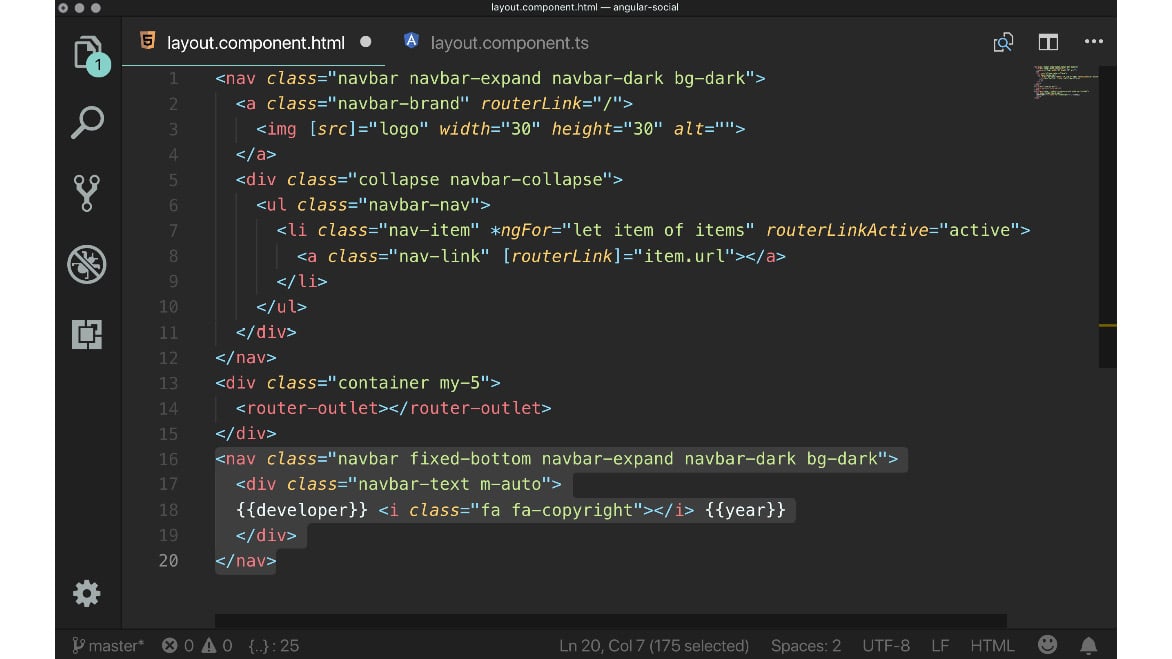
- Replace the footer placeholder with the following markup:
<nav class="navbar fixed-bottom navbar-expand navbar-dark bg-dark">
  <div class="navbar-text m-auto">
  {{developer}} <i class="fa fa-copyright"></i> {{year}}
  </div>
</nav>
Figure 1.22: The footer markup
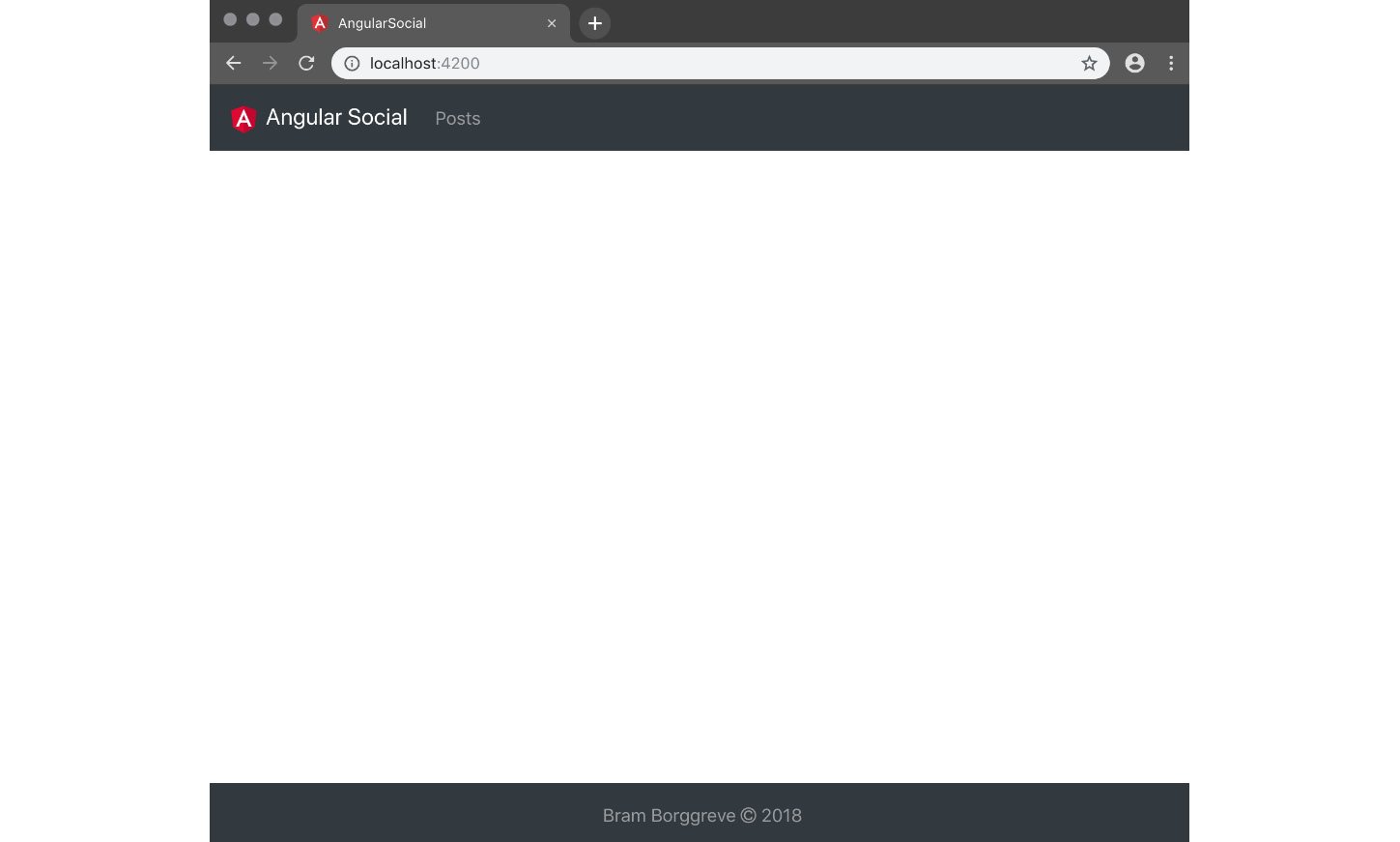
When we save this file and check it in the browser, we will see that both the header and footer are being displayed:
Figure 1.23: The header and footer
We are done with the layout. Let's start building the actual application logic.
We can refactor the UiModule by creating separate components for the header and the footer. The following activities should be completed using the knowledge that you have learned in this section.
Activity 3: Moving the Header to a Separate Component
In this activity, you will create a HeaderComponent in src/app/ui/components/. Reference the HeaderComponent in the LayoutComponent so that it says header works!.
After you have done this, you can copy the header markup and class properties from the LayoutComponent to the HeaderComponent.
The steps are as follows:
- Create a component called
HeaderComponent.
- Use the selector to reference the
HeaderComponent from the LayoutComponent.
- Move the header markup from
layout.component.html to header.component.html.
- Move the header class properties from
layout.component.ts to header.component.ts.Note
The solution for this activity can be found on page 110.
Activity 4: Moving the Footer to a Separate Component
In this activity, we will create a FooterComponent, similar to and based on the instructions from the previous activity.
The steps are as follows:
- Create a component called
FooterComponent.
- Use the selector to reference the
FooterComponent from the LayoutComponent.
- Move the footer markup from
layout.component.html to footer.component.html.
- Move the footer class properties from
layout.component.ts to footer.component.ts.Note
The solution for this activity can be found on page 111.





 Free Chapter