-
Book Overview & Buying
-
Table Of Contents
-
Feedback & Rating
JavaScript from Beginner to Professional
By :
So, we now have lots of context, but how do you actually write JavaScript code? There are some important things to keep in mind, such as how to format the code, using the right indentation level, using semicolons, and adding comments. Let's start with formatting code.
Code needs to be formatted well. If you have a long file with many lines of code and you didn't stick to a few basic formatting rules, it is going to be hard to understand what you've written. So, what are the basic formatting rules? The two most important for now are indentations and semicolons. There are also naming conventions, but these will be addressed for every topic that is yet to come.
When you are writing code, often a line of code belongs to a certain code block (code between two curly brackets { like this }) or parent statement. If that is the case, you give the code in that block one indentation to make sure that you can see easily what is part of the block and when a new block starts. You don't need to understand the following code snippet, but it will demonstrate readability with and without indentations.
Without new lines:
let status = "new"; let scared = true; if (status === "new") { console.log("Welcome to JavaScript!"); if (scared) { console.log("Don't worry you will be fine!"); } else { console.log("You're brave! You are going to do great!"); } } else { console.log("Welcome back, I knew you'd like it!"); }
With new lines but without indentation:
let status = "new";
let scared = true;
if (status === "new") {
console.log("Welcome to JavaScript!");
if (scared) {
console.log("Don't worry you will be fine!");
} else {
console.log("You're brave! You are going to do great!");
}
} else {
console.log("Welcome back, I knew you'd like it!");
}
With new lines and indentation:
let status = "new";
let scared = true;
if (status === "new") {
console.log("Welcome to JavaScript!");
if (scared) {
console.log("Don't worry you will be fine!");
} else {
console.log("You're brave! You are going to do great!");
}
} else {
console.log("Welcome back, I knew you'd like it!");
}
As you can see, you can now easily see when the code blocks end. This is where the if has a corresponding } at the same indentation level. In the example without indentations, you would have to count the brackets to determine when the if block would end. Even though it is not necessary for working code, make sure to use indentation well. You will thank yourself later.
After every statement, you should insert a semicolon. JavaScript is very forgiving and will understand many situations in which you have forgotten one, but develop the habit of adding one after every line of code early. When you declare a code block, such as an if statement or loop, you should not end with a semicolon. It is only for the separate statements.
With comments, you can tell the interpreter to ignore some lines of the file. They won't get executed if they are comments. It is often useful to be able to avoid executing a part of the file. This could be for the following reasons:
There are two ways to write comments. You can either write single-line comments or multi-line comments. Here is an example:
// I'm a single line comment
// console.log("single line comment, not logged");
/* I'm a multi-line comment. Whatever is between the slash asterisk and the asterisk slash will not get executed.
console.log("I'm not logged, because I'm a comment");
*/
In the preceding code snippet, you see both commenting styles. The first one is single-line. This can also be an inline comment at the end of the line. Whatever comes after the // on the line will get ignored. The second one is multiline; it is written by starting with /* and ending with */.
Adding comments:
let a = 10;
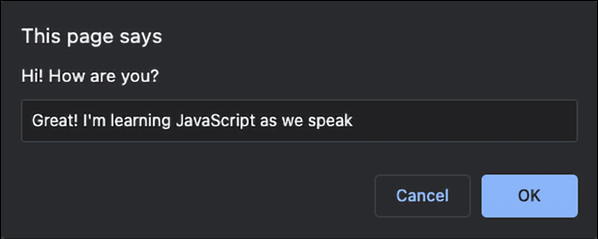
10.console.log(). Add a comment explaining what this will do.Another thing we would like to show you here is also a command prompt. It works very much like an alert, but instead, it takes input from the user. We will learn how to store variables very soon, and once you know that, you can store the result of this prompt function and do something with it. Go ahead and change the alert() to a prompt() in the Hi.html file, for example, like this:
prompt("Hi! How are you?");
Then, go ahead and refresh the HTML. You will get a popup with an input box in which you can enter text, as follows:

Figure 1.5: Page prompting for use input
The value you (or any other user) enter will be returned to the script, and can be used in your code! This is great for getting user input to shape the way your code works.
For the purpose of fun exercises in the early chapters of this book, we would like you to know how to generate a random number in JavaScript. It is absolutely fine if you don't really understand what is going on just yet; just know that this is the command to create a random number:
Math.random();
We can do it in the console and see the result appear if we log it:
console.log(Math.random());
This number will be a decimal between 0 and 1. If we want a number between 0 and 100, we can multiply it by 100, like this:
console.log(Math.random() * 100);
Don't worry, we will cover mathematic operators in Chapter 2, JavaScript Essentials.
If we don't want to have a decimal result, we can use the Math.floor function on it, which is rounding it down to the nearest integer:
console.log(Math.floor(Math.random() * 100));
Don't worry about not getting this yet. This will be explained in more detail further on in the book. In Chapter 8, Built-In JavaScript Methods, we will discuss built-in methods in more detail. Until then, just trust us that this does generate a random number between 0 and 100.