-
Book Overview & Buying
-
Table Of Contents
Frontend Development Projects with Vue.js 3 - Second Edition
By :
In Vue 2.0, Vue defines component methods inside the methods object as part of a Vue instance. You compose each component method as a normal JavaScript function. The Vue method is scoped to your Vue component and can be run from anywhere inside the component it belongs to. It also has access to the this instance, which indicates the instance of the component:
<script>
export default {
methods: {
myMethod() { console.log('my first method'); }
}
}
</script>
From Vue 3.0 onward, with <script setup>, as with local data, you can define a method as a regular function and it will work the same way as with the traditional approach. Hence, we can rewrite the preceding code as follows:
<script setup>
const myMethod = () => { console.log('my first method'); }
</script>
You then can bind the methods to HTML events of an element as its event listeners in the template section. When binding events to HTML elements in Vue, you would use the @ symbol. For example, v-on:click is equivalent to @click, as shown in the following code block:
<template> <button id="click-me" v-on:click="myMethod">Click me </button> <button id="click-me" @click="myMethod">Click me shorter</button> </template>
Clicking on both buttons triggers the same myMethod() method and generates the same result.
Let’s build a component with some methods.
In this exercise, we are going to build a component that uses Vue’s methods API. Consider how similarly these Vue methods can be written to your own named functions in JavaScript, as they behave in a very similar way. By the end of the exercise, we should be able to use methods and trigger them from the HTML template.
To access the code file for this exercise, refer to https://github.com/PacktPublishing/Frontend-Development-Projects-with-Vue.js-3/tree/v2-edition/Chapter01/Exercise1.08
We will build a list of different elements. For each element, we bind an onClick event with a component method, and alert users about the index of the clicked element by performing the following:
npm init vue@3 as a starting point, or within the root folder of the code repository, navigate into the Chapter01/Exercise1.08 folder by using the following commands in order:> cd Chapter01/Exercise1.08/ > yarn
yarn dev
code . command within the project directory) or your preferred IDE.Exercise1-08.vue in the src/components directory.Exercise1-08.vue, within the <script setup> section, let’s define a method, triggerAlert, that receives an index and displays an alert informing users which index has been clicked:<script setup>
const triggerAlert = (index) => {
alert(`${index} has been clicked`)
}
</script>template section, set up an anonymous v-for loop on an HTML list and add a button element inside the list element. Set the loop to iterate 5 times, and display the index value as each button’s label:<template>
<div>
<h1>Triggering Vue Methods</h1>
<ul>
<li v-for="index in 5":key="index">
<button>Trigger {{index}}</button>
</li>
</ul>
</div>
</template>@click directive, referencing the triggerAlert method, and pass the value of index as an argument:<template>
<div>
<h1>Triggering Vue Methods</h1>
<ul>
<li v-for="index in 5" :key="index">
<button @click="triggerAlert(index)">Trigger
{{ index }}</a>
</li>
</ul>
</div>
</template><style>
button {
margin: 10px;
}
</style>
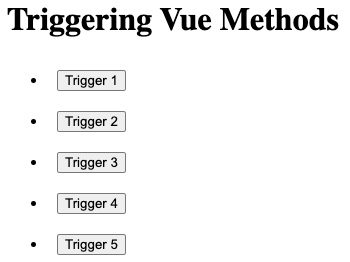
Figure 1.28 – Outputting a list of triggers
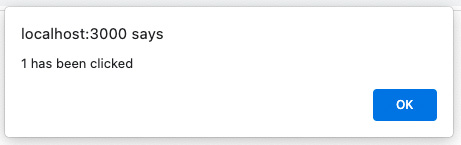
The following prompt is displayed when a trigger is clicked:
Figure 1.29 – Displaying a browser alert with the index number in it
Note
While you can add an event listener to any HTML element, we suggest applying them to native HTML interactive elements such as anchor tags, form input, or buttons to help with browser accessibility.
At this point, you can utilize the Vue methods API to define and trigger methods from the HTML template, and parse arguments into each method dynamically. In the next exercise, we will explore how to return data with Vue methods within a Vue component.
Often, in a web application, we want elements to appear on the page depending on whether a condition is met or not. For instance, if our product is not in stock, our page should display the fact that it is out of stock.
So, let’s figure out how we conditionally render these elements depending on whether our product is in stock or not.
To access the code file for this exercise, refer to https://github.com/PacktPublishing/Front-End-Development-Projects-with-Vue.js/tree/v2-edition/Chapter01/Exercise1.09.
We will build a list of different elements and demonstrate adding different quantities to a cart. Then, we will display the updated cart’s total value in a currency format by performing the following:
npm init vue@3 as a starting point, or within the root folder of the code repository, navigate into the Chapter01/Exercise1.09 folder by using the following commands in order:> cd Chapter01/Exercise1.09/ > yarn
yarn dev
code . command within the project directory), or your preferred IDE.Exercise1-09.vue in the src/components directory.Exercise1-09.vue, within the <script> section, we set up two data objects, totalItems and totalCost, which will be updated when a user clicks on our shop’s buttons:<script>
export default {
data(){
return {
totalCost: 0,
totalItems: 0
}
}
}
</script>template section, we display the value of totalItems and totalCost accordingly:<template>
<div>
<h1>Returning Methods</h1>
<div>Cart({{ totalItems }}) {{ totalCost }} </div>
</div>
</template>script section, let’s create an addToCart method, which will update totalCost and totalItems for the current component based on the received number, n, by using this.totalCost and this.totalItems:<script>
export default {
data() {
/*…*/
},
methods: {
addToCart(n) {
this.totalItems = this.totalItems + 1
this.totalCost = this.totalCost + n
},
},
}
</script>addToCart method to each button, with its index as the function’s input argument:<template>
<div>
<h1>Returning Methods</h1>
<div>Cart({{ totalItems }}) {{ totalCost }} </div>
<ul>
<li v-for="n in 5" :key="n">
<button @click="addToCart(n)">Add {{ n }}
</button>
</li>
</ul>
</div>
</template>10px margin to the button element for readability:<style>
button {
margin: 10px;
}
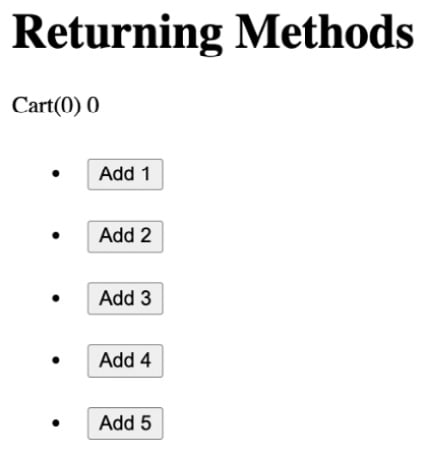
</style>https://localhost:3000 and the output is as follows:
Figure 1.30 – Pressing any of the buttons will demonstrate the cart logic
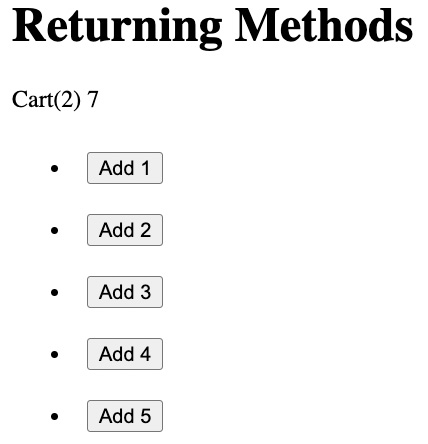
When you click on the buttons, the totalItems counter should increment by 1, but totalCost will increment by the n value, which should demonstrate a normal cart functionality. For example, when clicking Add 2, then Add 5, the output will be as follows:
Figure 1.31 – Output displaying Returning Methods after increments of 2 and 5
totalCost. Create a method called formatCurrency, which accepts one argument. We will return the same value after giving it two decimal points and a $ symbol:<script>
export default {
data() {
/*…*/
},
methods: {
addToCart(n) { /*…*/},
formatCurrency(val) {
return `$${val.toFixed(2)}`
},
},
}
</script><template>
<div>
<h1>Returning Methods</h1>
<div>Cart({{ totalItems }}) {{
formatCurrency(totalCost) }}
</div>
<ul>
<li v-for="n in 5" :key="n">
<button @click="addToCart(n)">Add {{
formatCurrency(n) }}</button>
</li>
</ul>
</div>
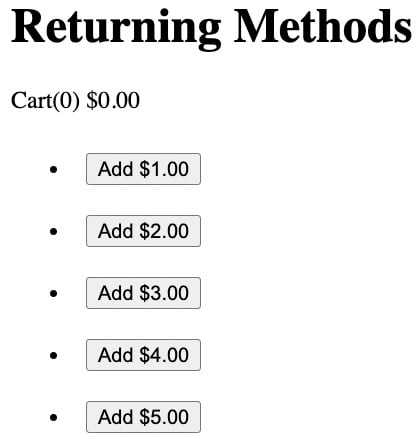
</template>The following screenshot displays the output of the preceding code:
Figure 1.32 – All the values now are in currency format while retaining the cart counter
In this exercise, we were able to utilize Vue’s methods API to parse arguments into methods, return modified values, and use methods to update the local data state in a life-like scenario.
In the next section, we will explore a significant part of a component – the lifecycle and available component hooks in Vue.